00195346-0302_SM_WPC4_EN.pdf - 第76页
SITEST for WPC4 Closing the SITEST Interface 76 Ser vice Manual SIPLACE WPC4 5.4 Closing the SITEST Interface The SITEST user interface can be closed as fo llows: In the main SITEST view, select the button or Open th…
SITEST for WPC4
General
Service Manual SIPLACE WPC4
75
5SITEST for WPC4
5.1 General
With the help of the functions in the SITEST test program, you can set up and calibrate SIPLACE
placement machines. This manual explains the individual SITEST dialog boxes for the WPC4. This
documentation refers to SITEST version 603.01.
The data in the dialog boxes, such as times, travel ranges, lengths or folders are only examples and are
not intended for use as references.
The square brackets contain measurements such as [mm] for millimeters, [s] for seconds etc. If there is
a conversion factor in front of this, the value in the square brackets must be multiplied by this figure.
Examples:
90 [0.1 mm] = 9 mm
3000 [0.01m/s²] = 30 m/s².
The "Help" button has the same function in all dialog boxes and will not be included in the following
explanations. This "Help" button opens the online help and shows the help text for the dialog box
currently open.
5.2 Safety Instructions
5.3 Opening the SITEST Interface
The SITEST user interface can be opened as follows from the main view of the station computer user
interface:
Select the icon from the toolbar
or
Open the View menu and select Start SITEST
or
Press the F11 key and acknowledge the dialog box shown with
Yes
.
DANGER: The SITEST program may only be operated by trained SIPLACE
staff or customer personnel.
X Always observe the general safety instructions in the operating manuals of the respective
SIPLACE machines and the WPC4.
NOTE: The SITEST program can not be opened in the "Operator" access level.
SITEST for WPC4
Closing the SITEST Interface
76 Service Manual SIPLACE WPC4
5.4 Closing the SITEST Interface
The SITEST user interface can be closed as follows:
In the main SITEST view, select the button
or
Open the Mode menu and select Exit
or
Press the Esc key and acknowledge the dialog box shown with
Yes
.
5.5 Selecting Dialog Boxes
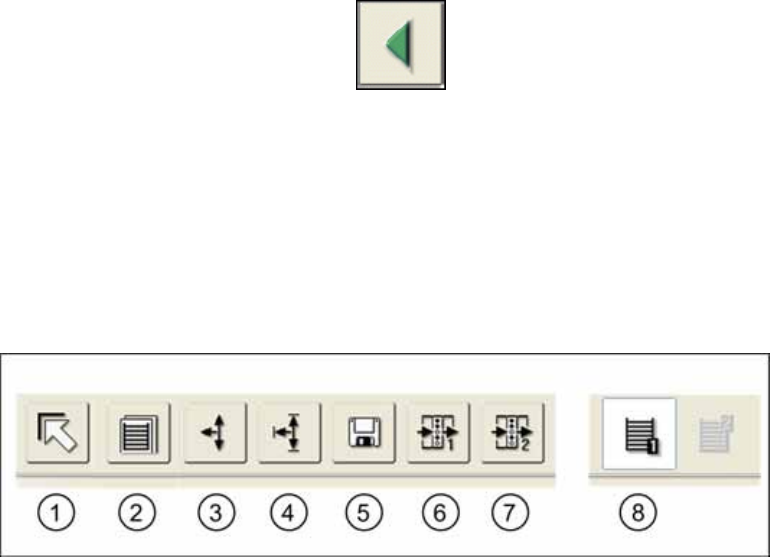
The icons in the footer line allow you to switch over between the individual main dialog boxes.
1. Click on this icon to exit SITEST.
2. Opens the dialog box SITEST - Functions
3. Opens the dialog box SITEST - Axes
4. Opens the dialog box SITEST - Settings
5. Opens the dialog box SITEST - Machine data
6. Opens the dialog box SITEST – Inputs/outputs 1
7. Opens the dialog box SITEST – Inputs/outputs 2
8. Shows that a WPC is connected to the placement machine.
This last icon is designed for the second MTC tower and is not used in this WPC4 SITEST software.
SITEST for WPC4
SITEST Functions
Service Manual SIPLACE WPC4
77
5.6 SITEST Functions
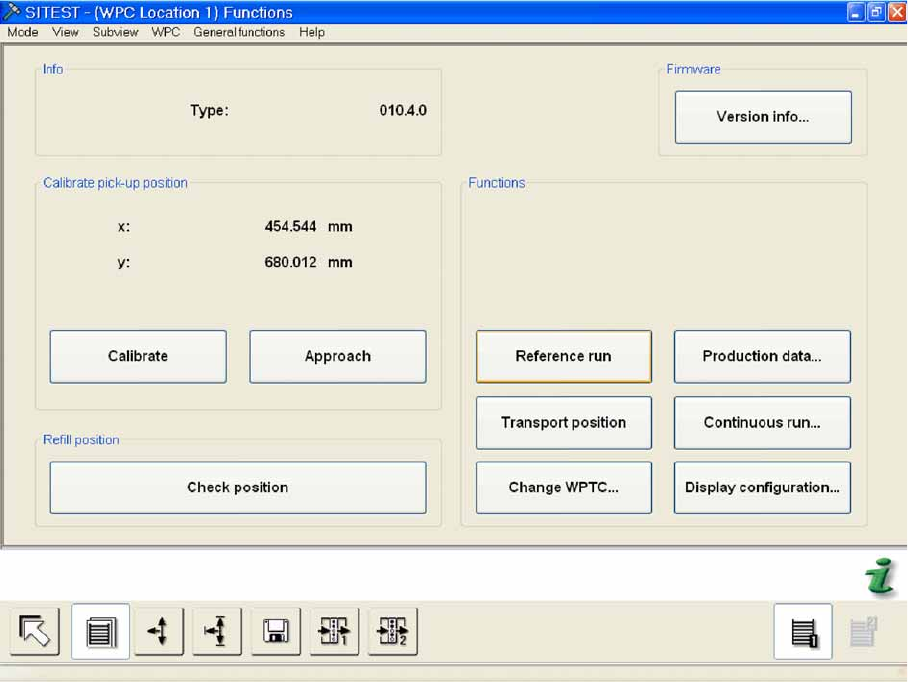
Menu field: Info
Type: Shows the WPC type.
Menu field: Calibrate pickup position
X: Shows the calibration value in the X direction.
If calibration has been performed, the new position value and the previous previous value will be
shown in brackets.
Y: Shows the calibration value in the Y direction.
If calibration has been performed, the new position value and the previous previous value will be
shown in brackets.
Calibrate The fiducial position currently saved is approached and the fiducial is shown in a new
menu on the screen. The fiducial position can be calibrated in this menu.
Approach: The fiducial position currently saved is approached and the fiducial is shown in a new
menu on the screen.
Menu field: Refill position
Check position: The tower is moved to the refill position. You can now check whether all waffle pack
tray carriers can be easily removed.
While the tower is in the refill position, a menu will be shown in which the refill position can be
terminated.