KE2020-Instruction-Manual-ver1.30.pdf - 第480页
7 − 34 ③ Rear W hen you select the [W indow] command from the menu bar, the [Management Inf o.] comm and on the displayed menu, then t he [Rear] com mand, the scr een shown in Figure 7.2.3. 1.3 appears. Figure 7.2.3.1. 3…
7 − 33
① Total
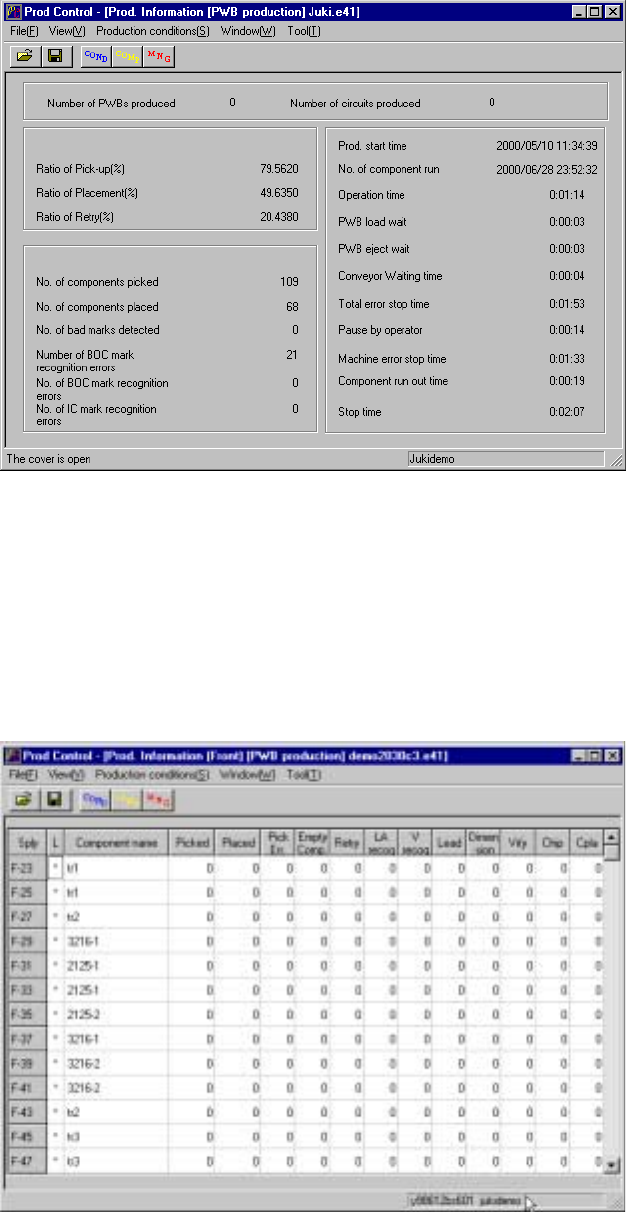
To display the production management information, select the [Window]
command from the menu bar, the [Management Info.] command on the displayed
menu after you select the [Window] command, then the [Total] command. The
screen shown in Figure 7.2.3.1.1 appears.
Figure 7.2.3.1.1 Prod. Information (Total)
② Front
When you select the [Window] command from the menu bar, the [Management
Info.] command on the displayed menu, then the [Left Front] command, the
screen shown in Figure 7.2.3.1.2 appears.
Figure 7.2.3.1.2 Prod. Information (Front)
7 − 34
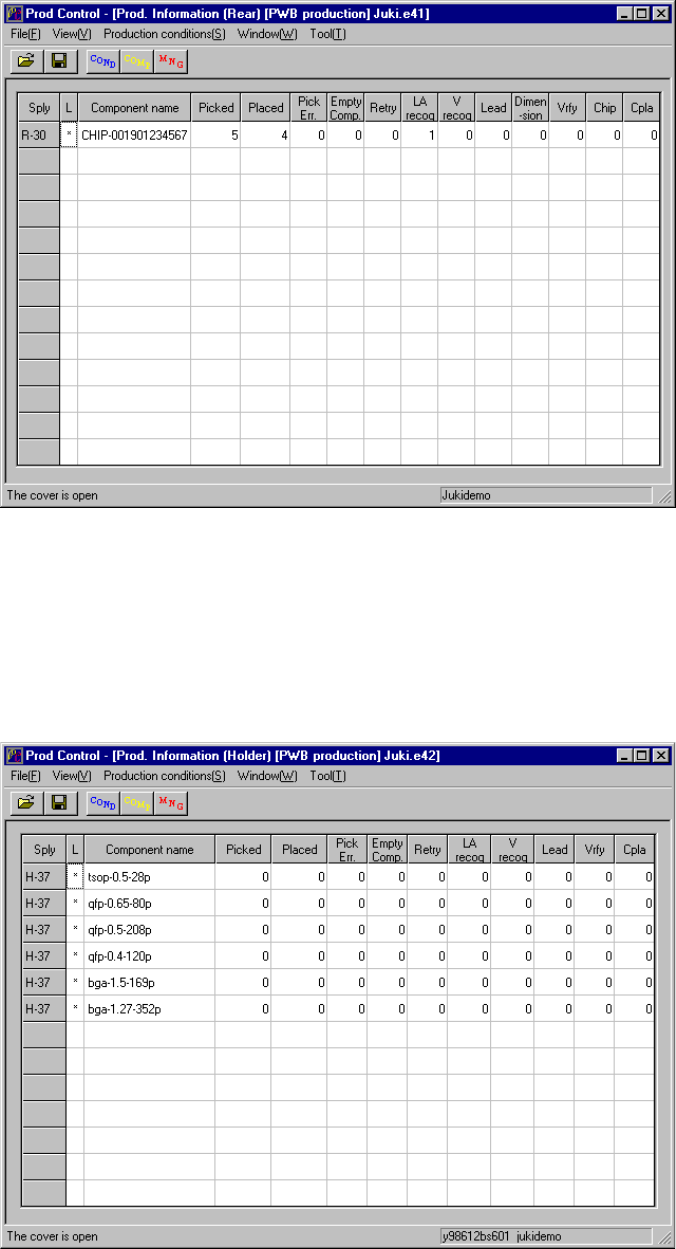
③ Rear
When you select the [Window] command from the menu bar, the [Management
Info.] command on the displayed menu, then the [Rear] command, the screen
shown in Figure 7.2.3.1.3 appears.
Figure 7.2.3.1.3 Prod. Information (Rear)
④ Holder
When you select the [Window] command from the menu bar, the [Management
Info.] command on the displayed menu, then the [Holder] command, the screen
shown in Figure 7.2.3.1.4 appears.
Figure 7.2.3.1.4 Prod. Information (Holder)
7 − 35
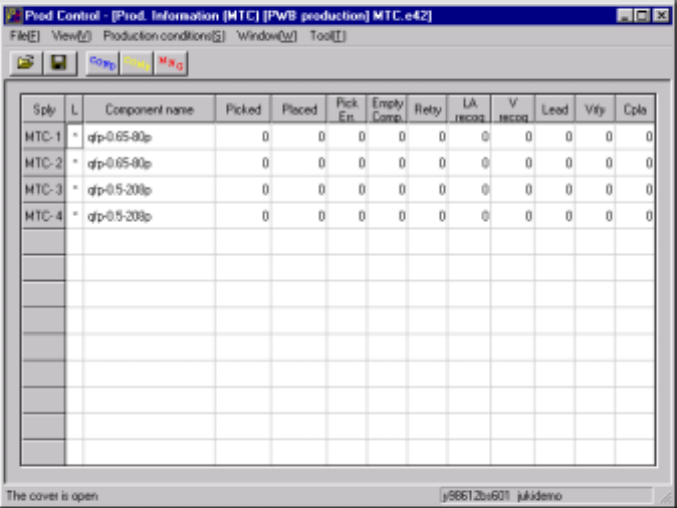
⑤ MTC
When you select the [Window] command from the menu bar, the [Management
Info.] command on the displayed menu, then the [MTC] command, the screen
shown in Figure 7.2.3.1.5 appears.
Figure 7.2.3.1.5 Prod. Information (MTS)
⑥ Clear
To clear the production management information displayed on the screen, select
the [Window] command from the menu bar, the [Management info.] command
on the displayed menu, then the [Clear] command.
7.2.3.2 Storing the production management data
When you perform the "Save" command for a file after production, you can save the
production management information as a file separately.