ISM-1100_INM - 第14页
Quick reference handbook Barcode Reader software Quick reference handbook Barcode Reader software rev_6 Edition 06/2017 - Reproduction forbidden Page 14 To e dit the searching area of 7” reels, you have to select the pro…
Quick reference handbook Barcode Reader software
Quick reference handbook Barcode Reader software rev_6 Edition 06/2017 - Reproduction
forbidden
Page 13
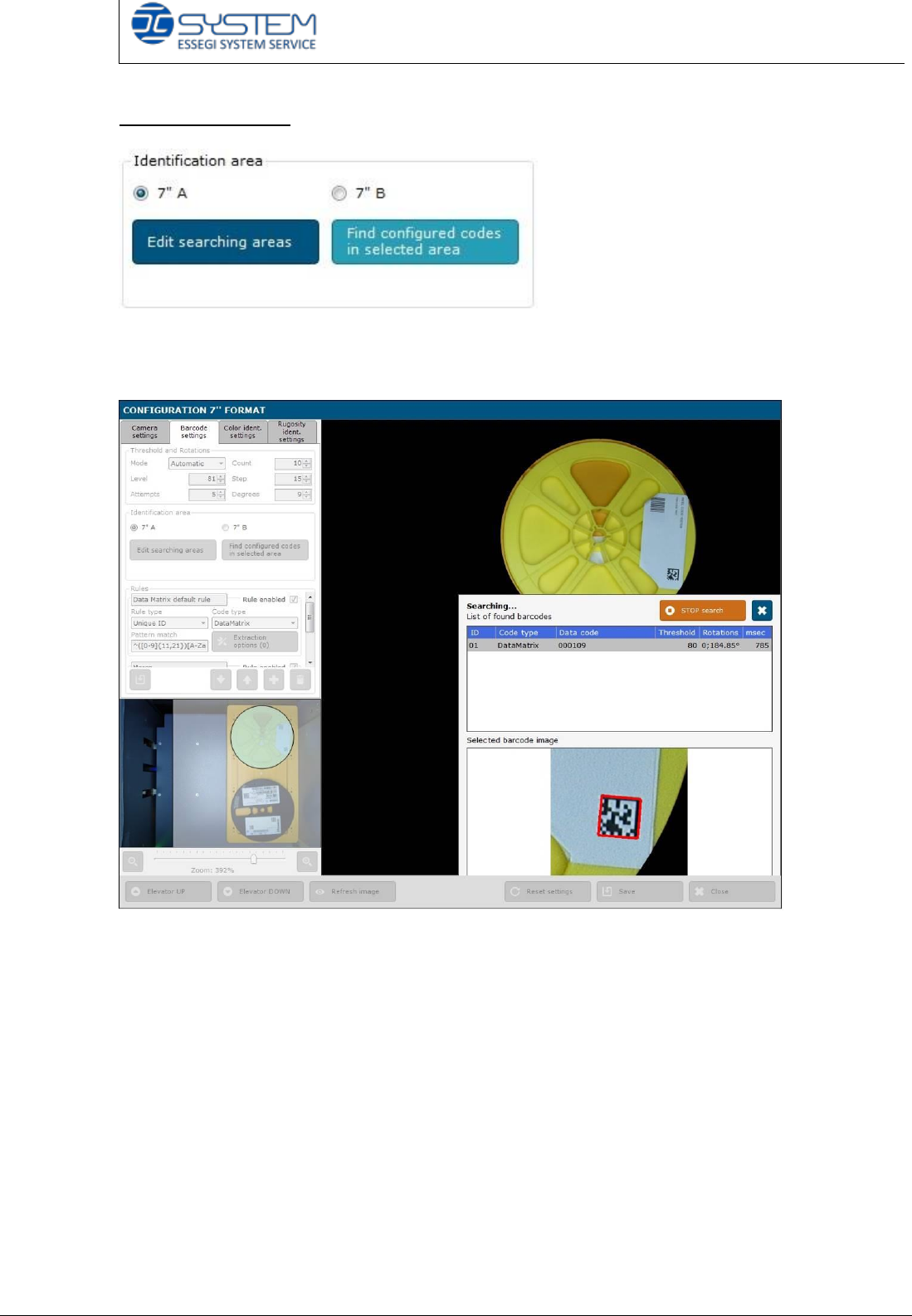
Identification area
In the “identification area” section, there are the “Edit searching areas” and “Find
configured codes in selected area” buttons.
Before selecting one of these two buttons, it is necessary to choose the area to
read: 7” A or 7” B.
Clicking “Edit searching areas”, you can draw the area where the barcode
reader will search the barcode.
With “Find configured codes in selected area” button, you can make a test of
reading of the barcodes.
The results will be shown on the right side: in this window, you can also see
information about “Threshold” and “Rotations”, they are very important in case of
“Fixed” mode settings.
Quick reference handbook Barcode Reader software
Quick reference handbook Barcode Reader software rev_6 Edition 06/2017 - Reproduction
forbidden
Page 14
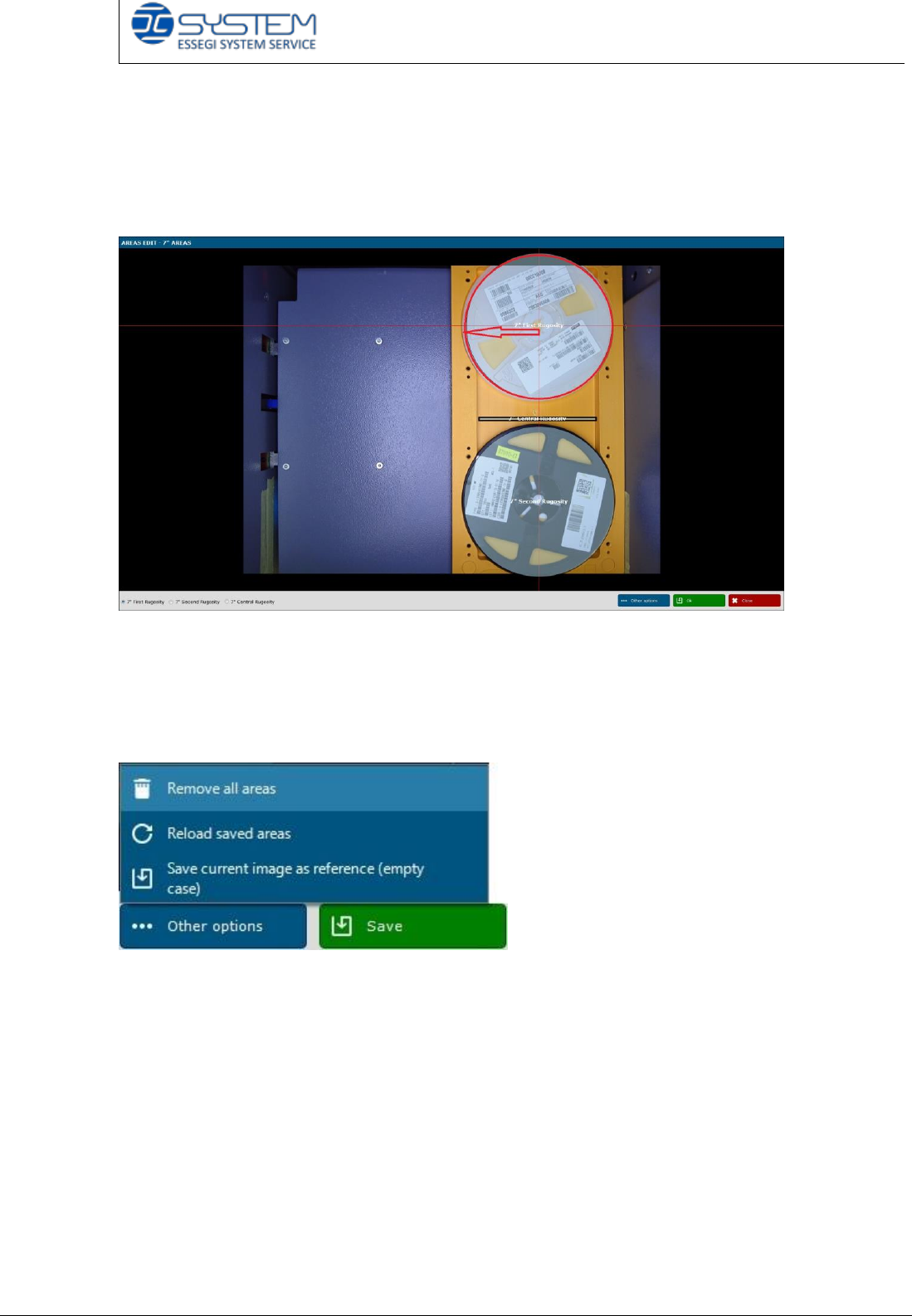
To edit the searching area of 7” reels, you have to select the proper area drawing
area.
To draw the area, it is necessary to click “Edit searching areas” and placing the
cursor in the middle of the reel and moving it until the reel area will totally
covered.
The same operation will be made for the 7” B reel.
For the 7” material, you have to draw the area covering the space between the
two reels.
If you click “Other options”, new options will appear.
Remove all areas: with this option, you can delete all created areas.
Reload saved areas: it is possible to load the areas saved as default.
Save current image as reference (empty case): this operation will be done only
the first time because it is possible to save an empty case as default image.
After drawing the areas, remember to click “SAVE”.
Quick reference handbook Barcode Reader software
Quick reference handbook Barcode Reader software rev_6 Edition 06/2017 - Reproduction
forbidden
Page 15
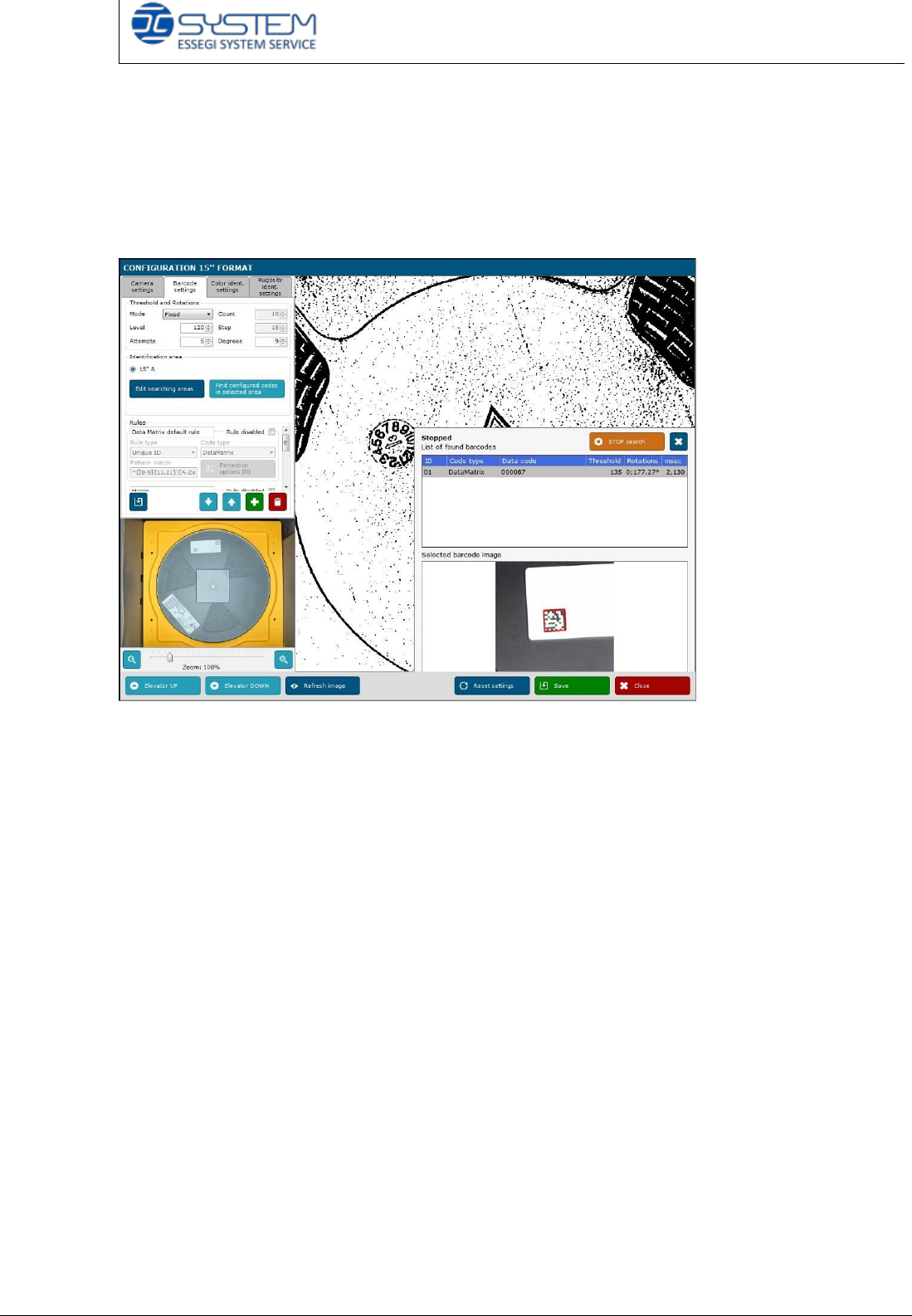
In identification area, you will find 15” A if you access by clicking the “15
configuration” button.
When you draw the 15” reel area, you have to select the whole area of the 15”
reel.
To check if the parameters are corrected, click and “Find configured codes in
selected area” button.