ISM-1100_INM - 第15页
Quick reference handbook Barcode Reader software Quick reference handbook Barcode Reader software rev_6 Edition 06/2017 - Reproduction forbidden Page 15 In identific ation are a, you will find 15” A if you acc ess by cli…
Quick reference handbook Barcode Reader software
Quick reference handbook Barcode Reader software rev_6 Edition 06/2017 - Reproduction
forbidden
Page 14
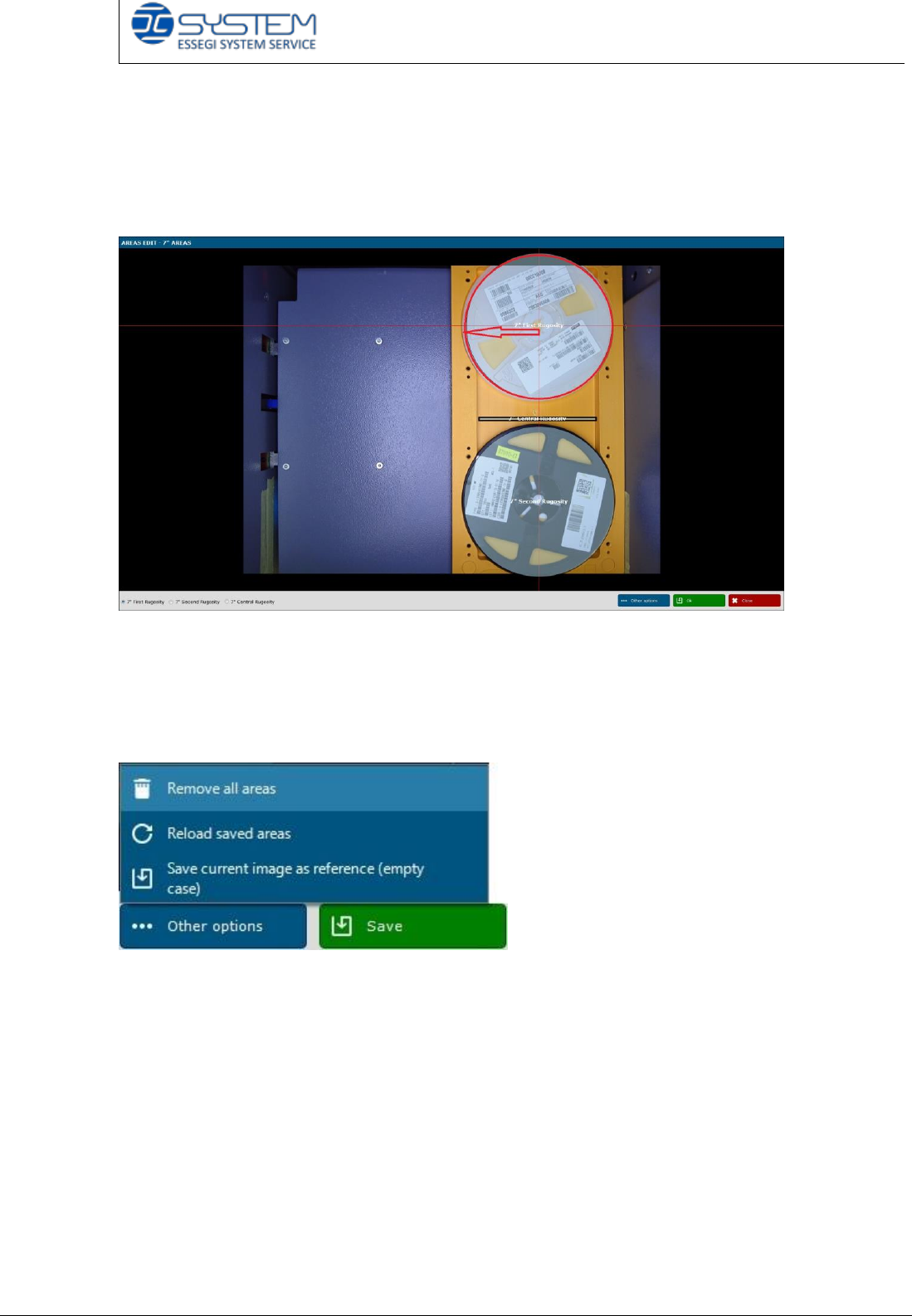
To edit the searching area of 7” reels, you have to select the proper area drawing
area.
To draw the area, it is necessary to click “Edit searching areas” and placing the
cursor in the middle of the reel and moving it until the reel area will totally
covered.
The same operation will be made for the 7” B reel.
For the 7” material, you have to draw the area covering the space between the
two reels.
If you click “Other options”, new options will appear.
Remove all areas: with this option, you can delete all created areas.
Reload saved areas: it is possible to load the areas saved as default.
Save current image as reference (empty case): this operation will be done only
the first time because it is possible to save an empty case as default image.
After drawing the areas, remember to click “SAVE”.
Quick reference handbook Barcode Reader software
Quick reference handbook Barcode Reader software rev_6 Edition 06/2017 - Reproduction
forbidden
Page 15
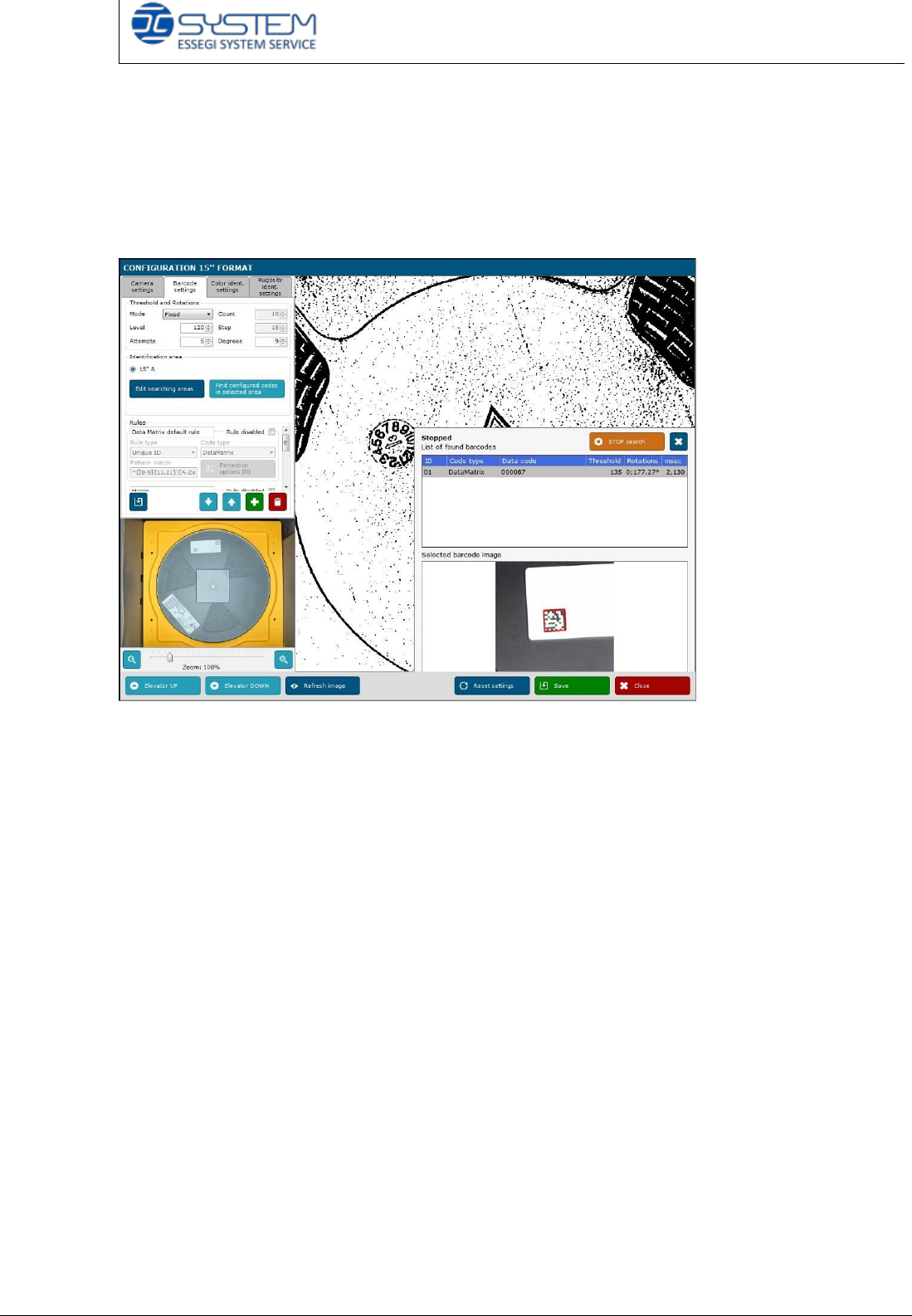
In identification area, you will find 15” A if you access by clicking the “15
configuration” button.
When you draw the 15” reel area, you have to select the whole area of the 15”
reel.
To check if the parameters are corrected, click and “Find configured codes in
selected area” button.
Quick reference handbook Barcode Reader software
Quick reference handbook Barcode Reader software rev_6 Edition 06/2017 - Reproduction
forbidden
Page 16
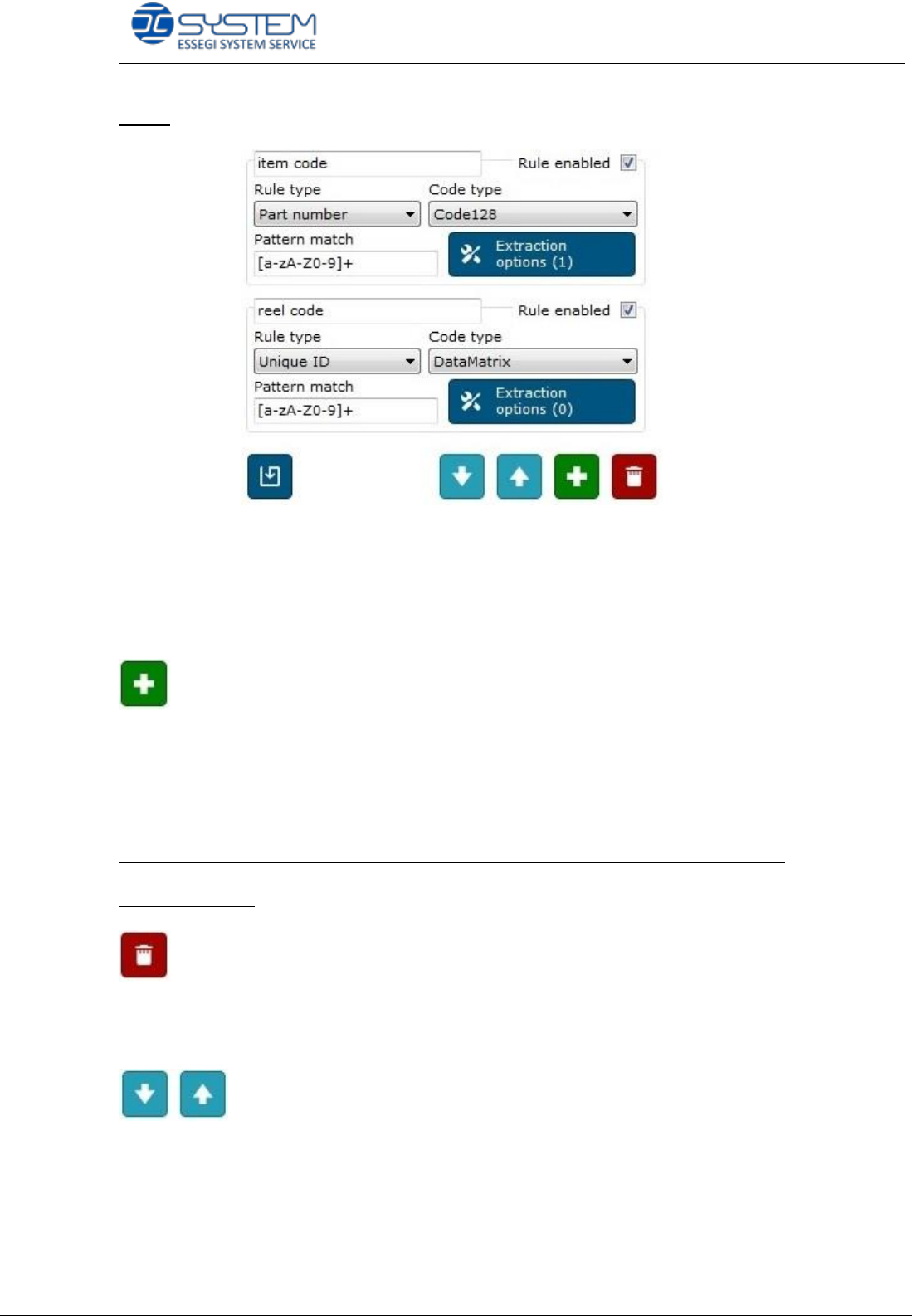
Rules
To decide which barcode the camera has to read, you can use the Rules setting
window to specify:
- barcode types
- any configuration in terms of length, type of digits, prefix, suffix, etc. and
any other rules to prevent the reading of a not desired code
You can create a new rule to read a code. It is possible to create a rule for each
code to read especially in Auto-incoming mode which is an option to activate into
the license (if this option has been purchased by the customer).
The option “Auto-incoming” is activated when the customer has an only one 2D
code (or more 1D codes) which contains more information (Unique code, item,
quantity etc.).
We would like kindly to remind that before making the Auto-incoming procedure,
it is necessary to check if this pay option has been activated into the license and
the userconf file.
This button allows you to cancel a rule created previously. If you do not like to
delete the rule but you want only to disable it, you can remove the flag on the
checkbox “Rule enabled” to disable it.
You can move up or down the rule just created. In case of a very long code
composed by more information, you can decide which information the barcode
reader can search first moving the rule above.