00194994_01.pdf - 第39页
SIPLACE Software Guide Version 408.xx 3 Graphical user interface Issue 03/06 EN 3.3 User interface - vie ws and menus 39 3.3.3 W afflepack Changer 3 Æ Click the icon in the "Feeder" view . The "W afflepa c…

3 Graphical user interface SIPLACE Software Guide Version 408.xx
3.3 User interface - views and menus Issue 03/06 EN
38
Info... 3
This displays information on the currently installed software version (SC version) and general in-
formation on the station computer. 3
NOTE
You can use the key combination CTRL+F1 to call the online Help system from within any view in
the user interface.
You can use the key combination Alt+F1 to call up help on the current view and the key combina-
tion Shift+F1 to access help on menu items, icons and buttons.
A detailed description of the functions in the Help menu can be found in Chapter 6. 3
Æ Click the required menu item in the "Help" menu or press the corresponding key combination.
SIPLACE Software Guide Version 408.xx 3 Graphical user interface
Issue 03/06 EN 3.3 User interface - views and menus
39
3.3.3 Wafflepack Changer
3
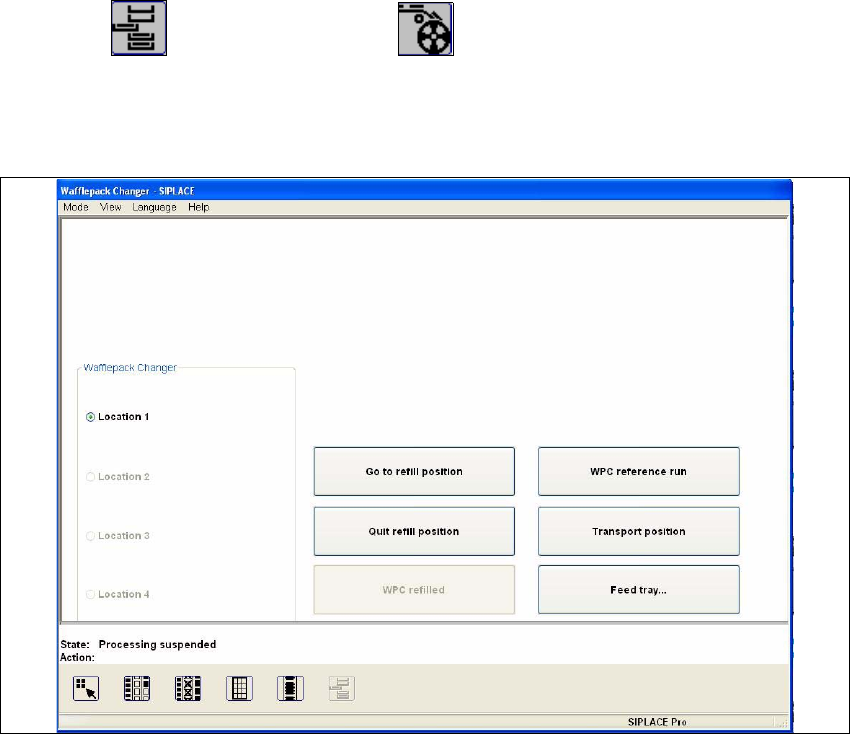
Æ Click the icon in the "Feeder" view .
The "Wafflepack Changer" view is displayed (see Fig. 3.3 - 10).
This view contains all the functions needed for refilling and making available wafflepack trays.3
3
Fig. 3.3 - 10 "Wafflepack Changer" view
Go to refill position 3
To allow the trays in the wafflepack changer to be refilled, they must be moved to the refill position.
This can be done during placement. If, however, the placement head attempts to access compo-
nents from one of these wafflepack trays, placement is interrupted until the refill position has been
quit. This is indicated by an appropriate status message. 3
Æ Activate the radio button corresponding to the location of the wafflepack changer.
Æ Click the Go to refill position button.
The wafflepack changer moves all waffle pack trays to the refill position.
Quit refill position 3
Æ Click the Quit refill position button.
The wafflepack trays specified in the setup are moved to, checked and aligned.

3 Graphical user interface SIPLACE Software Guide Version 408.xx
3.3 User interface - views and menus Issue 03/06 EN
40
WPC refilled 3
As soon as the wafflepack trays which have been identified as being "empty" have been refilled
with components, this must be confirmed, so that the placement head can again access these
trays. This is done using the "WPC refilled" function. 3
Æ Click the WPC refilled button.
This confirms that the wafflepack trays have been refilled.
All the wafflepack trays which have been identified as being "empty" are now regarded as "full".
Placement continues with components from these wafflepack trays.
WPC reference run 3
This function causes the lift of the wafflepack changer to carry out a reference run. 3
NOTE
The wafflepack changer must not be in the refill position when this function is carried out. 3
Æ Click the Stop processing PCB function in the Mode menu.
The current placement operation is halted.
Æ Click the WPC reference run button.
First, any wafflepack tray which has been moved out will be returned to its level. The reference
run is then performed.
Transport position 3
To allow the wafflepack changer to be transported safely, the lift of the waffle pack changer must
be moved to a defined transport position. 3
NOTE
The wafflepack changer must not be in the refill position when this function is carried out. 3