00194994_01.pdf - 第43页
SIPLACE Software Guide Version 408.xx 4 Switching the SIPLACE line on and off Issue 03/06 EN 4.1 Switching on the SIPLACE line 43 4 Switching the SIPLACE line on and off This chapter contains informatio n about switching…
3 Graphical user interface SIPLACE Software Guide Version 408.xx
3.3 User interface - views and menus Issue 03/06 EN
42

SIPLACE Software Guide Version 408.xx 4 Switching the SIPLACE line on and off
Issue 03/06 EN 4.1 Switching on the SIPLACE line
43
4 Switching the SIPLACE line on and
off
This chapter contains information about switching the SIPLACE line on and off. 4
4.1 Switching on the SIPLACE line
4.1.1 Starting the SIPLACE Pro programming system
Æ Start SIPLACE Pro from the Windows NT Start menu:
Start --> Programs --> Siemens SIPLACE
or
Æ Start SIPLACE Pro by clicking the icon on your desktop.
The system then connects to SIPLACE Pro Server and opens up the SIPLACE Pro user interface.4
4.1.2 What to check before switching on the stations
CAUTION
Carry out the steps described below before switching on the stations. 4
Æ Check to make sure that the stations are connected to both the power supply and to the com-
pressed air supply.
Æ Carry out a visual inspection of the stations. In particular, make sure that there are no obstruc-
tions in the traveling range of the gantries.
Æ Make sure that the z-axes of all heads are in the top end position.
Æ Close the feeder covers and the protective covers.
Æ Make sure that there is no diskette in the disk drive of the station computer.
4 Switching the SIPLACE line on and off SIPLACE Software Guide Version 408.xx
4.1 Switching on the SIPLACE line Issue 03/06 EN
44
4.1.3 Switching on the station / Starting the user interface of the SC program
CAUTION
Only switch on the station after the desktop is displayed on the SIPLACE Pro computer monitor.
Otherwise, communication problems may occur. 4
Æ Switch on the station at the main switch and check to see if the manometer displays the re-
quired operating pressure after you have switched the station on.
The station computer software is loaded. If a SIPLACE Pro computer is connected and com-
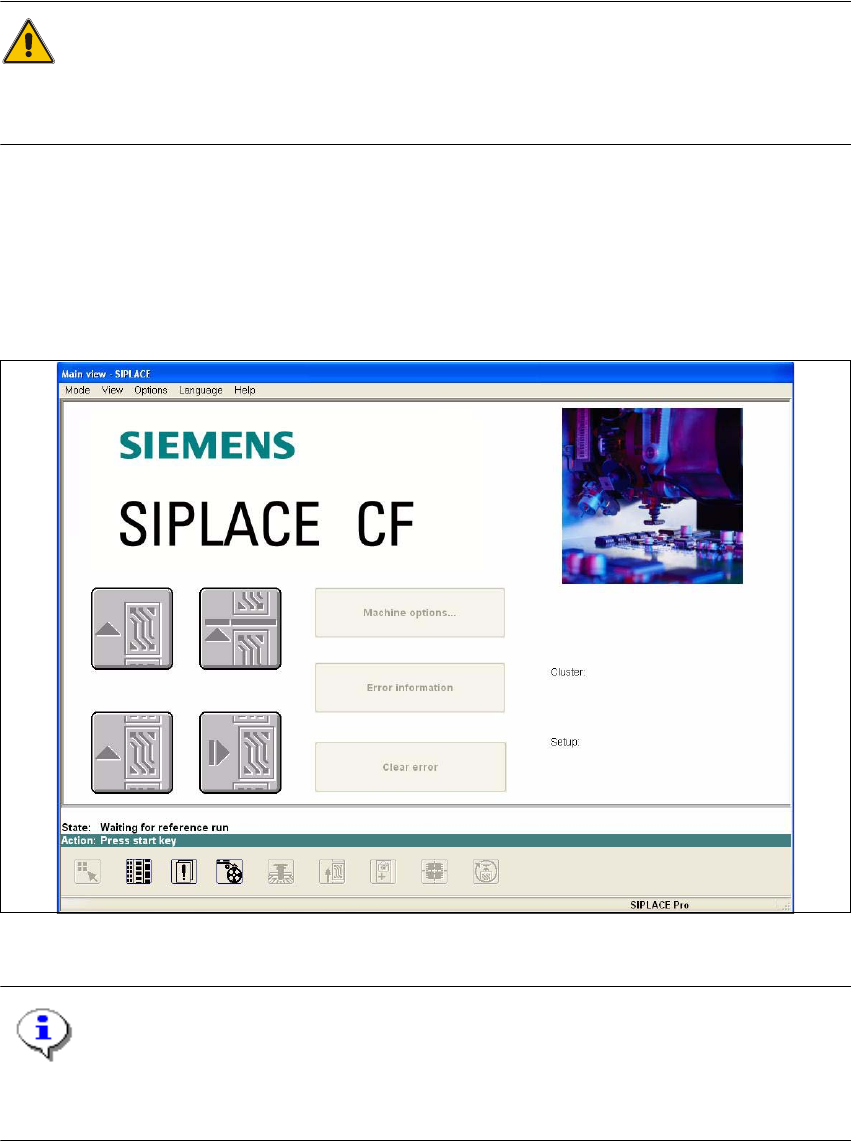
munication is error-free, the Main view of the station computer user interface for the "Operator“
access level appears (see Fig. 4.1 - 1).
4
Fig. 4.1 - 1 Main view after loading the station computer software (example: SIPLACE CF)
NOTE
The current state of the station is displayed in the status field in the "Status“ line, and the action
you are to execute is displayed in the "Action:“ line (see Fig. 4.1 - 1). 4