00194994_01.pdf - 第49页
SIPLACE Software Guide Version 408.xx 5 Error informatio n Issue 03/06 EN 5.1 Ge neral 49 5 Error information 5.1 General If errors occur during operations at the placement station , you can call up information about the…

4 Switching the SIPLACE line on and off SIPLACE Software Guide Version 408.xx
4.2 Switching off the SIPLACE line Issue 03/06 EN
48
Æ Close down the station computer software by selecting Mode --> Shut down computer....
Æ Wait until the computer has shut down completely, and then switch off the station at the main
switch.
NOTE
Wait for about 30 seconds before switching on the station again. 4
SIPLACE Software Guide Version 408.xx 5 Error information
Issue 03/06 EN 5.1 General
49
5 Error information
5.1 General
If errors occur during operations at the placement station, you can call up information about the
possible causes and ways of eliminating the error in question. 5
To do this click the Error information button to start the Help system for the station computer.5
– The information displayed will always be related to the error that is currently displayed on
screen, and from which the Help system was called.
– You can find information about other errors using the help system index. Simply enter the num-
ber of the error you wish to find, and the system will call up the description that belongs to this
error.
5.2 Calling error information
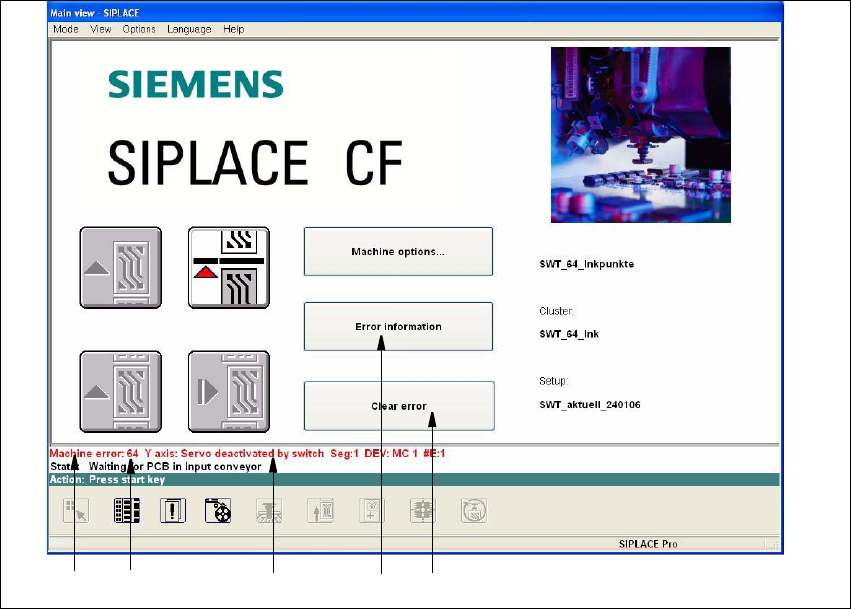
If an error occurs during operation, the appropriate error message is displayed in red in the status
bar of the user interface. The Error information and Clear error buttons are active in the main
view (see Fig. 5.2 - 1). 5
You use the Clear error button to clear an error after the cause of the error has been eliminated.5
5 Error information SIPLACE Software Guide Version 408.xx
5.2 Calling error information Issue 03/06 EN
50
5
Fig. 5.2 - 1 Main view with error message (Example SIPLACE CF)
Key to Fig. 5.2 - 1
(1) Type of error (Track, machine, transport or general error)
(2) Error number (The error number assigned to the error)
(3) Error message (Short information about the error)
(4) "Error information" button (Used to call up help on the current error)
(5) "Clear error" button (Used to acknowledge the error after the cause of the error
has been eliminated)
5.2.1 Displaying information on the current error
Æ
Click the Error information button in the main view.
The main Help system window is opened with information on the currently selected error (see
example in Fig. 5.2 - 3).
12 3 4
5