00194994_01.pdf - 第54页
5 Error info rmation SIPLACE Software Guide Version 408.xx 5.3 Clear error Issue 03/06 EN 54 5.3 Clear error Once an error has been eliminated, it can be cleared. This is not ne cessary in the case of err ors which cause…
SIPLACE Software Guide Version 408.xx 5 Error information
Issue 03/06 EN 5.2 Calling error information
53
5.2.3 Inserting or editing comments on errors
In all the error information views you are able to enter comments which you can then subsequently
edit if necessary. In this way, you can, for example, document the operations which you have per-
formed. If a comment has been created in a view, this is indicated by the presence of a paper clip
icon. 5
Inserting a comment
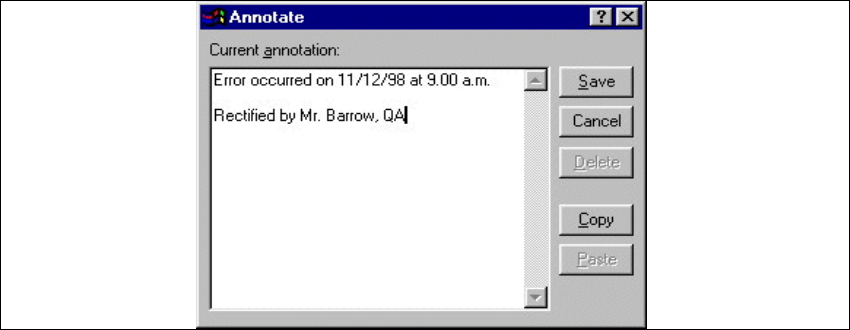
Æ In the online Help system click the Annotate button in the view in question.
The following window is displayed.
Fig. 5.2 - 4 Inserting a comment
Æ Enter the text of your comment in the edit field.
Æ Click the Save button to confirm your input.
The dialog box is closed.
The paper clip icon is now displayed in the current help system view. Click this icon if you want
to open a window in which you can edit this comment.
Deleting a comment
Æ Click the paper clip symbol in the appropriate view.
The dialog box is opened with the stored comment.
Æ Click the Delete button.
The dialog box is closed. The paper clip icon is no longer displayed in the current view.
5 Error information SIPLACE Software Guide Version 408.xx
5.3 Clear error Issue 03/06 EN
54
5.3 Clear error
Once an error has been eliminated, it can be cleared. This is not necessary in the case of errors
which cause a machine stoppage since they are automatically cleared when placement is re-
sumed. 5
Once cleared, the error message is no longer displayed in the status bar. However, it is still en-
tered in the error table for the corresponding error type (see example in Fig. 5.2 - 2). 5
Æ After eliminating the current error, click the Clear error button in the main view.
The error message is deleted from the status bar and placement operation can be continued.

SIPLACE Software Guide Version 408.xx 6 Online Help system
Issue 03/06 EN 6.1 General
55
6 Online Help system
6.1 General
The Help system integrated in the station computer software allows you to call up online Help on
the functions, menus and icons available in the station computer’s user interface as well as to con-
sult general station computer information.
The corresponding sections of this chapter contain more detailed information on the various Help
system functions. 6
6.2 Functions of the "Help" menu
Æ Click Help in the menu bar of the view which is currently active in the SC user interface. The
"Help" menu is opened.
Fig. 6.2 - 1 "Help" menu
This menu contains all the options which are necessary to call up help on the functions of the
station computer user interface, general help on using the Help system operation or information
on the station computer and the installed software. 6
6