00196683-01 - IM Installation Manual Siplace Pro 8.0_en.pdf - 第62页
Installation Manual 7 Troubleshooting SIPLACE Pro 8.0 Edition 03/2010 US 60 Æ In Explorer go to Properties of the SIPLACE Pro folder . Æ Click on Sharing 7 Fig. 7 - 8 SIPLACE Pro folder properties Æ Click on permissions.…
7 Troubleshooting Installation Manual
Edition 03/2010 US SIPLACE Pro 8.0
59
7.1.8 Error - 16xx...
Error description: 7
Message with unspecific error message "Error -16xx ..." is displayed during setup. 7
Cause: 7
SIPLACE Pro's installation program is made up of several programs running simultaneously, and
in this case, the runtime system of the installation may detect errors, which cannot be caught or
handled by the installation program. Therefore the native error messages as provided by the
runtime system are displayed. Examples for such errors are: 7
– Error -1601 The Windows InstallerService could not be accessed.
– Error -1603: Fatal Error During Installation
– Error -1607: Unable to Install InstallShield Scripting Runtime
– Error -1608: Unable to create InstallDriver instance
– Error -1628: Failed to complete script based install
– Solution:
If these or other generic error messages are displayed during installation of SIPLACE Pro, please
refer to the InstallShield Customer Central (http://consumer.installshield.com/common.asp
) for in-
formation on how to handle this case. 7
7.1.9 Access problems of SIPLACE Pro share after client installation
Error Description: 7
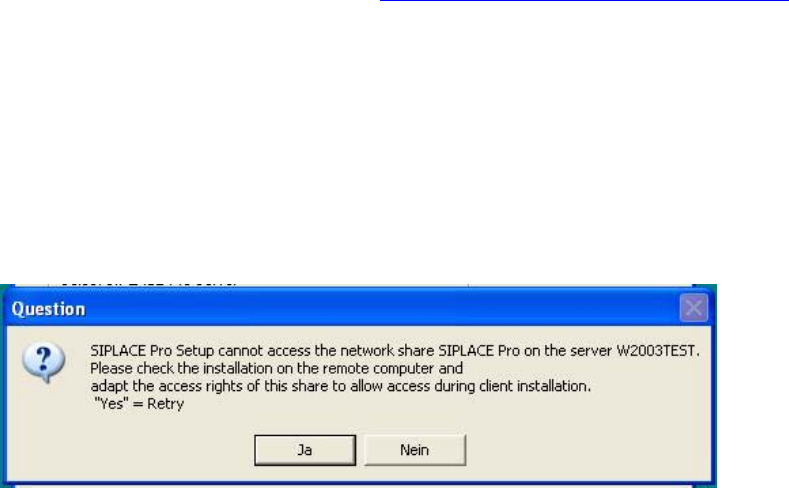
After the first client installation of SIPLACE Pro you can not access the SIPLACE Pro share ...
share on a remote server (may be true for either a SIPLACE Pro server or a Line Control Server
or a pure database server) and following error message is displayed. 7
7
Fig. 7 - 7 Error message during client installlation
Solution: 7
In order to solve the share problem you have to modify the access rights for this share of the
reomote computer as follows: 7
Installation Manual 7 Troubleshooting
SIPLACE Pro 8.0 Edition 03/2010 US
60
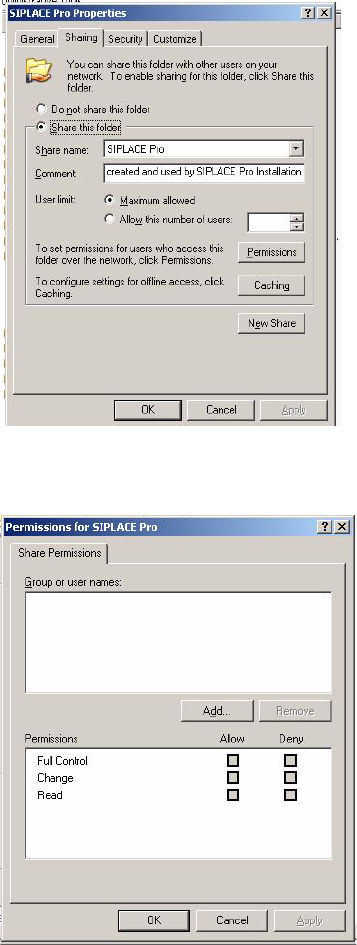
Æ In Explorer go to Properties of the SIPLACE Pro folder.
Æ Click on Sharing
7
Fig. 7 - 8 SIPLACE Pro folder properties
Æ Click on permissions.
7
Fig. 7 - 9 Permissions for SIPLACE Pro
Æ Now you can modify permission rights by adding user groups or names and permissions as
required to access the share from client systems during installation. Please note that the share
is ONLY used during installation of SIPLACE Pro clients which implies that access to the share
is required for users which perform the client installations. If the share permissions are config-
ured once the share won’t need to be changed any more except for SIPLACE Pro is deinstalled
(which will remove the share) and reinstalled again.
7 Troubleshooting Installation Manual
Edition 03/2010 US SIPLACE Pro 8.0
61
7.2 After installation
7.2.1 Database in single user mode after installation of SIPLACE Pro
Error description: 7
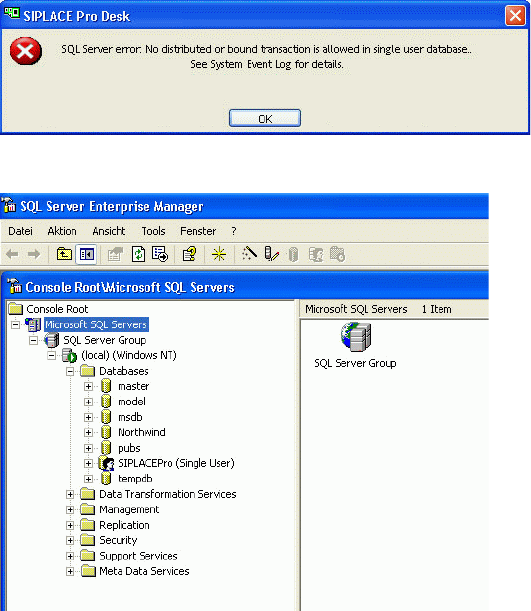
After the installation, the database is in single user mode and SIPLACE Pro can not be started 7
7
Fig. 7 - 10 Single user mode - error message
7
Fig. 7 - 11 Single user mode - SQL Server
Solution: 7
Æ Open SQLServer 2000 EnterpriseManager or SQLServer 2005 Management Studio.
Æ In the tree view locate the server where the SIPLACE Pro database is installed.
Æ Expand the database node and see that the database "SIPLACEPro" is shown with "(Single
User)".
Æ Right-click on the database node "SIPLACEPro".
Æ From the context menu select "Properties".
Æ In the property dialog select the "options" pane.
Æ Uncheck the checkbox "restricted access".
Æ Close the properties dialog.
Æ Check that the database name is now shown without option in brackets.