00196683-01 - IM Installation Manual Siplace Pro 8.0_en.pdf - 第64页
Installation Manual 7 Troubleshooting SIPLACE Pro 8.0 Edition 03/2010 US 62 Æ Close SQLServer EnterpriseManager a nd star t the SIPLACE Pro ap plication as required. 7.2.2 System feature (e.g. creating a report) not usa …
7 Troubleshooting Installation Manual
Edition 03/2010 US SIPLACE Pro 8.0
61
7.2 After installation
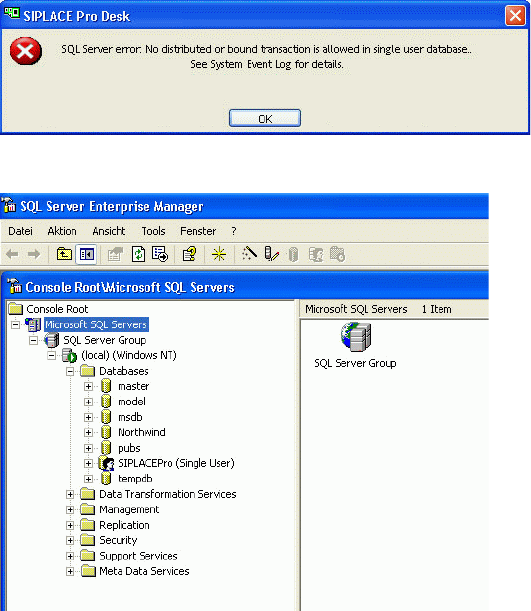
7.2.1 Database in single user mode after installation of SIPLACE Pro
Error description: 7
After the installation, the database is in single user mode and SIPLACE Pro can not be started 7
7
Fig. 7 - 10 Single user mode - error message
7
Fig. 7 - 11 Single user mode - SQL Server
Solution: 7
Æ Open SQLServer 2000 EnterpriseManager or SQLServer 2005 Management Studio.
Æ In the tree view locate the server where the SIPLACE Pro database is installed.
Æ Expand the database node and see that the database "SIPLACEPro" is shown with "(Single
User)".
Æ Right-click on the database node "SIPLACEPro".
Æ From the context menu select "Properties".
Æ In the property dialog select the "options" pane.
Æ Uncheck the checkbox "restricted access".
Æ Close the properties dialog.
Æ Check that the database name is now shown without option in brackets.
Installation Manual 7 Troubleshooting
SIPLACE Pro 8.0 Edition 03/2010 US
62
Æ Close SQLServer EnterpriseManager and start the SIPLACE Pro application as required.
7.2.2 System feature (e.g. creating a report) not usable right after installation
Error description: 7
In rare cases it is possible that parts of the system are only installed when a specific feature (e.g.
reporting) is used for the first time after installation. If the SetupCD is available in the drive from
where the software has been installed, this post-installation is automatically performed. 7
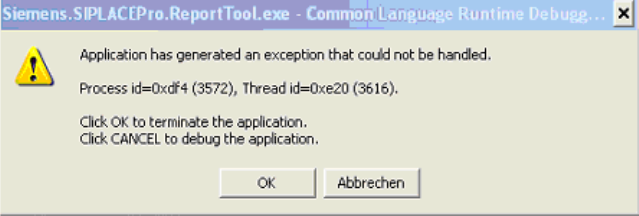
If the SetupCD is not in the drive (which is most likely the case), invocation of that feature will fail
and produce error messages like "could not load DLL" or even more cryptic like in the following
screenshot. 7
7
Fig. 7 - 12 Error message
Solution: 7
If you experience such messages after installation, please check in the Event Log to see if the
error message is in fact caused by a failed post-installation. Plese follow these steps to to this: 7
Æ To open the Event Viewer, go to Start Menu ->Run, enter "eventvwr" and click OK.
Æ Select "Application Log".
All logged application events will be displayed. The latest is at the top of the list.
Æ Check for entries of type "Error" from Source "Msilnstaller" at the correct time. If you find such
entries with a timestamp matching the time when you received the error, it is likely that a post-
installation has been invoked and failed due to the missing Setup CD.
Æ If no such entries are found in the eventlog, the error message has another unknown reason.
7
If the above check has had a positive result (point 3 above), the problem can be solved by: 7
Æ inserting the SetupCD in the drive from where you installed the software. If you installed from
a network drive, be sure that you use the same share with the same drive letter.
Æ or by trying to reinvoke the feature which just failed. As soon as the post-installation has been
performed (with or without user feedback), the feature should start as expected. If it doesn‘t,
the error message has another unknown reason.

7 Troubleshooting Installation Manual
Edition 03/2010 US SIPLACE Pro 8.0
63
Note
Make sure that you log in using an account with administrator rights. 7