AOI_RS_v85_en - 第11页
Chapter 1 Installation Pr ocess AOI Repair Station 7 Step6. If there is any other question asked during the installation, just select [Next], [Install] or [Nex t]. Step7. The inst allation password is [TRI]. Step8. Y ou …
Chapter 1 Installation Process
AOI Repair Station
6
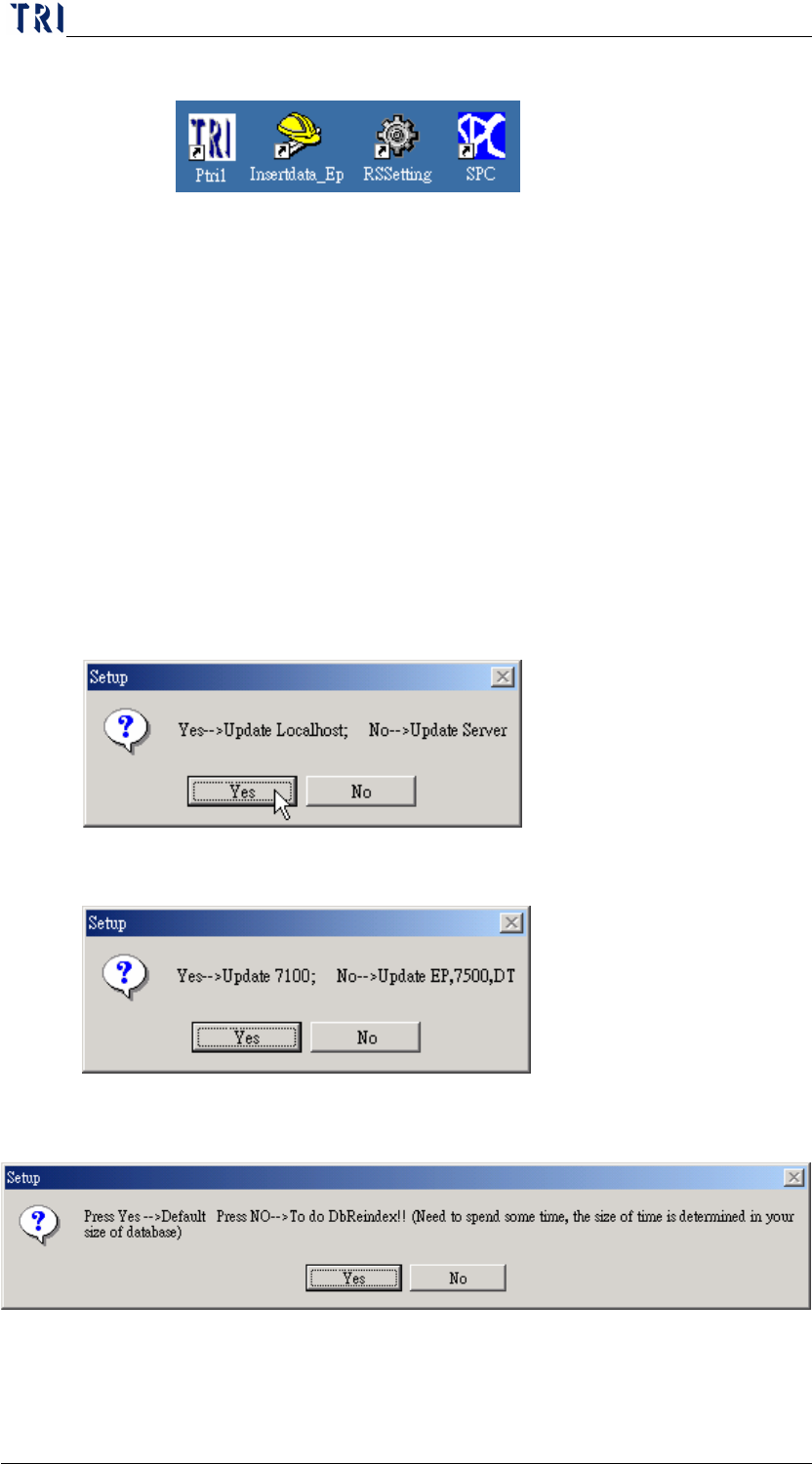
Step8. It shows the shortcut automatically.
Step9. Restart the computer.
4 The upgrading of program
You only have to execute [update.exe] for an installed program. All
information among database can’t be deleted or changed after edition
upgrade.
You can open the file, [C:\AOI\rsinstall\UpdateList.txt], to inquire about the
changes of the current version and content of every version.
The process is as the following:
Step1. Close all programs. (InsertData.exe, Ptri1.exe, SPC.exe)
Step2. Execute [update.exe] file.
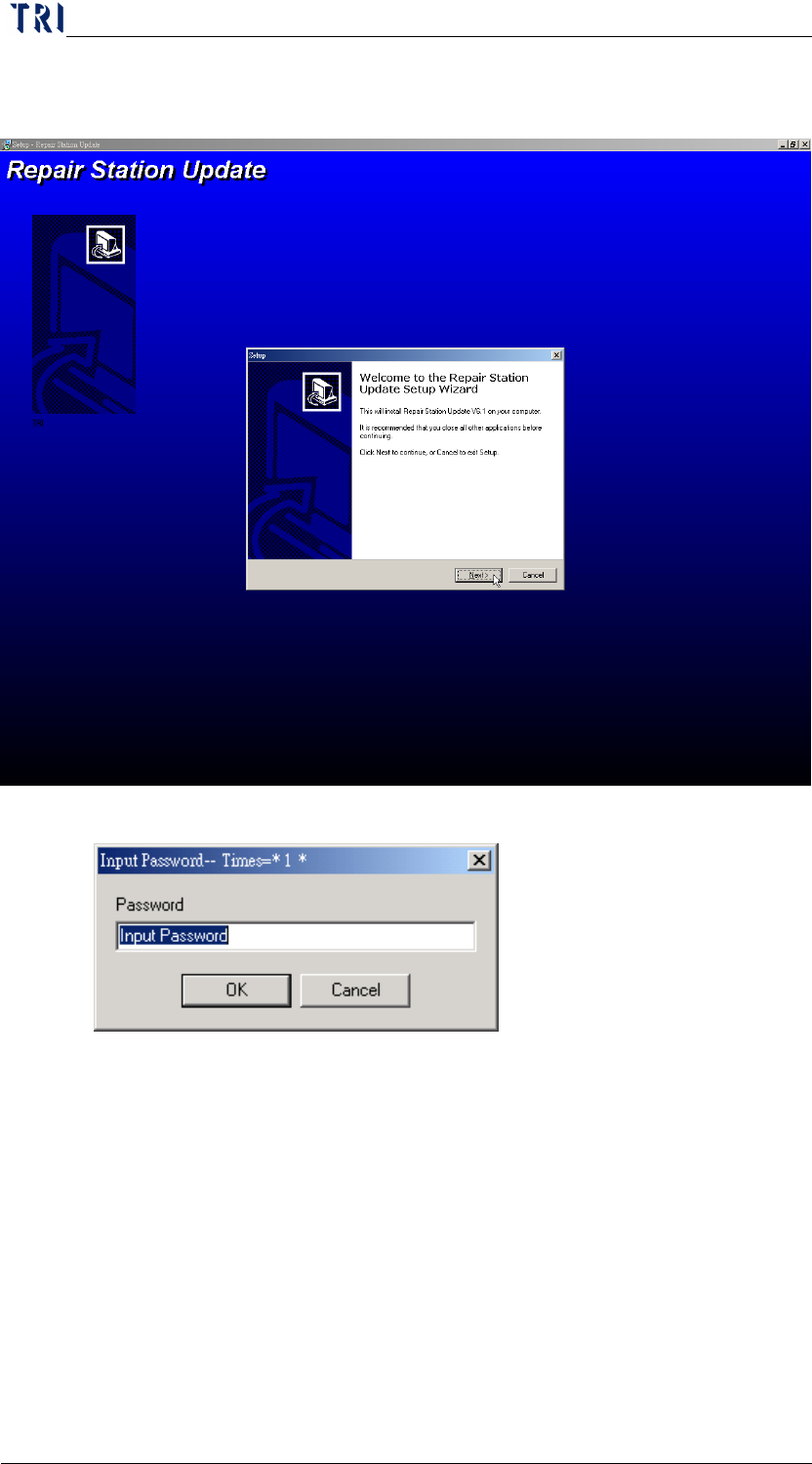
Step3. The following window is appeared. Selecting [Yes] is to update the
single version and [No] is to update the server version.
Step4. Then the following window is appeared. Selecting [Yes] is to link
to TR7100 and [No] is to link to TR7100EP or TR7500 series.
Step5. Then the following window is appeared. Selecting [No] is to do DB
Reindex, and [Yes] is not to do.
Chapter 1 Installation Process
AOI Repair Station
7
Step6. If there is any other question asked during the installation, just
select [Next], [Install] or [Next].
Step7. The installation password is [TRI].
Step8. You can start to use the program after installation and don’t need to
restart the computer.
5 Uninstallation
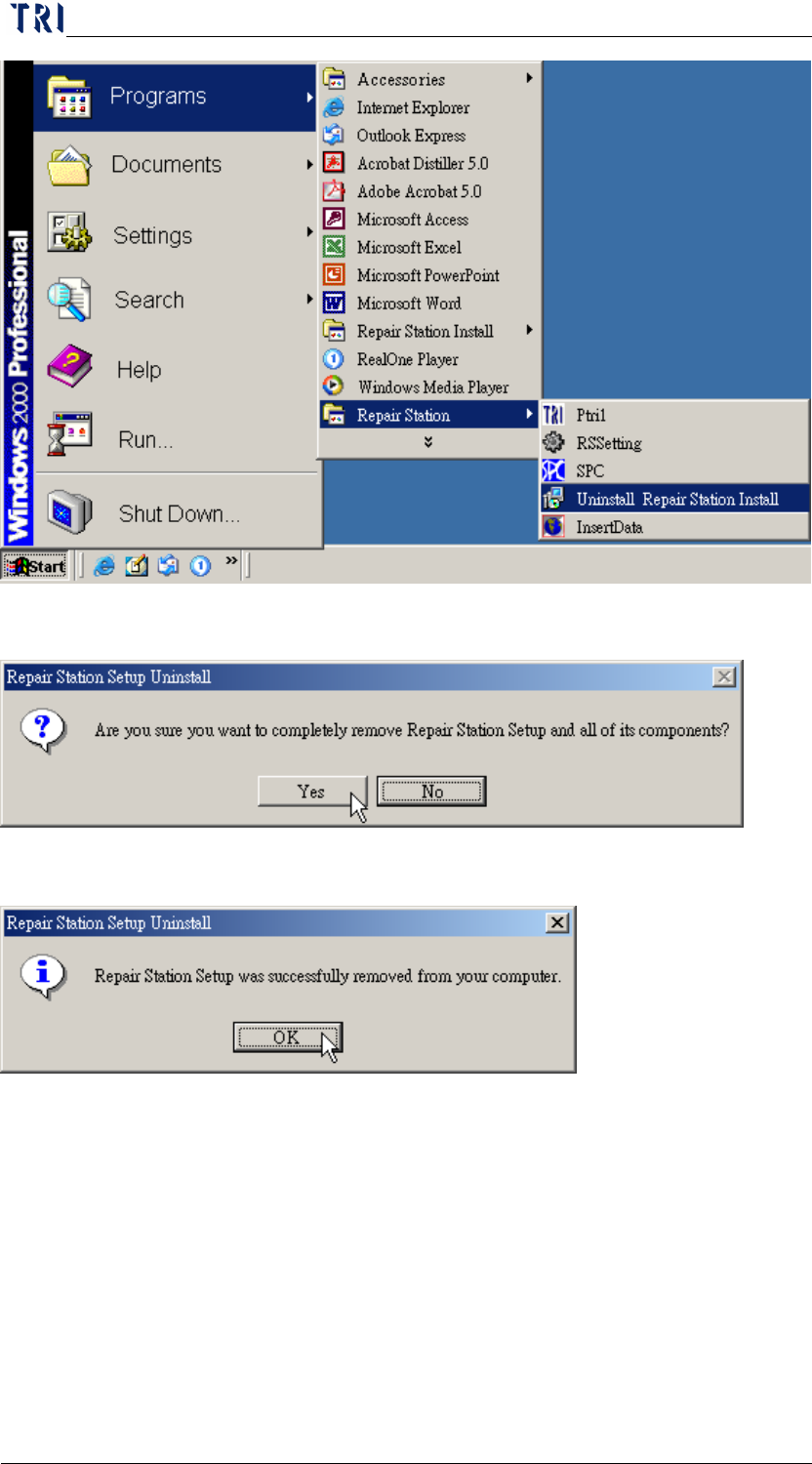
Step1. Select [Start/Programs/Repair Station/Uninstall Repair Station]
Chapter 1 Installation Process
AOI Repair Station
8
Step2. Select [Yes] to remove the program.
Step3. After finishing uninstallation, press [OK] to close the following window.
6 Server Model Networking
6.1 Model 1