AOI_RS_v85_en - 第118页
Chap ter3 SPC User Ma nual AOI Repair Station 1 14 numbers of sampling. For example, if the number is 8, it means the 8 th sampling. P Chart: Each monitored component or solder will have an R chart as show below . De…
Chapter3 SPC User Manual
AOI Repair Station
113
7.3.5 Control display area: Below the statistical data are the control chart
display areas. These areas are located in the graphics display area on
the left and right side at the bottom of the screen. The different kinds of
control chart will display different graph for each monitored
component or solder.
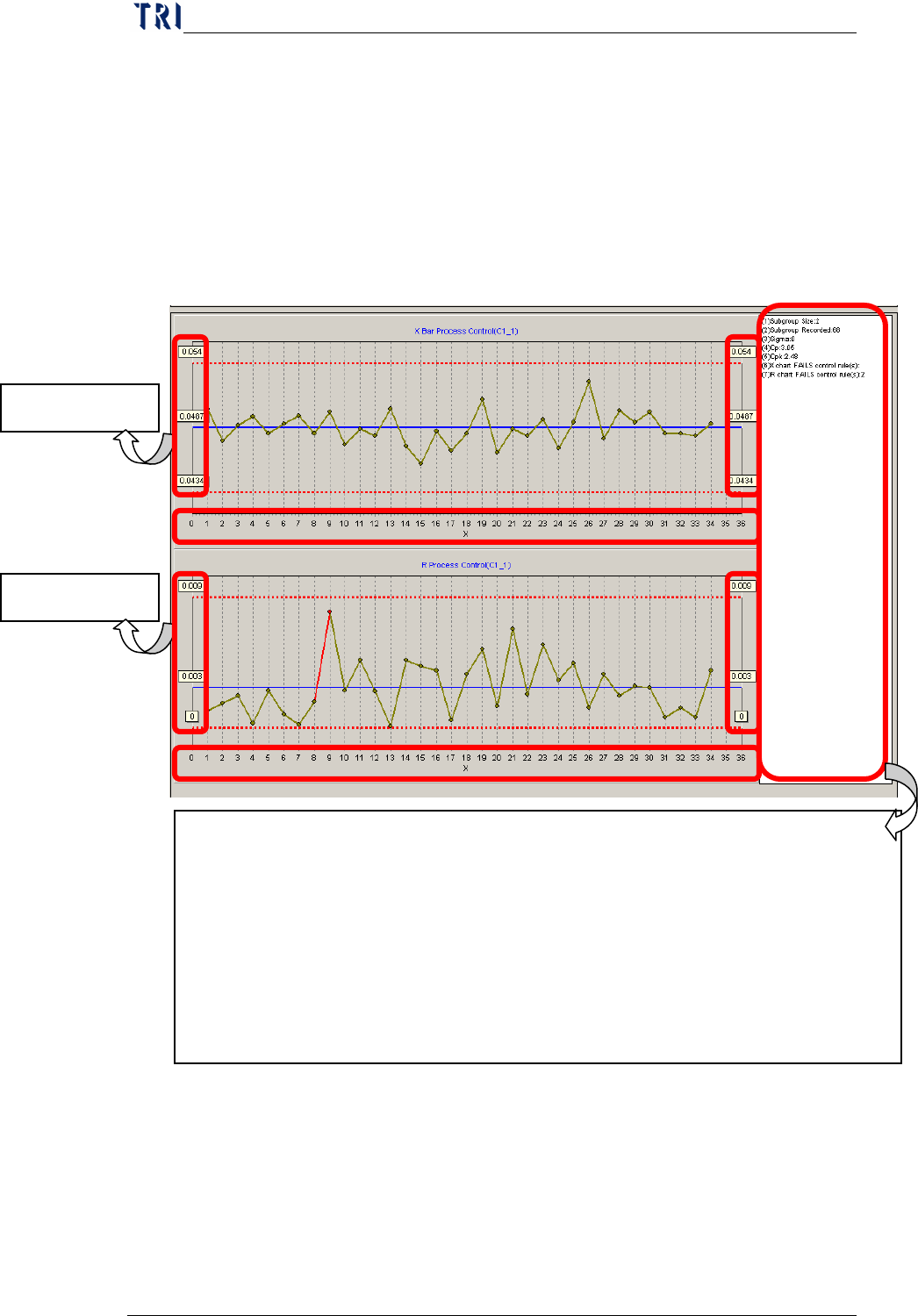
X bar – R Chart: Each monitored component or solder will have
an X bar control chart and an R control chart as show below.
Description of the data
Data at right hand and left hand side: represents the
Upper Control Limit, Control Central Line and Lower
Control Limit.
Data lay below the control chart: displays the serial
X Bar control
R control chart
Description of the data on the right of the control chart:
Subgroup Size: sample size
Subgroup Recorded: number of samples selected.
Sigma: variable
Cp: Cp value
Cpk: Cpk value
X chart FAILS control rule(s): Alarm items violated by the X-bar control
chart up to the present
R chart FAILS control rule(s): Alarm items violated by the R control chart up
to the present
Chapter3 SPC User Manual
AOI Repair Station
114
numbers of sampling. For example, if the number is 8,
it means the 8
th
sampling.
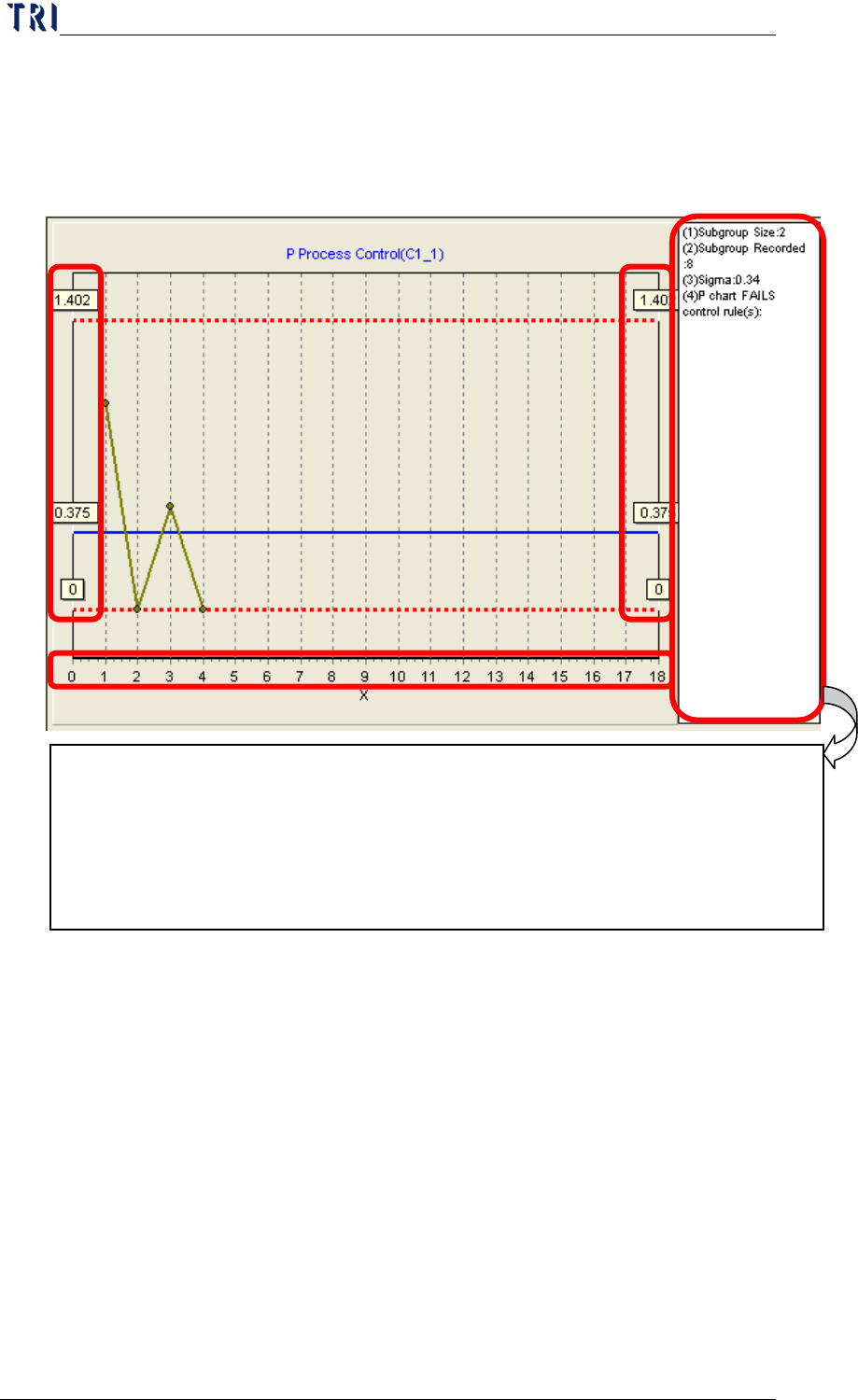
P Chart: Each monitored component or solder will have an R chart
as show below.
Description of the data
Data at right hand and left hand side: represents the
Upper Control Limit, Control Central Line and Lower
Control Limit.
Data lay below the control chart: displays the serial
numbers of sampling. For example, if the number is 8,
it means the 8
th
sampling.
7.4 Explanation - Steps
The entire software can be explained in four parts: [pre-monitoring],
[start monitoring], [monitoring] and [post monitoring]. [Pre-monitoring]
involves the setting of relevant parameters. Once these parameters are
Description of the data on the right of the control chart:
Subgroup Size: sample size
Subgroup Recorded: number of samples selected.
P chart FAILS control rule(s) :
Alarm items violated by the P control chart up to
the present.
Chapter3 SPC User Manual
AOI Repair Station
115
set, the system will use these parameters whenever it starts monitoring.
There is no need to set the parameters again unless you need to change
or update the values in some parameter. Once you are sure that the
relevant parameters are correct, you can then start monitoring and then
proceed to the monitoring state until you stop monitoring. Once you
stopped monitoring, you can then perform some post monitoring tasks.
Next, we will explain these four parts in detail.
7.4.1
Pre-Monitoring
Here you can set the [Sampling Setting], [Control Chart Setting],
[Non-real-time monitor setup area], [Real-time monitor setup area] and
[Alarm Setting] parameters as explained below.
7.4.1.1
Sampling Setting
This setting defines how you want the system to get samples and
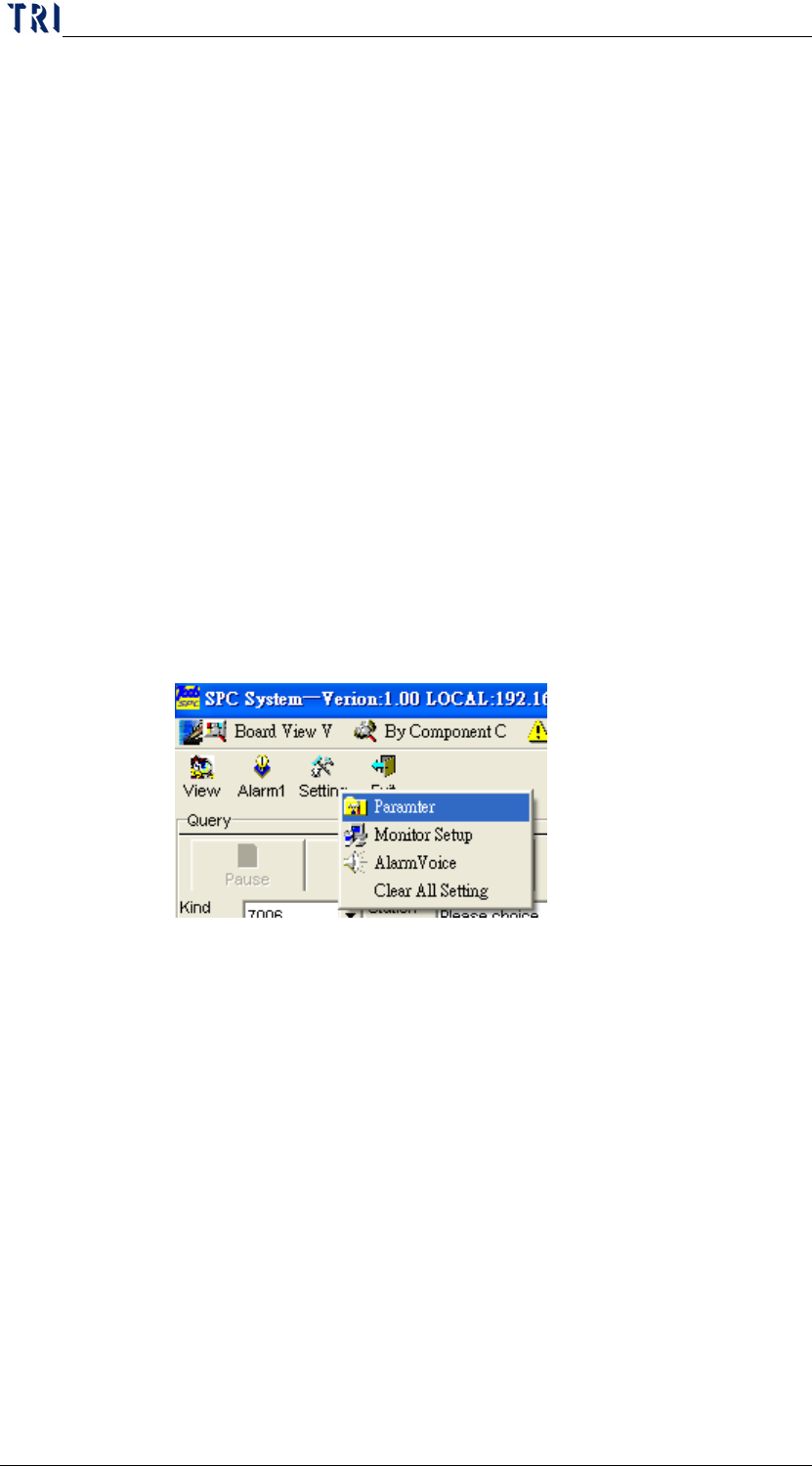
how many samples you want each time. From the Main menu,
you can click on [
Setting] and then [Parameter] as shown in the
following figure.
After entering the setting screen shown below, you can see that
inside the Sampling Method block are two sampling methods for
obtaining samples as explained below.
X bar – R Chart: Select “X-bar/R Chart” page to set the
parameters of X bar – R Chart. The sampling setting is in
“Sampling Method” section; there are two sampling methods,
and they are described separately below.
Instant time method: Sets the time interval for
sampling. The unit for time interval can be in Minutes
or Hours. For example, if you set “5 Minutes”, this
indicates that sampling will be performed once every 5
minutes. If you set “0 Minutes” or “0 Hours”, this
indicates that there is no need to pause, the sampling is