AOI_RS_v85_en - 第128页
Chap ter3 SPC User Ma nual AOI Repair Station 124 Mode], he has to change it to [ General Mode] page; If user wants to monitor it with [Group Mode], he has to change it to [Group Mode] page. Placer Information Area: Wh…
Chapter3 SPC User Manual
AOI Repair Station
123
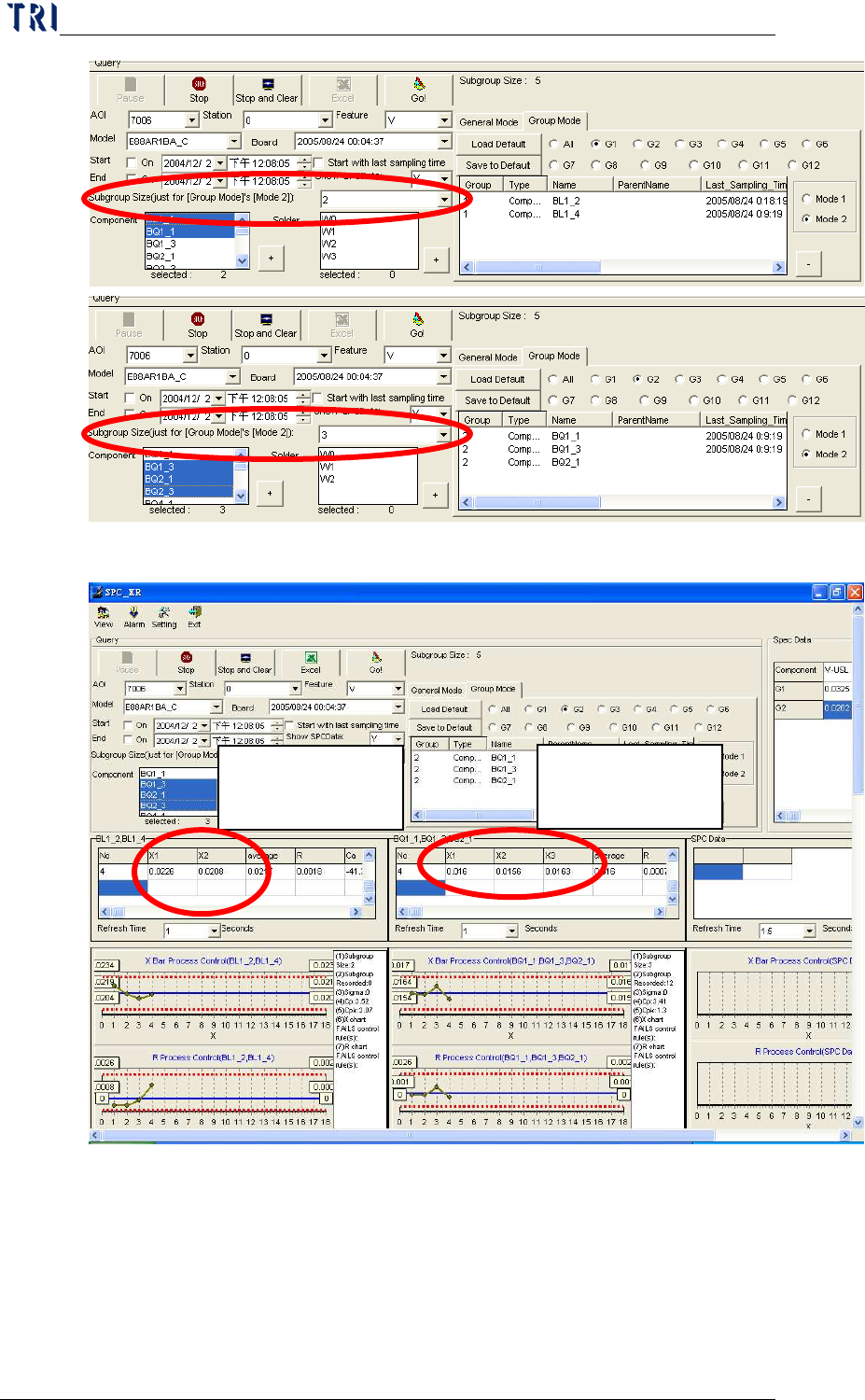
When system starts to monitor data, user will find that the
two groups are with different sample size.
Monitor Type: Select to monitor the component with which
kinds of control chart; X bar-R Chart or P Chart.
When user decides to monitor a component or a solder, he has
to press [+] button at lower right side to add the component or
solder to the monitoring list. And there are two modes for
use to select. If user wants to monitor it with [General
For this Group,
sample size is 2.
For this Group,
sample size is 3.
Chapter3 SPC User Manual
AOI Repair Station
124
Mode], he has to change it to [General Mode] page; If user
wants to monitor it with [Group Mode], he has to change it to
[Group Mode] page.
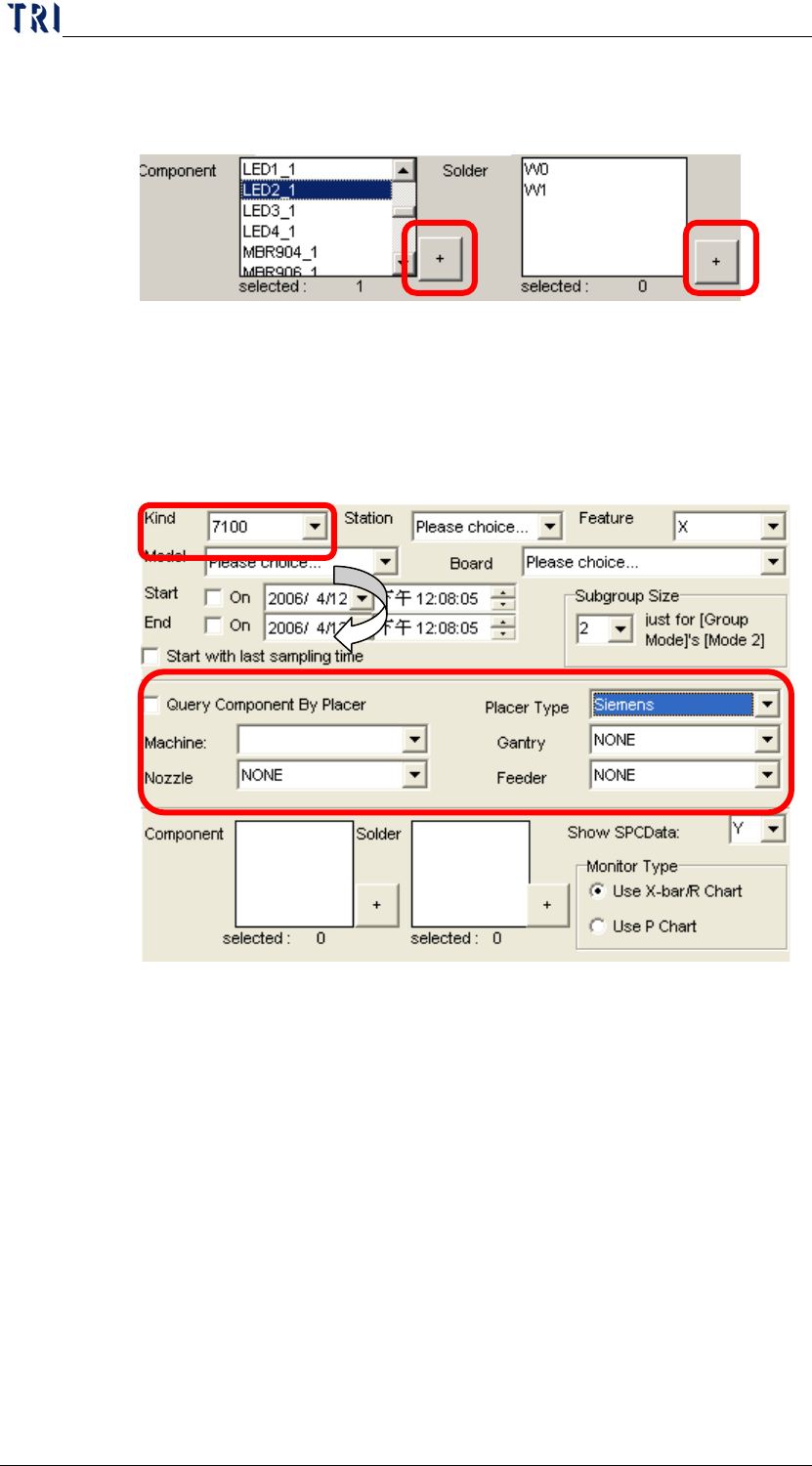
Placer Information Area: When the [Kind] is [7100], there is
a [Placer Information Area] appearing under [Start with last
sampling time] area as the following picture. This is for
user to select the component by placer; user could take
“Gantry”, “Nozzle” or “Feeder” as conditions to select
corresponding component to be monitored.
In this area, when [Query Component By Placer] checked,
user could get the list of components by the placer
information. [Placer Type] means the brand of place; we
support “PANA” and “Siemens” two placer now. [Machine]
means the placer name; [Gantry] means the name of gantry;
[Nozzle] means the name of nozzle; [Feeder] means the name
of feeder.
List of monitoring: The monitored components or solders are listed
here. There are two modes, “General Mode” and “Group Mode”.
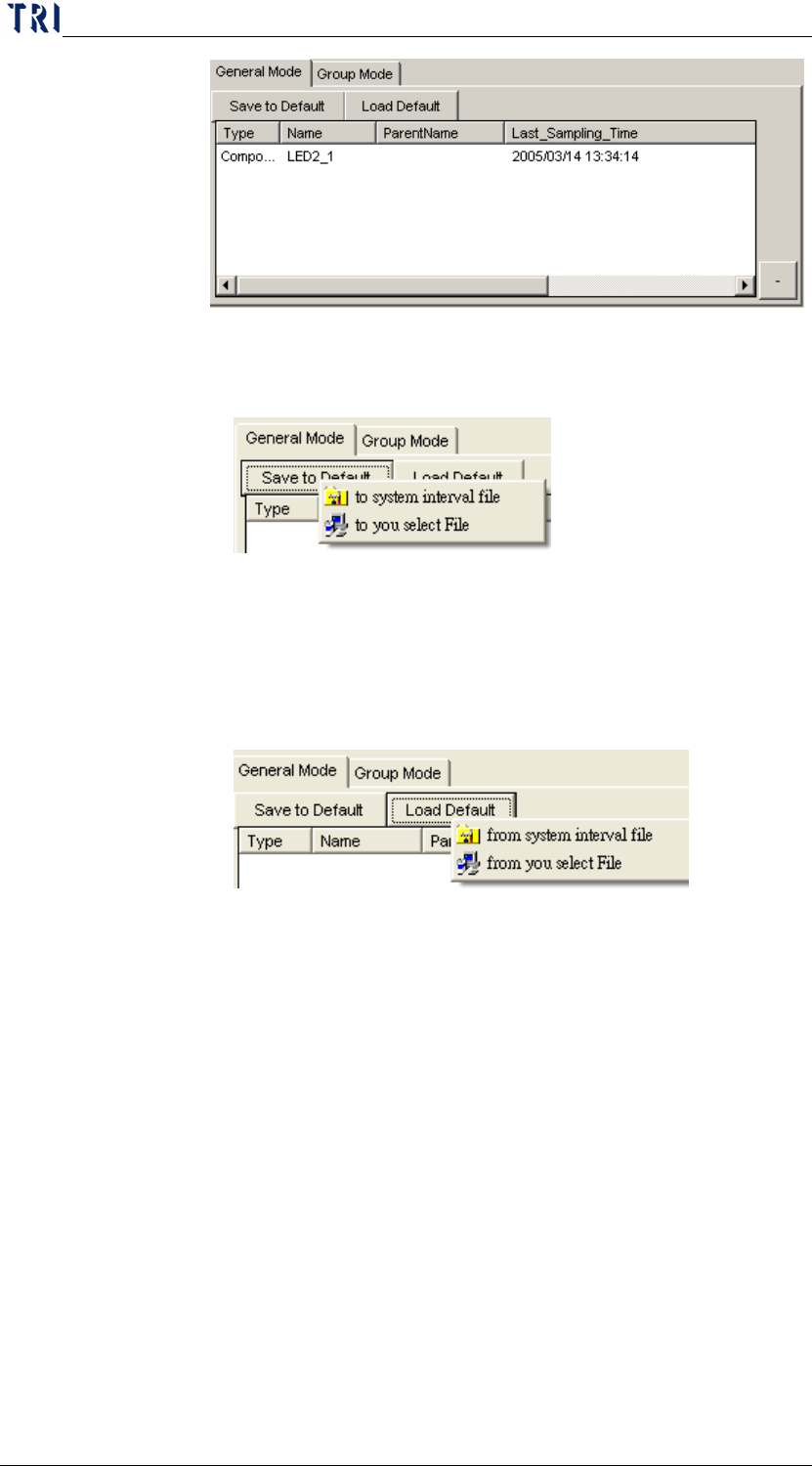
General Mode: The mode is to monitor the selected item
directly. There are total 12 components or solder can be
selected at most.
Chapter3 SPC User Manual
AOI Repair Station
125
Save to Default: To save the current selection list as default
for quick loading next time. There are two different way to
save the list as default, explained below.
to system interval file: set as the system default in the
interior path.
to you select file: save the list to specified path; this is
for user to save several settings for different ways.
Load Default: Loads the list saved last time. There are 2 ways
to save the list.
from system interval file: loads list from the system
default.
from you select file: loads the list form specified path.
Group Mode: User could put several components or solders
that are with same character into a group and monitor the
components by group. There are 12 groups at most can be
set. The spec data is the average spec of all components in
this group.