AOI_RS_v85_en - 第142页
Chap ter3 SPC User Ma nual AOI Repair Station 138 The description for the entire screen is as follows: The ta sk bar on top is used for alarm messa ge operation. The “ << First” button allows you skip to the fi…
Chapter3 SPC User Manual
AOI Repair Station
137
When user enables the Style 3 Report and clicks on [Go!], system
will start the reporting function. System changes the date in [Start]
and [End] field to that day; it also changes the time in [Start] and
[End] field to the reporting time set in [ReportData_Interval]; and
the check boxes front of [Start] and [End] are checked
automatically. When time for reporting, system will report Style
3 Report and change the date in [Start] and [End] field to the next
day. The function goes this way until a user Pause or Stop the
monitoring.
7.4.3
Monitoring
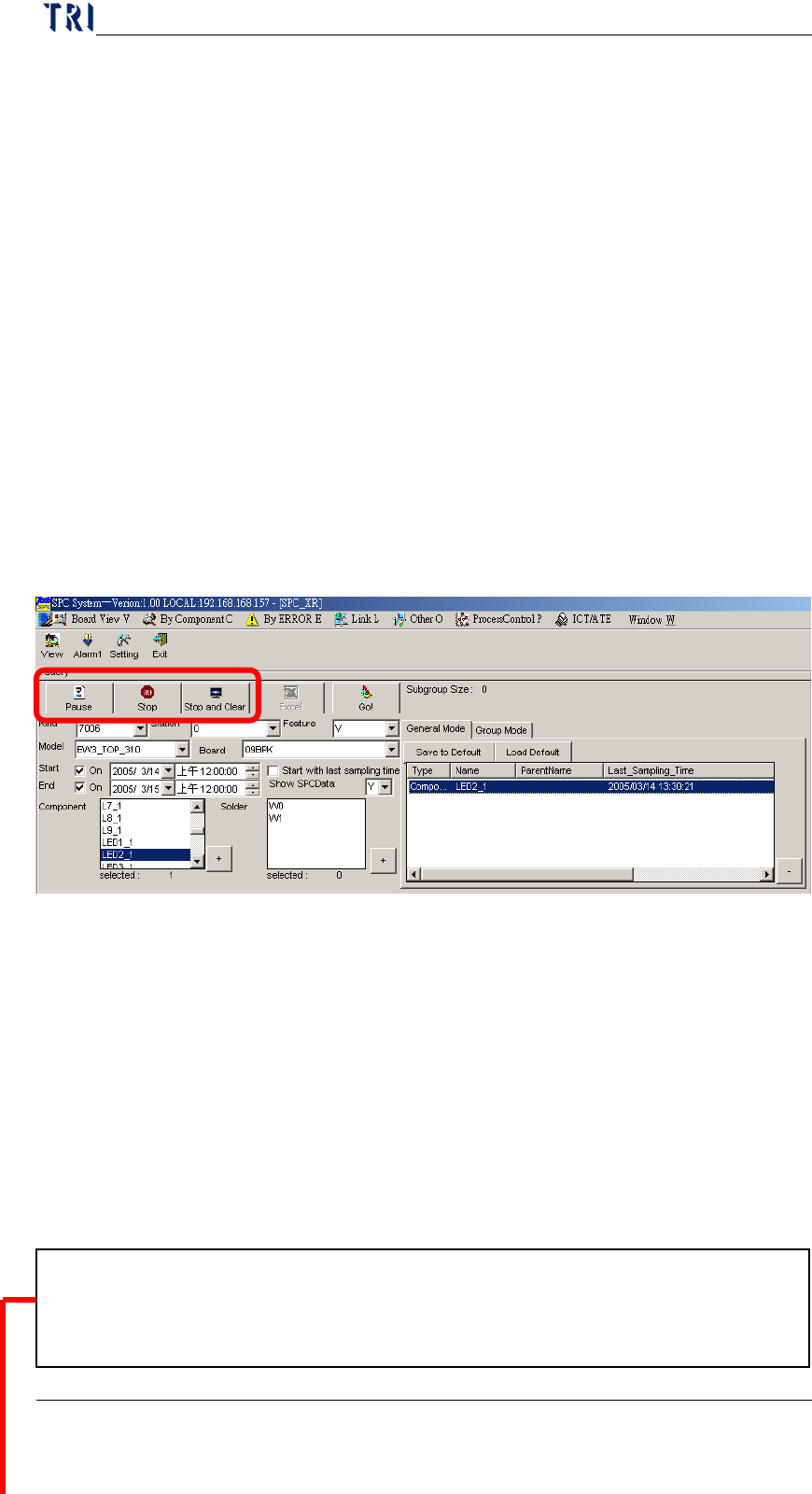
(I) During monitoring, you can perform these three actions:
①
Click on “Pause” to halt monitoring
②
Click on “Stop” to stop monitoring
③
Click on “Stop and Clear” to stop monitoring and clear all data in
the screen.
In addition, after each sampling the system will check if this
component or solder is an applicable monitor item (that is,
non-realtime monitor item) for this alarm. Real-time monitor items
will definitely use this alarm. If applicable, the system will check for
errors by comparing the alarm conditions with the computed control
upper limit, lower limit, and control mean value and sample mean
value. If there is an error, the system will generate beeps to remind
the user that error has occurred and also display the following alarm
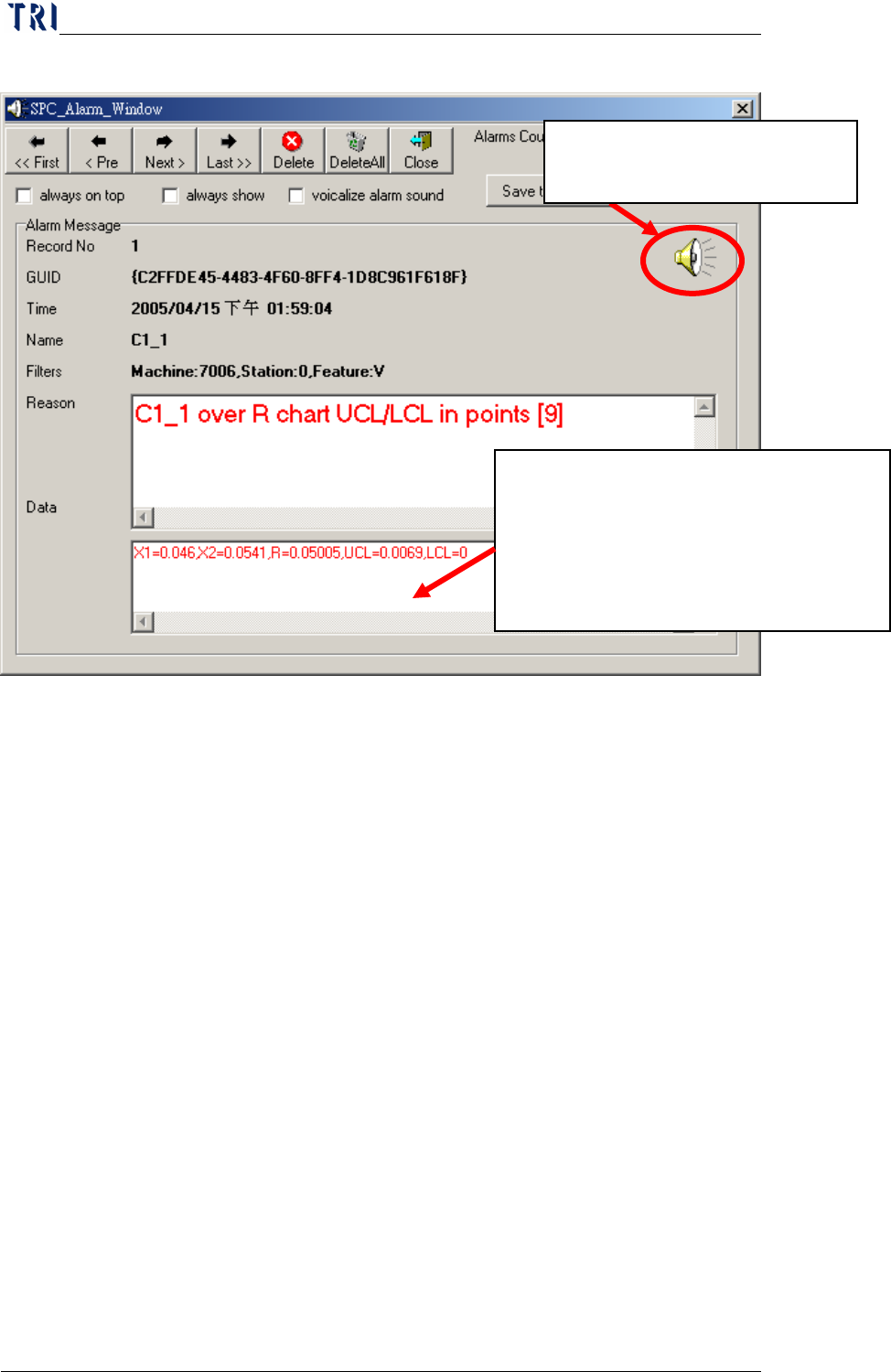
window.
The “Reason” box shows what kind of error occurred in a component while “in points” at the end
of reason text line also indicates the error control point location. Using this figure as example,
“C1_1” has an “over X bar chart UCL/LCL” error at point “9”.
Chapter3 SPC User Manual
AOI Repair Station
138
The description for the entire screen is as follows:
The task bar on top is used for alarm message operation. The “<<
First” button allows you skip to the first alarm message. Click
on “< Pre” to go back to the previous alarm message or click on
“Next >” to go to the next alarm message. The “Last >>” button
allows you skip to the last alarm message. Use “Delete” to
delete the current alarm message and use “DeleteAll” to delete
all alarm messages. Use “Close” to close this message window.
The current message count is displayed to the right of the task
bar.
The “always on top” option below the task bar indicates that this
window is displayed on the topmost layer. If this item is
checked (
√), then the system will display this window on the
topmost layer and it will not be overlapped by other windows.
The “always show” option indicates whether or not to pop up this
window automatically. If this item is checked (√), then the
system will automatically open this window when an error occurs.
The “vocalize alarm sound” indicates whether or not to generate
beeps when an error occurs. If this item is checked (
√), then the
ndicates that at the time the error occurs, the
X1~X5 data used are the sample value, average is
the mean value, UCL is the upper control limit,
and LCL is the lower control limit.
Note! The
information here varies with the error type.
Click on this icon to open the
window of Alarm Voice Setting.
Chapter3 SPC User Manual
AOI Repair Station
139
system will generate warning beeps when an error occurs. The
“Save to Default” option indicates whether or not to save the
“always on top”, “always shows” and “vocalize alarm sound”
settings as the default values so that the system will use these
settings the next time you start this software.
The “Alarm Message” block below the task bar displays the
information concerning an alarm message and the description of each
item is as follows:
GUID: Message no. The system automatically assigns a unique
ID number for each alarm message.
Time: Time the message occurs.
Name: Name of component or solder where the message occurs.
Filter: The conditions for query the component.
Machine is the type of machine, 7006 (SPI), 7100 (AOI) or
ICT.
Station means the machine ID.
Feature means the selected feature, it may be V (Volume), A
(Area), H (Height), PX (X shift) or PY (Y shift) for 7006
(SPI); it may be X (X shift), Y (Y shift) or Theta (rotating
angle) for 7100 (AOI) and may be Measure for ICT.
Reason: Reason for the occurrence of this message. You can
find out the type of error through this information.
Data: Sample value that causes this message to occur.
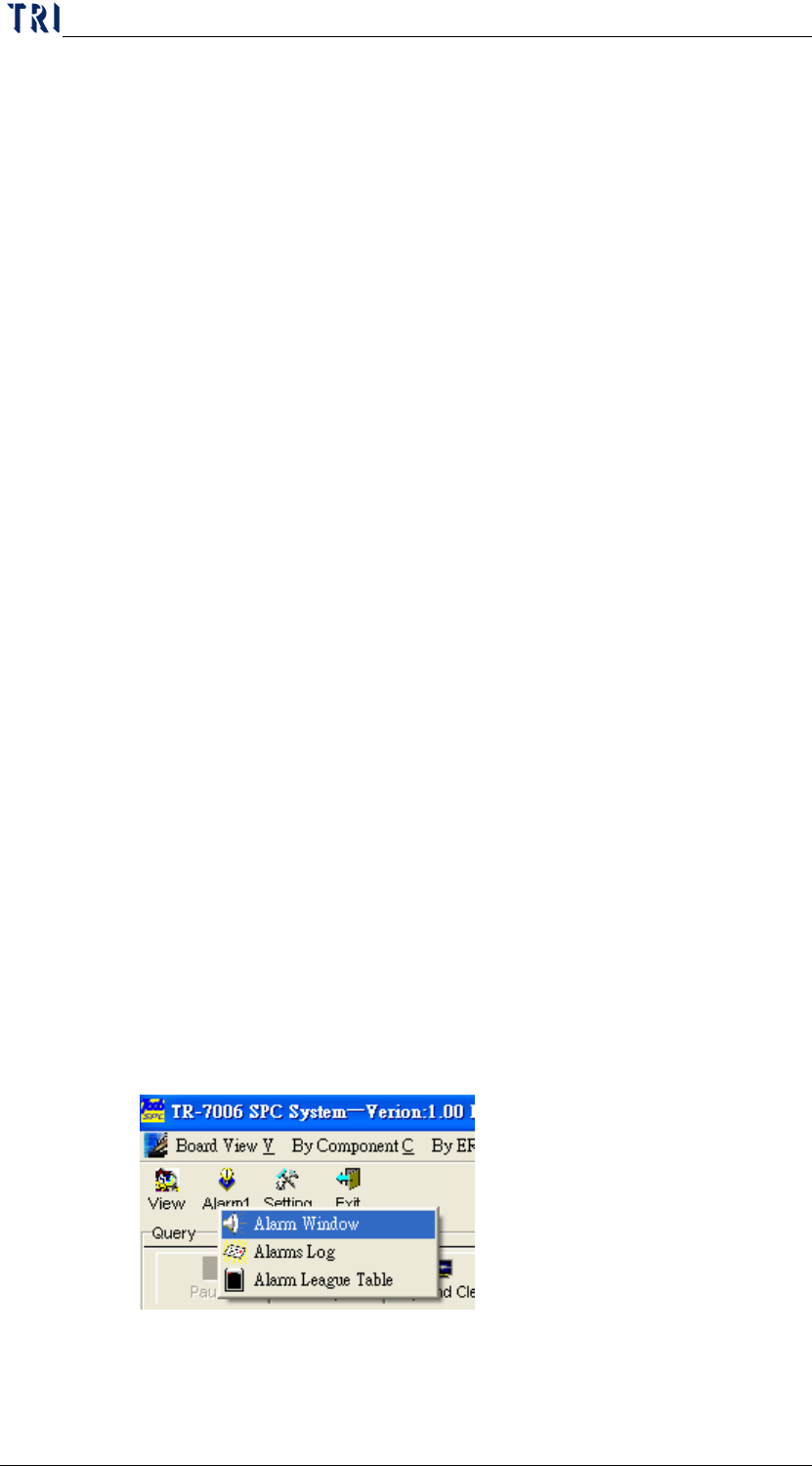
Aside from the system opening this Alarm Window automatically
whenever an error occurs, you can also open the Alarm Window by
clicking on “
Alarm” and then “Alarm Window” in the Main menu as
shown below.
You can click on any control chart during or after monitoring to