AOI_RS_v85_en - 第25页
Chapter 1 Installation Pr ocess AOI Repair Station 21 Step4. S elect the language that is the same with the computer operation system. The n press [Next] . Step5. Install the followin g procedure according the default. S…
Chapter 1 Installation Process
AOI Repair Station
20
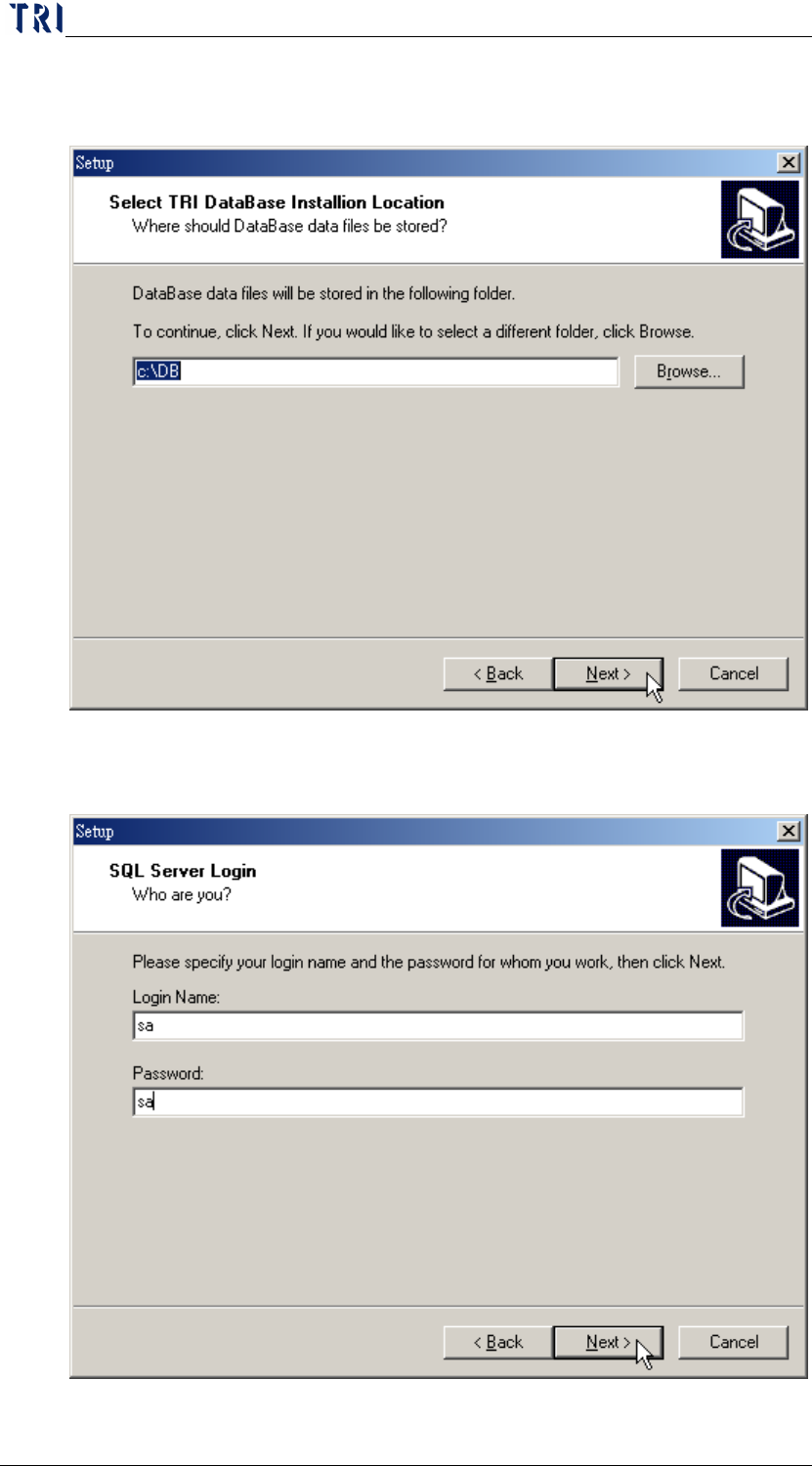
Step2. Select a folder to save the database then press [Next]. We use
the default setting, [C:\DB], generally.
Step3. Input the [Login Name] and [Password]; the default is [sa,sa].
Then press [Next].
Chapter 1 Installation Process
AOI Repair Station
21
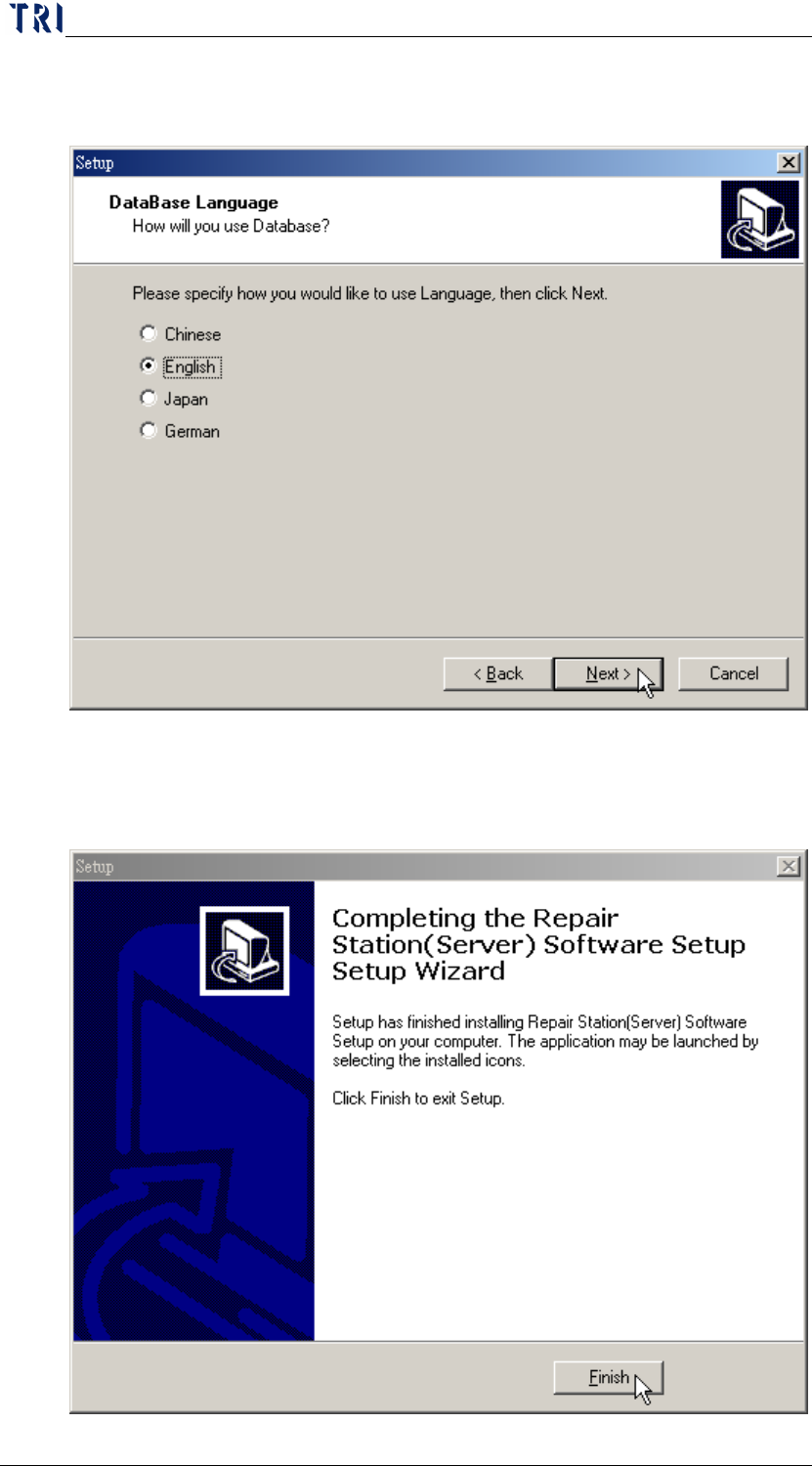
Step4. Select the language that is the same with the computer
operation system. Then press [Next].
Step5. Install the following procedure according the default.
Step6. Press [Finish] to complete the installation.
Chapter 1 Installation Process
AOI Repair Station
22
7.2 CLIENT SIDE
Step1. First install the Stand-alone version on the system.
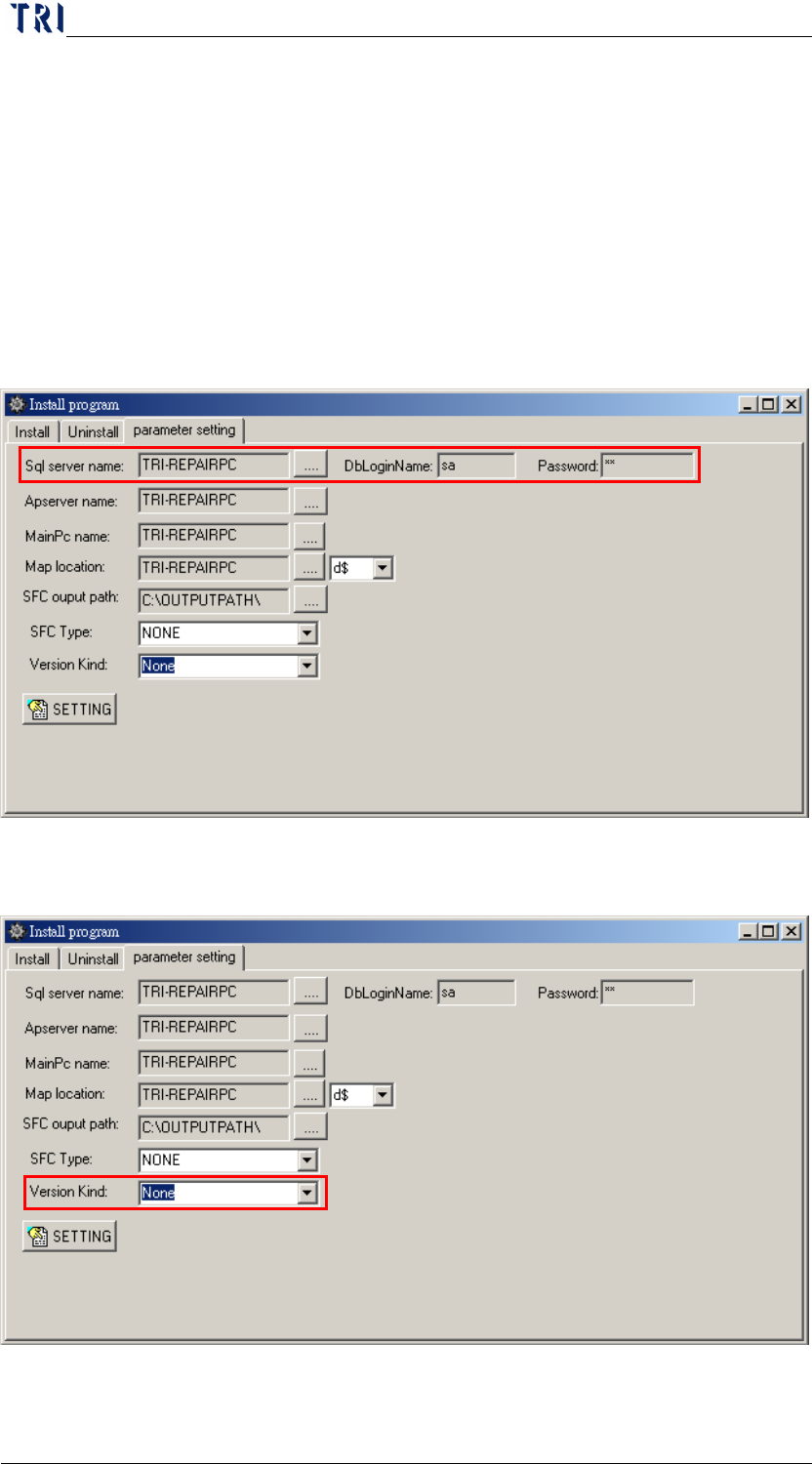
Step2. Appoint name of SQL SERVER, DB LOGIN NAME (EX: sa), and
PASSWORD (EX: sa) to the CLIENT system. The settings are as
follows:
STEP2.1 Run the short cut of [RSSetting] on the desktop (if not,
run [C:\RSINSTALL\PINSTALL.EXE]), type [TRI] for
any password required, the settings are in the red frame
on the following figure.
STEP2.2 For the following figure, the [Version Kind] must be set
to [None] for the SERVER version: