AOI_RS_v85_en - 第28页
Chapter 2 Repair Station Main Progr am AOI Repair Station 24 2 The process of reading and writing the data base of the AOI machine. (1) The result will be send to “AOI_Repair_Data” folder in Repair PC. (2) “InsertData.ex…
Chapter 2 Repair Station Main Program
AOI Repair Station
23
Chapter 2 Repair Station Main Program
1 Attention before using the Repair Station
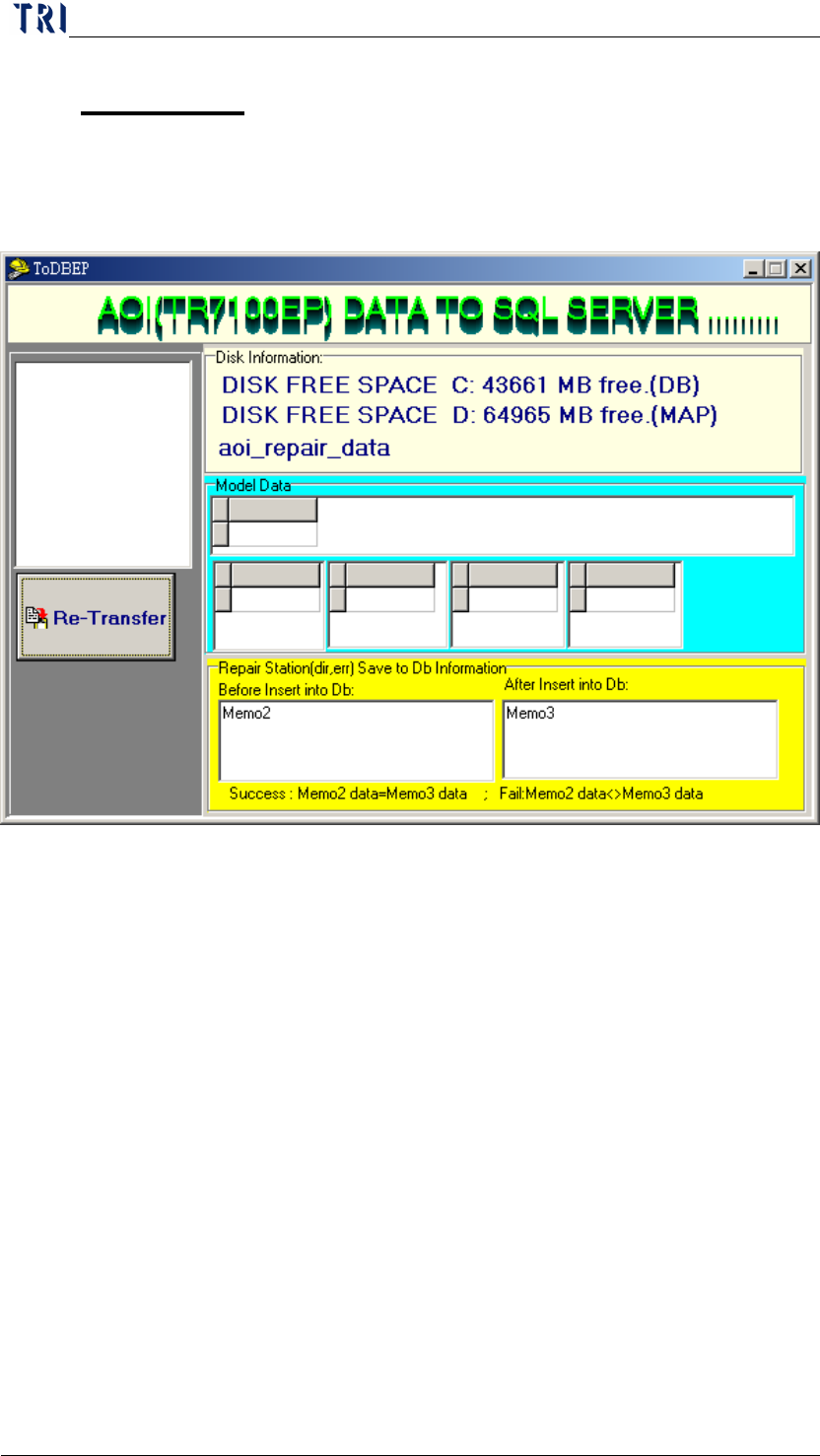
Make sure that [InsertData.exe] is running before using, the following figure
is what it supposed to be while running the program:
NOTE: [Memo2] and [Memo3] will appear same BARCODE number when
each data was successfully inserted into DB, however, there will be current
year, month, day, hour, minute, and second appear in the box if no
BARCODE is detected. There may be a setting problem when the [Memo2]
and [Memo3] show no change while a board was inspected.
Chapter 2 Repair Station Main Program
AOI Repair Station
24
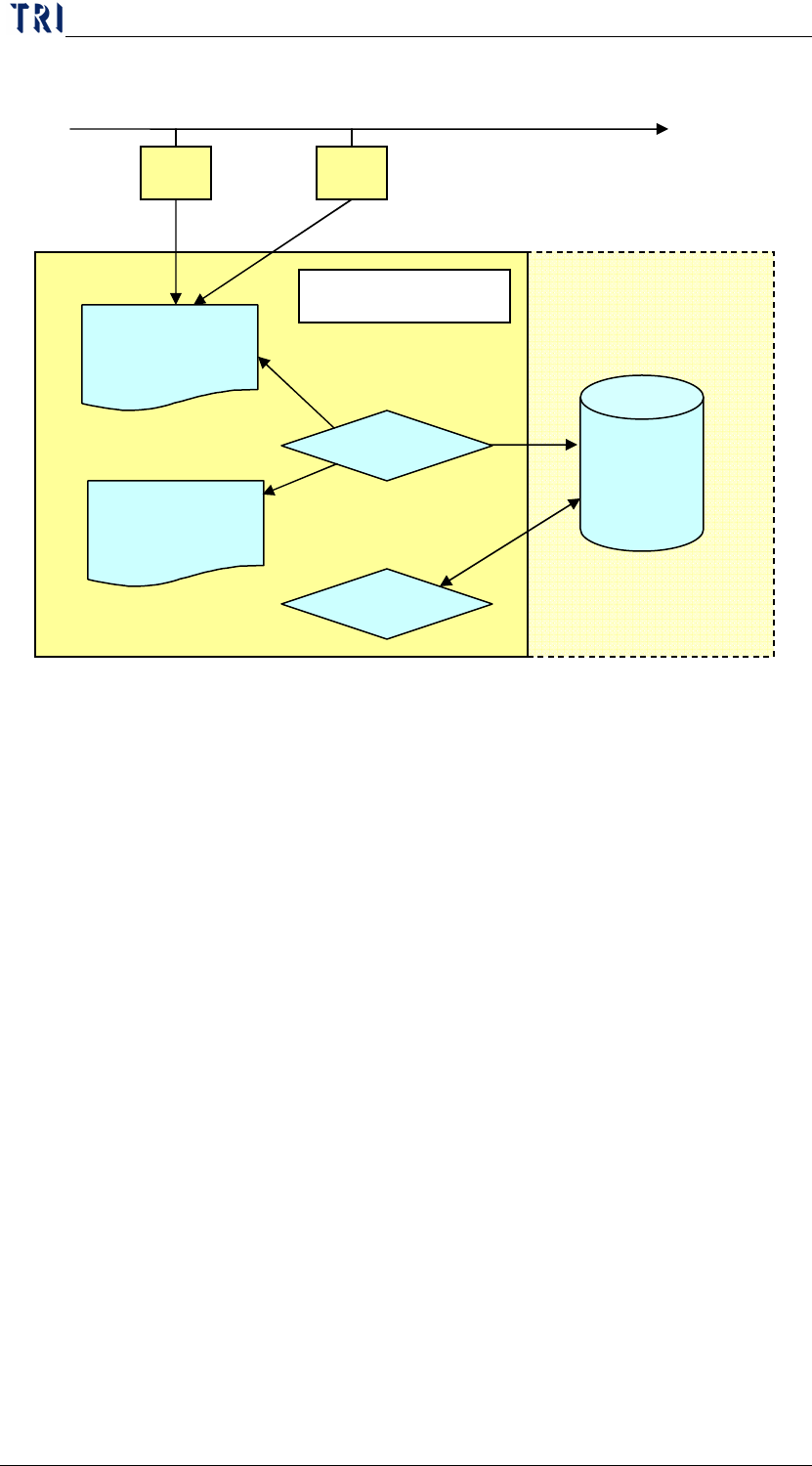
2 The process of reading and writing the data base of the AOI machine.
(1) The result will be send to “AOI_Repair_Data” folder in Repair PC.
(2) “InsertData.exe” starts to transfer the data in “AOI_Repair_Data” folder.
(3) After transferring, the text data and the panel map are saved in the
database(DB), and the FOV images and alternative images are saved in D disc.
(4) Use “Ptril” and “SPC” to capture the data from database.
3 The space disposing of repair station
3.1 C
AOI_Repair_Data folder: The output (*.img, *win, *.dir1, *.bmp,
*.map, *2X2.bmp, *.dir, *.err) form AOI are sent to this folder. When
you start the [InsertData] program, the program catches the original
data in the folder and transfer to SQL server database. The folder must
be clear automatically in normal operating unless the question happens
in the procedure. The [*.dir] data changed into [*.fail] data and save in
this folder when there is a problem. Once there is a [FAIL] data in this
folder the [InsertData] can’t transfer data normally. You should delete
the [FAIL] data then try to transfer again. [*.img] and [*win] are the
information of alternative component; [*.dir1] is the information of
this panel; [*.bmp] is the panel map; [*.map] is the file with
DB
AOI1
AOI2
AOI_Repair_Data
資料夾
D:\SqlserverMap\fovjpg
D:\SqlserverMap\trainImg
InsertData.exe
Ptri1、SPC
1 1
Repair Station PC
2
3 (Map)
3(Data)
4
Chapter 2 Repair Station Main Program
AOI Repair Station
25
coordinates of the components; [*2X2.bmp] is the panel map with
double size; [*.dir] and [*.err] are the inspection result.
Placer folder under C:\AOI_Repair_Data: The folder is to save the
information of placer.
AOI_Repair_Data_bk folder: When you check the item, [Setting/AOI
DATA Backup/Save to C:/AOI_Repair_Data_bk], in [Ptril] program,
the original data is copied to this folder for backup after transferring
data.
Aoidata_bk folder: The database files backuped by system or by
personnel are saved in the folder.
rsinatall: Position where the program preserves.
3.2 D
SqlServerMap
Fovjpg-Save FOV images by date. You can backup or delete
files by date.
TrainImg-Saved alternative images by Model Name.
4 Parameter Setting
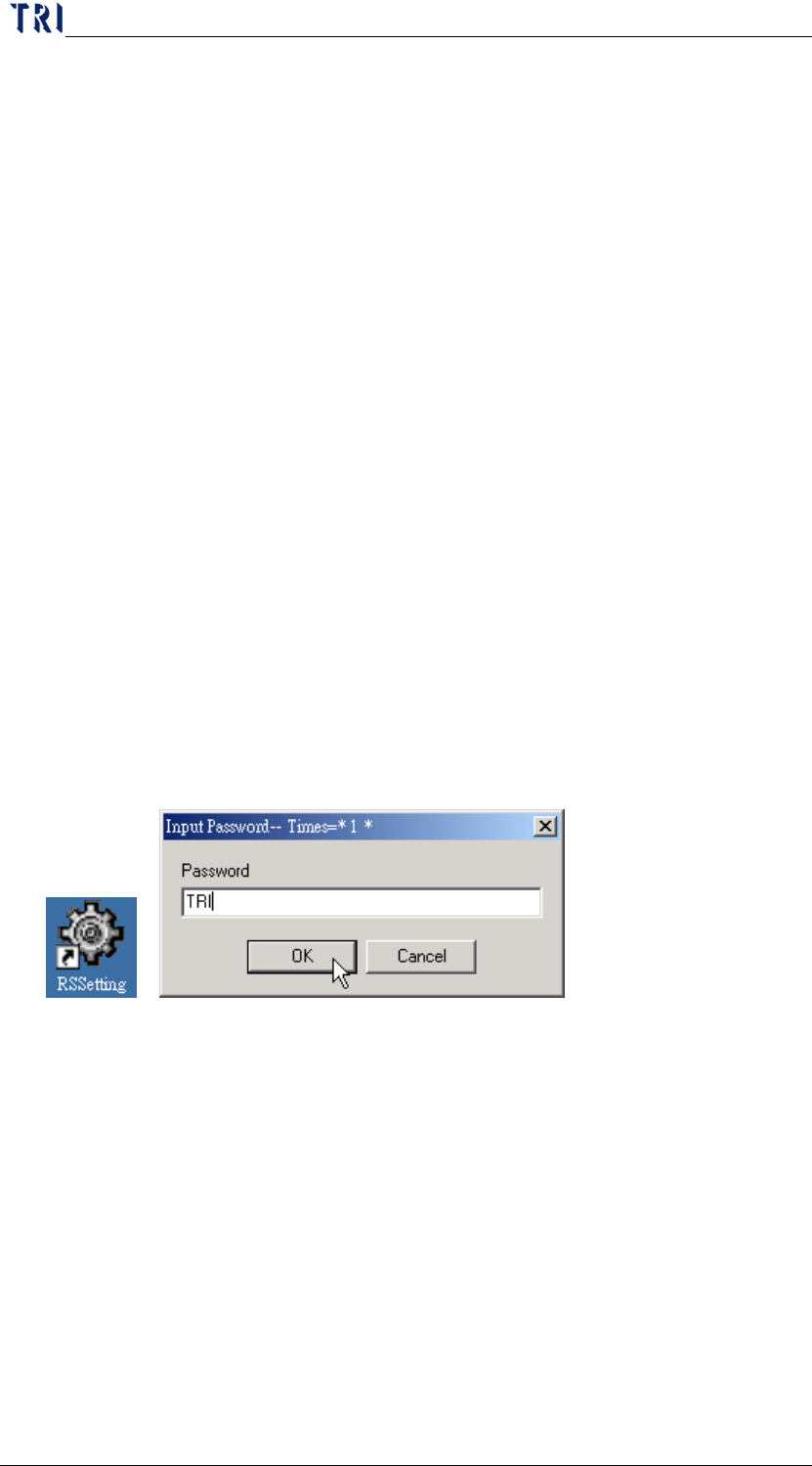
Run the short cut of [RSSetting.exe] on the desktop (if not, run
[C:\RSINSTALL\PINSTALL.EXE]), type [TRI] for any password required.
Password Management/Change Password-You can set the password that is
to set parameters here. The default one is [TRI], and you can change it here.