AOI_RS_v85_en - 第34页
Chapter 2 Repair Station Main Progr am AOI Repair Station 30 The following window is appeared. Y ou have to fi ll [User ID], [Password] and other items and press [OK] to enter the program. Use r ID - Input the user n…
Chapter 2 Repair Station Main Program
AOI Repair Station
29
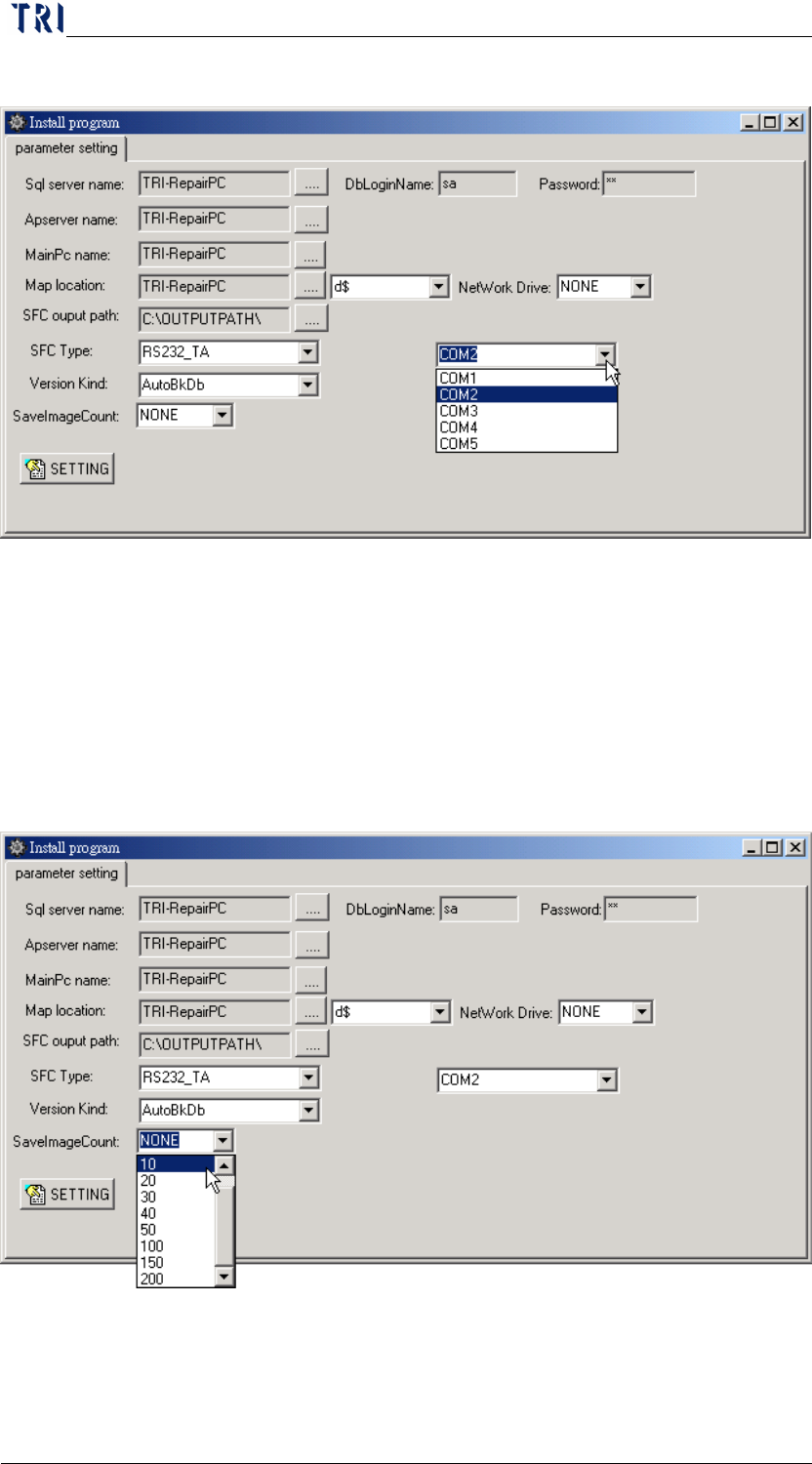
The Port Number can’t be the same as the barcode reader.
4.6 Version Kind
Select if you want to backup database automatically. The backup files
will be saved in [C:\Aoidata_bk] folder.
AutoBkDb-Enable the auto backup database function.
NONE-Disable the auto backup database function.
4.7 SaveImageCount
It means the constraint of image count that is outputted by YMS
system. [None] means that there is no constraint for image output.
5 Entering Main Program
Double click on the icon to start the main program.
Chapter 2 Repair Station Main Program
AOI Repair Station
30
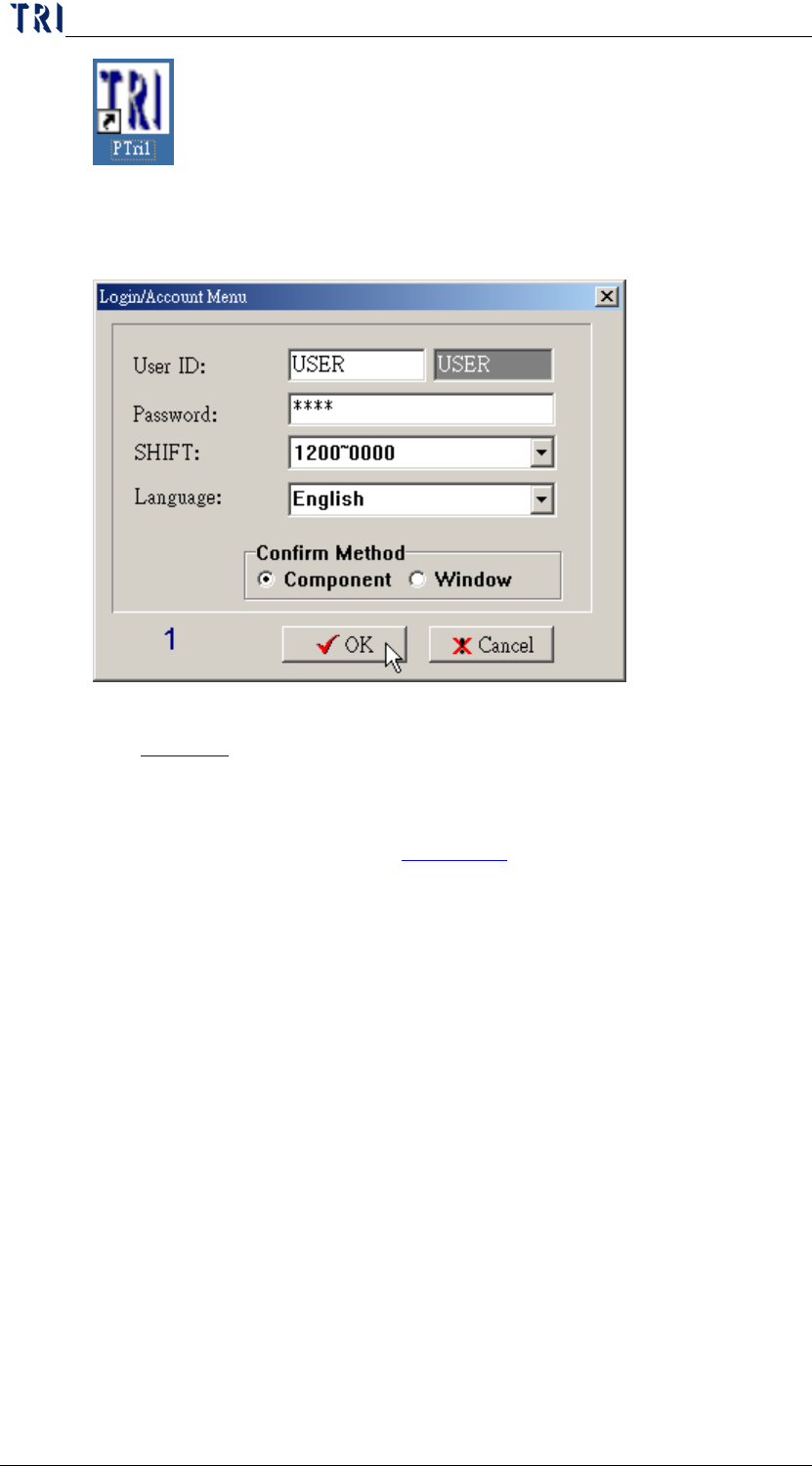
The following window is appeared. You have to fill [User ID], [Password]
and other items and press [OK] to enter the program.
User ID-Input the user name. You also can create a new user; see
Section 8.
Password-Input the password corresponding to the user. The default
user is [USER] and default password is [1234].
SHIFT-Select a shift. See
Section 7.3 to set shift or schedule.
Language-Select a language. The language can be defined by you at
[C:\rsinstall\Language\english.txt] or [C:\rsinstall\Language\big5.txt].
Confirm Method-Select you want to confirm the failed images by
[Component] or [Window].
Chapter 2 Repair Station Main Program
AOI Repair Station
31
6 CONFIRM Work
6.1 Main PROG
After login, double click on [MAIN PROG] item at the left side of the
window.
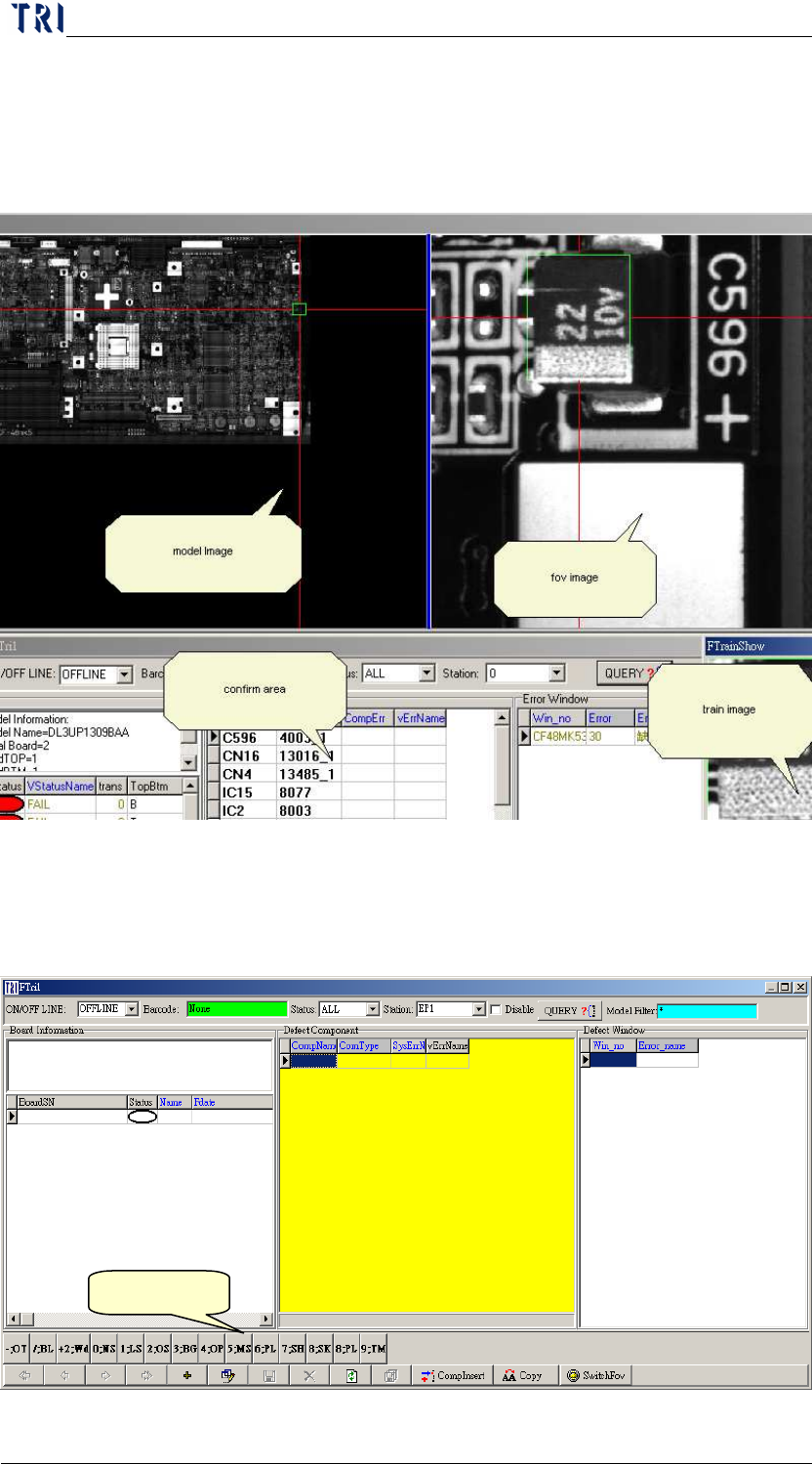
On the top left is the [Model Map], on the top right is the [FOV Image],
on the bottom right is the [Train Image], and on the bottom left is the
main working area for the program confirmation.
6.2 Confirm Procedure
Defect Area