AOI_RS_v85_en - 第39页
Chapter 2 Repair Station Main Progr am AOI Repair Station 35 6.3.2 [PageDown] Key - Y ou can press the button to increase the brightness of FOV image. 6.3.3 [HOME] Ke y - T o confi rm the all fails on the single board ar…
Chapter 2 Repair Station Main Program
AOI Repair Station
34
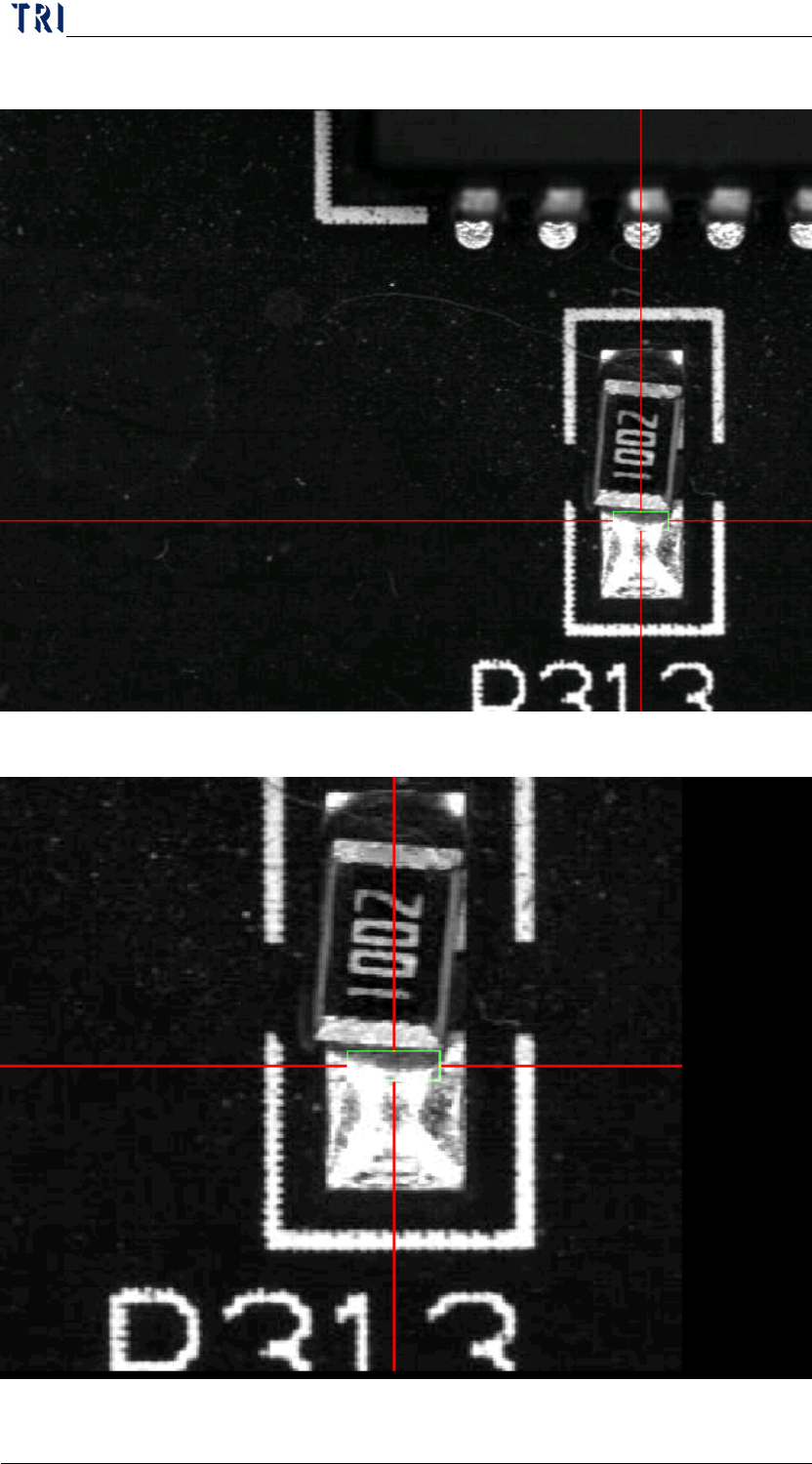
Original image
Enlarged image
Chapter 2 Repair Station Main Program
AOI Repair Station
35
6.3.2 [PageDown] Key-You can press the button to increase the brightness
of FOV image.
6.3.3 [HOME] Key-To confirm the all fails on the single board are false
alarm.
6.3.4 [END] Key-To confirm the all fails on the single board are skiped.
6.3.5 [Insert] Key-Insert a fail data manually. This function is the same
with
button.
6.3.6 [Delete] Key-Set this board to have not been confirmed.
6.3.7 [PAUSE] Key-Set this board to have not been confirmed.
6.3.8 [F5] Key (Only for TR7500)- To change the FOV image to color
image, white balanced image or weighting image.
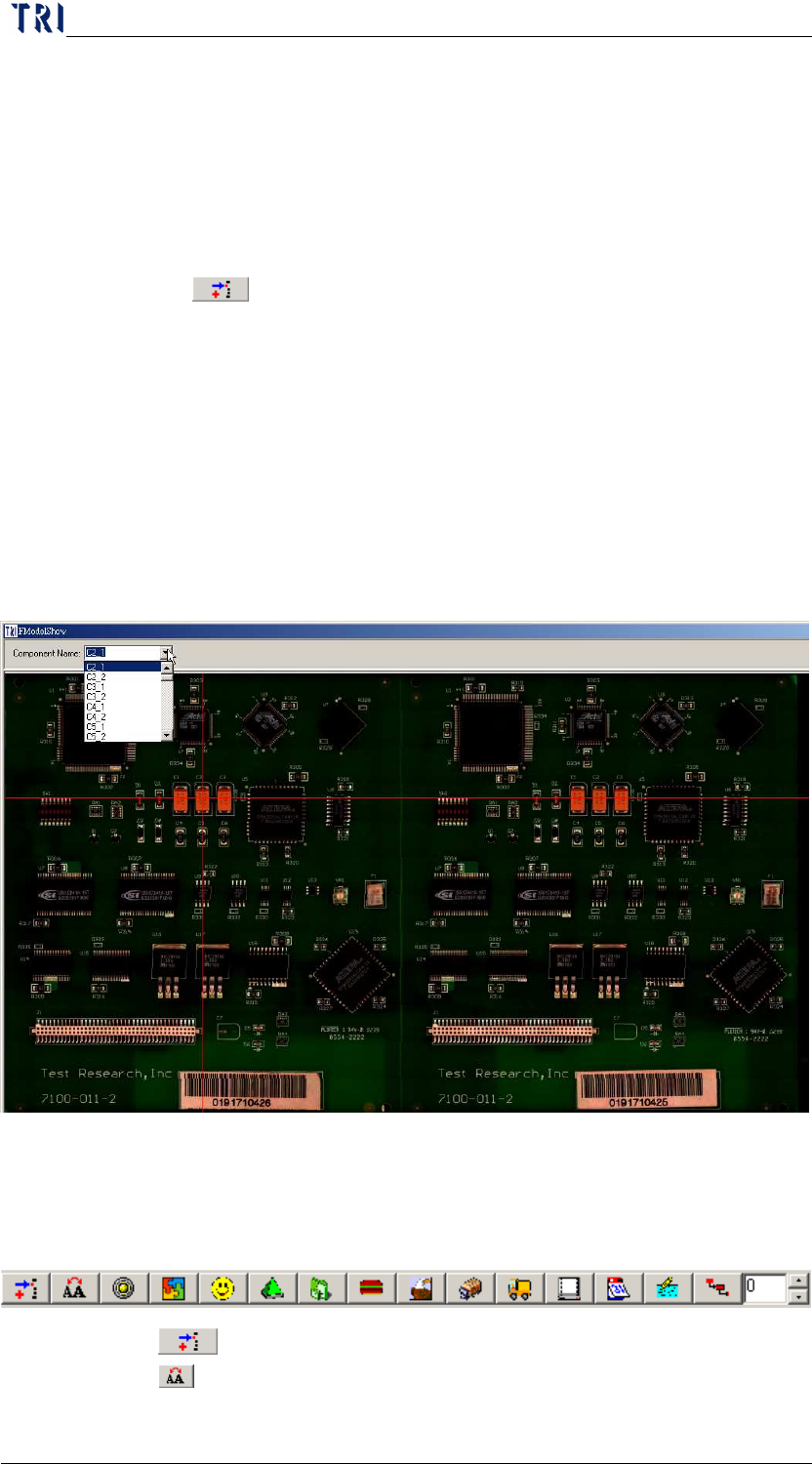
6.3.9 [F6] Key-You can press this button to display the panel map with
double size. The map file is saved in [C:
\aoi_repair_data\modelNAME2X2.bmp.]. On the map you can select a
component at the upper-left corner and the system marks the specified
component with red cross line.
6.3.10 [F9], [F10]-Moves the yellow working area to left (defect
component) or right (defect window) side.
6.4 Other Functions
6.4.1
Component Insert-Insert a fail data manually.
6.4.2
Copy Confirm Defect-To copy a particular component

Chapter 2 Repair Station Main Program
AOI Repair Station
36
problem to all of other components of the same board.