AOI_RS_v85_en - 第42页
Chapter 2 Repair Station Main Progr am AOI Repair Station 38 (3) Set the initial tim e. (4) Press [ Show T op 10 Component], t hen system will show the top 10 defect components. 6.4.11 Pass Board Auto Scroll - Under mult…
Chapter 2 Repair Station Main Program
AOI Repair Station
37
6.4.3 FOV Line Switch-Display the cross line on FOV image or not
to.
6.4.4
OnlineDataSkip-The button only shows in online mode. After
pressing the button the status of data that have not been confirmed
will be changed to [Skip]. Operators don’t have to confirm those
data.
6.4.5
Rotate 180-The function is to display the images with 180
degree rotation. After you enable this function, you have to [Query]
again.
6.4.6
The Defect in Missing, Polarity, Tombstone must be confirmed
-If the failed kind is “Missing”, the data must be confirmed by
operator. That is, it can’t be confirmed by pressing [Down↓] key.
6.4.7
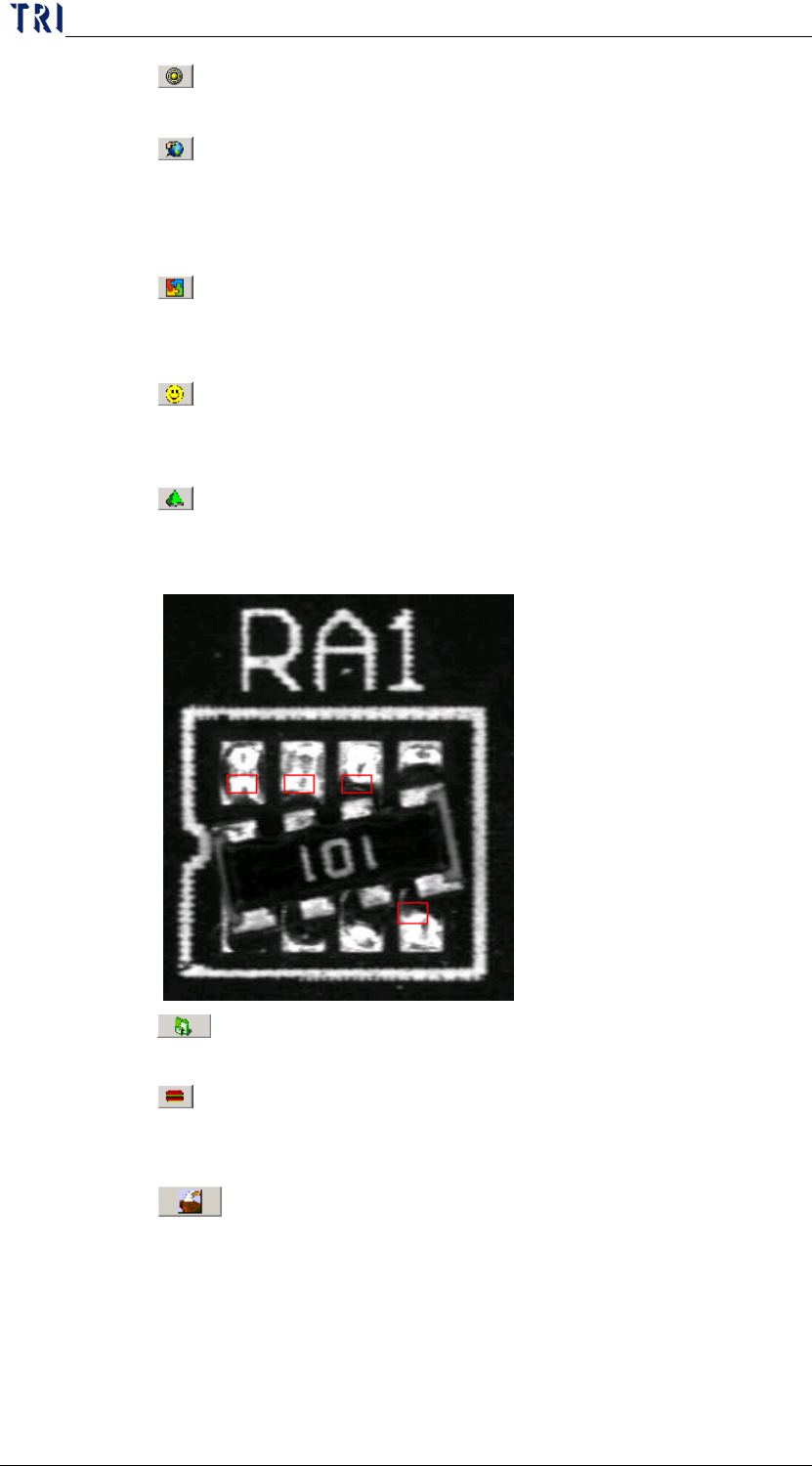
FOV Win All Show-When there is more than one inspection
box failed in one FOV, they are displayed in one FOV image as the
following picture.
6.4.8
Show Placer Data Function-Display the placer information,
it must correspond with AOI machine.
6.4.9 Defect Located in the Center-Click on this button and press
the [Page Up] key then the failed component image will be displayed
at the center of FOV window with the original size.
6.4.10
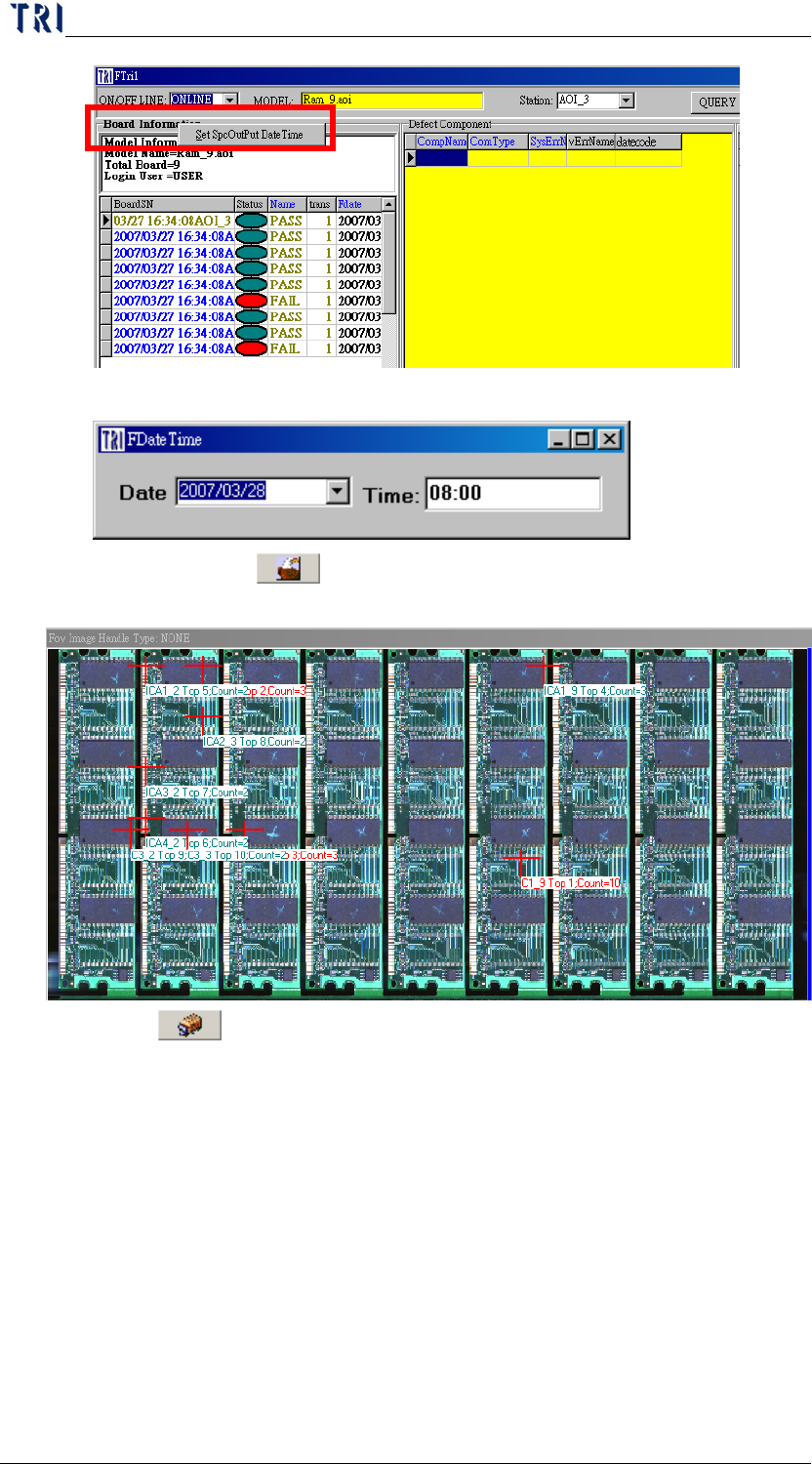
Show Top 10 Component-Show the top 10 defect
component on the panel map. The processes are as the followings:
(1) Set [Setting/Other/SPC Output] as [True]。
(2) Double click on [Board Information] on main frame.
Chapter 2 Repair Station Main Program
AOI Repair Station
38
(3) Set the initial time.
(4) Press [
Show Top 10 Component], then system will show
the top 10 defect components.
6.4.11
Pass Board Auto Scroll-Under multi-board situation, when
the function is enabled, user only has to press [↓] button once to
skip the PASS boards and stop on the next FAIL board. If it is not
enabled, every FAIL boards have to be review by press [↓] once.
Chapter 2 Repair Station Main Program
AOI Repair Station
39
6.4.12
Barcode Link-Link with the customer system to capture
barcode data.
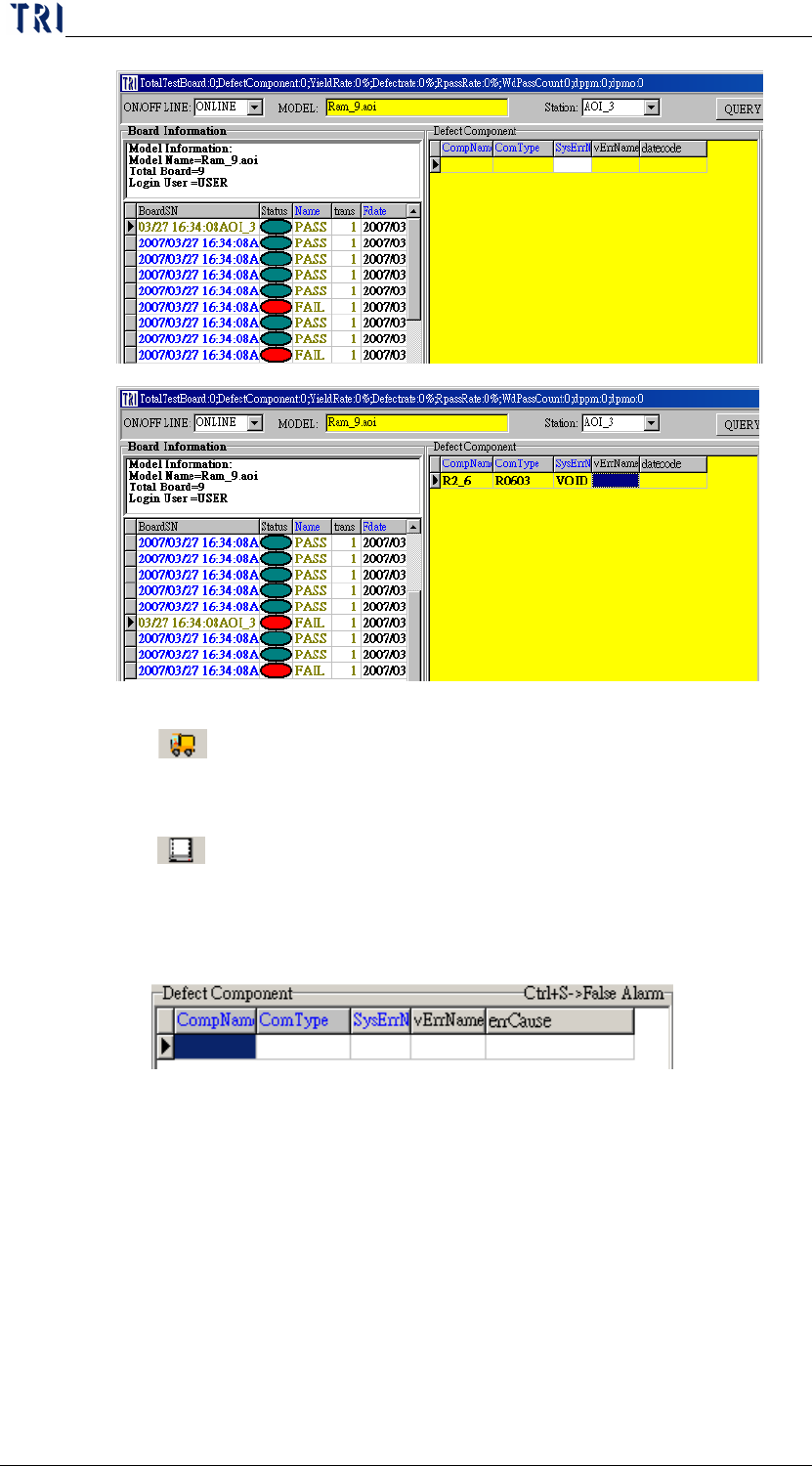
6.4.13 Key in defect cause-When the function is enabled, there will
be a new field named “errCause” for user to key in the error cause.
After user confirms a board as “Repair”, a defect cause window will
pop up to be choose a defect cause.