AOI_RS_v85_en - 第45页
Chapter 2 Repair Station Main Progr am AOI Repair Station 41 the number of data that have not been confirmed yet 6.4.19 PanelSerial - This information onl y shows w hen [PanelSerialShow] function is enabled. See more det…
Chapter 2 Repair Station Main Program
AOI Repair Station
40
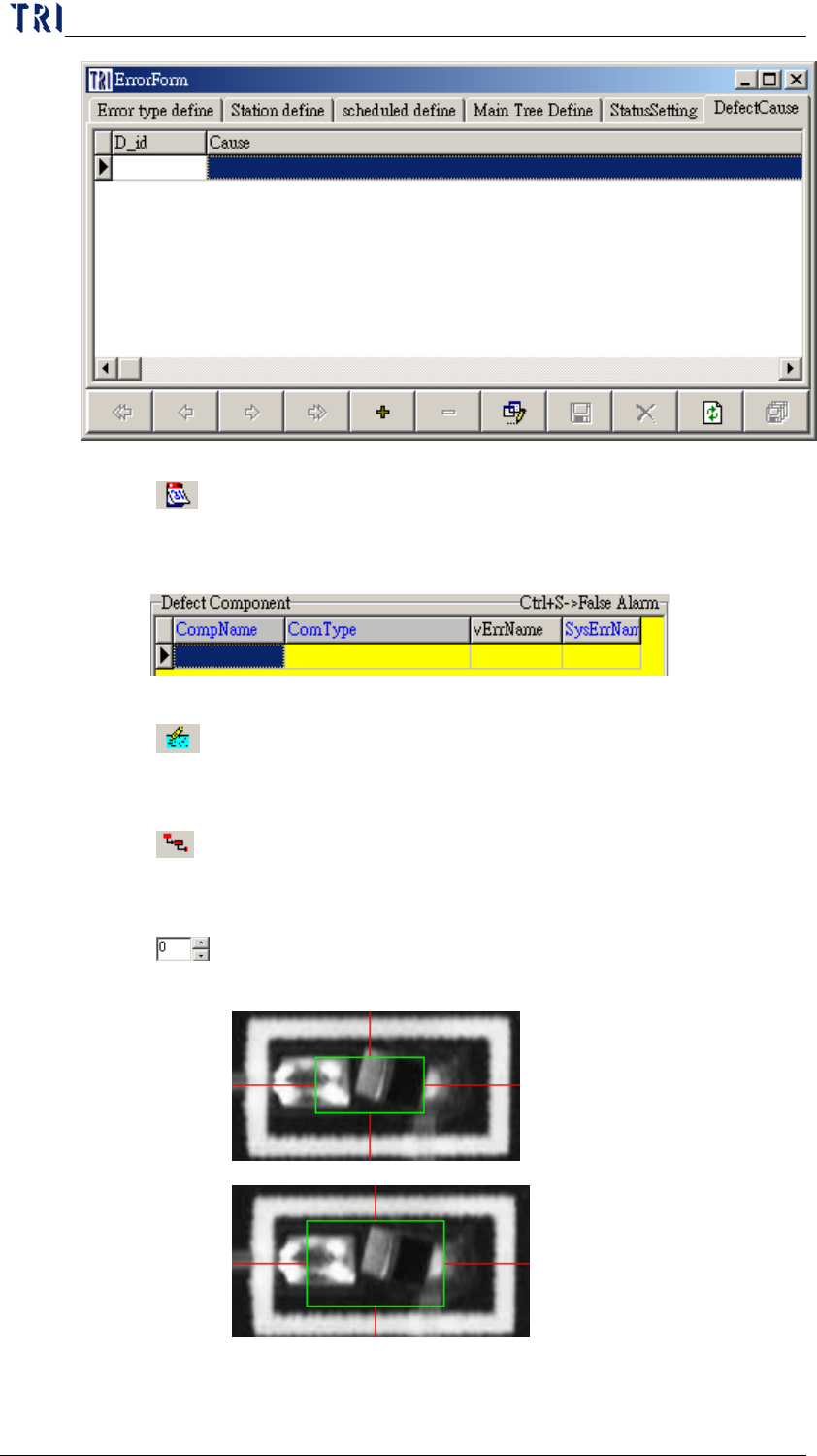
6.4.14 Save Grid Size-After user adjusts the fields manually, press
this button to save the setting. When user starts the program next
time, the fields will display as the settings.
6.4.15
Window Sort by Priority-The sequence in [Defect Window]
will follow the [Priority] field in [Define Error].
6.4.16 Only Show Last Records (Offline)-For a board that is tested for
several times, use this function to only display the last data.
6.4.17 FOV Frame Resize-Enlarge the green box that is to mark the
position of the component. The unit is pixel.
0
10
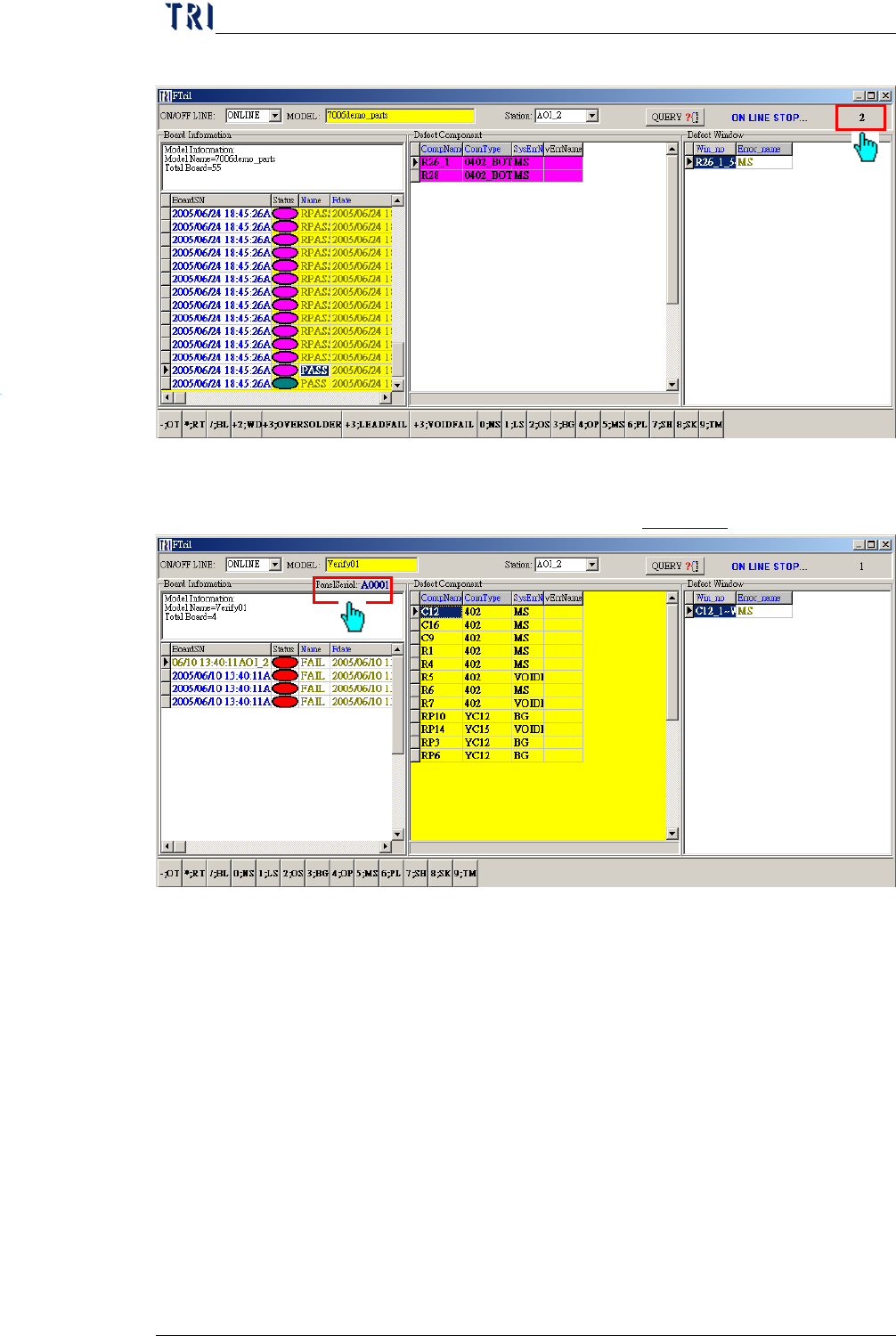
6.4.18 Unconfirmed number-When you select online mode, system shows
Chapter 2 Repair Station Main Program
AOI Repair Station
41
the number of data that have not been confirmed yet
6.4.19 PanelSerial-This information only shows when [PanelSerialShow]
function is enabled. See more details in
10.6.6.19.
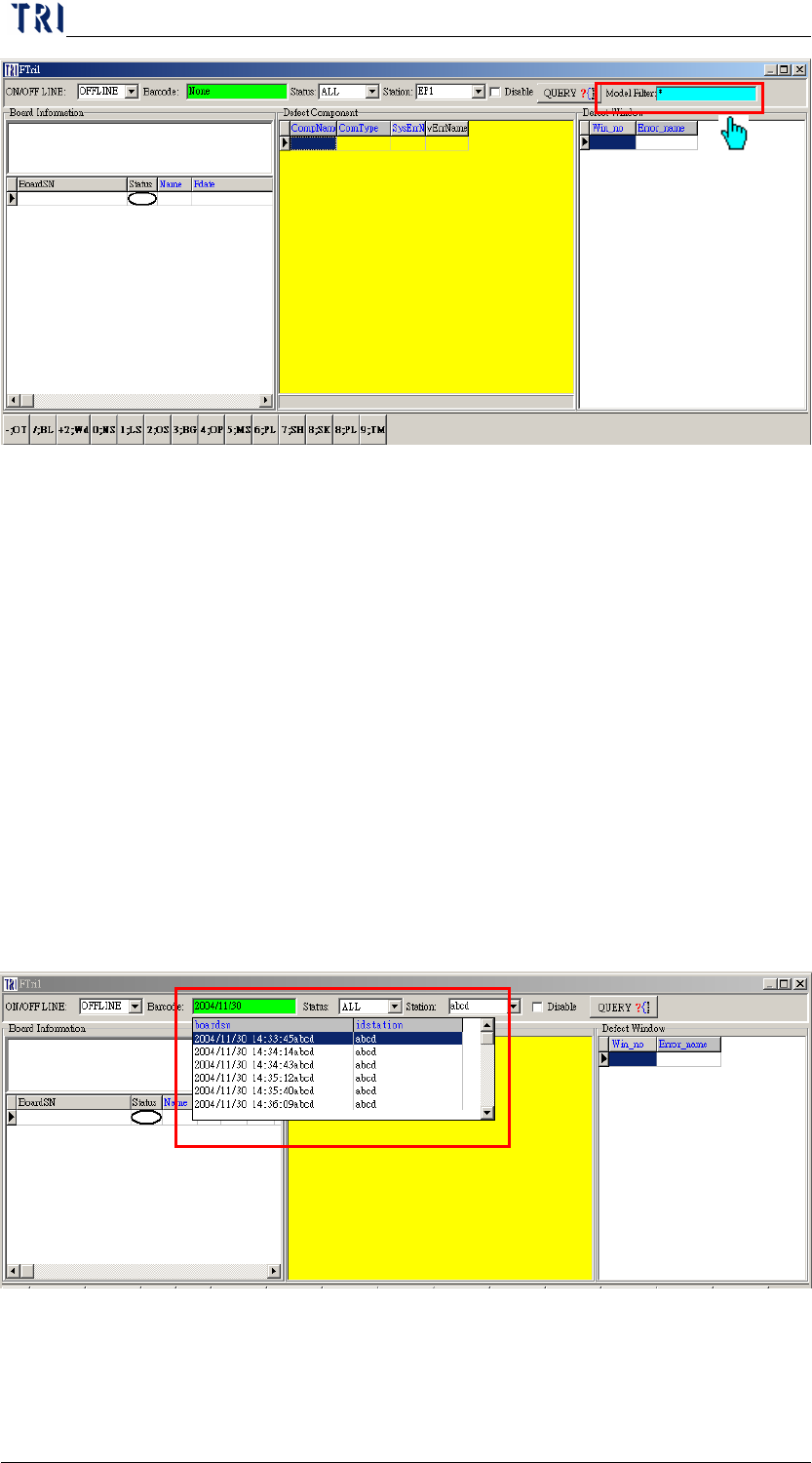
6.4.20 Model Filter-The field only shows when you select offline mode.
You can input a model name to be a condition to query or input [*] to
not use this function.
Chapter 2 Repair Station Main Program
AOI Repair Station
42
6.4.21 Checking the history of database-When online or offline, you may
see 4 previous data by switching the yellow working area to SN area
and then press the upper arrow key
Step1. Switch to [Offline]
Step2. Enter the barcode data that need to be searched in the
[Barcode] column.
Enter the current date if there is no barcode. The date
format will be like 2004/01/09 13:10:56x, where x is
the station id.
For instance: 2003/08/18 17 has been entered in
barcode. By double click on the green area (Barcode),
all information of 2003/08/18 17 will be listed. Then
select any desired list and click on the [QUERY] icon
for detail like the figure below:
Step3. You may search data by switching the working area to
[BoardSN], and press the down arrow key.