AOI_RS_v85_en - 第51页
Chapter 2 Repair Station Main Progr am AOI Repair Station 47 7.6 Defect Cause User can define the defect ID and the defect cause in this window . When user confirms a board, he can select [ Key in Defect Cause] to sele…
Chapter 2 Repair Station Main Program
AOI Repair Station
46
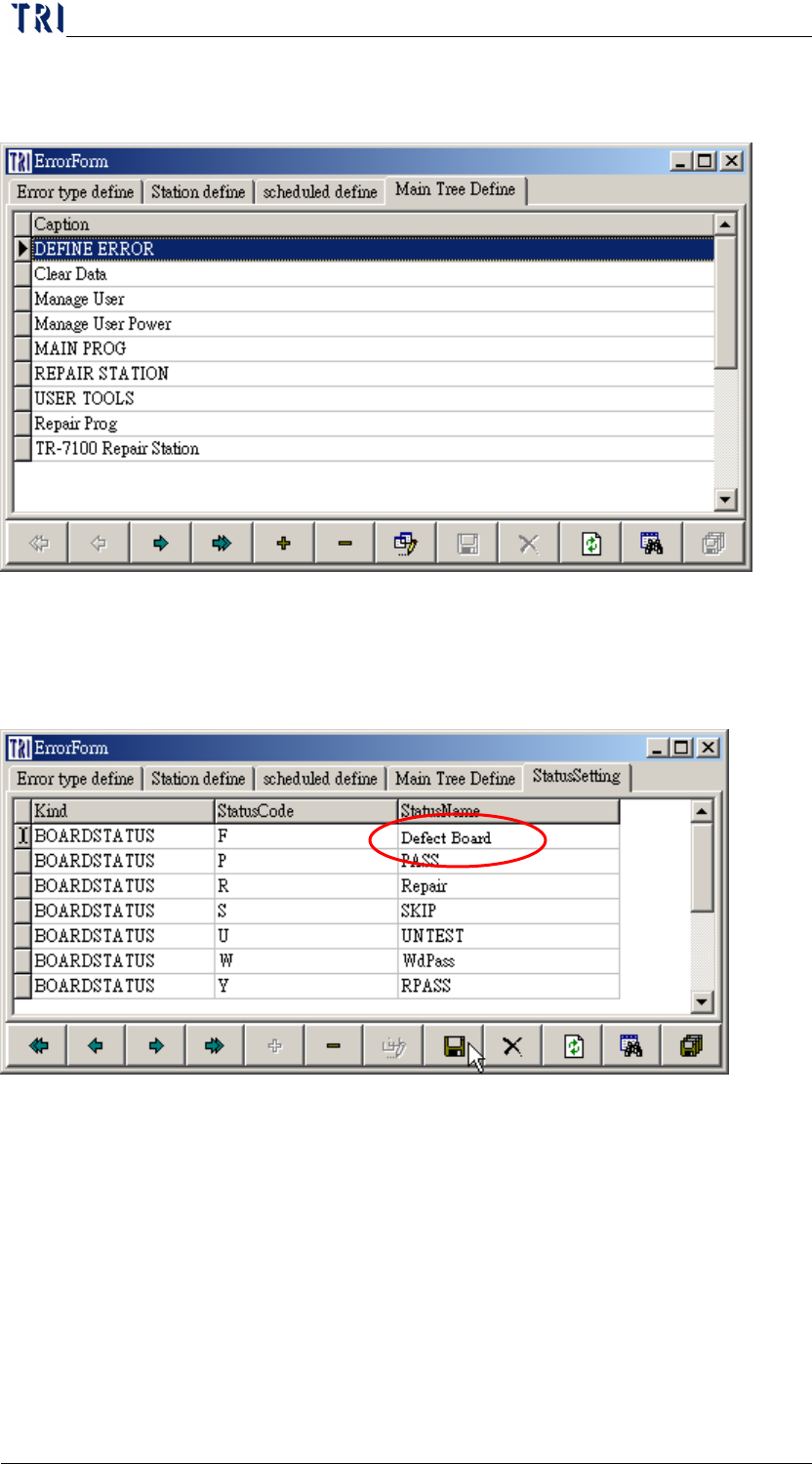
7.4 Main Tree Define
You can define the texts that you want to display on the Tree Diagram.
7.5 Status Setting
Modify the displayed name of the board status. In this setting, there
is only “Status Name” field could be modified.
Chapter 2 Repair Station Main Program
AOI Repair Station
47
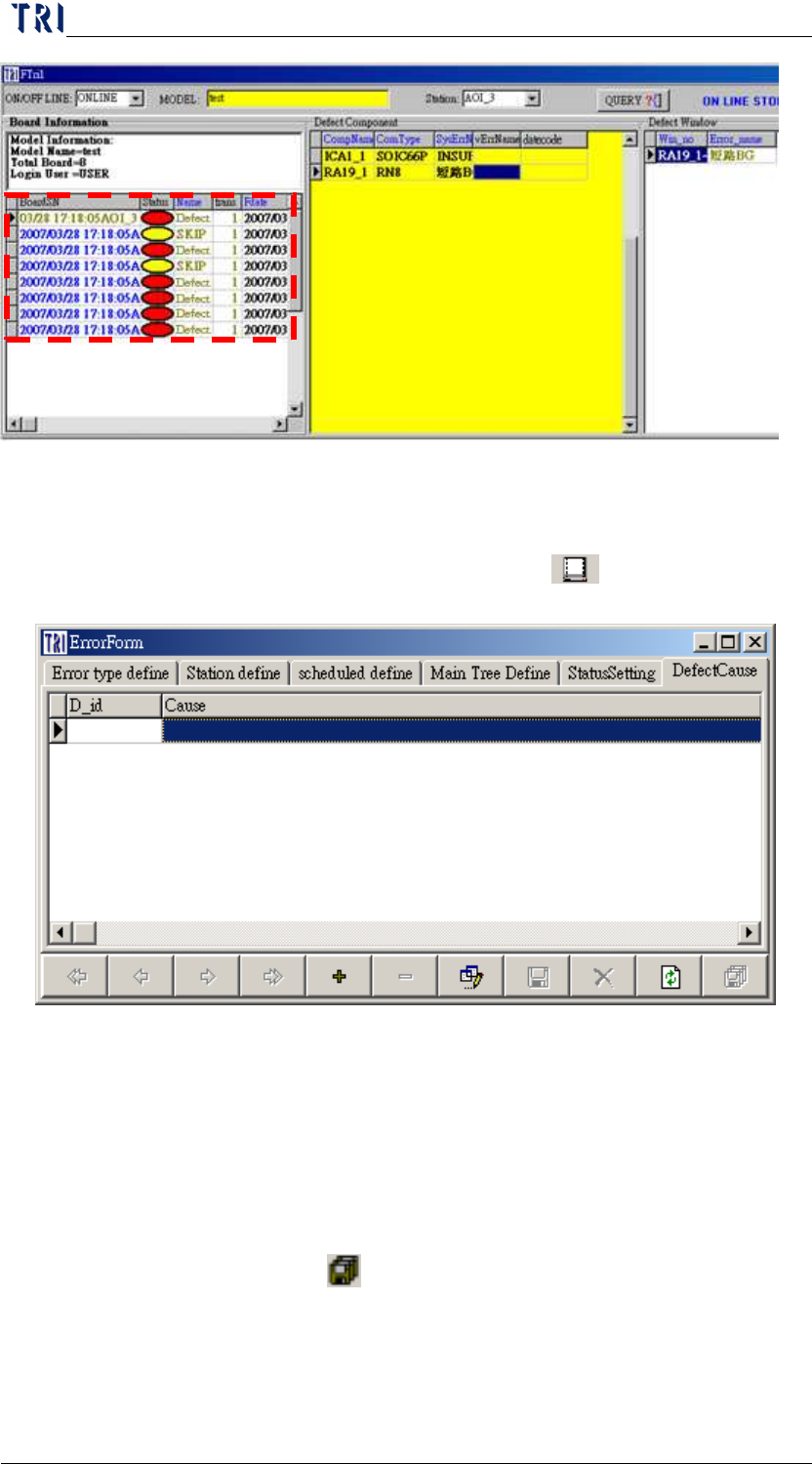
7.6 Defect Cause
User can define the defect ID and the defect cause in this window.
When user confirms a board, he can select [
Key in Defect Cause]
to select a defect cause by a pop-up window.
8 Manage User Power/ Manage User
8.1 Setting up the account privileges
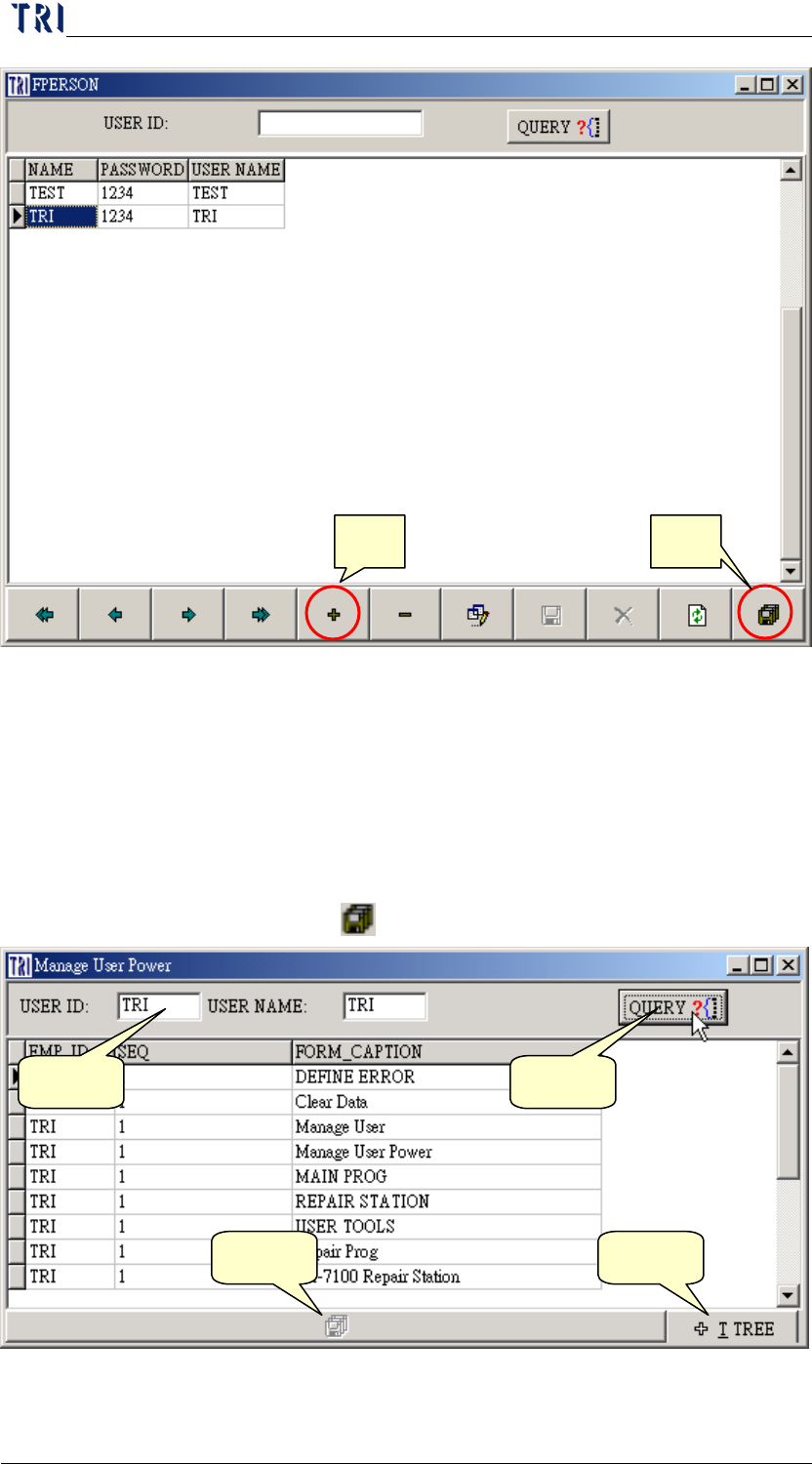
Step1. First use [USER] as [User ID], then type [1234] for the password
to enter the REPAIR STATION Main Program.
Step2. Go to [Main Program/User Tools/Manage User], press [+] to add
new user, then enter the [NAME], [PASSWORD], and the [USER
NAME], press [
save] when finished.
Chapter 2 Repair Station Main Program
AOI Repair Station
48
Step3. Go to [Main Program/User Tools/Manage User Power], and add
privileges for the users:
Step3-1. Enter the [User ID]
Step3-2. Press [QUERY] to search
Step3-3. Press [tree structure] button
Step3-4. Grant the privilege
Step3-5. Press [
] to save.
New Save
Step1 Step2
Step3 Step5