AOI_RS_v85_en - 第81页
Chapter 2 Repair Station Main Progr am AOI Repair Station 77 11 Data Backup 11.1 Auto Backup Step1. Run [c:\rsinstall\pinstall.exe], select [AutoBkDb] by switching to [parameter setting] under [version kind] menu bar . S…
Chapter 2 Repair Station Main Program
AOI Repair Station
76
10.6.7.17 Only Show the Latest Data
There are two Repair PCs; user normally confirms a board at one
Repair PC and the other PC only shows the last confirmed result.
The PC that is to confirm has to be set as [True] and the PC that is
to show the last result has to be set as [Destination].
10.6.7.18 Board No Change
When user select [Decrease] mean the board number will be saved
after it subtract 1.
10.6.7.19 Auto Open、Login Name、Login Password
When it set as [True], user could start the program directly and he
don’t have to input the ID and Password. System will use the
Name and Password that you set here to log in and it starts the
confirming main frame when the program is open.
Chapter 2 Repair Station Main Program
AOI Repair Station
77
11 Data Backup
11.1 Auto Backup
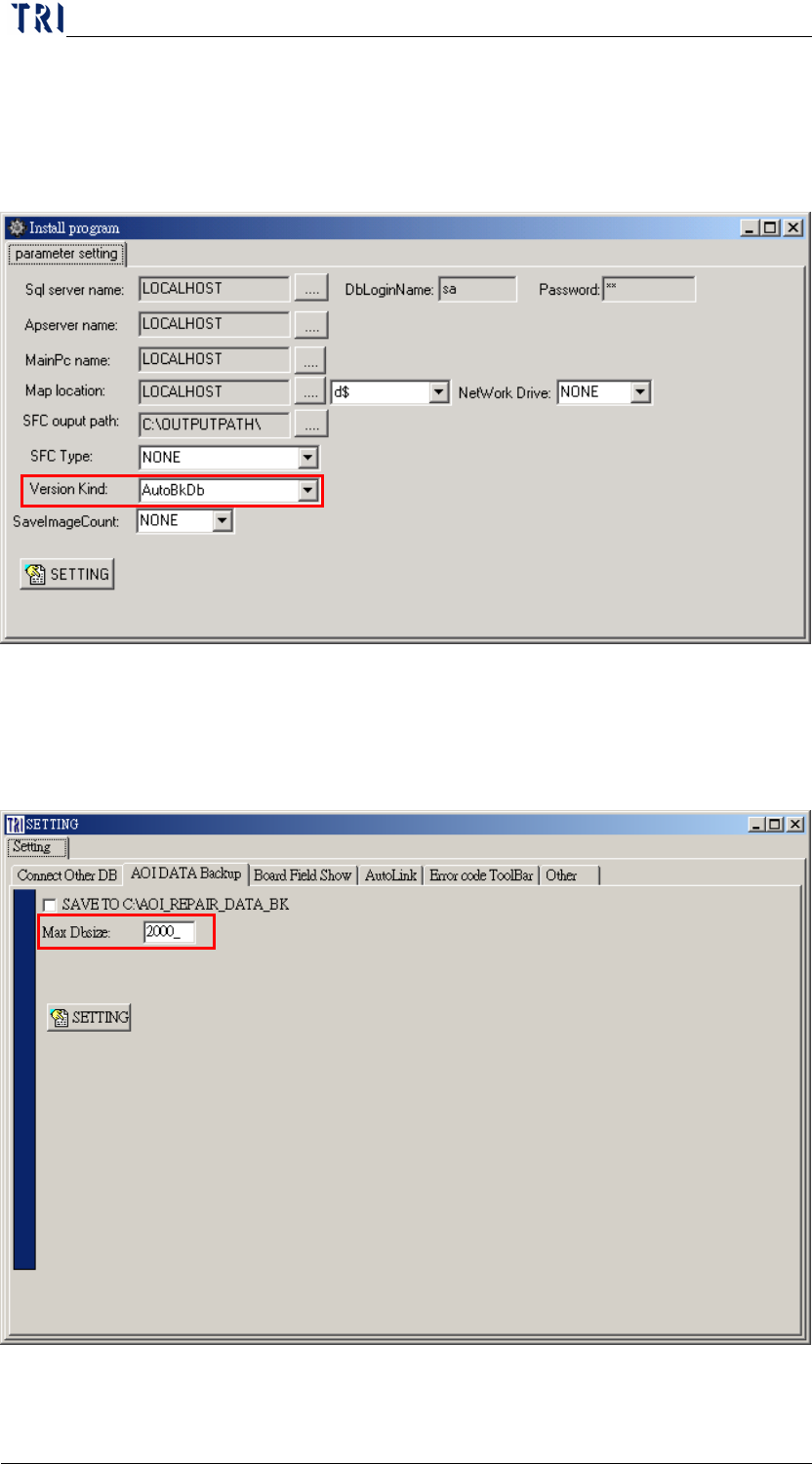
Step1. Run [c:\rsinstall\pinstall.exe], select [AutoBkDb] by switching to
[parameter setting] under [version kind] menu bar.
Step2. Set the [Max Dbsize] on [SETTING/AOI DATA Backup] on the
main screen sets the size of backup files, and the default size
setting is 2000mb(2G).
Chapter 2 Repair Station Main Program
AOI Repair Station
78
Step3. Close all programs and restart the main program
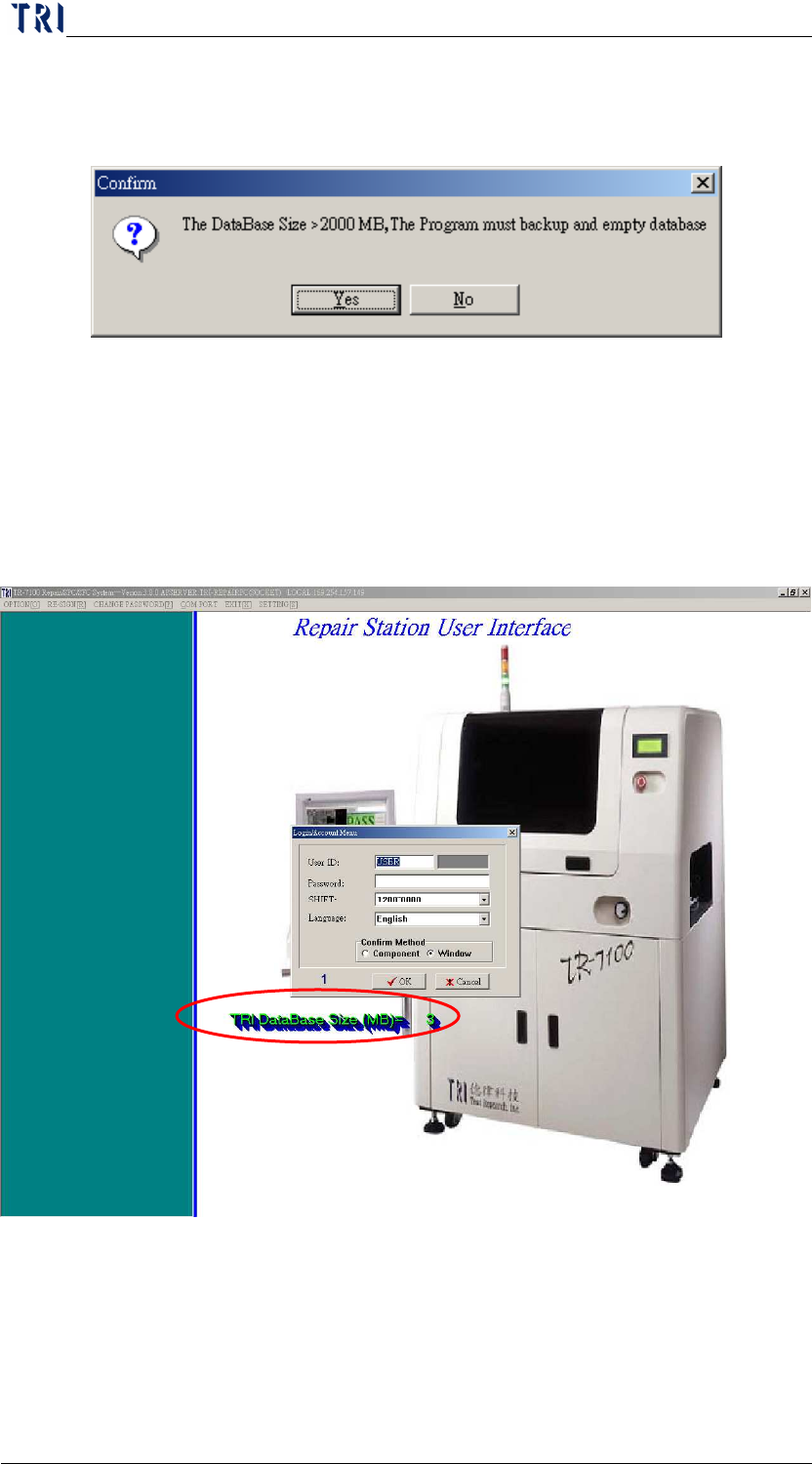
Step4. A warning message appears in [INSERTDATA.EXE] program
when DB size is over the original setting.
Press [Yes] to start backup, Press [ok] when
empty db is ok
and append db is ok appears, (it will take about 10~20
minutes to backup a 2000mb DB), press [no] to disregard
backup, the program will exit.
The original DB size will become approximately 2~5mb
after the backup, the db size will show when logging in the
main program