AOI_RS_v85_en - 第83页
Chapter 2 Repair Station Main Progr am AOI Repair Station 79 Step5. After the backup, you may see the backed up D B by goin g to the [Backup db] page at [REP AIR ST A T ION Main Program/USER TO OLS/Clear Data]. Step6. Se…
Chapter 2 Repair Station Main Program
AOI Repair Station
78
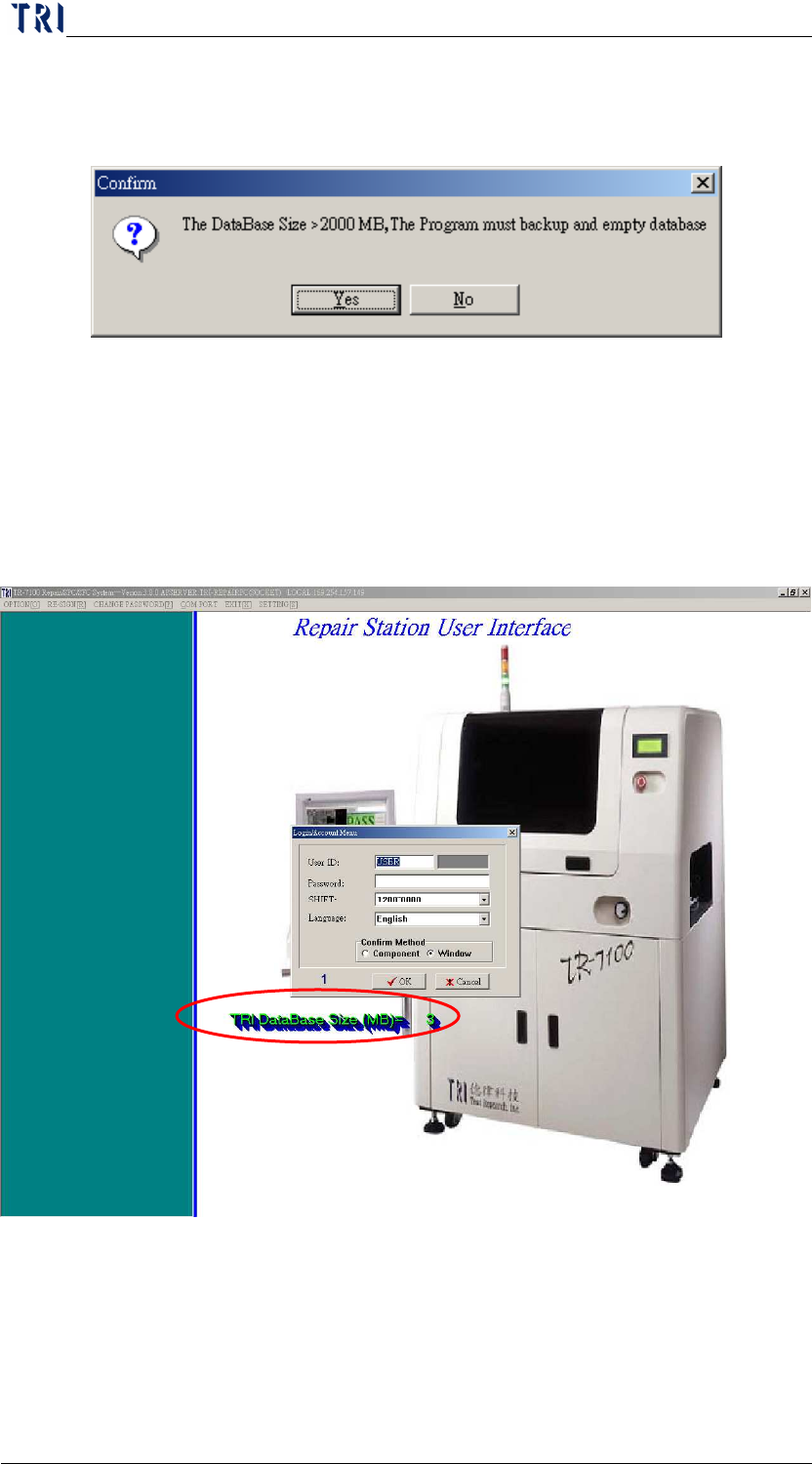
Step3. Close all programs and restart the main program
Step4. A warning message appears in [INSERTDATA.EXE] program
when DB size is over the original setting.
Press [Yes] to start backup, Press [ok] when
empty db is ok
and append db is ok appears, (it will take about 10~20
minutes to backup a 2000mb DB), press [no] to disregard
backup, the program will exit.
The original DB size will become approximately 2~5mb
after the backup, the db size will show when logging in the
main program
Chapter 2 Repair Station Main Program
AOI Repair Station
79
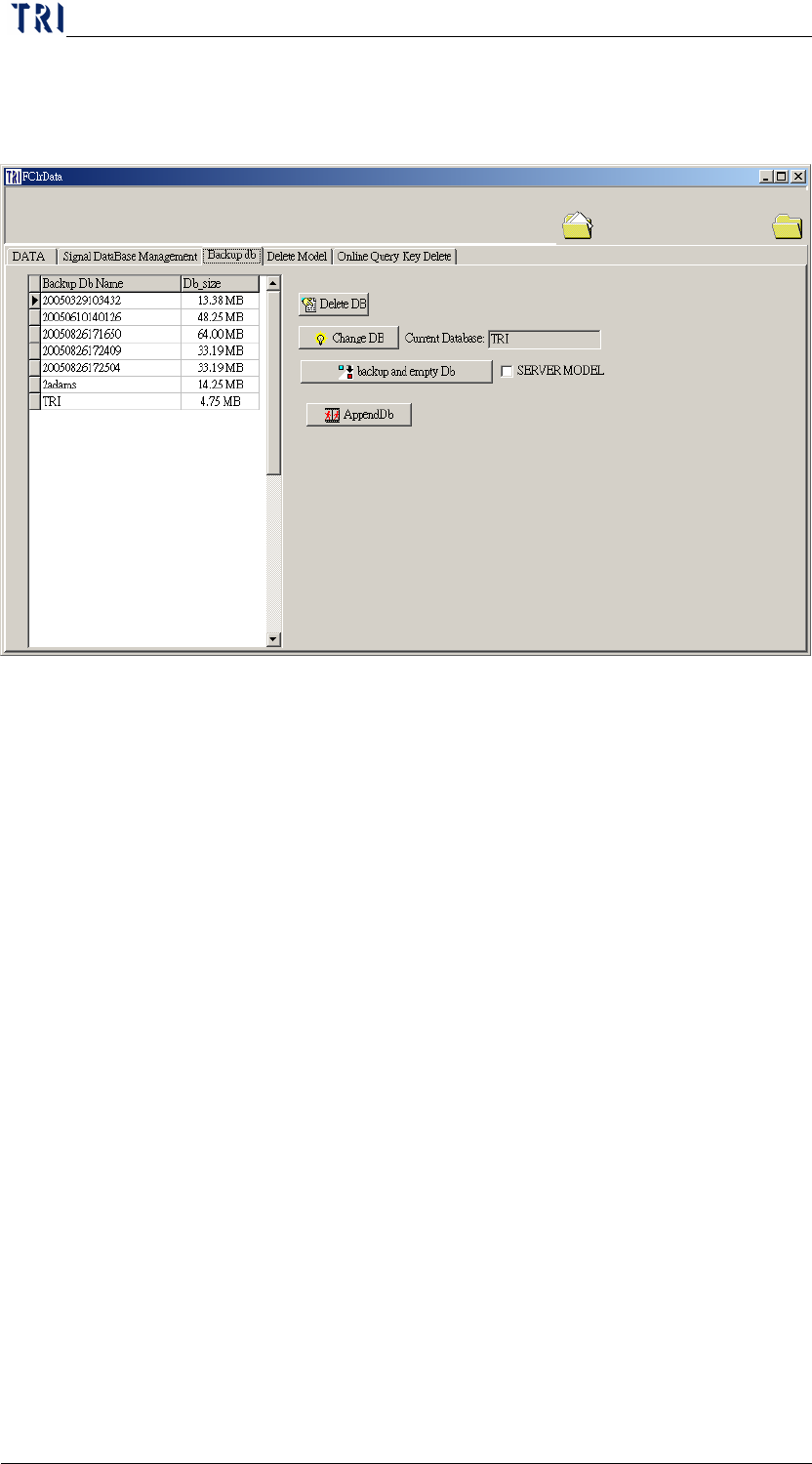
Step5. After the backup, you may see the backed up DB by going to the
[Backup db] page at [REPAIR STATION Main Program/USER
TOOLS/Clear Data].
Step6. Select the backup db bass name and press [Change Db] to view
saved database in this screen (if [insertdata.exe] is under the same
system, remember to shut of the [INSERTDATA.EXE] before you
press the [CHANGE DB] button), and then restart the system.
While finished checking, remember to switch back to [TRI] and
restart the system, otherwise the [insertdata.exe] will not work.
Step7. To delete backup DB, select a DB NAME and press [Delete DB]
button on this screen. [TRI] Database can’t be deleted here.
Step8. The backup files will be saved in [C:\Aoidata_bk] folder. You can
copy these files to the other storage facilities to preserve it.
11.2 Manual Backup
Go to [Back db] on the figure above, and press [Backup and Empty
DB]. The backup files will be saved in [C:\Aoidata_bk] folder. You can
copy these files to the other storage facilities to preserve it.
11.3 The way to save the Database file
The backup DB files will be saved in [C:\Aoidata_bk] folder. If you
want to save it in the other facilities, stop the [SQL Server] first and
copy the pairs of [*.LDF] and [*.MDF] files to the objective position.
You have to use “Copy” and not “Delete” or “Cut” function to move
Chapter 2 Repair Station Main Program
AOI Repair Station
80
the DB files. Use the [Clear Data\Backup db] page to delete the
function if necessary; see section 錯誤
錯誤錯誤
錯誤! 找不到參照來源
找不到參照來源找不到參照來源
找不到參照來源。
。。
。.
If you want to copy the database named [TRI], the steps are as the
followings. First, you have to stop [SQL Server]. Then copy the two
data, [tri_data.mdf] and [tri_log.ldf], in [C:\Program Files\Microsoft
SQL Server\MSSQL\Data\] folder to the facility that you want to save
in. If you want to move these data to another computer to use, change
the file names into with “2” beginning, and use [Append] to link them
to the database.
11.4 Image File Backup
11.4.1 The image files are saved in [D:\ SqlserverMap] (it will be saved
under [C:\ SqlserverMap] if there is no D drive available), there will
be two file folders under this path
fovjpg-Saved FOV images by date
trainImg-Saved FOV images by model name
11.4.2 You may select the backed up files by the number of days, and delete
them after the files are backed up to save the hard disk space.
11.4.3 You may select the backed up files by the model name, and delete
them after the files are backed up to save the hard disk space.
11.4.4 DO NOT delete day image file that is created today.
12 Trouble Shooting
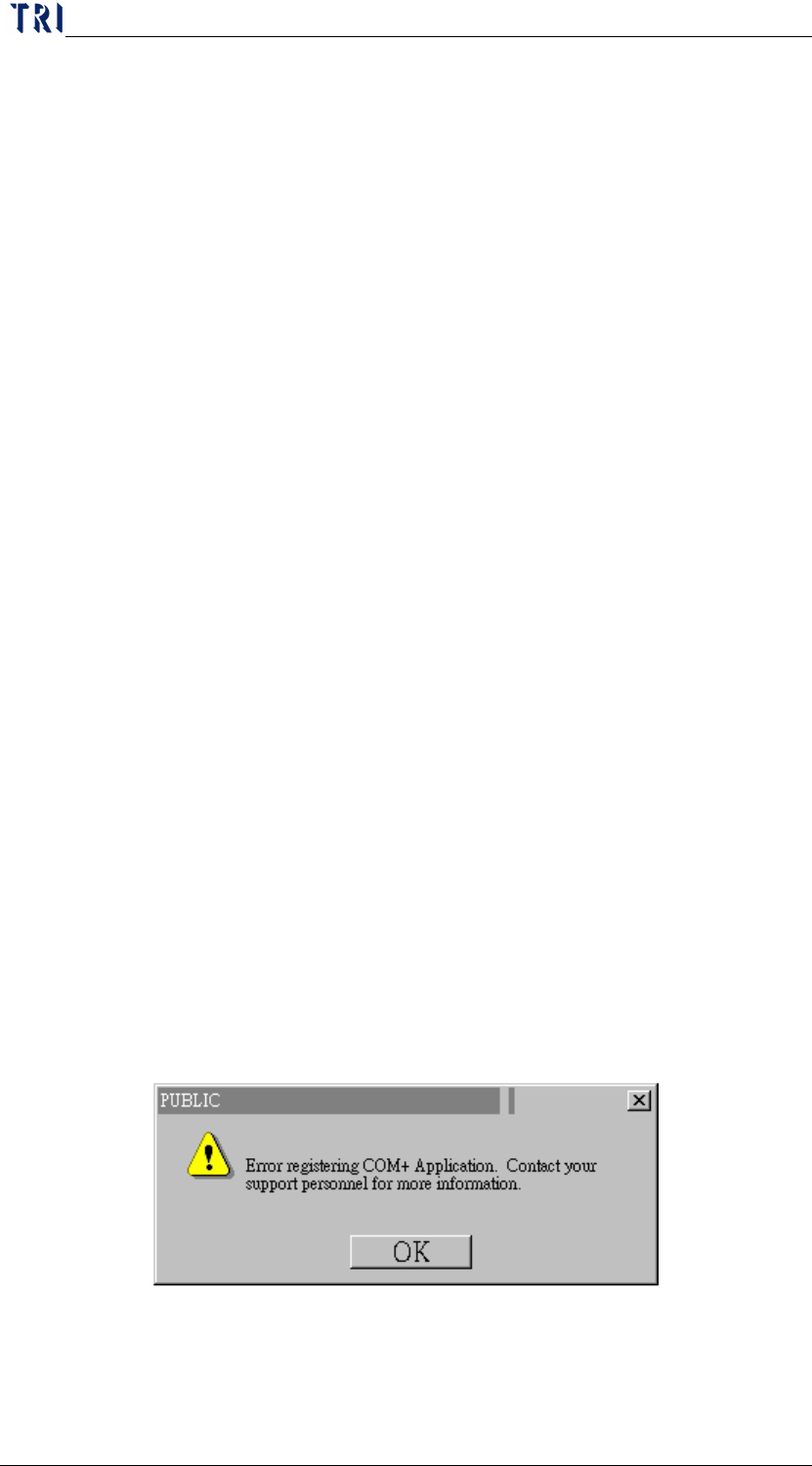
12.1 Error Message during the installation or updating.
If any error message appeared while installing repair station or
update(figures below), remove [PUBLIC] and [TRI] icon by going to
[control panel/system manager/tool service/computer/my
computer/COM+ program files], and then reinstall the repair station or
update the program.
Usually the cause of the error message is the incompletion of
uninstalling repair station or update. Incompletion of [COM+] removal