AOI_RS_v85_en - 第87页
Chapter 2 Repair Station Main Progr am AOI Repair Station 83 to link the computers.
Chapter 2 Repair Station Main Program
AOI Repair Station
82
12.2 Troubleshooting Procedure
12.3 Network Problem
AOI Main PC and Repair PC have to install [NetBEUI Protocol] in
Local Area Connection. If one of the computers has installed
[NWLink IPX/SPX/NetBIOS Compatible Transport Protocol], the
other computer has to be installed it.
Be sure that the drive share of C$ and D$ have been set well in Repair
PC.
Ethernet connection problem. Select [Start/ Run] and input [\\RepairPC
Name\C$ (D$)] to be sure that you can read or write data through this
path.
If the main PC and RS PC still can’t see each other, user could use IP
Network Problem. See 錯
錯錯
錯
!
.
Yes
No
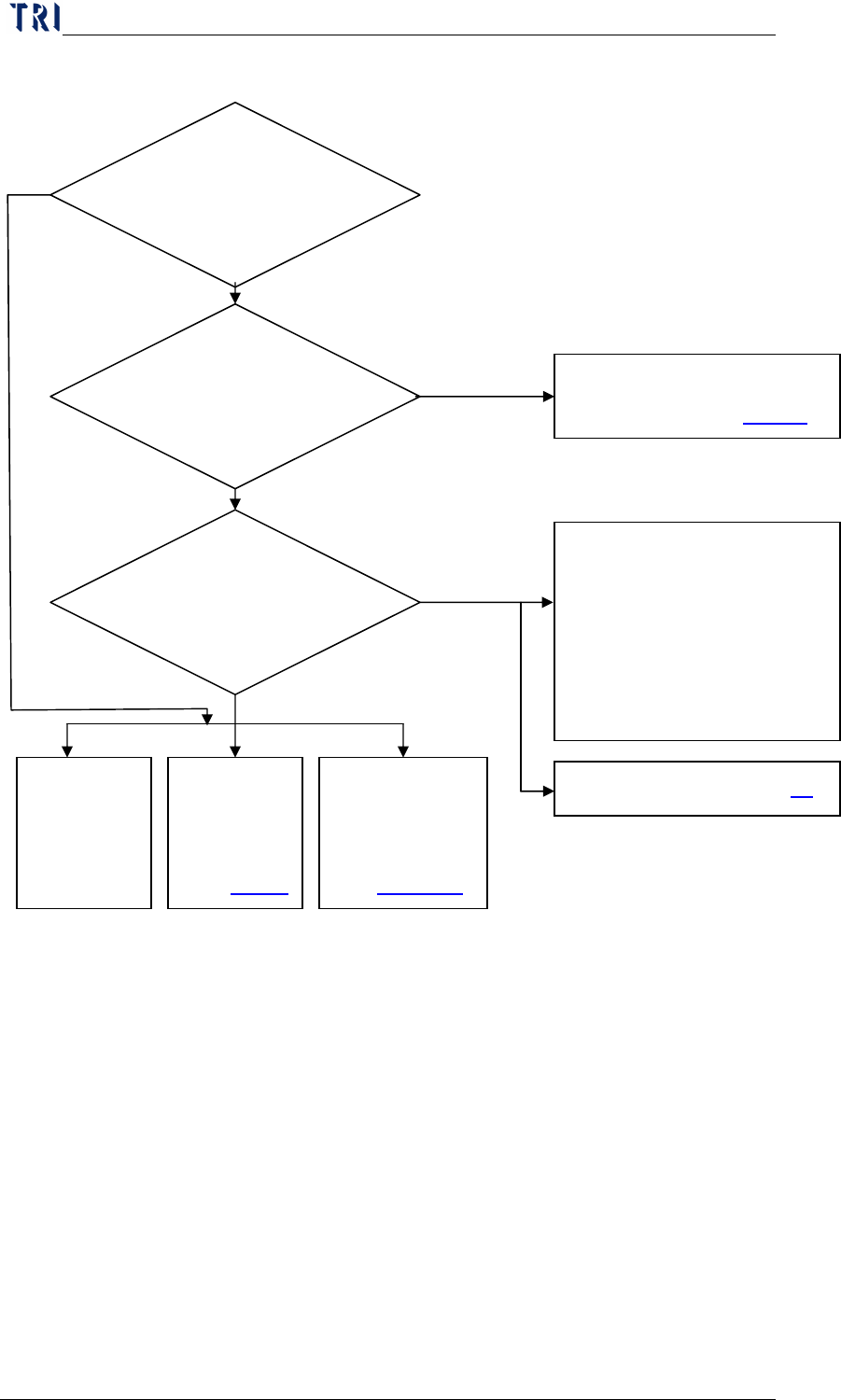
AOI program setting
1. Check [Link to Repair]?
2. Path in [Panel/
RepairStation] is set to
[C:\AOI_Reapir_Data]
folder on RS PC?
Update the
RS version
to the last
version.
Database
or Hard
Disc is full.
See
錯誤
錯誤錯誤
錯誤!
Insertdata.exe
isn’t open or
can’t be open.
See
錯誤
錯誤錯誤
錯誤! 找
找找
找
If there are [*.fail],
[*.afail] or [*.efail] file in
[C:\AOI_Repair_Data] folder
on Repair Station.
If there are
[*.dir] or [*.err] file in
[C:\AOI_Repair_Data]
folder on Repair Station.
No
No
Yes
Yes
Close Insertdata.exe
then inspect a board again,
see if there are data sent to
[C:\AOI_Repair_Data] on
Repair Station.
Insertdata.exe isn’t open or
can’t be open. See
錯誤
錯誤錯誤
錯誤!

Chapter 2 Repair Station Main Program
AOI Repair Station
83
to link the computers.
Chapter 2 Repair Station Main Program
AOI Repair Station
84
12.4 Unable to start INSERTDATA.exe
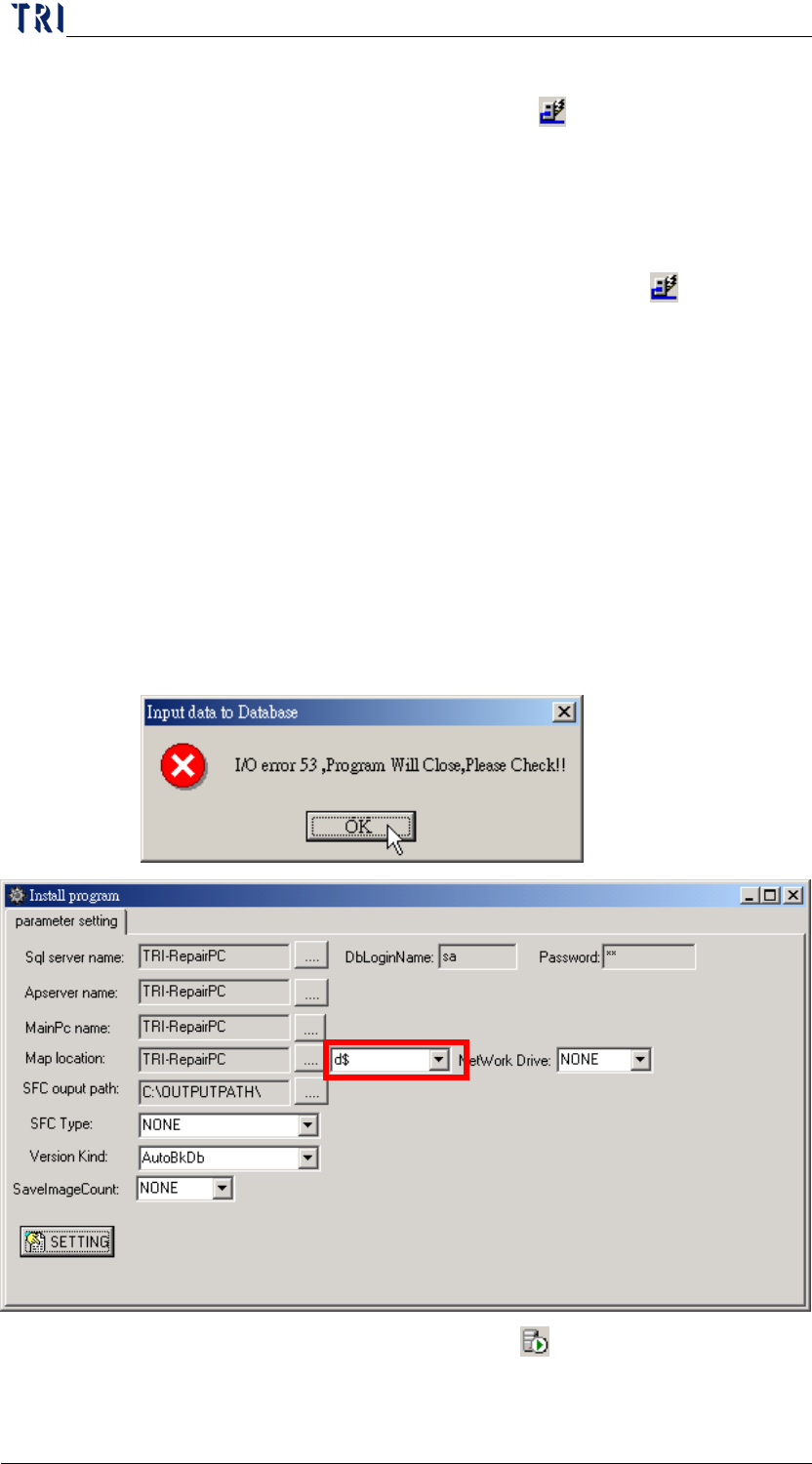
Check for the existence of a lightning sign
(Borland socket server)
on the right bottom corner: if not, go to the [control panel/service] to
activate [Borland socket server], if the Borland socket server is
unavailable here then user has to reinstall it. Use [Start/ Run] and key
in [C:\rsinstall\scktsrvr.exe -install] to resinstall Borland socket server.
If the lightning sign is available, then click on the sign to check
whether the port was set at 211.
Stand-Alone Version: Check for the name of the current system on
desktop’s gear icon (parameter setting), and make sure the first 4
entries are under current PC’s name or [LOCALHOST].
Server version: Check for [sqlservername] on desktop’s gear icon
(parameter setting) to see if it is under the name of server pc, also
make sure the connection to the server is ok.
When the system shows [I/O error 53] message, check if the [C$] or
[D$] share for C or D disc is available or there is no D disc in Repair
PC. Go to PINSTALL.EXE and set the [Map location] to [C$] or the
other available disc.
Confirm if SQL SERVER runs normally
.
The C disc space is not enough. The C available space has to be