AOI_RS_v85_en - 第89页
Chapter 2 Repair Station Main Progr am AOI Repair Station 85 larg er than the auto backup space that you se t (Default is 1800MB). User has to clear the C disc then restart the insertdat.exe. The D disc space is not en…
Chapter 2 Repair Station Main Program
AOI Repair Station
84
12.4 Unable to start INSERTDATA.exe
Check for the existence of a lightning sign
(Borland socket server)
on the right bottom corner: if not, go to the [control panel/service] to
activate [Borland socket server], if the Borland socket server is
unavailable here then user has to reinstall it. Use [Start/ Run] and key
in [C:\rsinstall\scktsrvr.exe -install] to resinstall Borland socket server.
If the lightning sign is available, then click on the sign to check
whether the port was set at 211.
Stand-Alone Version: Check for the name of the current system on
desktop’s gear icon (parameter setting), and make sure the first 4
entries are under current PC’s name or [LOCALHOST].
Server version: Check for [sqlservername] on desktop’s gear icon
(parameter setting) to see if it is under the name of server pc, also
make sure the connection to the server is ok.
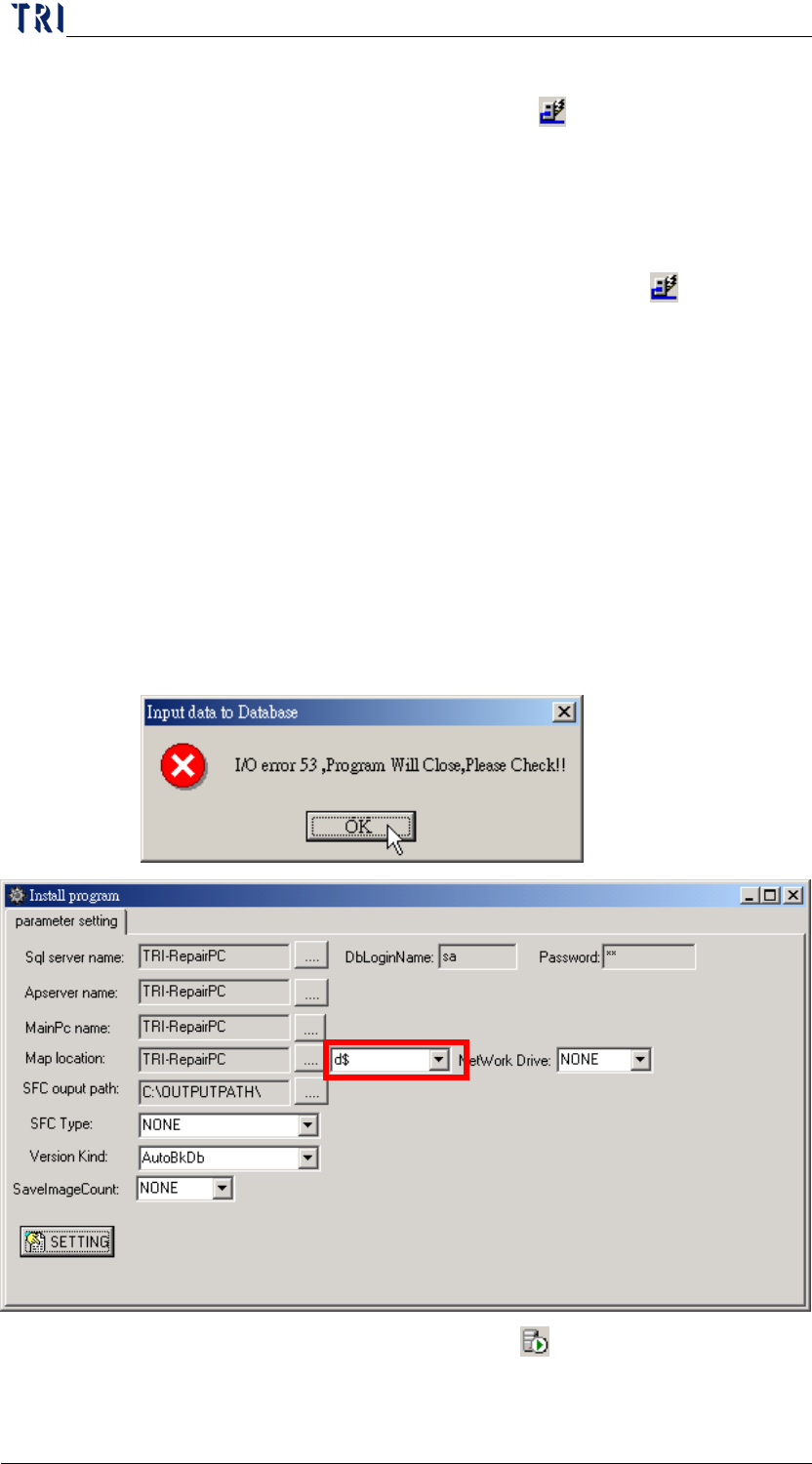
When the system shows [I/O error 53] message, check if the [C$] or
[D$] share for C or D disc is available or there is no D disc in Repair
PC. Go to PINSTALL.EXE and set the [Map location] to [C$] or the
other available disc.
Confirm if SQL SERVER runs normally
.
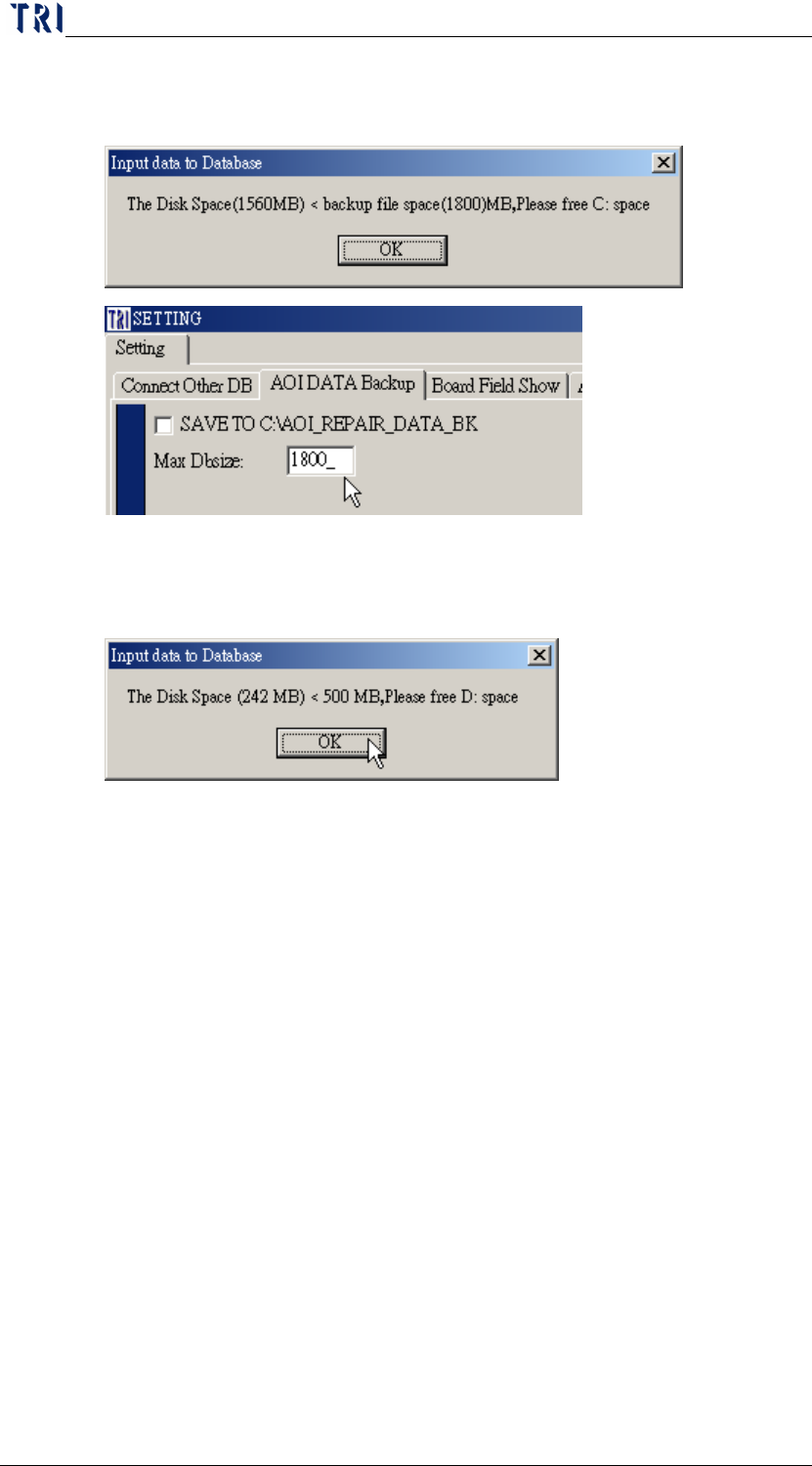
The C disc space is not enough. The C available space has to be
Chapter 2 Repair Station Main Program
AOI Repair Station
85
larger than the auto backup space that you set (Default is 1800MB).
User has to clear the C disc then restart the insertdat.exe.
The D disc space is not enough. The D available disc space has to be
larger than 500MB. User has to clear the D disc then restart the
insertdata.exe.
12.5 Database is full
If the TRI database size is over 1800MB, execute [Clear Data/Empty
DB/Backup and Empty DB] to backup and empty the database.
Chapter3 SPC User Manual
AOI Repair Station
86
Chapter3 SPC User Manual
1 Opening the program
The path of the SPC program is [C:\rsinstall\SPCProj.exe]. Double click on
the icon to start the program.
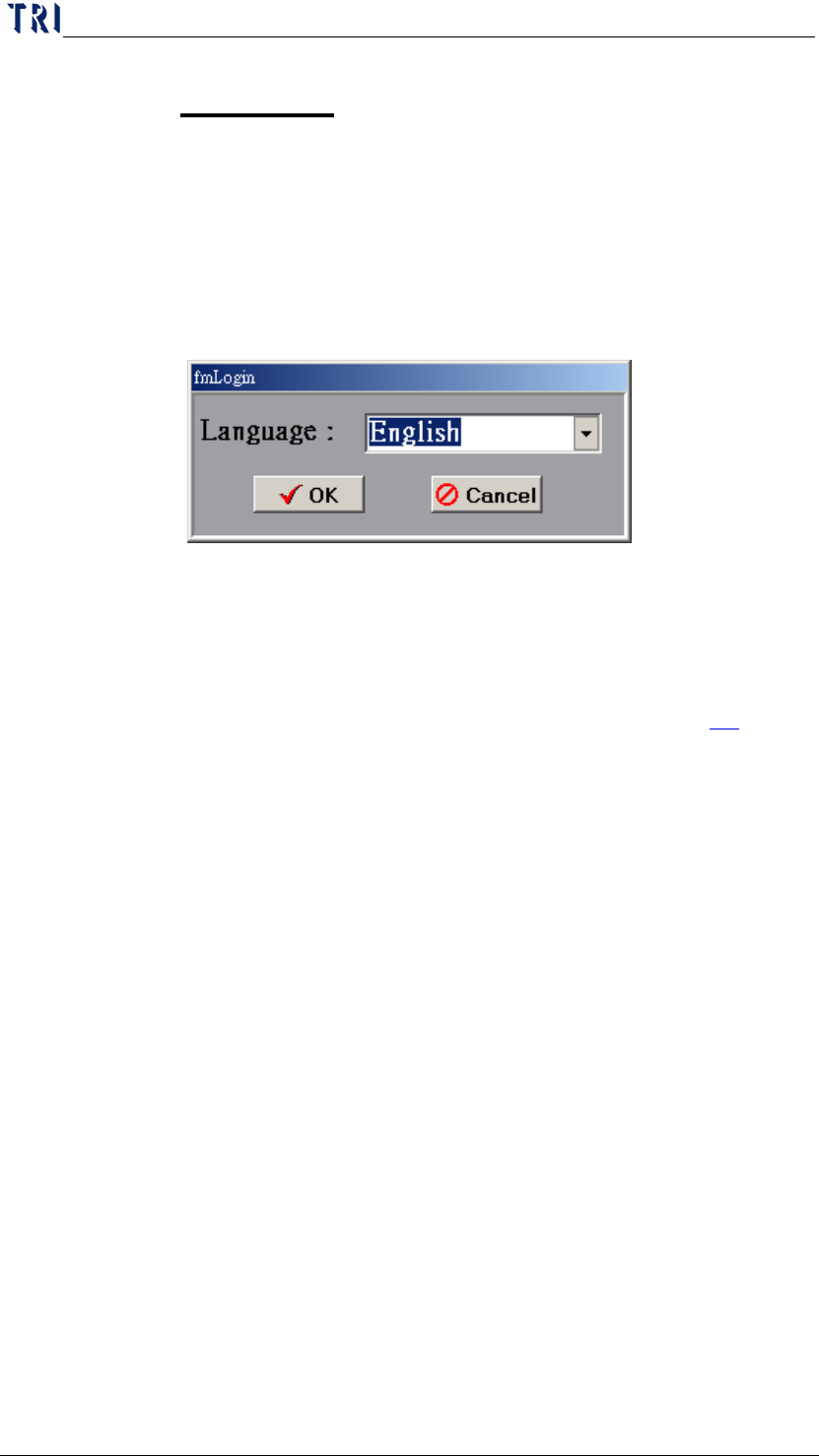
There will be language selection during the log in. You may also change the
language setting by editing [english.txt] or [big5.txt] under
[C:\rsinstall\SPCLanguage]
2 BOARD VIEW
Check for the condition of testing boards.
Step1. Select [Model]
Step2. Select [Station]. For the AOI station setting, go to [repair station main
program/Error Define/Define Error] and modify it. See Section 7.2 for
more information about it.
Step3. Select [date and time], select lot number in [LOTNO] if need it, if not,
empty the [LOTNO] column. Also, you may key in values for [Cover Rate]
and [Inspect Rate] report prints out.
Step4. Press [Query] to search. BAR graph is the default setting for graph type, it
displays number of boards, and the meaning of each condition:
FAIL-A condition has not been confirmed by user while [DEFECT]
has been detected by AOI
PASS-AOI detected as Pass
REPAIR-The board has been detected as failed by AOI, and also
confirmed as a defect board by the operator.
RPASS-The board has been detected as failed by AOI, but
confirmed as a pass board by the operator.
SKIP, Untest-Disregard the board, or been confirmed by the
operator that the board is not being calculated.