AOI_RS_v85_en - 第91页
Chap ter3 SPC User Ma nual AOI Repair Station 87 Step5. Displays the percentages by switching to the PIE graph. Or switch to [F ASLE A LARM OF WORD] to di splay the percentage of false alarm on characters.
Chapter3 SPC User Manual
AOI Repair Station
86
Chapter3 SPC User Manual
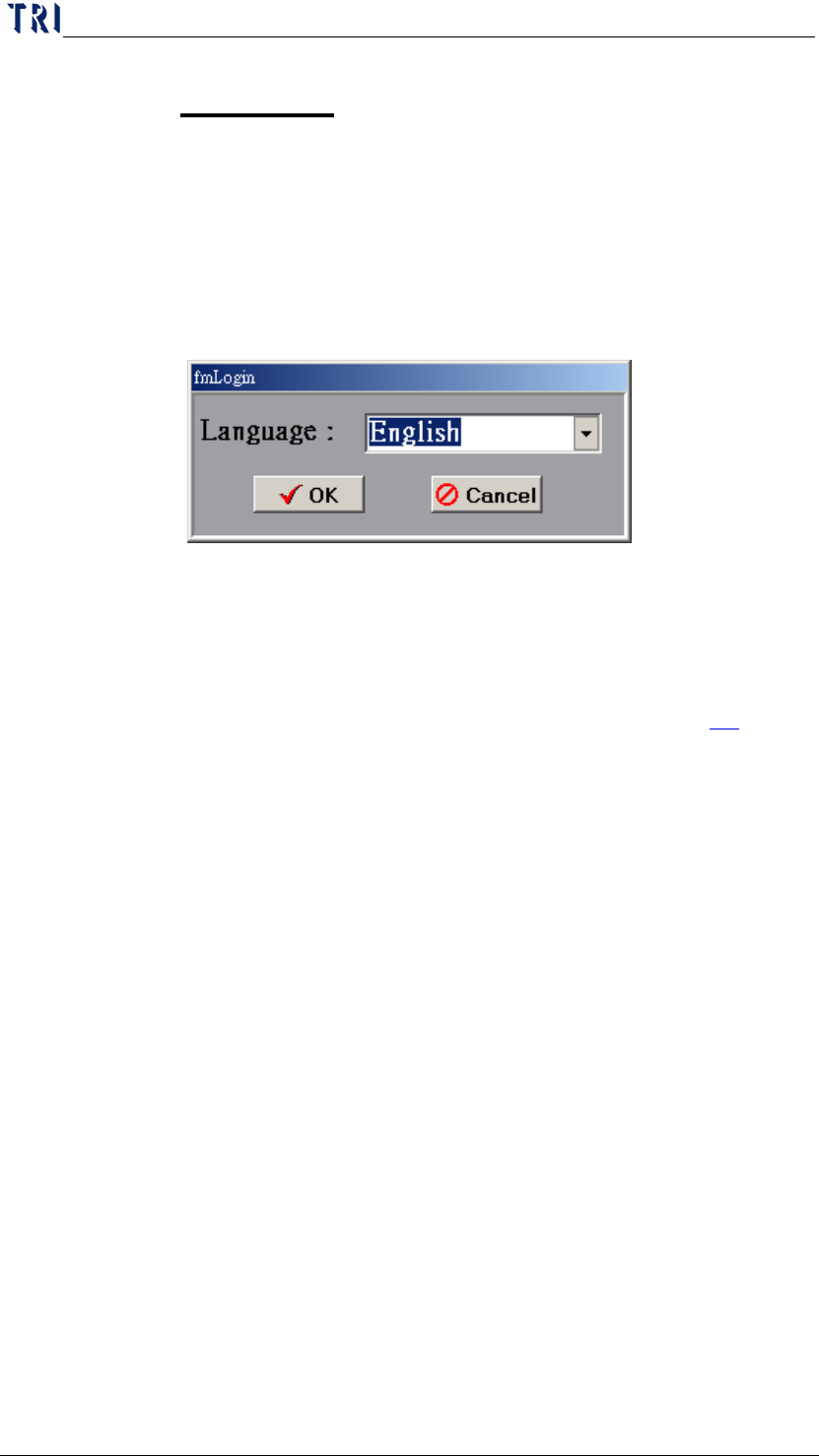
1 Opening the program
The path of the SPC program is [C:\rsinstall\SPCProj.exe]. Double click on
the icon to start the program.
There will be language selection during the log in. You may also change the
language setting by editing [english.txt] or [big5.txt] under
[C:\rsinstall\SPCLanguage]
2 BOARD VIEW
Check for the condition of testing boards.
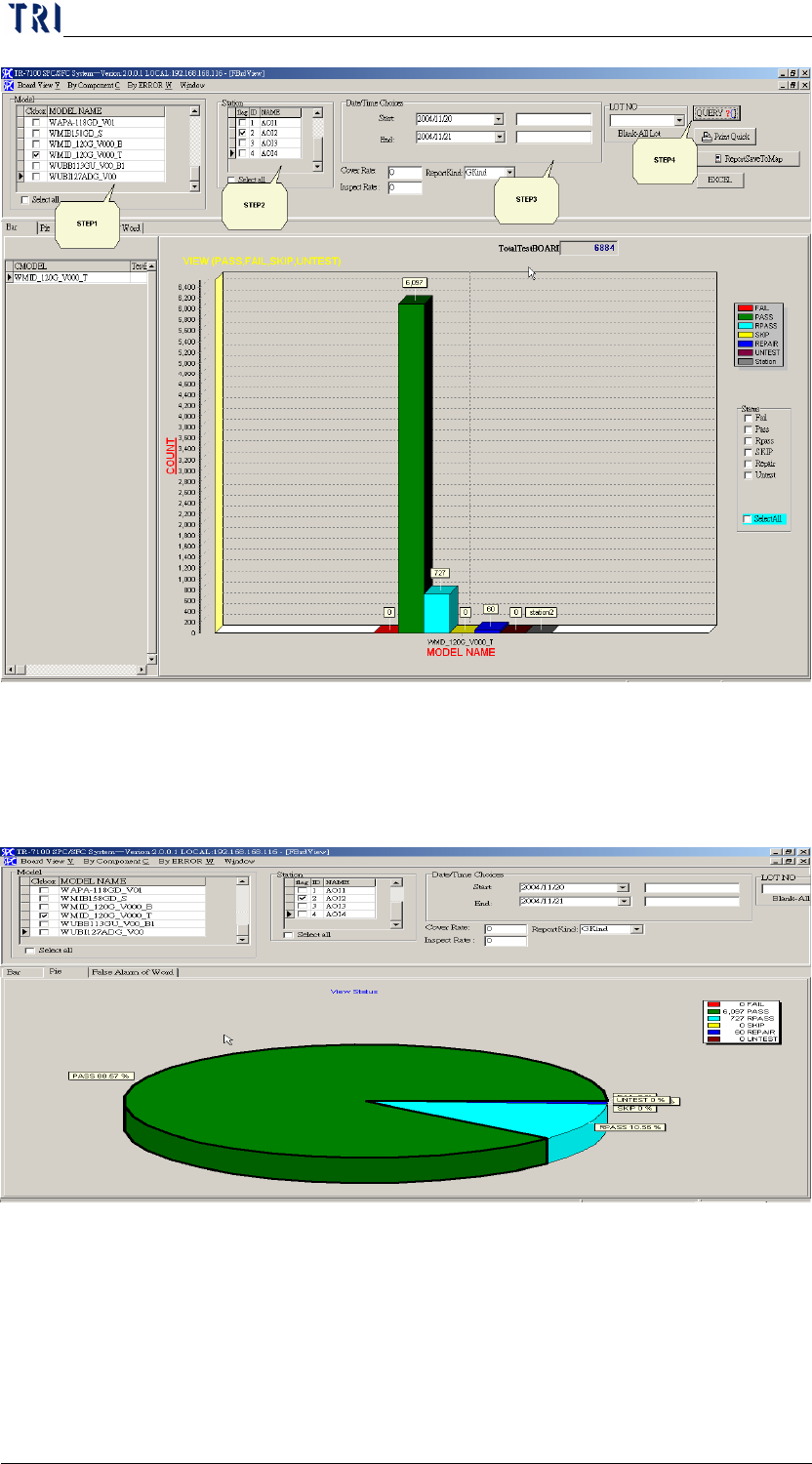
Step1. Select [Model]
Step2. Select [Station]. For the AOI station setting, go to [repair station main
program/Error Define/Define Error] and modify it. See Section 7.2 for
more information about it.
Step3. Select [date and time], select lot number in [LOTNO] if need it, if not,
empty the [LOTNO] column. Also, you may key in values for [Cover Rate]
and [Inspect Rate] report prints out.
Step4. Press [Query] to search. BAR graph is the default setting for graph type, it
displays number of boards, and the meaning of each condition:
FAIL-A condition has not been confirmed by user while [DEFECT]
has been detected by AOI
PASS-AOI detected as Pass
REPAIR-The board has been detected as failed by AOI, and also
confirmed as a defect board by the operator.
RPASS-The board has been detected as failed by AOI, but
confirmed as a pass board by the operator.
SKIP, Untest-Disregard the board, or been confirmed by the
operator that the board is not being calculated.
Chapter3 SPC User Manual
AOI Repair Station
87
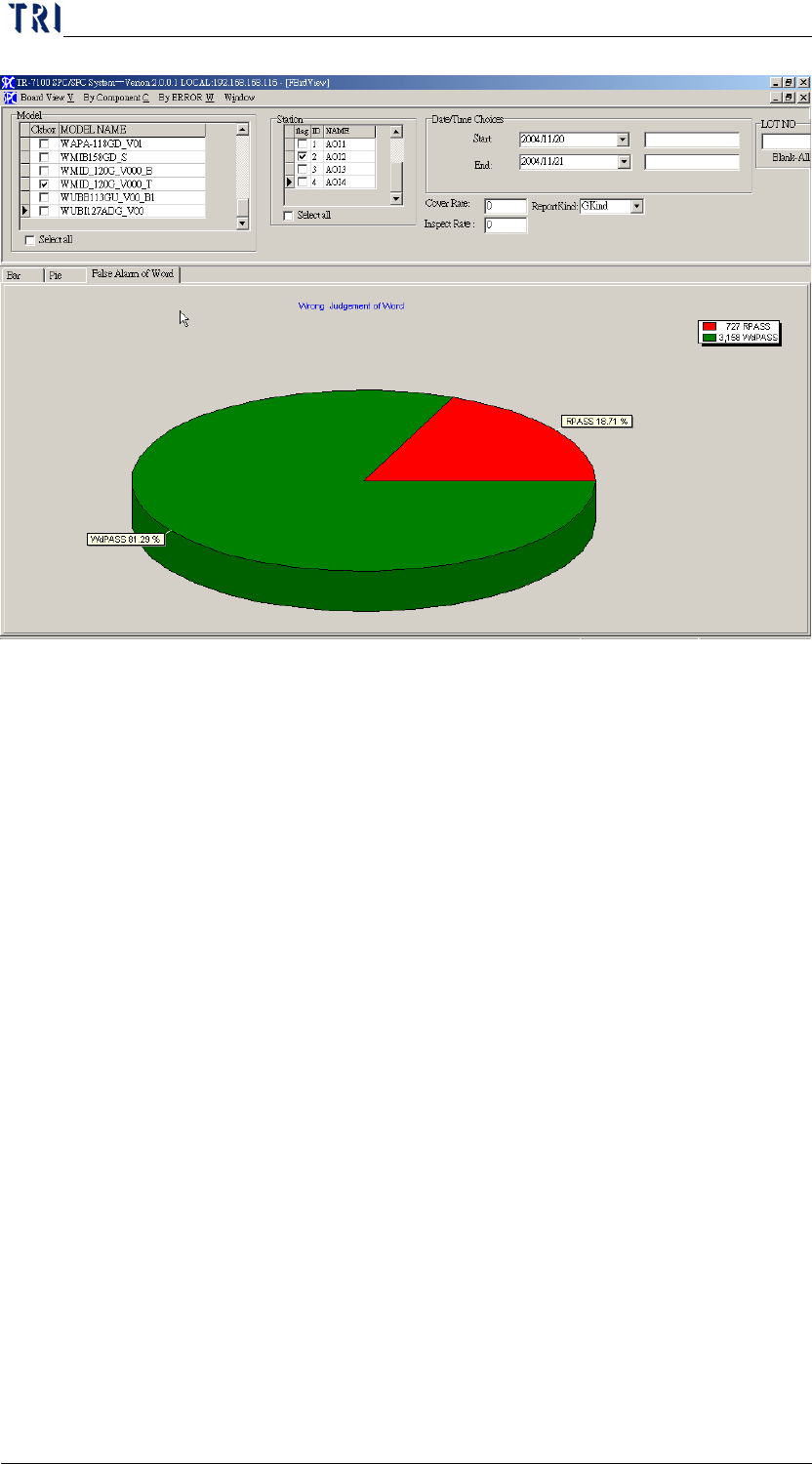
Step5. Displays the percentages by switching to the PIE graph. Or switch to
[FASLE ALARM OF WORD] to display the percentage of false alarm on
characters.
Chapter3 SPC User Manual
AOI Repair Station
88
Step6. Press [PRINT QUICK] will generate reports:
MODEL-MODEL NAME
STAION-STATION NAME
PASS-PASS
REPAIR-REPAIR
SKIPS-SKIPS (Make sure [FKIND] is selected under [REPORT
KIND] setting before [PRINT] is pressed.)
FAIL-FAIL
UNTEST-UNTEST (Make sure [FKIND] is selected under
[REPORT KIND] setting before [PRINT] is pressed.)
DEFECTREATE-Defect Rate. (Make sure [FKIND] is selected
under [REPORT KIND] setting before [PRINT] is pressed.)
ALLBOARD-Total number of board have been tested
TOTALCOMP-Total number of COMPONENT on this MODEL.
FCOMP-Total number of COMPONENT have been repaired by the
repair staff.
DPPM-FCOMP / TOTALCOMP * ALLBOARD*1000000
OVK-Total number of false alarm components.
WDPASS(Word PASS)-It means the defect of characters on
component. When there is a Missing defect, user could confirm it