AOI_RS_v85_en - 第95页
Chap ter3 SPC User Ma nual AOI Repair Station 91 Export Excel file for a specified day – Press the [Report] button that is in [Report (By one day)] field, then there will be an Ex cel file created under [C:\]. The cont…
Chapter3 SPC User Manual
AOI Repair Station
90
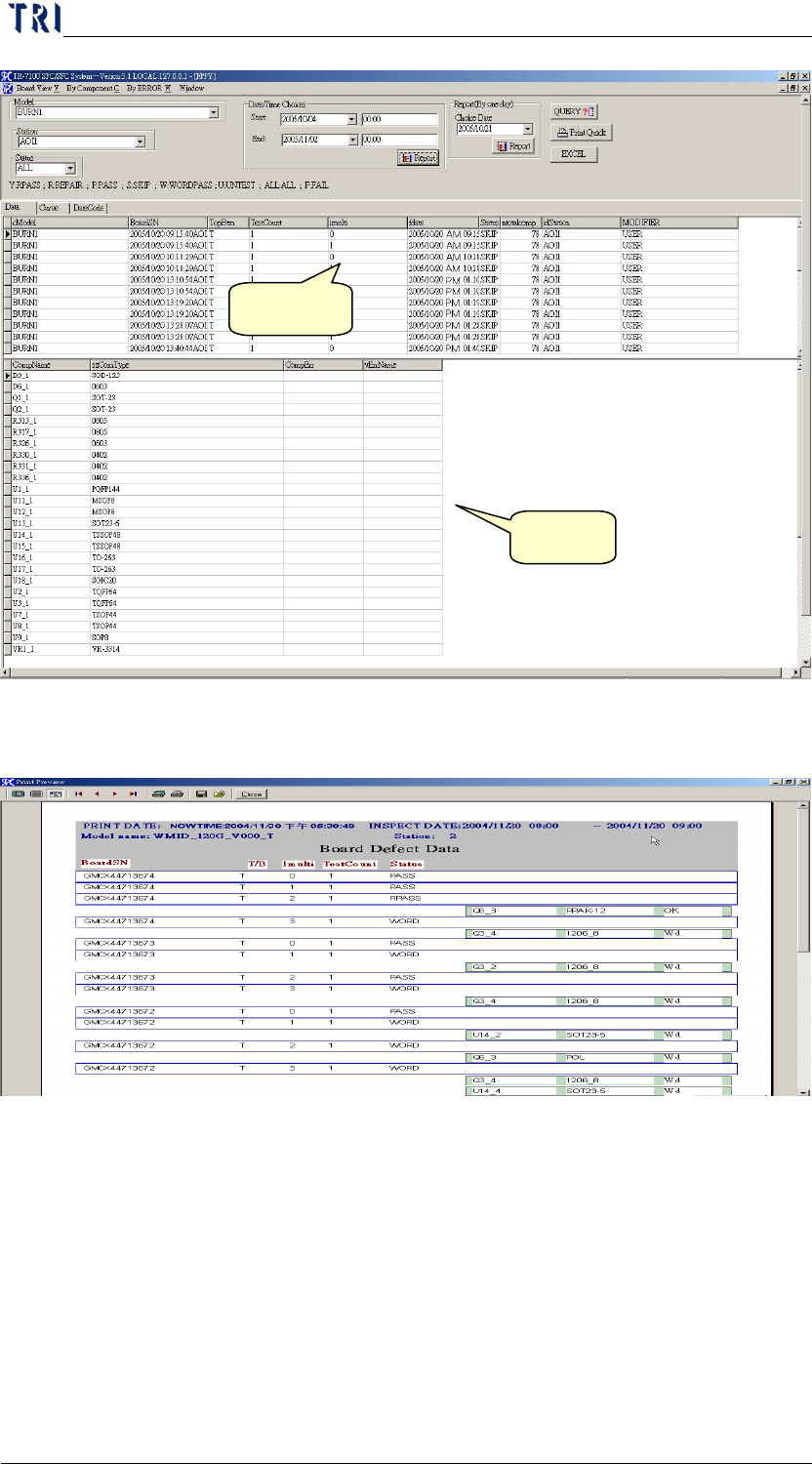
Press [EXCEL] will generate EXCEL report
Press [PRINT QUICK] will generate the following report:
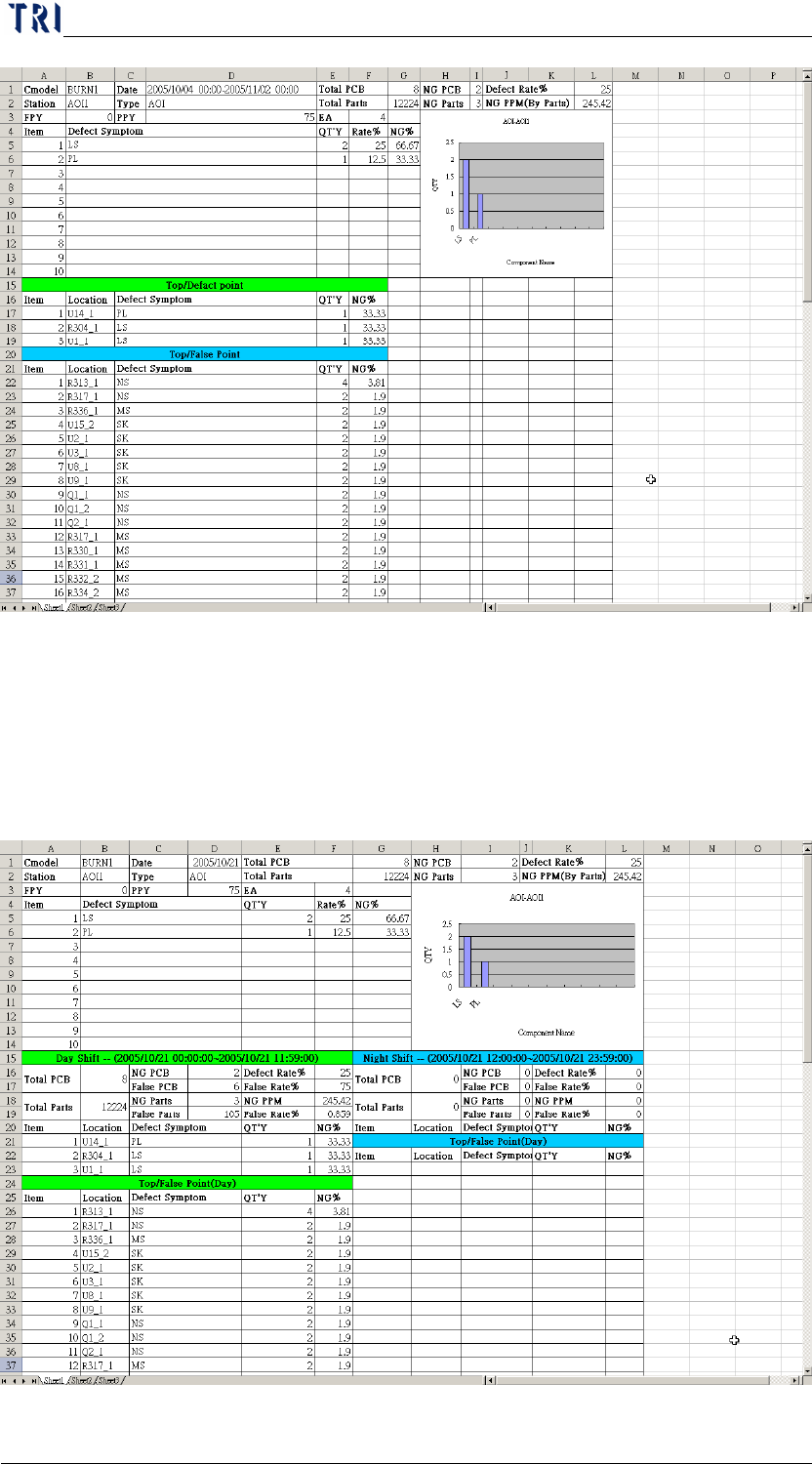
Export Excel file according to the specified date and time–Press the
[Report] button that is in [Date/Time Choices] field, then there will be
an Excel file created under [C:\]. The content of the report is as the
following. You also can specify the number of components you want to
display after clicking on the [Report] button.
Area 1
Area 2
Chapter3 SPC User Manual
AOI Repair Station
91
Export Excel file for a specified day–Press the [Report] button that is
in [Report (By one day)] field, then there will be an Excel file created
under [C:\]. The content of the report is as the following. The data are
separated from Day Shift and Night Shift and the Shift is according to
the [Schedule Define] in Repair Main Program.
Chapter3 SPC User Manual
AOI Repair Station
92
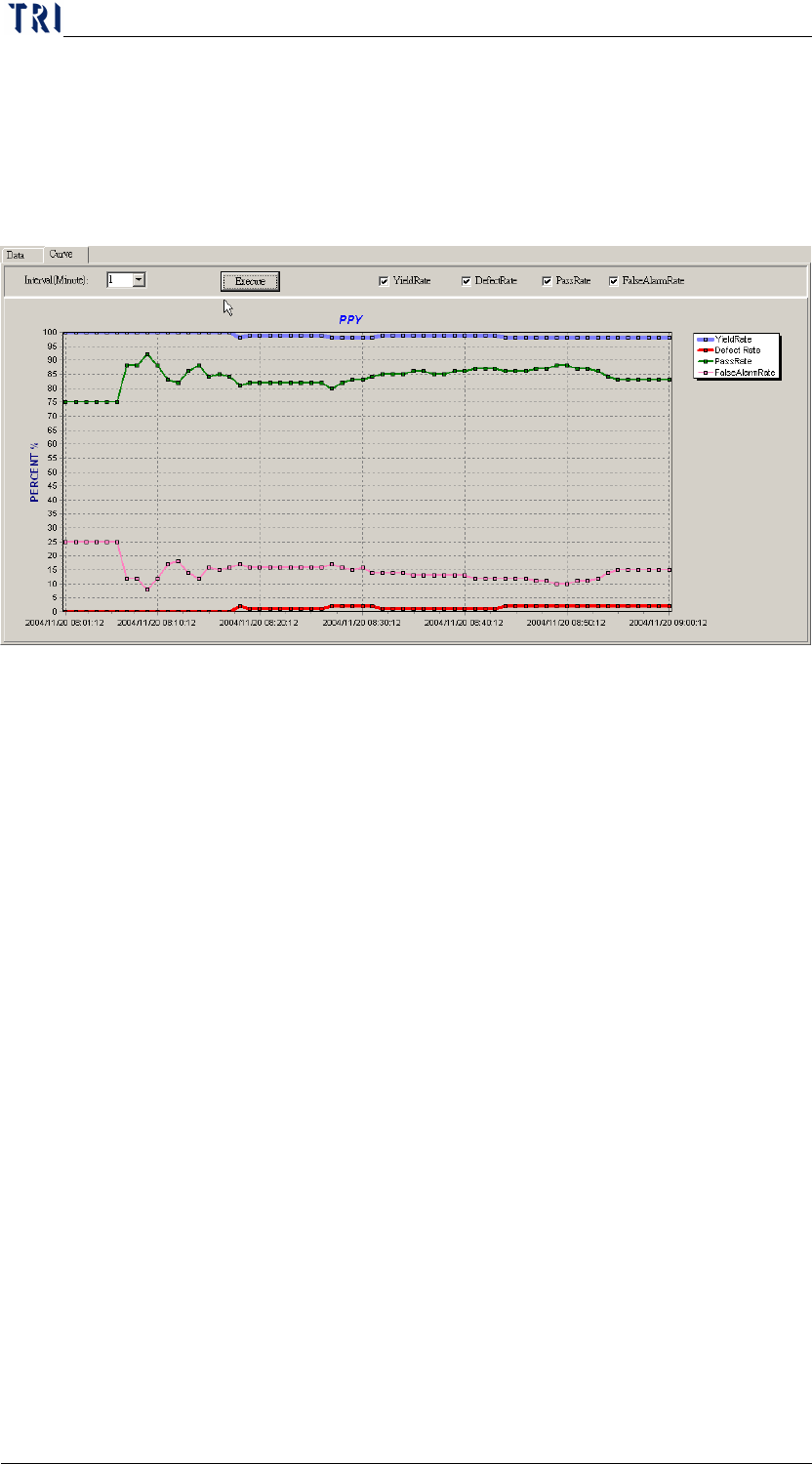
Switch to [CURVE] (figure down below) will display the curve graph
of [PASS], [DEFECT], and [FALSE ALARM]:
Step1. [QUERY] information must to be set first
Step2. Set the [INTERVAL], unit is minute.
Step3. Press [EXECUTE]
[DateCode] page, as the following picture.