00194678_Install_Win2003_unattended.pdf - 第17页
Installation Manual for Windows 2003 Server SP2 (unattended setup) Edition 07/2007 US + DE 17 / 40 5.2 Default settings and final administration t asks for the SIPLACE Pro computer 5.2.1 Default Settings - Screen area: 1…
Installation Manual for Windows 2003 Server SP2 (unattended setup) Edition 07/2007 US + DE
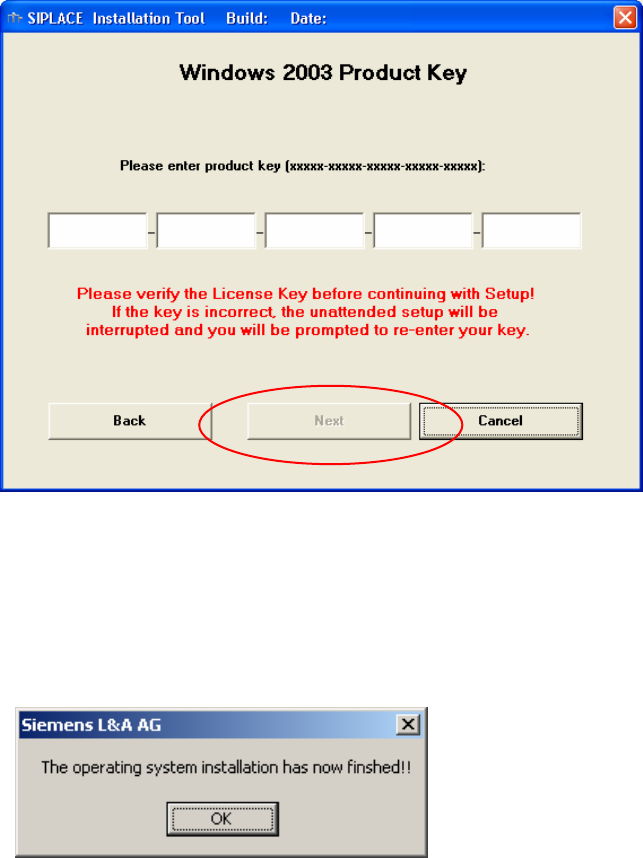
5.1.10 License for Windows 2003 Server
Fig. 5-9: License
→ Enter your product key.
→ Click the Next button.
5.1.11 Completion Message
Fig. 5-10: Finish message
16 / 40
Installation Manual for Windows 2003 Server SP2 (unattended setup) Edition 07/2007 US + DE
17 / 40
5.2 Default settings and final administration tasks for the SIPLACE Pro
computer
5.2.1 Default Settings
- Screen area: 1024 x 786, 16777216 Colors, 72 Hz Refresh Frequency
- Time Zone: GMT (London, Edinburgh, Lissabon)
- Keyboard-Layout: English
- Network Protocol: TCP/IP
- The following Windows components will be configured:
- COM+ network access, MSMQ core, MSMQ triggers will be enabled
- MSMQ Active Directory Integration, Internet Explorer Enhanced Security will be disabled
- In addition to the default user groups of Windows 2003 Server, the following users and user
groups will be configured:
- User: plr, SIPLACEServices, SIPLACEAdmin
5.2.2 Passwords
5.2.2.1 Administrator
After the unattended setup, the default password for the local administrator is MS128. Please assign a
new password for your administrator!
5.2.2.2 plr
The default user “plr“ has the default password plr.
5.2.2.3 SIPLACEServices
The user “SIPLACEServices“ was created for the COM+ Components. Please don’t change the
password. Otherwise the necessary rights of the SIPLACE Pro Components will be lost!
5.2.2.4 Administrator group
The local administrator group also has the user “SIPLACEAdmin“. Don’t remove this user from the
group. Otherwise the Siemens Personnel can’t perform any maintenance. The SIPLACE Service
Personnel knows the password. Don’t change the password.
Installation Manual for Windows 2003 Server SP2 (unattended setup) Edition 07/2007 US + DE
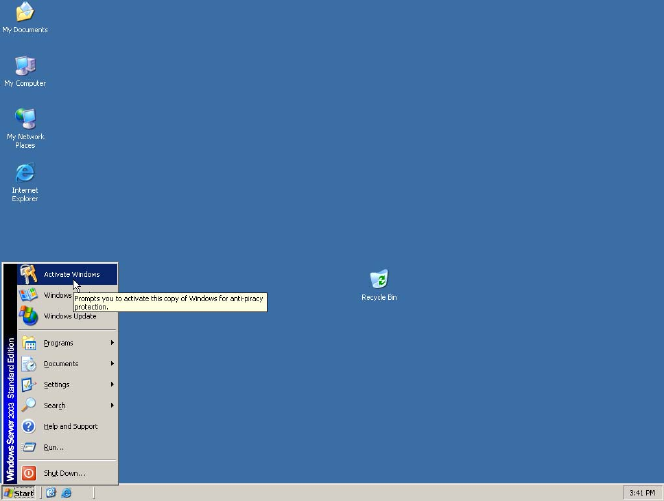
6 Windows activation
6.1 Start the activation
After the installation you must activate Windows within 30 days.
Fig. 6-1: Starting Windows activation
→ Therefore click Start and then click Activate Windows.
18 / 40