00196658-01 - IM SIPLACE Pro 7.1_en.pdf - 第26页
Installation Manual 4 Installation of SIPLACE Pro and possible Setup Types SIPLACE Pro 7.1 Edition 11/2009 US 24 Hint Make sure that the properties for the user accoun t are set to "Password never expires". Oth…
4 Installation of SIPLACE Pro and possible Setup Types Installation Manual
Edition 11/2009 US SIPLACE Pro 7.1
23
Note
English and German are always installed. You cannot de-select either language. Additional
languages are listed " only if the language pack for this version of SIPLACE Pro has been in-
stalled. 4
Step 3
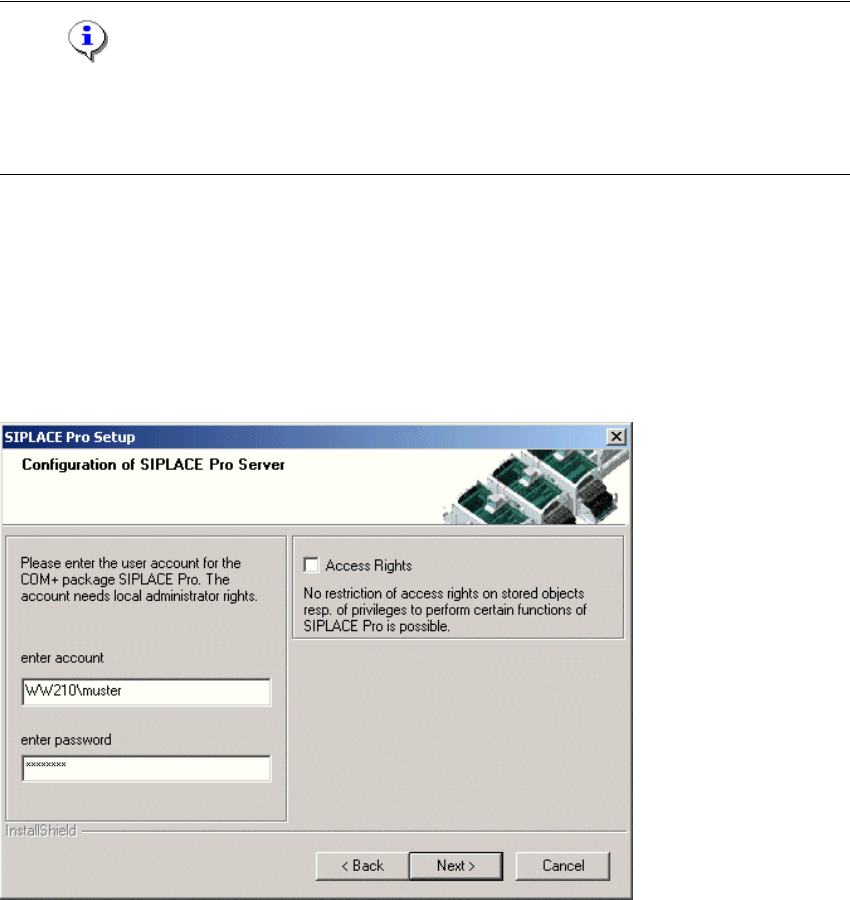
The "Configuration of SIPLACE Pro Server" dialog box specifies under which Windows user
account the server component of SIPLACE Pro should run. The current domain appears as the
default value in the account text box. This means it is usually sufficient just to add the account
name and the password. However, if this account is local, be sure to change the domain specifi-
cation appropriately. 4
4
Fig. 4 - 10 "Configuration of SIPLACE Pro" dialog box
Æ Enter the Account and Password for the Windows user in the dialog box.
Æ For new installations and upgrades, the option Access rights is deactivated by default. This
means there is no restriction of access rights on stored objects. We recommend you leave this
deactivated until you have created Users, Groups and set Privileges & Permissions in
SIPLACE Pro Desk. After having done that you may activate the option "Access Rights" by
modifying the option "Security On/Off" in the dialog "Settings" of SIPLACE Pro Desk.
Æ Click Next.
Installation Manual 4 Installation of SIPLACE Pro and possible Setup Types
SIPLACE Pro 7.1 Edition 11/2009 US
24
Hint
Make sure that the properties for the user account are set to "Password never expires". Otherwise,
as soon as the password has expired, the system will not be operable until the COM+ package
SIPLACE Pro has been reconfigured. This can be done using the script COM+ServerAdmin.vbs,
which is located in the Start Menu (Start -->Programs --> SIPLACE Pro-->Administration -->
COM+Server Administration). For more details please contact your system administrator. 4
After SIPLACE Pro has successfully checked the user account and its administrator rights, the
SQL Server window opens. 4
Step 4
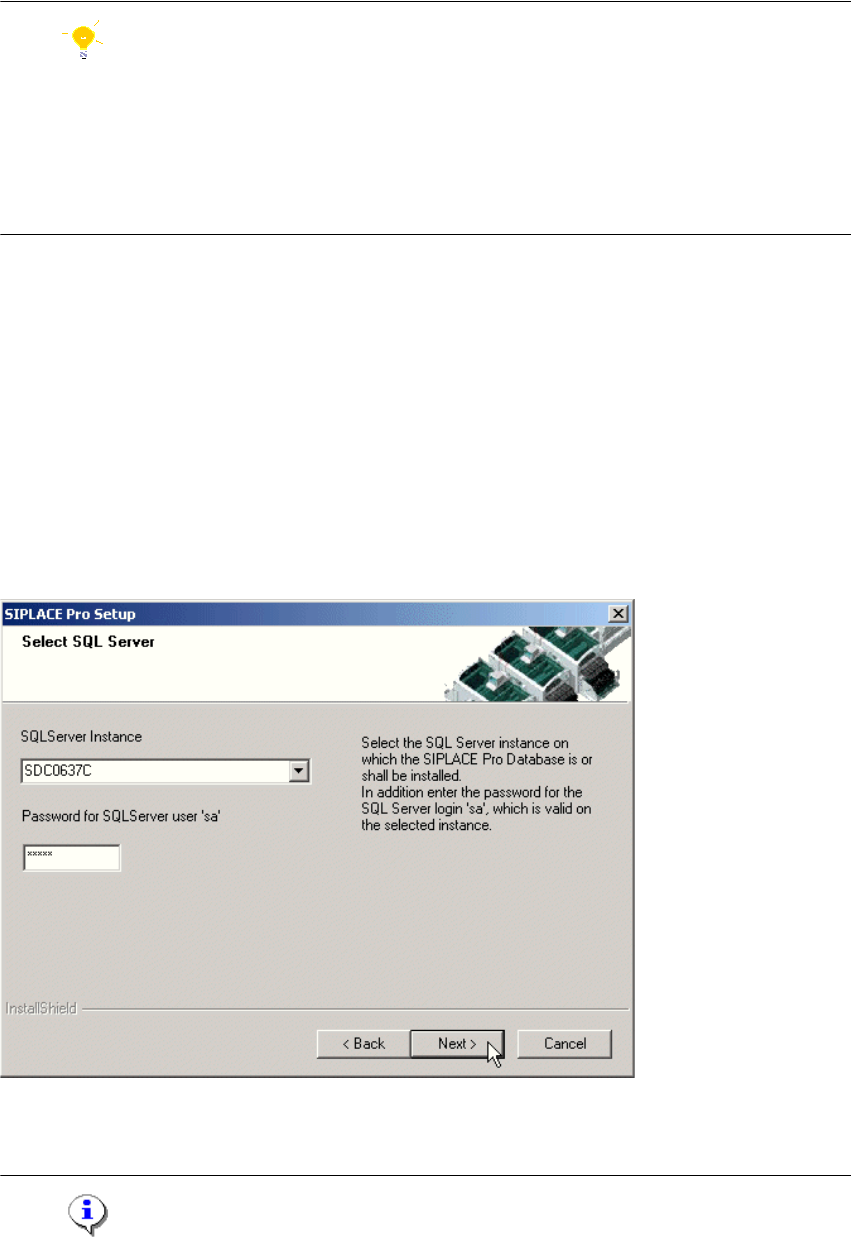
In the "Select SQL-Server" dialog box you enter the information required to connect to the SQL
Server and database. 4
In case a SIPLACE Pro database already exists, the integrity of the database will be checked now.
If the check results in error messages, these messages will be displayed and the setup cannot
continue with this database. Only after selecting another database by choosing another SQL
server instance or after restoring the database in an error-free state setup can continue. 4
4
Fig. 4 - 11 "Select SQL-Server" dialog box - in case a database exists
Æ Enter the "Password for the SQL Server user "sa", i.e. the SQL server system administrator.
Note
4 Installation of SIPLACE Pro and possible Setup Types Installation Manual
Edition 11/2009 US SIPLACE Pro 7.1
25
After a fresh MSDE or SQL Server 2005 Express installation, the password is the Siemens Ser-
vice default password. 4
Æ Choose your SQL Server Instance from the drop-down menu.
Æ Click Next
Step 5
4
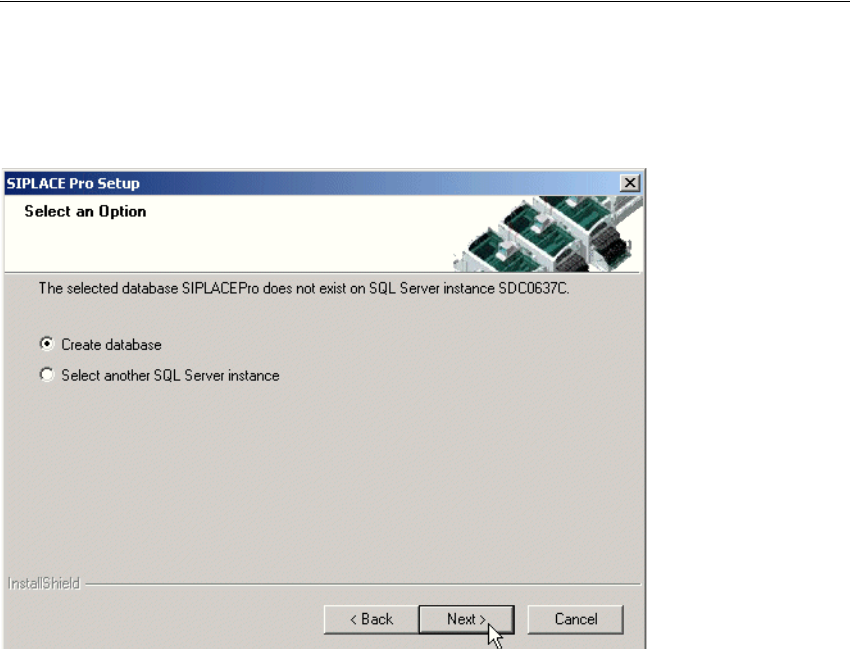
Fig. 4 - 12 "Create database" dialog box - in case no database exists
Æ If you choose Select another SQL Server instance you will be returned to the previous
dialog.
Æ Click Next to create a new database
4