192277 - Micron Technical Reference Volume 3.pdf - 第127页
CYCLONE UNDER STENCIL CLEANER MODULE REPLACEMENT PROCEDURES Chapter Issue 11, Feb 18 Technical Reference Manual 26.17 21. Close the printhead front cover . 22. Remove the lock from the mains lock-out. 23. Power up the pr…

CYCLONE UNDER STENCIL CLEANER MODULE
REPLACEMENT PROCEDURES
26.16 Technical Reference Manual Chapter Issue 11, Feb 18
Solvent Pump 1. Make sure that the printer is clear of boards.
2. In Diagnostics select Rising Table.
3. Select Select Module.
4. Using the Next/Previous buttons, select Home Rising Table.
5. Select Exit.
6. Turn the printer’s power off and lock the mains isolator.
7. Open the front printhead cover and place the board clamp setting plate,
centrally in the tooling area and on top of the rails.
NOTE
This is used to support the cleaner and protect the board clamps.
8. Manually move the cleaner from its home position so that it is centrally above
the setting plate.
9. Disconnect the vacuum arm inlet and stow it safely away.
10. Undo the M3 x 6 socket cap head screw and remove the securing bracket
to the solvent pump.
11. Disconnect the 4mm solvent feed tube.
12. Disconnect the multi-way connector in the right hand bracket housing.
13. Unscrew the three screws, using a crosshead screwdriver, which secure the
pump to the bracket.
14. Remove and replace the solvent pump.
15. Fit the pump to the bracket using the crosshead screws.
16. Reconnect the multi-way connector.
17. Fit the solvent feed tubing.
18. Refit the bracket to the cleaner unit.
19. Pull the cleaner to the front of the printer.
20. Ensure that no tooling has been left in the printer. Leave the setting plate in
place.

CYCLONE UNDER STENCIL CLEANER MODULE
REPLACEMENT PROCEDURES
Chapter Issue 11, Feb 18 Technical Reference Manual 26.17
21. Close the printhead front cover.
22. Remove the lock from the mains lock-out.
23. Power up the printer.
24. Select Diagnostics.
25. Press the System switch.
26. Select the Camera Axes.
27. Select Home Camera X Axis and select Home Camera Y Axis to home
the camera axes.
28. Select Exit.
29. Select the Screen Cleaner module page.
30. Ensure that all functions within stencil cleaner diagnostics operate correctly
and that there are no leaks from the feed tubing.
31. Select Exit.
32. Select Exit.
CYCLONE UNDER STENCIL CLEANER MODULE
CALIBRATIONS
26.18 Technical Reference Manual Chapter Issue 11, Feb 18
CALIBRATIONS
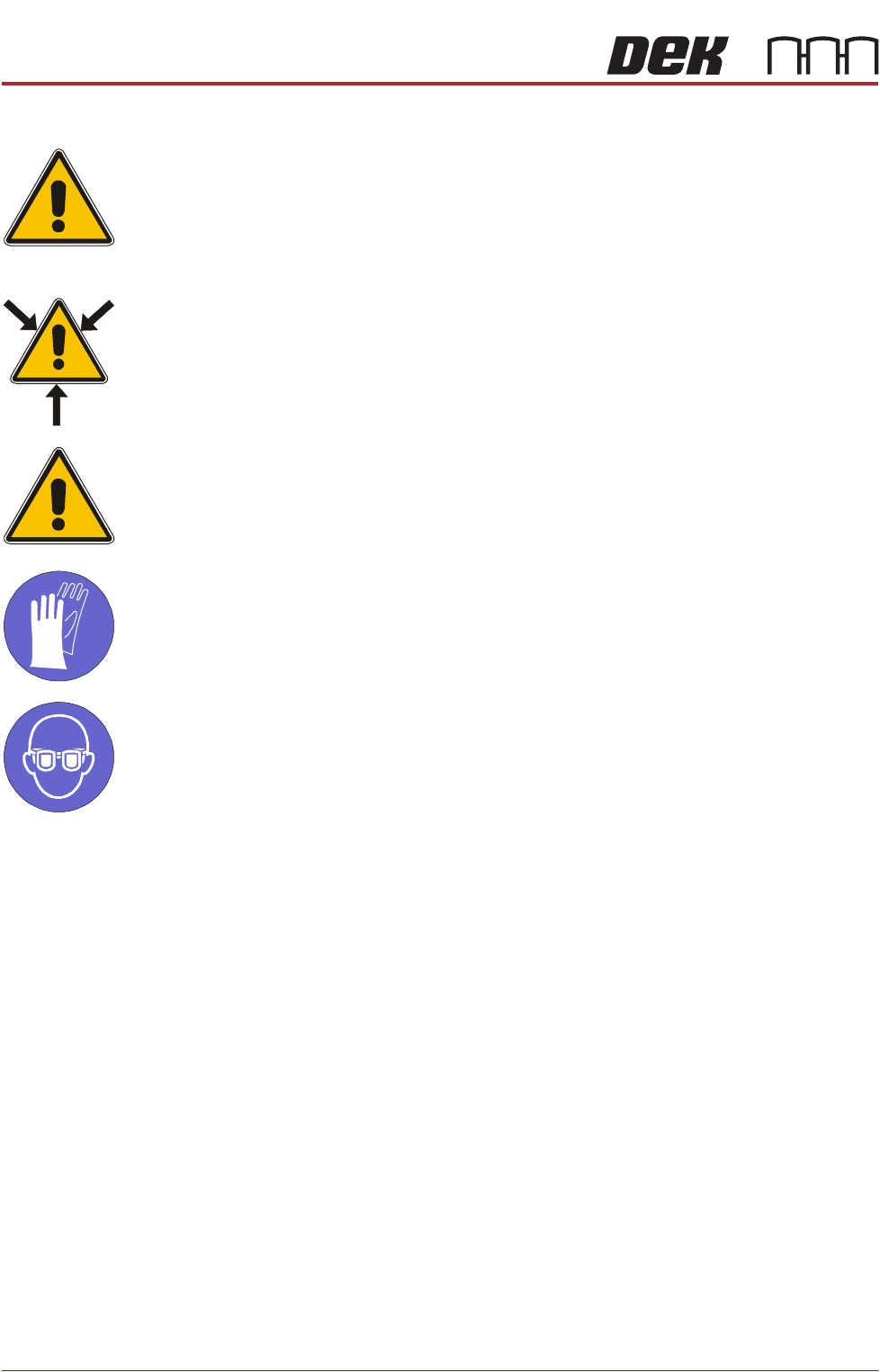
CAUTION
RECOMMENDED SOLVENTS. ANY SOLVENTS USED MUST COMPLY WITH
LOCAL ENVIRONMENTAL GUIDELINES. ASM RECOMMEND USING SOLVENTS
THAT ARE ENVIRONMENTALLY FRIENDLY, IE CFC FREE AND WATER BASED.
SOLVENTS USED MUST HAVE FAST EVAPORATION RATES AND FLASHPOINT
SPECIFICATIONS GREATER THAN 39ºC.
WARNING
SOLVENT SPRAY. THE UNDER STENCIL CLEANER SPRAYS A FINE JET OF
SOLVENT SOLUTION ON TO THE CLEANER. APPROVED PROTECTIVE
CLOTHING SHOULD BE WORN.
CAUTION
PRINT MEDIUM AND SOLVENTS. WHEN USING OR HANDLING ANY PRINT
MEDIUM OR SOLVENT FORMULATION THE MANUFACTURERS’ SAFETY DATA
SHEETS MUST BE STRICTLY ADHERED TO.
MANDATORY
TOXIC CHEMICALS MAY BE PRESENT. SAFETY GLOVES MUST BE WORN.
MANDATORY
TOXIC CHEMICALS MAY BE PRESENT. EYE PROTECTION MUST BE WORN.
External Solvent
Tank
The software needs to know the weight of the external solvent tank when fitted
with an empty container and when fitted with a full container of the solvent to be
used.
NOTE
Due to solvents having different gravities, the weight must be re-calibrated
when changing solvents.
To calibrate the software carry out the following procedure:
1. Ensure that the external solvent tank is fitted with an empty 5 litre container.
2. Select Maintenance.
3. Select Calibrations.
4. Select Solvent.
5. Select Set Solv Empty.
6. Confirm by selecting Yes.