192277 - Micron Technical Reference Volume 3.pdf - 第77页
CAMERA SYSTE M MODULE CALIBRATIONS AND CH ECKS Chapter Issue 9, Feb 18 Technical Reference Manual 23.35 Associated Calibrations Figure 23-5 Associated Calibrati ons NOTE For information on the T est Cycles func tion see …

CAMERA SYSTEM MODULE
CALIBRATIONS AND CHECKS
23.34 Technical Reference Manual Chapter Issue 9, Feb 18
40. Select Exit.
41. Select Scrn Fid Setup and carry out Fiducial Setup procedure as described
in Appendix A - Vision System Set Up.
42. If any changes have been made, select Learn Fiducial. If no changes have
been made, select Locate Fiducial.
43. Select Exit.
44. Select Step, the Offset results are displayed.
45. Select Single, the camera moves to each of the 24 remaining fiducial
positions in turn.
46. Select Auto Board, the board data file is saved.
47. Remove the board from the transport rails.
48. Select Exit.
49. Select Back.
NOTE
ASM recommends that the calibration stencil is cleaned with Isopropyl Alcohol
(IPA) impregnated lint free wipe on completion of the offset calibration.
If for any reason the camera cannot locate the board or stencil fiducial (except
for poor prints), select Fiducial Setup and relearn the fiducial, (refer to Appen-
dix A - Vision System Set Up for details on setting up the fiducial recognition
strategy).
Select Retry, the sequence continues and does not have any detrimental effect
to the calibration.
CAMERA SYSTEM MODULE
CALIBRATIONS AND CHECKS
Chapter Issue 9, Feb 18 Technical Reference Manual 23.35
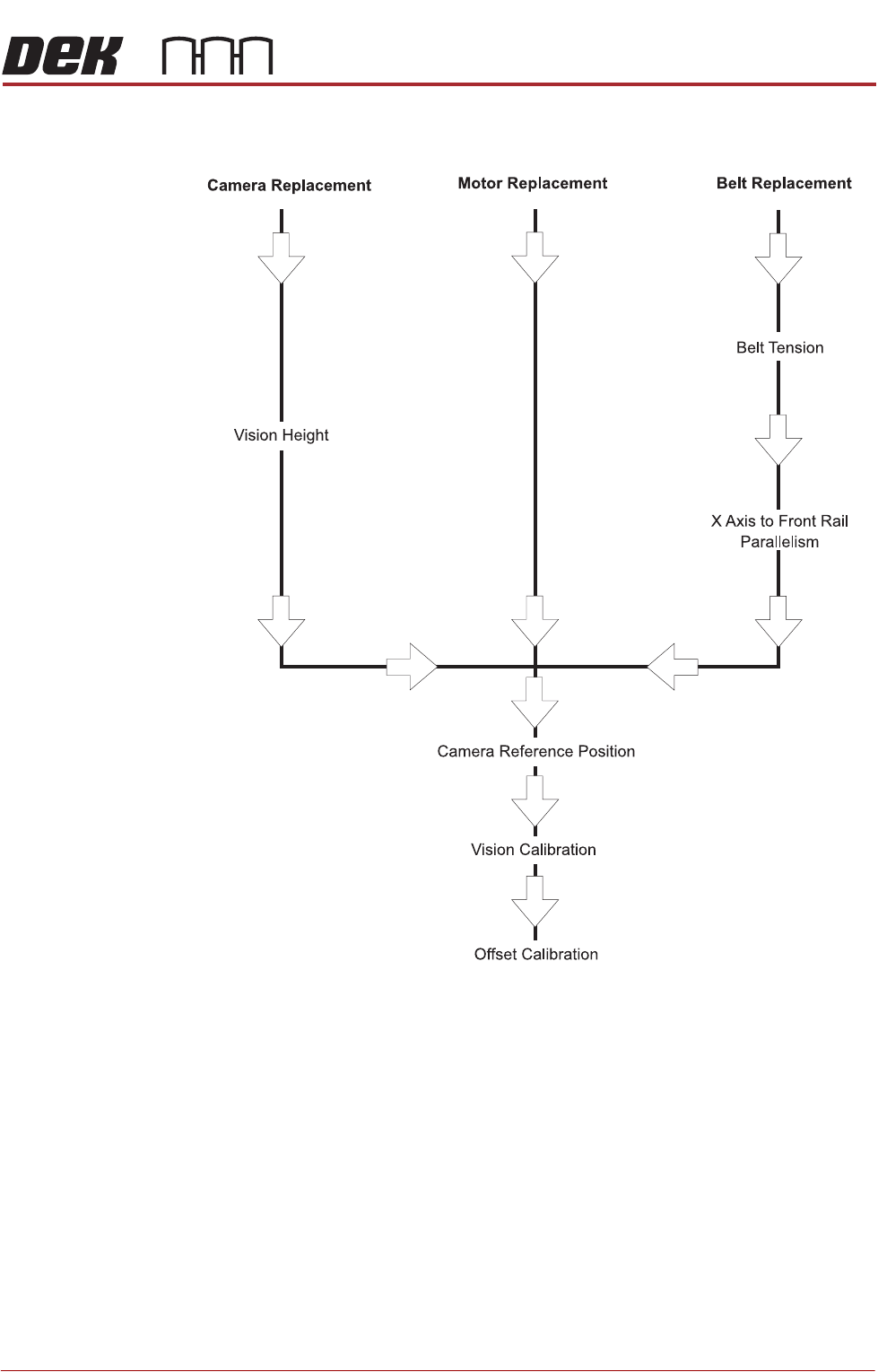
Associated Calibrations
Figure 23-5 Associated Calibrations
NOTE
For information on the Test Cycles function see the Stencil Alignment Chapter.
CAMERA SYSTEM MODULE
APPENDIX A - VISION SYSTEM SET UP
23.36 Technical Reference Manual Chapter Issue 9, Feb 18
APPENDIX A - VISION SYSTEM SET UP
Preparing the
Vision System
The following procedure is typical for all fiducial shapes, although in this
procedure a circle fiducial shape is referred to throughout.
1. Select Setup Product.
2. Select Fiducials.
3. Select Load Board.
4. Place a board on the input side of the rails.
5. Select Auto Board.
6. Select Fiducial Setup.
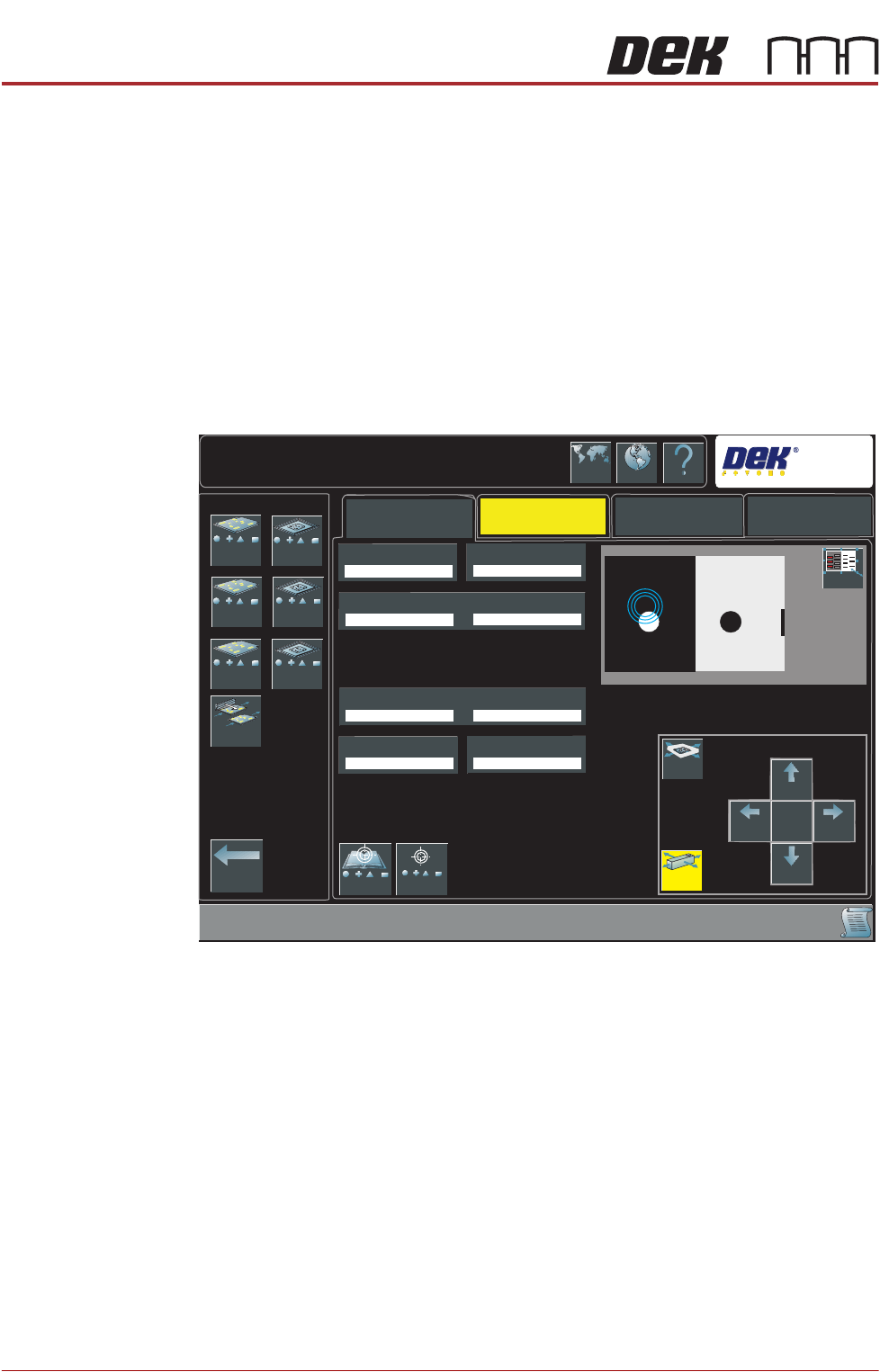
7. The following window is displayed:
8. Select the board or stencil fiducial that requires setting up.
Auto Setup
Manual Setup
Setup\Fiducials\Fiducial Setup
Lighting
Search
DEK
1
2
3
1
2
3
Shape
Width
Board Fiducial 1X
Board Fiducial 1Y
Accept Score
Background
Contours Inner
Contours Outer
Fiducials -
Board 1
Fiducials -
Board 2
Selective Print
Pass Through
Learn and
Locate
Move
Graphic
Move
Camera
Large
View
Camera
Up
Camera
Down
Move
Amount
X1
Camera
Right
Camera
Left
Locate
Language
Interactiv Help
Exit
Fiducials -
Board 3
Fiducials -
Screen 1
Fiducials -
Screen 2
Fiducials -
Screen 3