00198521-01_UM_LDU_E_EN.pdf - 第35页
4 Operation 4.1 Settings in the line software User Manual SIPLACE Linear Dipping Unit E 12/2018 35 4.1.4 Assigning a flux to a component The user must assign a flux to a component for which dipping is required. ► In the …
4 Operation
4.1 Settings in the line software
34 User Manual SIPLACE Linear Dipping Unit E 12/2018
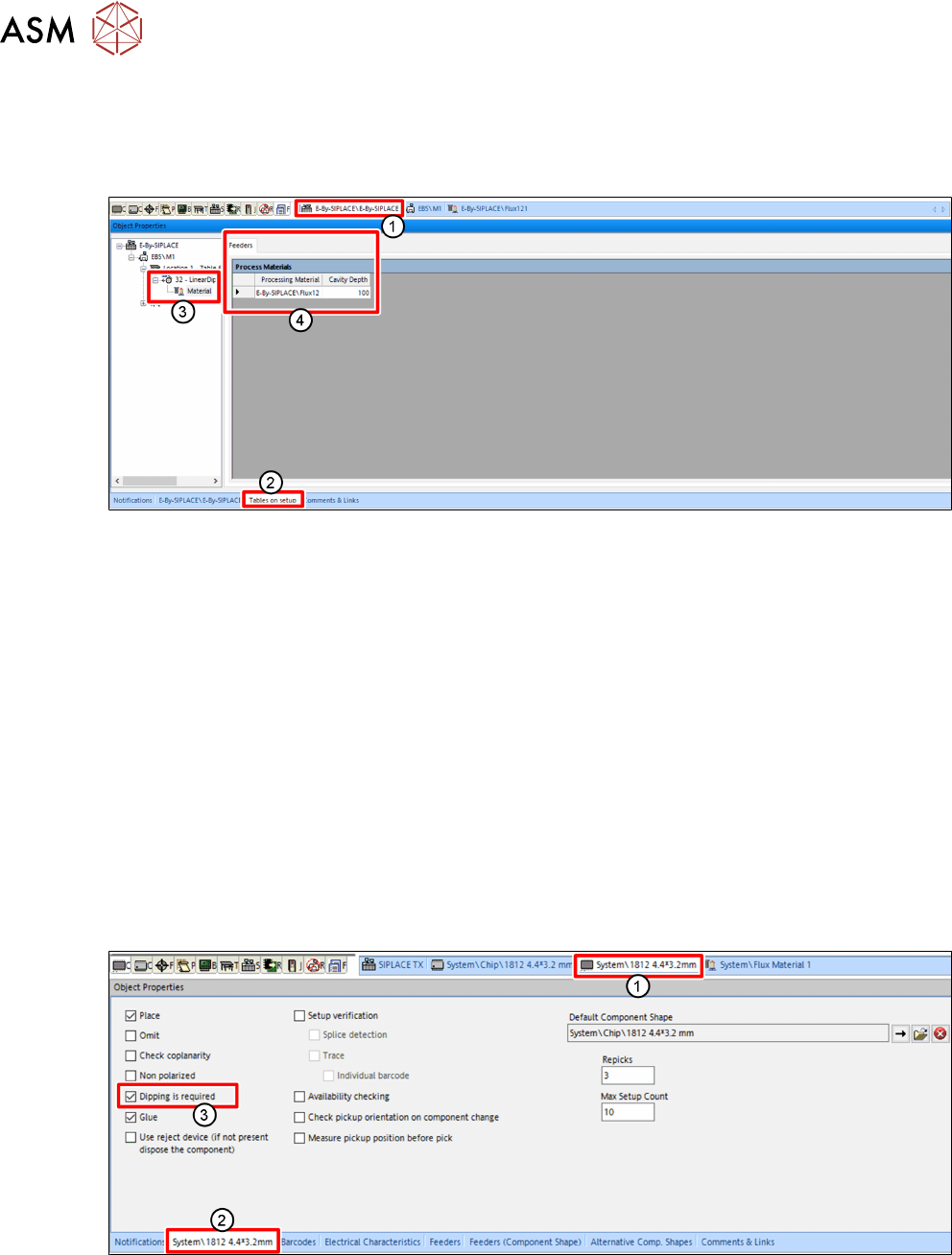
4.1.2 Assigning a flux to the LDU
On one placement machine, several LDU units can be used. Each LDU can be filled with another
flux. For this purpose, the user must assign the corresponding flux and the cavity depth of the dip
plate used to the LDU set up.
► In the line software, click on the Setup tab(1).
► Click on the Tables on setup tab(2) in the Object Properties view.
► Select the desired LDU in the tree view.
► Click on the Material entry(3).
► Click on the free field in the Process material column on the Feeder tab(4).
A button with three points is displayed.
► Click on the button with the three points.
A dialog window is displayed to select the flux.
► Click on the desired flux in the tree view.
► Click OK.
► On the Feeder tab(4), in the Cavity depth column, enter the cavity depth of the dip plate
used.
4.1.3 Selecting a component for dipping
For every component used, the user can set that dipping is required:
► In the line software, click on the tab of the desired component(1).
► Click on the tab of the component(2) in the Object Properties view.
► Enable the Dipping is required option(3).
4 Operation
4.1 Settings in the line software
User Manual SIPLACE Linear Dipping Unit E 12/2018 35
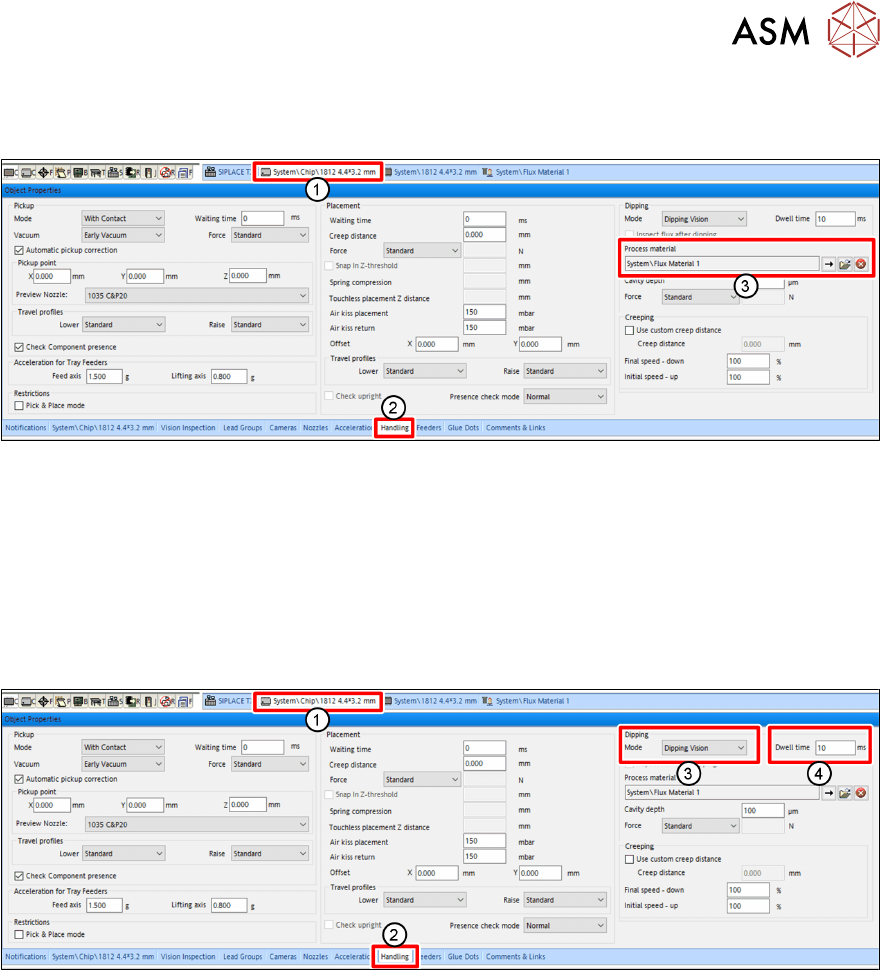
4.1.4 Assigning a flux to a component
The user must assign a flux to a component for which dipping is required.
► In the line software, click on the tab of the component shape of the desired component(1).
► Click on the Handling tab(2) in the Object Properties view.
► Click on the button with the arrow next to Process Material(3) in the Dipping area.
A dialog window is displayed to select the flux.
► Click on the desired flux in the tree view.
► Click on OK.
4.1.5 Setting the dip sequence and the dwell time
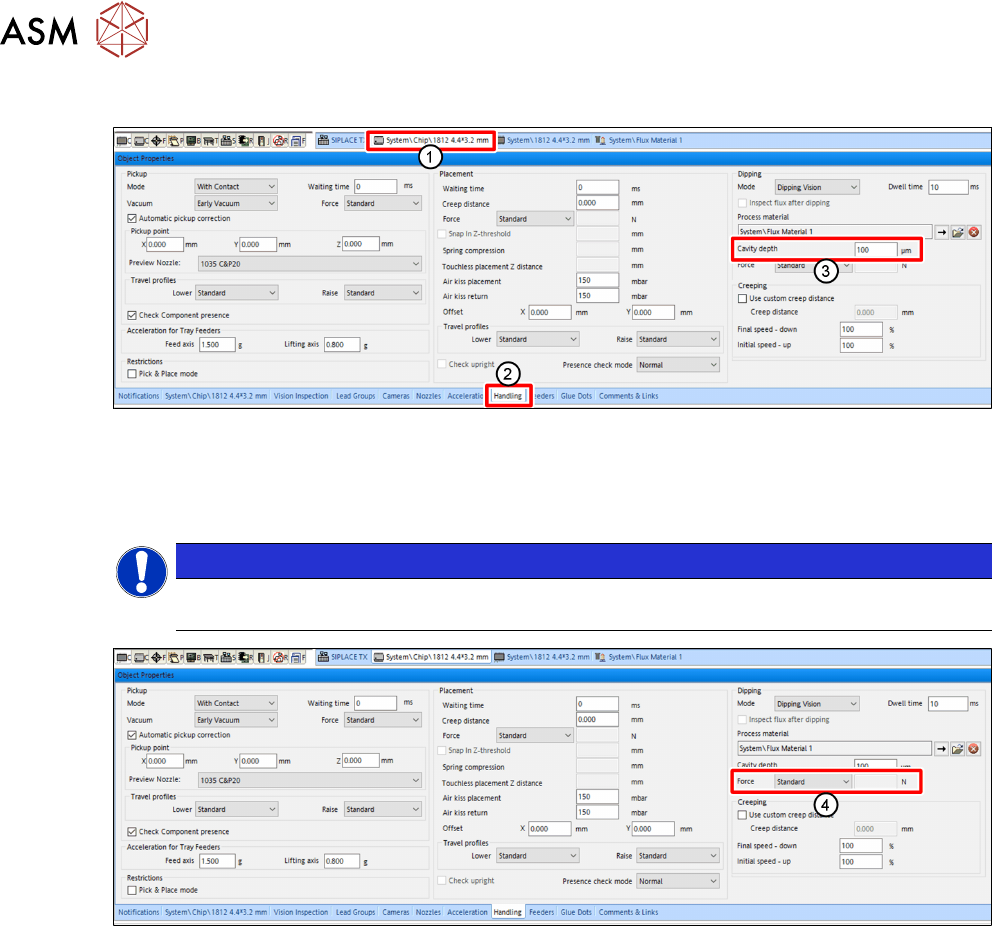
► In the line software, click on the tab of the component shape of the desired component(1).
► Click on the Handling tab(2) in the Object Properties view.
► Select the dip sequence under Mode(3) in the Dipping area.
► Enter the dwell time in milliseconds[ms] in the Dwell time field (4).
For more information on the dwell time, see chapter 3.3.6 "Dip process and dwell time" [}32].
For more information on the different dip sequences, see the online help of the line software.
4 Operation
4.1 Settings in the line software
36 User Manual SIPLACE Linear Dipping Unit E 12/2018
4.1.6 Setting the cavity depth and the pressing force
► In the line software, click on the tab of the component shape of the desired component(1).
► Click on the Handling tab(2) in the Object Properties view.
► Enter the cavity depth of the dip plate used in micrometers [µm] in the Cavity depth entry
field(3) in the Dipping area.
NOTICE
Ensure that you enter the same cavity depth that you already entered when assign-
ing a flux (see chapter 4.1.2 "Assigning a flux to the LDU" [
}
34]).
► In the Dipping area, from the Force menu (4), select the desired mode for the pressing force:
●
Standard
●
Specific
●
Very low
► If you select Specific, you can enter the desired pressing force in Newton [N] in the entry field
to the right.