TR7500_Hardware_en - 第11页
10 u T y p e S e t t i n g : T h e r e a r e c u r r e n t ly F i ve m a c h i ne t y p e s , i f t h i s i s t he f i r s t t i m e a n e w m a c h i n e h a s been s e t up , t he F i g u r e 1 .2 1 d i s p l a y w i l…
9
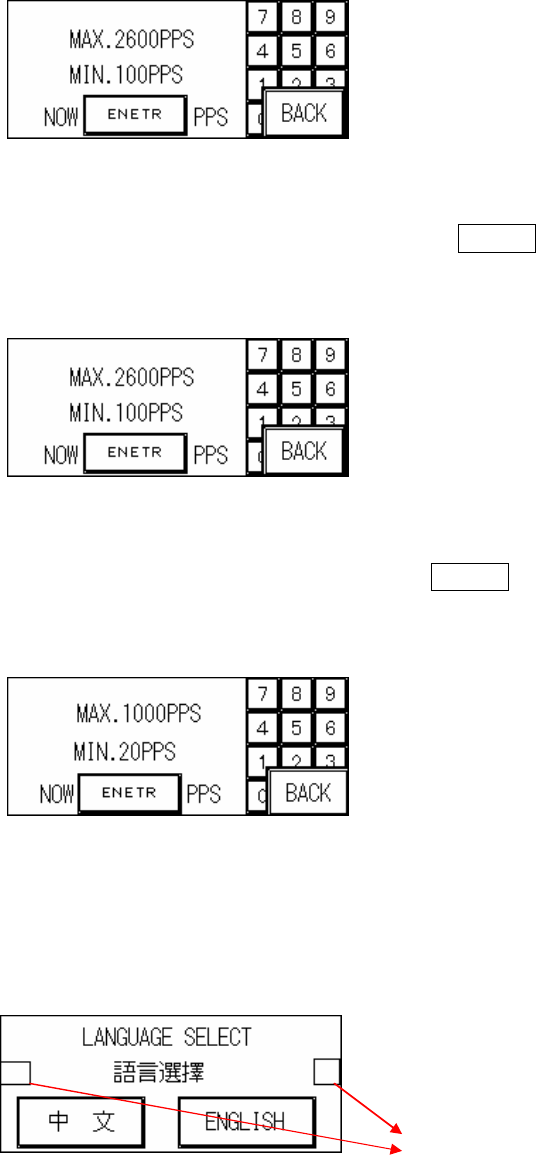
Figure 1.17 High Speed Setting
1.3.4.3.2. BYPASS SPEED (Figure 1.18): This is the bypass speed, press ENTER at Figure
1.18 to set this speed. The speed range has an upper limit of 2600PPS and lower
limit of 100PPS.
Figure 1.18 Bypass Setting
1.3.4.3.3. LOW SPEED (Figure 1.19): This is the reduced speed, press ENTER at Figure 1.19
to set this speed. The speed range has an upper limit of 1000PPS and lower limit of
20PPS.
Figure 1.19 Low Speed Setting
1.3.4.3.4. LANGUAGE (Figure 1.20): Choose Chinese or English user interface at Figure 1.20.
Once selection has been made it will be automatically saved and does not need to
be set again the next time the machine is turned on.
Figure 1.20 LANGUAGE
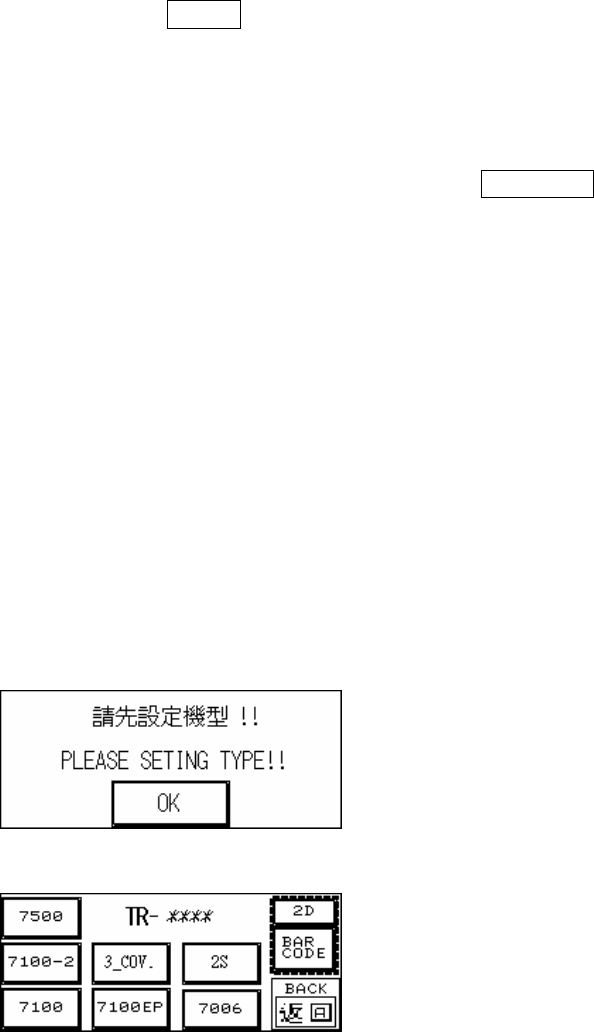
u Type and Barcode Testing Setting: Press the hidden buttons located in Figure
1.22 separately (within a 2 second interval) to display the machine type and
barcode setting display as shown in Figure 1.20.
Hidden Button (For
Choosing Machine
Type.)
10
u Type Setting: There are currently Five machine types, if this is the first time a
new machine has been set up, the Figure 1.21 display will be shown at the
start for the machine type to be set. Use Figure 1.22 to set the machine type.
Once setting is done, to change the settings again at the Figure 1.20
Language selection display there are two hidden buttons on either side, press
both simultaneously to jump to the Figure 1.22 display to make the selection.
Once setting is complete the TR-**** position in Figure 1.22 and Figure 1.23
will show the set machine type.
u Barcode Sampling Setting: This setting is used to stop board loading if
reading of the barcode fails. If this function is not used please set the PC
software to not sample the barcode, or press to highlight the BARCODE in
Figure 1.22, otherwise the board won’t load.
u 2D Barcode: If 2D Barcode is used, 2D needs to be highlighted. .
u Dual Screw Conveyor Belt: If the conveyor belt uses dual screws, 2S needs to
be highlighted.
u Three Stage Conveyor Belt: If the conveyor belt uses three stages, the 3_COV.
needs to be highlighted.
*If it is a single stage conveyor belt then this setting must not be selected or the
PLC may crash. If a crash occurs, reset the main power and then deselect this
setting.
Figure 1.21 Initial Startup Display
Figure 1.22 Set Machine Type
11
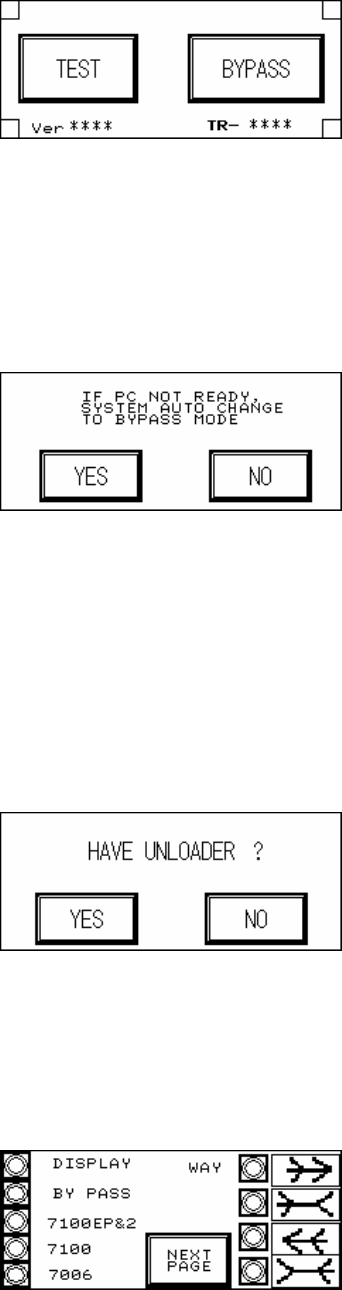
Figure 1.23 Start Test
1.3.4.4. BACK: Return to the Figure 1.5 OTHERS setting page.
1.3.4.5. BYPASS (Figure 1.24): Confirm that if the PC is not ready, the PLC will automatically
change to Bypass Mode to avoid Loader blockage.
Figure 1.24 BYPASS
1.3.4.6. BACK: Go back to the Figure 1.1 starting screen.
1.3.5 UNLOADER (Figure 1.25): Choose if there is an Unloader. In Inline mode, once test is
completed and the Unloader sends a READY signal then the board will automatically be
unloaded. If there is no Loader, once the test is completed the board will stop at the exit
and wait for manual removal before processing the next board.
Figure 1.25 UNLOADER
1.3.6 BACK: Go back to the Figure 1.1 starting screen.
1.4 DISPLAY: Through Figure 1.26 and Figure 1.27 all of the currently set mode parameters
can be viewed.
Figure 1.26 Display 1