TR7500_Hardware_en - 第16页
15 c o m p l e t e d p r e s s BA C K . T h e s y s t e m w il l l o c k t he C O N V . W I D T H ad j u s t m e n t f u n c t i o n a n d r e t u r n t o t he D eb u g d i s p l a y F i g u r e 2 . 1 . 2 . 3 T h r e e C…
14
is inserted, automated loading and testing will run; if single test is selected, when one
board has been tested, then single test must be pressed again to load the next board for
testing (Figure 1.31).
1.5.2.4. Hidden Button Setting: In Figure 1.30, Figure 1.31 or Figure 1.32 at the four corners of
the display there are four hidden buttons. These can be used to jump to the starting page
or the Debug display. If the bottom left and right corner hidden buttons are pressed within
two seconds of each other, then it will jump to the Figure 1.1 starting display. If the top
left and right hidden buttons are pressed within two buttons of each other, then it will
open the Debug display (Figure 2.1).
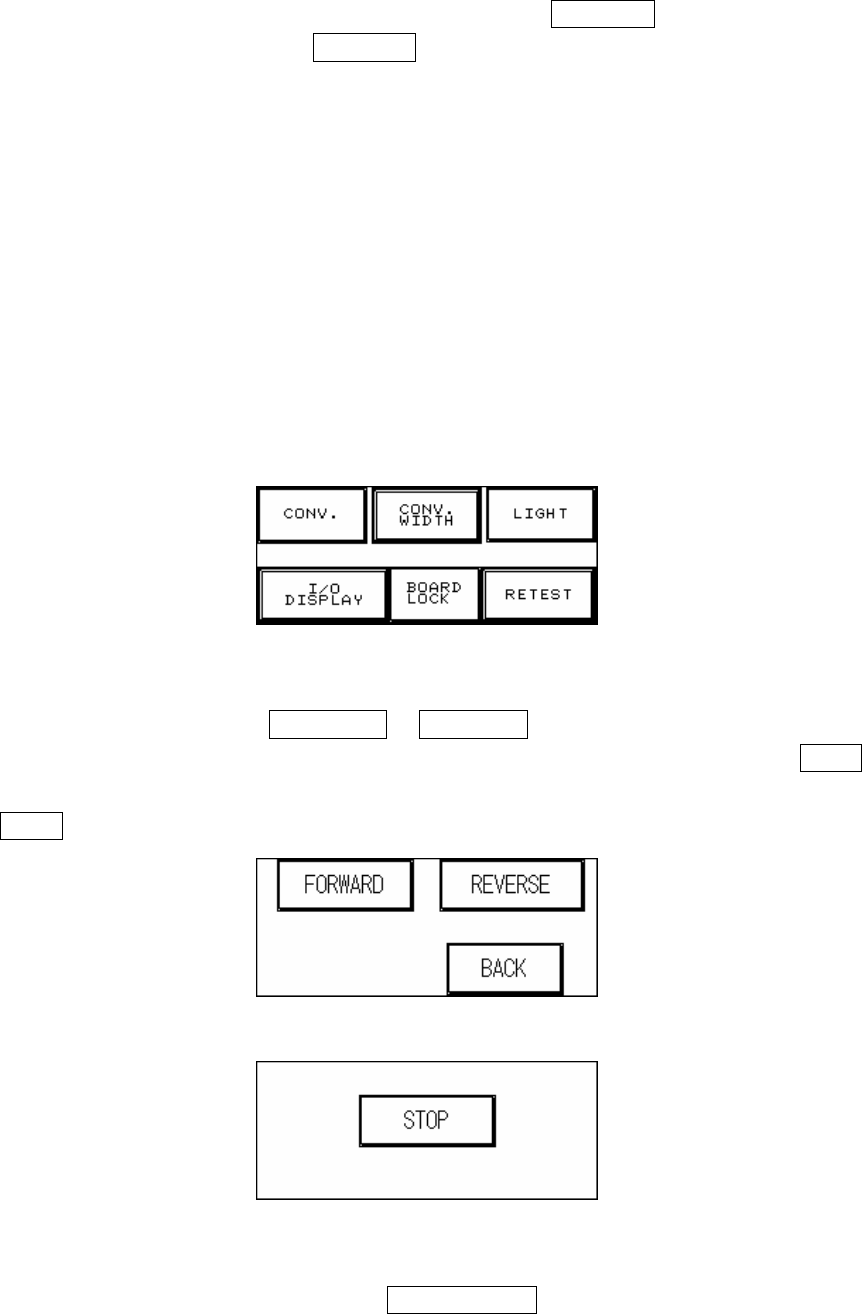
2. Debug Display: If at the Figure 1.30, Figure 1.31 or Figure 1.32 display the hidden buttons in
the top left and right corner are pressed within two seconds of each other then it will open the
Debug display (Figure 2.1).
Figure 2.1 DEBUG Display
2.1 CONV. (Figure 2.2): Press FORWARD or REVERSE and the Conveyor belt will
immediately run forwards or in reverse and jump to the Figure 2.3 display. Press STOP and
the conveyor belt will immediately stop and jump back to the Figure 2.2 display; press
BACK to return to Figure 2.1.
Figure 2.2 Forward and Reverse Setting for the Conveyor Belt
Figure 2.3 Stop the Conveyor Belt
2.2 CONV. WIDTH (Figure 1.7): Press the CONV. WIDTH in Figure 2.1 and the Figure 1.7
display will appear. Use the spin wheel to set the conveyor width, and when the setting is
15
completed press BACK. The system will lock the CONV. WIDTH adjustment function and
return to the Debug display Figure 2.1.
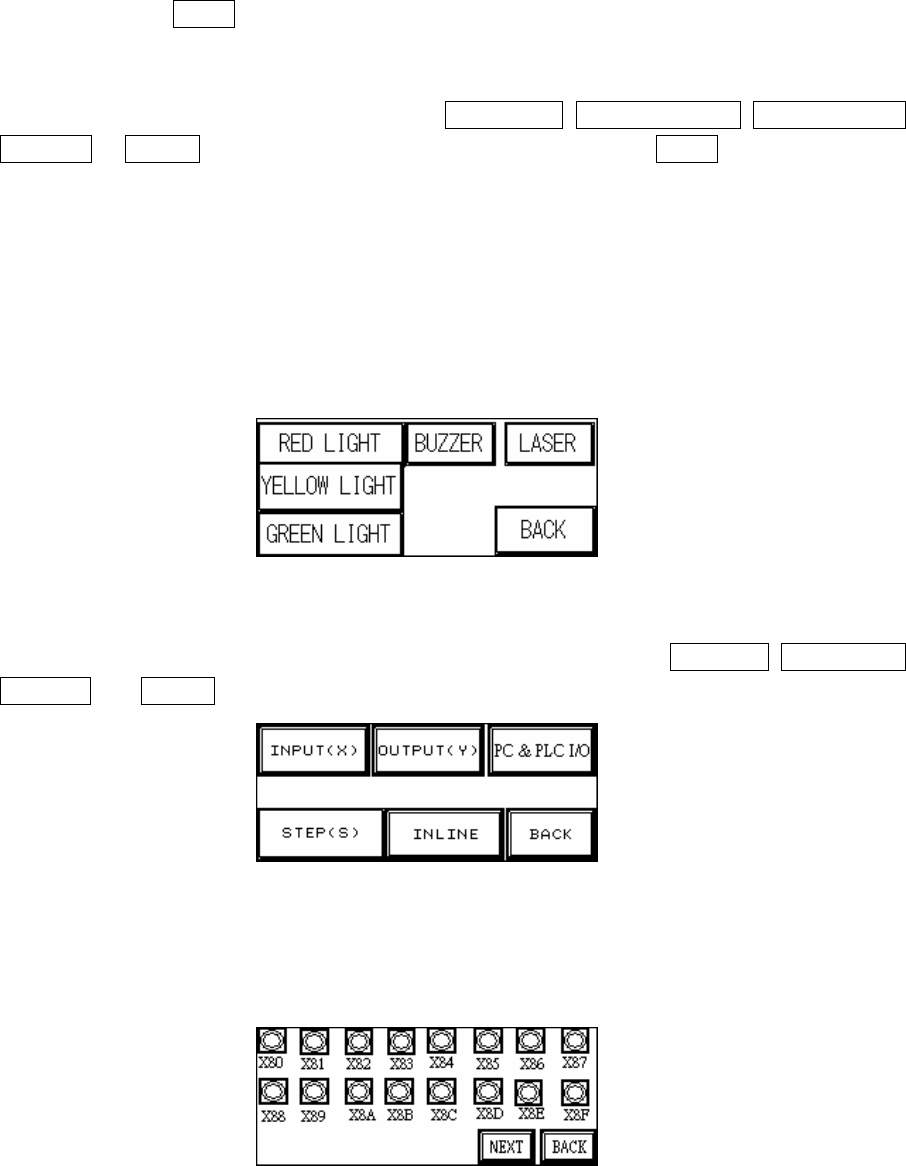
2.3 Three Colored Lights (Figure 2.4): Press the RED LIGHT, YELLOW LIGHT, GREEN LIGHT,
BUZZER or LASER to test that each is operating correctly; press BACK to return to the
Debug display Figure 2.1.
2.3.1 Automatic Laser Testing:
l The Laser is ON when: The Loader program begins testing (hold board).
l The Laser is OFF when:
n The testing complete (release board) signal is received.
n Reset is pressed during testing.
n Emergency stop is pressed.
Figure 2.4 Three Colored Lights
2.4 I/O Display (Figure 2.5): From the options in Figure 2.5, the options INPUT(X), OUTPUT(Y),
STEP(S) and INLINE can be selected to monitor the execution status of the PLC program.
Figure 2.5 I/O Display
2.4.1 INPUT(X): The X80~X9F values from Figure 2.6 and Figure 2.7 can be compared against
Table 2.1 to monitor the PLC to see if the input points are normal.
Figure 2.6 Input 1
16
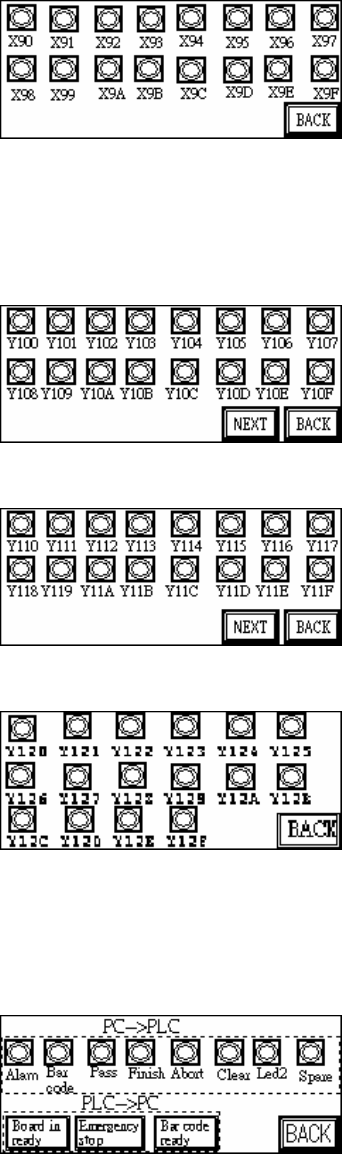
Figure 2.7 Input 2
2.4.2 OUTPUT(Y): The Y100~Y120 values from Figure 2.8 ~ Figure 2.10 can be compared
against Table 2.1 to monitor the PLC to see if the output points are normal.
Figure 2.8 Output 1
Figure 2.9 Output 2
Figure 2.10 Output 3
2.4.3 PC & PLC I/O: Use this function and co-operate with the I/O testing function in main
program to review the Input and Output signal.
Figure 2.11 PC&PLC I/O
2.4.4 STEP (S): When step by step operation is selected, the step at which the system’s
operation experiences a problem can be identified; this is shown during system Reset,
Bypass and normal operations.