TR7500_Hardware_en - 第24页
23 S t e p 3 : E n t e r t h e G T W I N s o f t w a r e p r og r a m a n d a s s h o w n i n t he f i g u r e be l o w , s e l e c t R ead f r o m G T ( R e a d HC I d a t a ) . S t e p 4 : A f t e r l o ad i ng ( t h i…
22
1.4 Human Machine Interface Program Replacement
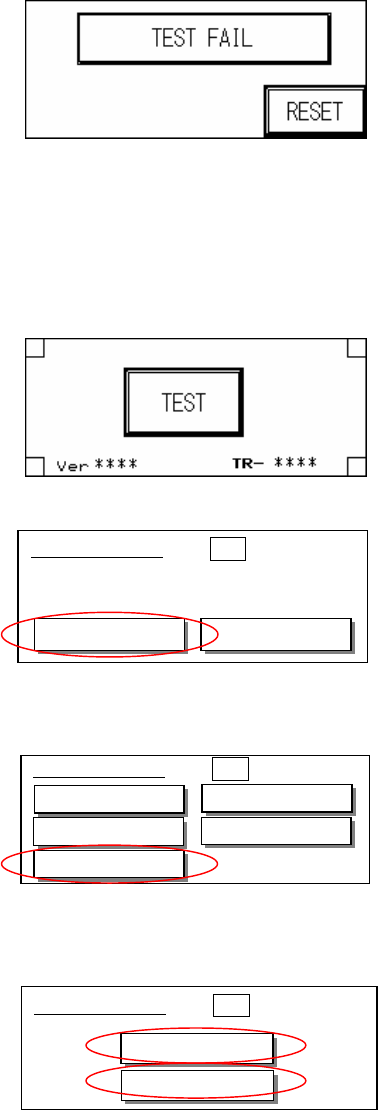
l Before replacing the PLC and HCI program the original files must be purged. The steps are
as follows:
Step 1 : At the Start Test display press down on four corners of the HCI.
Step 2 : At the display, press Setting.
Step 3 : Press Memory.
Step 4 : Press [SRAM] and [FROM] to purge the Memory.
u Human Machine Interface Program Update Process is as follows:
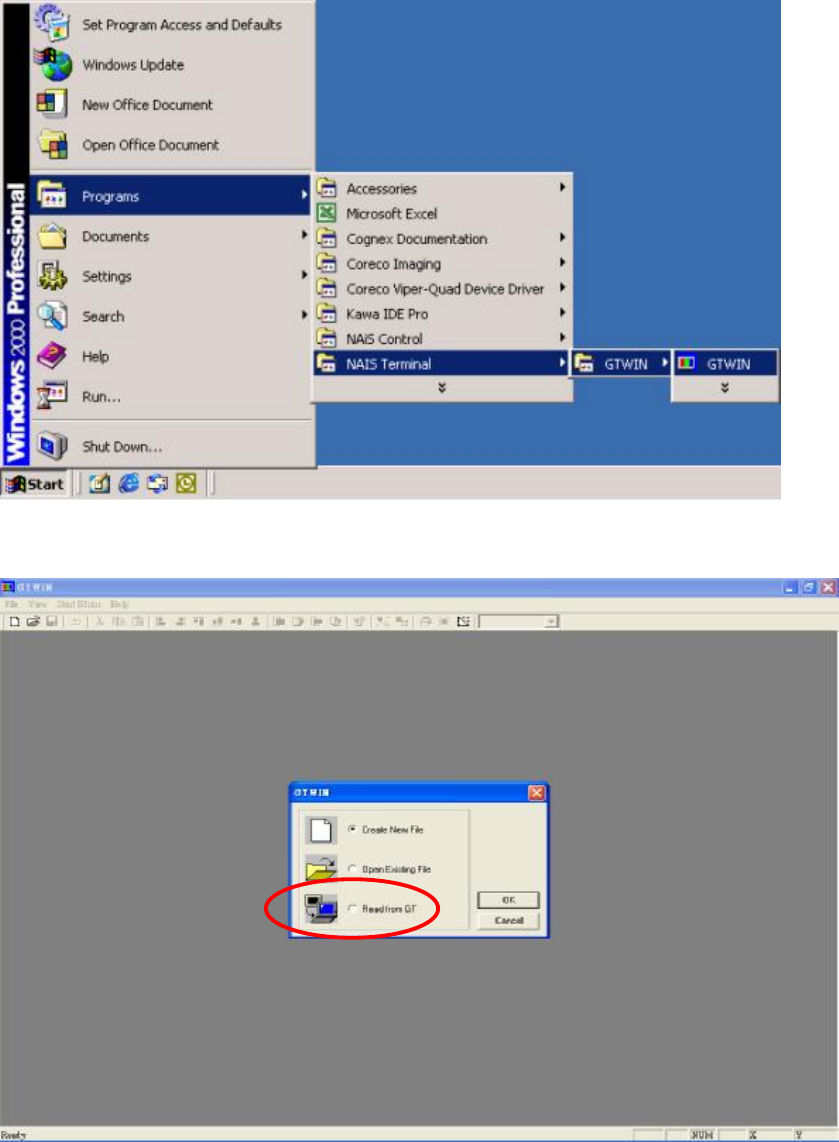
Step 1: First connect the PLC-PC data cable properly, with the PS2 connector connected to
the rear of the PCI, and the RS232 connected to Main PC COM1.
Step 2: Open the Program Files’ GTWIN (as shown in the figure below)
■System Menu ESC
System Ver 2.02
Setting
Test
■System Menu ESC
Clock
Contrast
Memory
TOOL Port
COM. Port
■System Menu ESC
SRAM
FROM
23
Step 3: Enter the GTWIN software program and as shown in the figure below, select Read
from GT (Read HCI data).
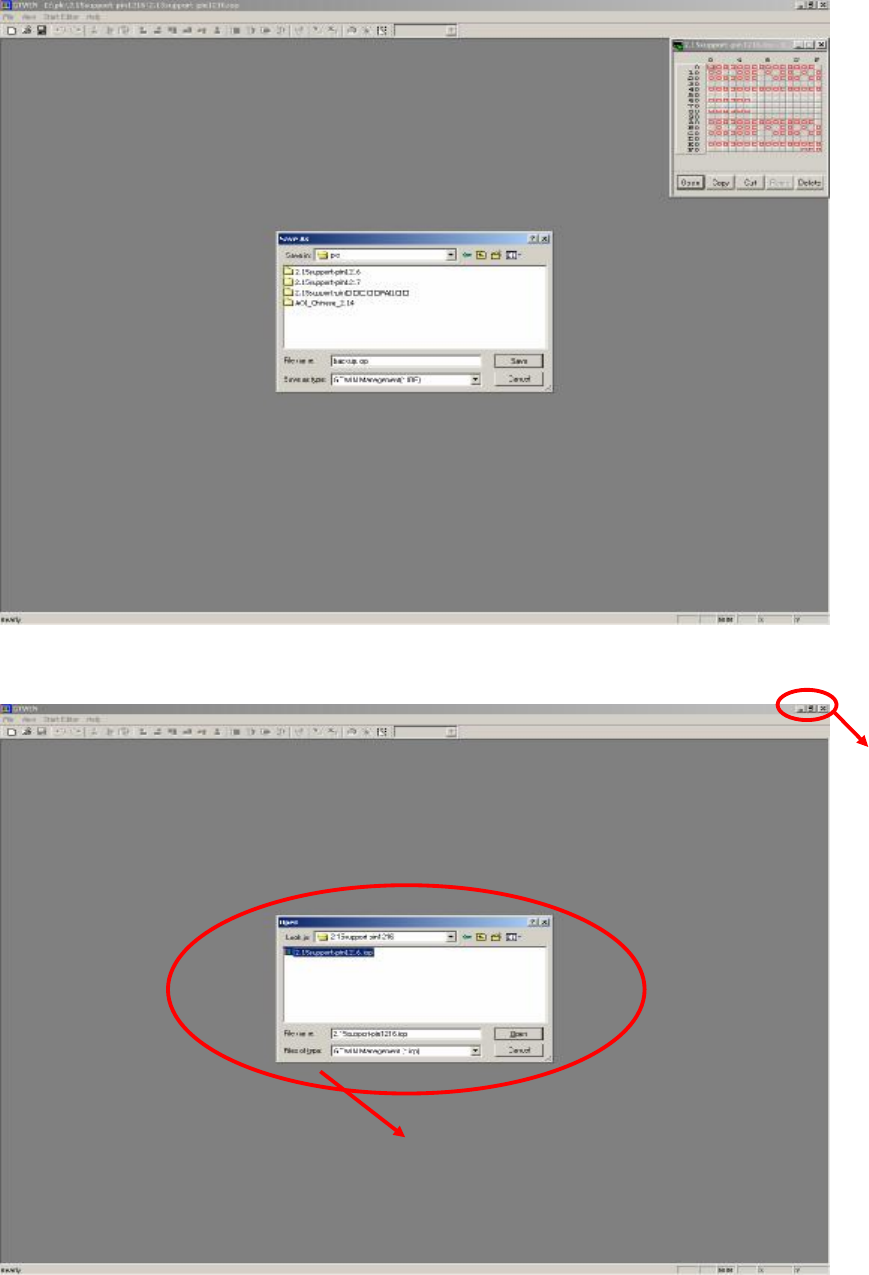
Step 4: After loading (this takes some time, please wait patiently), click on the File and select
Save so as to make a backup of the original files as shown in the picture below.
24
Step 5: After backup, close the original HCI interface software. Then click on File to Open the
HCI interface program (*.iop) you wish to update as shown in the figure below.
Step 6: Click on the File and select Transfer. In the Transfer Data dialog, select All Data &
CLOSE
Select the program file to use for update (*.iop)