TR7500_Hardware_en - 第26页
25 G T W I N - > G T . C li c k O K a s s ho w n i n t he f i g u r e b e l o w . S t e p 7 : W a i t f o r t h e P C t o t r a n s f e r t h e da t a t o t he H CI ( t h i s m a y t a k e s o m e t i m e , p l e a s …
24
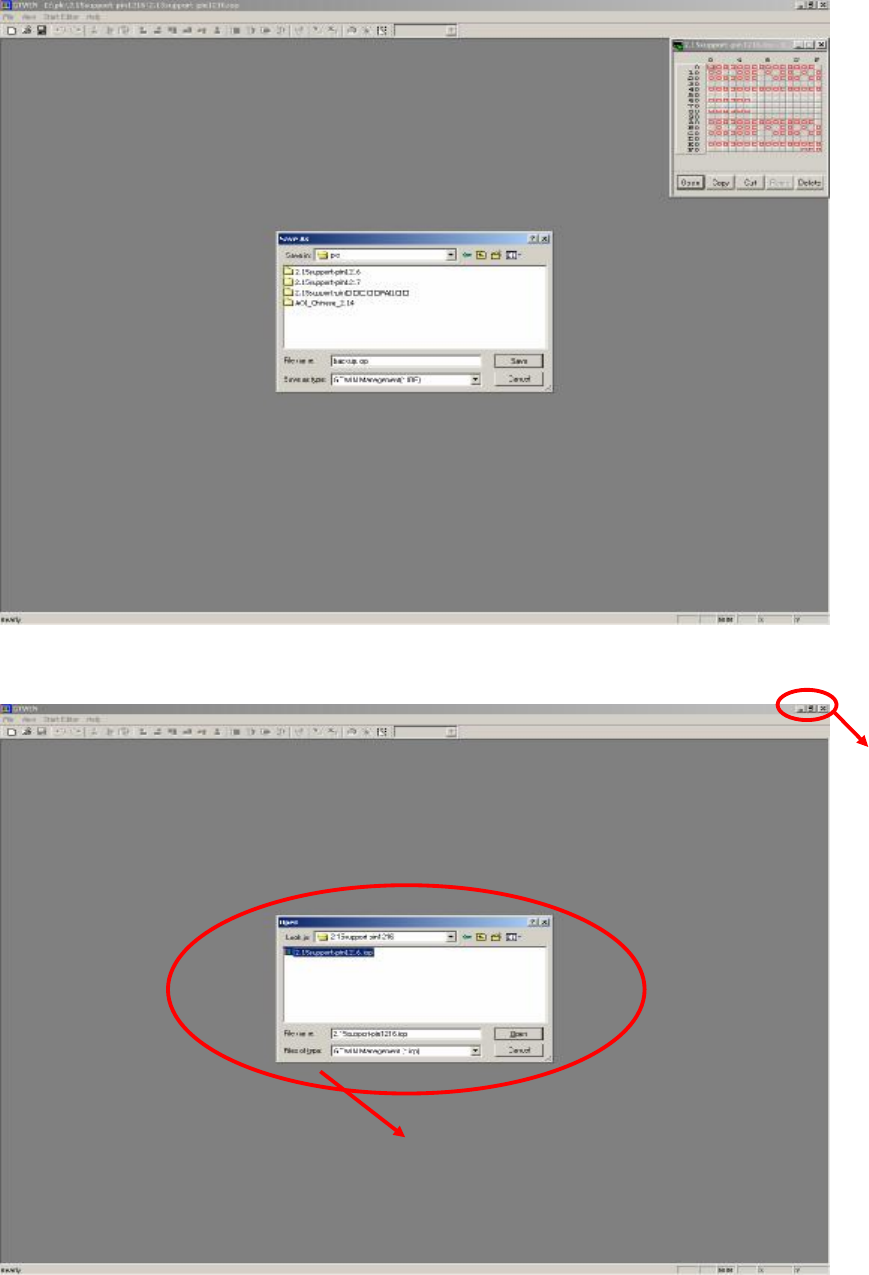
Step 5: After backup, close the original HCI interface software. Then click on File to Open the
HCI interface program (*.iop) you wish to update as shown in the figure below.
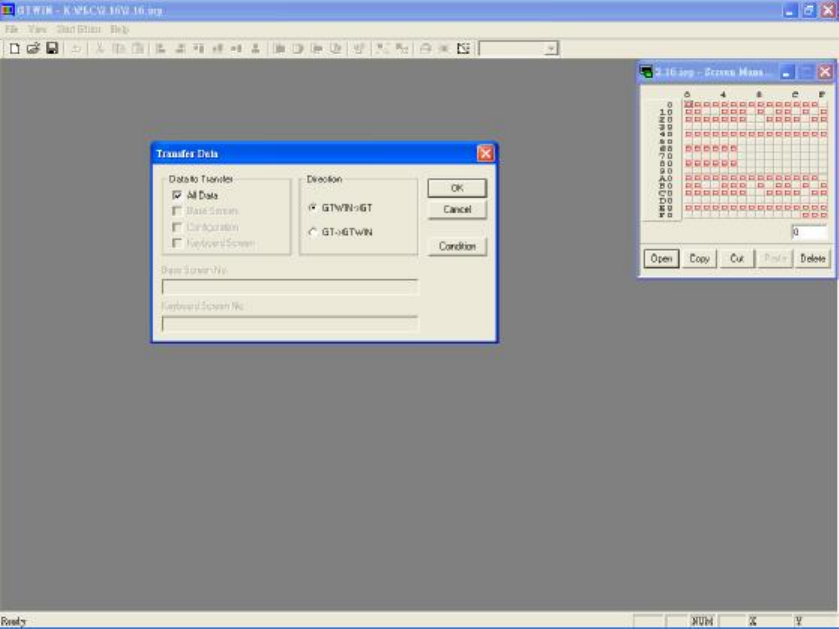
Step 6: Click on the File and select Transfer. In the Transfer Data dialog, select All Data &
CLOSE
Select the program file to use for update (*.iop)
25
GTWIN->GT. Click OK as shown in the figure below.
Step 7: Wait for the PC to transfer the data to the HCI (this may take some time, please wait
patiently), and the program will be updated.
1.5 PLC Program Replacement
The Steps are as follows:
Step 1: First connect the PLC-PC data cable properly, with the PS2 connector connected to
the rear of the PCI, and the RS232 connected to Main PC COM1.
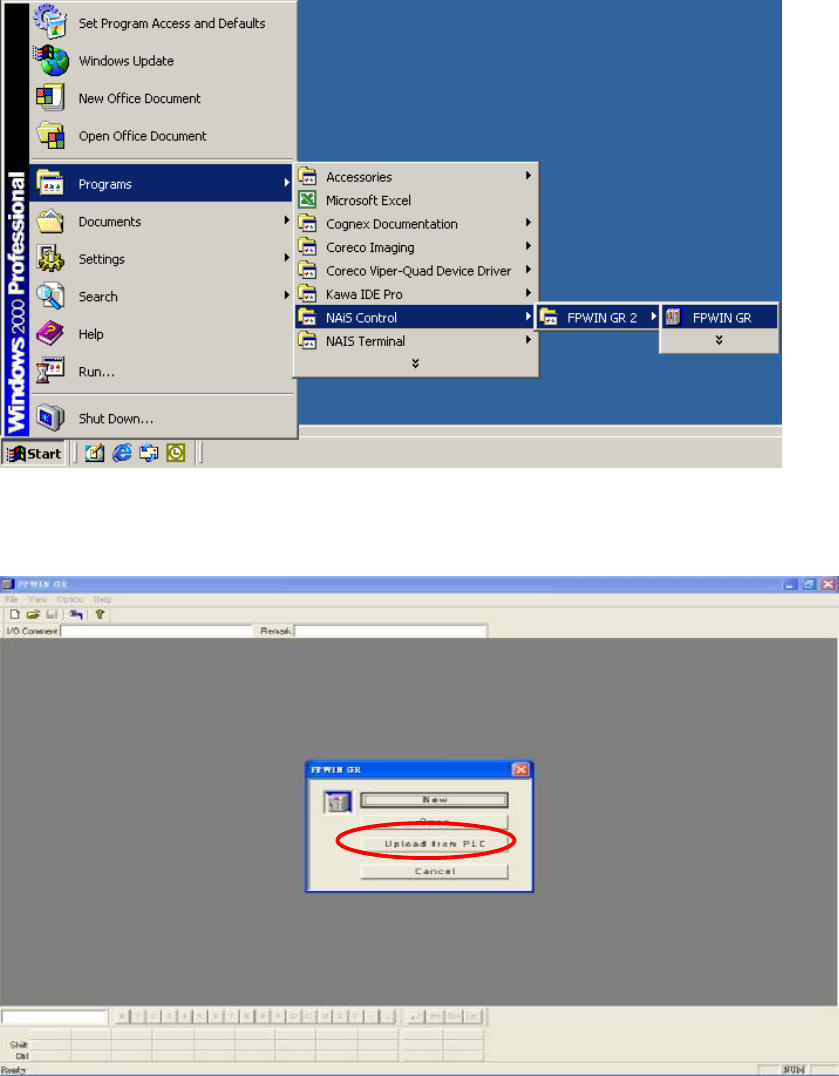
Step 2: Open the Program Files and select FPWIN GR.
26
Step 3: Enter the FPWIN GR software program and as shown in the figure below, click on
Upload from PLC.
Step 4: After uploading, click on File and select Save so as to make a backup of the original
files as shown in the figure below: