TR7500_Hardware_en - 第53页
52 6 . 1 .2 O p en th e P L C I/ O T e s t i ng D i s p l a y . l B o t h h i dd e n b u tt on s m u s t b e p r e s s ed s i m u l t a n e o u s l y . H i dd en bu t to n H i dd en bu t ton
51
6 Service
6.1 PC/PLC Connecting
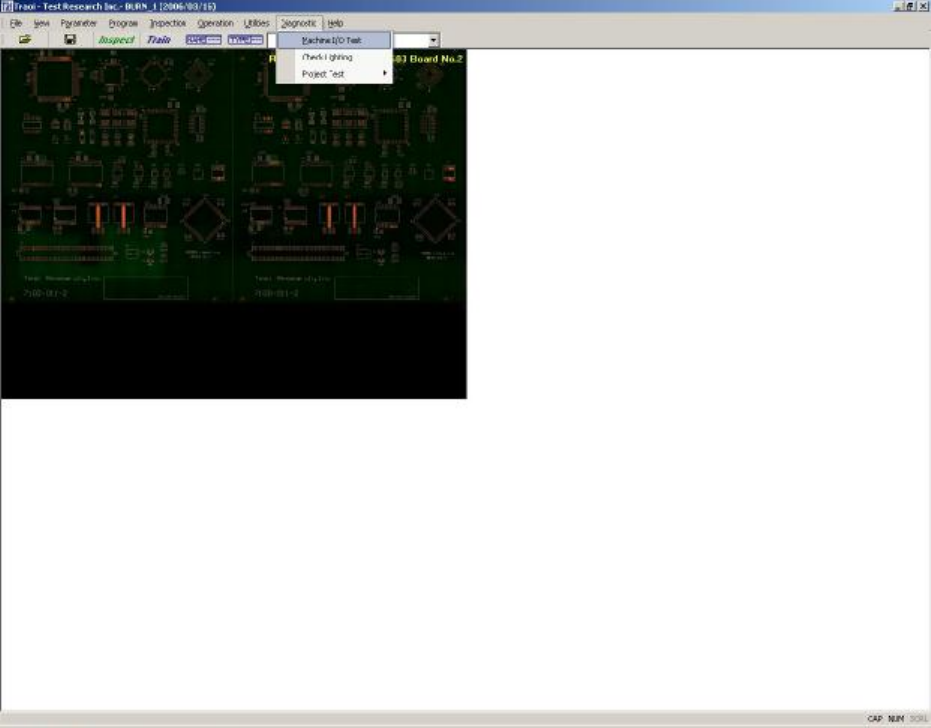
l First confirm that the main program has begun testing. If not running, please start the
program and repeat a test of the PLC. If there is still a problem, please launch the main
program and the PLC I/O TEST to test the system manually to see if the I/O is operating
normally (the settings and procedure are as the figures below). If there is still no response,
please carry out Step 2 and Step 3 to examine the wiring and system. If manual testing
shows that everything is normal, check the program version or contact support personnel for
assistance.
6.1.1 Opening the PC I/O Testing Display
52
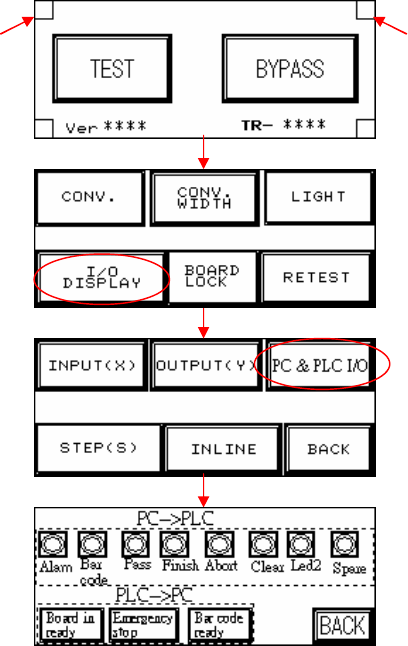
6.1.2 Open the PLC I/O Testing Display.
l Both hidden buttons must be pressed simultaneously.
Hidden button Hidden button
53
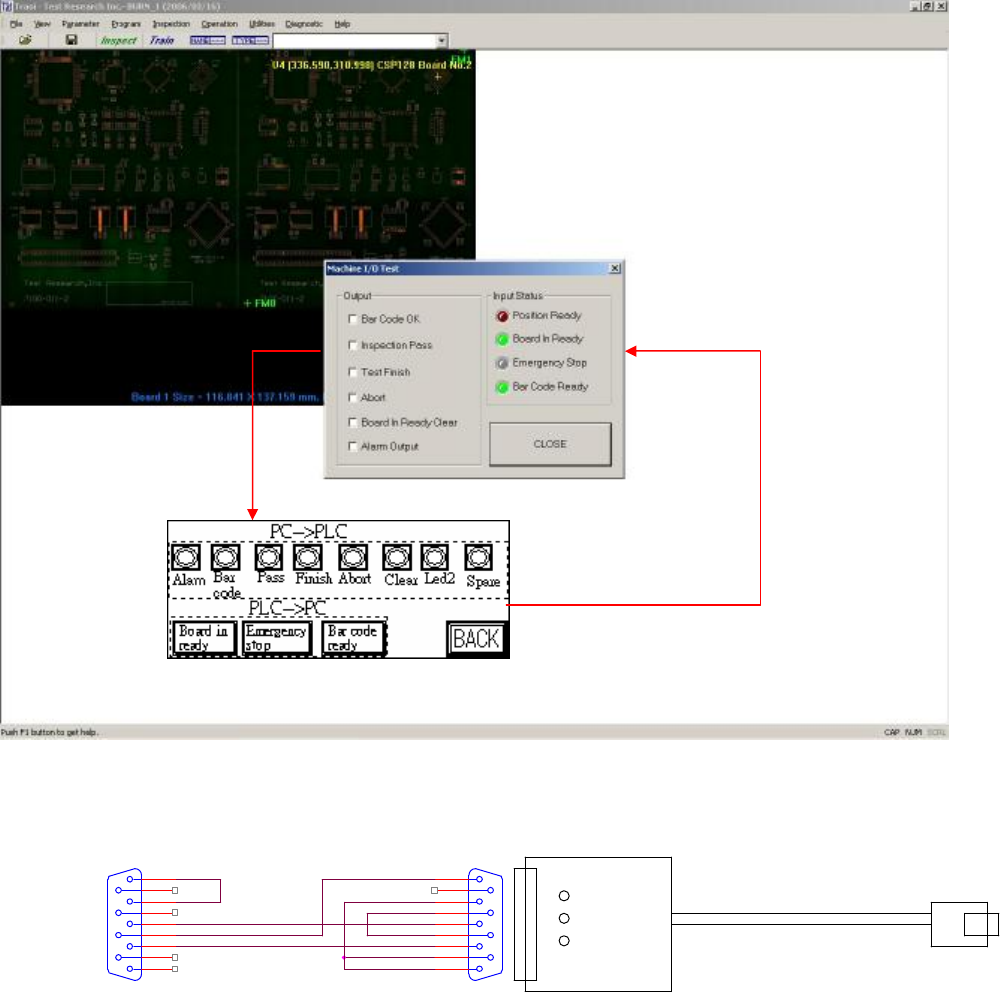
6.1.3 Testing Method
l After opening the PC and PLC I/O Testing display, tick the PC output to see if there is a
response from PLC input; press on PLC output to see if there is a response at PLC input.
6.1.4 Hardware Wiring:
l Check or replace the PLC and PC connection cable.
P2
CONNECTOR DB9
5
9
4
8
3
7
2
6
1
PLC()
公
USB TO PC
P1
CONNECTOR DB9
5
9
4
8
3
7
2
6
1