00196416-01_IM_OIS_SIS 7.0_DE EN.pdf - 第18页
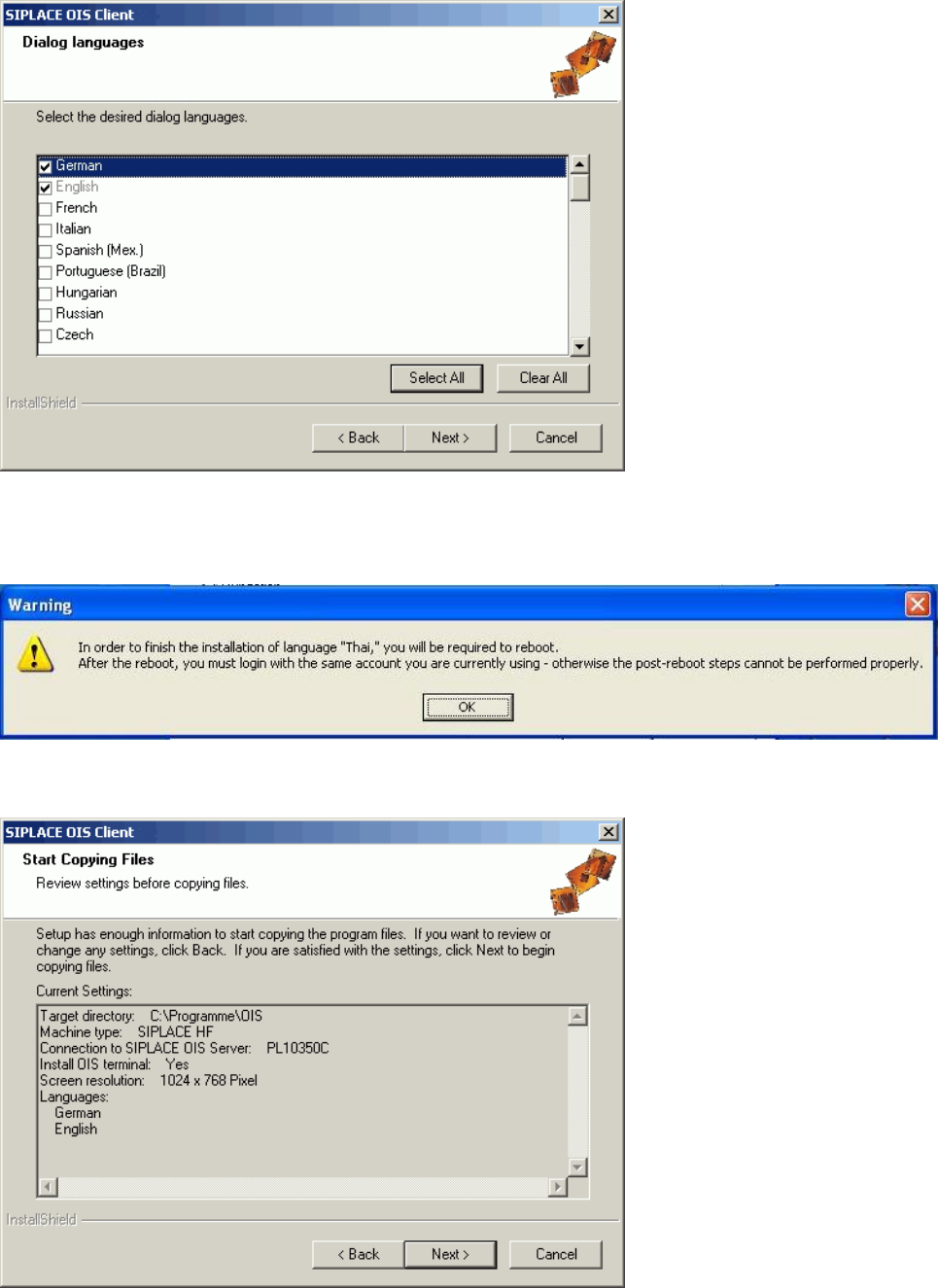
Installationsanleitung OIS Client, OI S Server, SIS Server Version 7.0 Installation Manual This shows a summary of the setting s and entries you have made so far. ¾ Check the settings. ¾ Click Next > to start the actu…
OIS Client, OIS Server, SIS Server Version 7.0 Installationsanleitung
Installation manual
¾ Continue by clicking the Next> button.
¾ Select the desired languages.
German and English are always installed.
¾ Continue by clicking the Next> button.
¾ When installing some languages, this notice is also displayed. In this case, you must restart the
computer after the installation, then login again.
17 von 50
Installationsanleitung OIS Client, OIS Server, SIS Server Version 7.0
Installation Manual
This shows a summary of the settings and entries you have made so far.
¾ Check the settings.
¾ Click Next > to start the actual installation process.
¾ If you wish to change your entries, click < Back to return to the appropriate dialog.
The software is then installed.
¾ Continue with section
3.2.5 on page 21.
3.2.4 Installing SIS Server
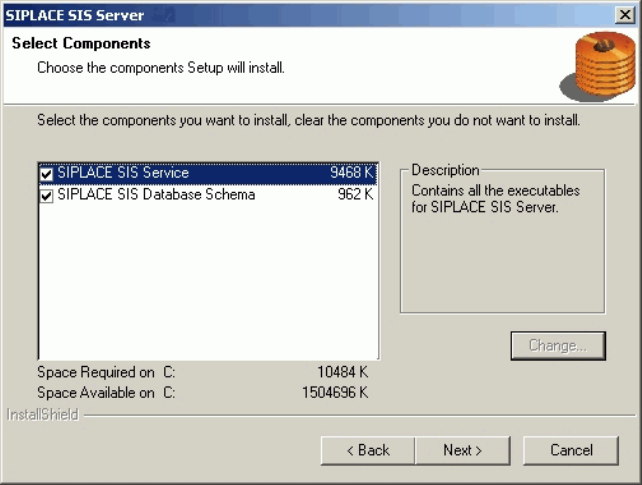
¾ Select the components you want to install.
¾ Continue by clicking the Next> button.
18 von 50
OIS Client, OIS Server, SIS Server Version 7.0 Installationsanleitung
Installation manual
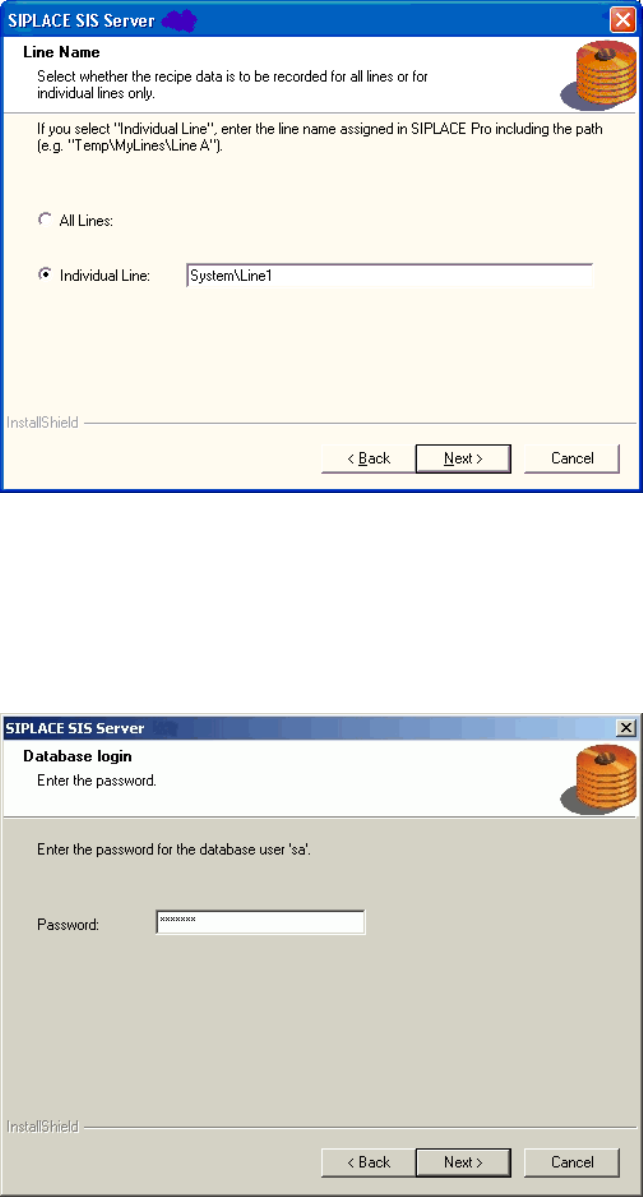
¾ Specify whether SIPLACE SIS is to record the specified recipe and setup data for all the lines
connected to SIPLACE Pro or for a specific line.
¾ If SIPLACE SIS is only to record the data for a particular line, enter the name of the required line and
the path exactly as it is written in SIPLACE Pro, e.g. System\Line1.
¾ Continue by clicking the Next> button.
The installation routine must log in to the SQL-Server as system administrator (sa) in order to set up or
update the database schema.
¾ Enter the system administrator password.
¾ Continue by clicking the Next> button. If you don't yet have a database, you'll see the following
dialog:
19 von 50