User Manual - SIPLACE Glue Feedeer - 第33页
4 Operation 4.1 Settings in SIPLACE Pro 10.1 and Higher User Manual SIPLACE Glue Feeder 05/2020 33 4 Operation 4.1 Settings in SIPLACE Pro 10.1 and Higher In order to process components with the Glue Feeder, you need to …

3 Initial Operation
3.6 Deaerating
32 User Manual SIPLACE Glue Feeder 05/2020
3.6 Deaerating
On initial setup, when first using a fully cleaned Glue Feeder or after replacing a cartridge, check
the functionality of the Glue Feeder.
It is normally enough to follow the procedure described in section 3.5 "Predosing the Glue
Feeder" [}30], activate 3x the dosage of 20drops with a "long press" of the front arrow button, to
get the first amount of adhesive out of the nozzle.
However, even after the first dispensing, there might still be air bubbles in the system, so that it
should then be "deaerated".
Procedure
The main procedure is very similar to that described in section 4.2.6 "Applying Glue for Test-
ing" [}58].
Instead of the relatively short paper tape, now use an approx. 30 cm long piece of paper tape as a
test strip.
► Insert the test strip into the safety cover, as shown.
► Proceed as described in section 4.2.6 "Applying Glue for Testing" [}58].
► In the dialog Dispense set the number of glue dots to 200.
In the same dialog, set the cycle time to the value you then want to use for your production.
► Click on Start and slowly and evenly pull the test strip through the safety cover.
► Remove the test strip.
► Check whether there are glue dots missing on the test strip.
If more than 5 glue dots are missing or if several are missing at the end of the test strip, repeat this
procedure with a new test strip each time, until all 200 glue dots can be seen on the test strip.
The system is then deaerated and you can start the production process.
4 Operation
4.1 Settings in SIPLACE Pro 10.1 and Higher
User Manual SIPLACE Glue Feeder 05/2020 33
4 Operation
4.1 Settings in SIPLACE Pro 10.1 and Higher
In order to process components with the Glue Feeder, you need to perform the following preparat-
ory steps:
●
Define a model of the glue dots for each component (component shape).
You define the position and size of one or more glue dots which you want to use to fix the
component to the board.
●
Activate Gluing in the object properties for the component.
This is a global setting which specifies whether the component may be glued during place-
ment or not.
●
Activate Gluing in the placement list.
Any one component can occur multiple times on a single board. This is where you define in
the placement list the positions on the board at which a component is to be glued and those
positions at which a component should not be glued.
NOTICE
Avoid contact with the dispenser nozzle
To prevent contact with the dispenser nozzle or excessive distance to the component, de-
scribe the height of the component (overall height with leads and tolerances) as precisely
as possible.
4 Operation
4.1 Settings in SIPLACE Pro 10.1 and Higher
34 User Manual SIPLACE Glue Feeder 05/2020
4.1.1 Defining a Component Shape Glue Dot Model
This is where you define the position and the size of one or more glue dots which you want to use
to fix the component to the board.
Depending on the size of the component, you will either need one or more glue dots for the fixture
to the board. The position of the glue dots can be chosen wherever required, provided the following
instructions are observed:
The correct position and size of the glue dots can also be optionally checked by activating the Vis-
ion Inspection function.
NOTICE
Placement head contamination
The glue dot and the target rectangle must be within the component shape (without leads).
If not, the dispense procedure could contaminate the placement head with glue.
Procedure
► Switch over to the main window.
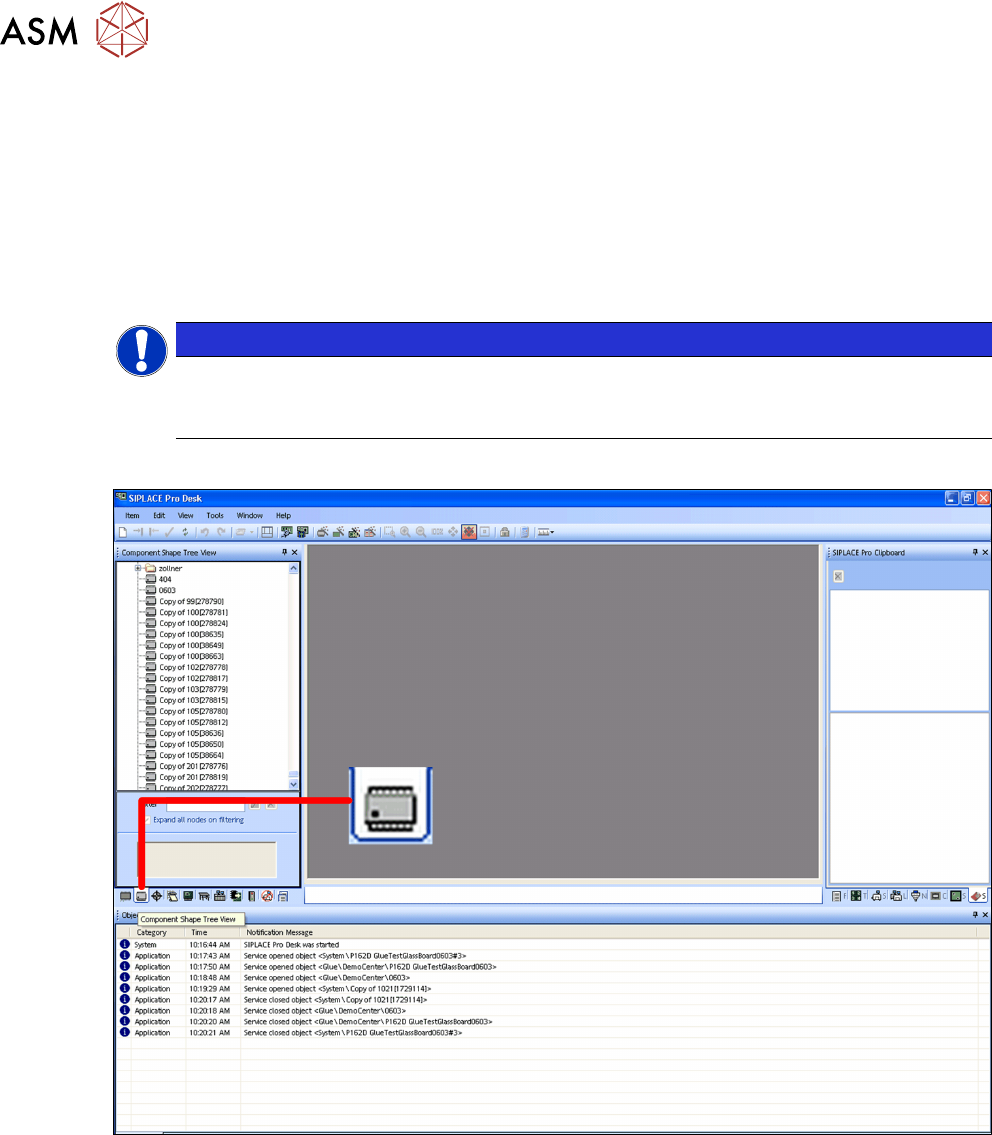
► Click on the Component shape – tree view icon.
The component shape tree view will be shown.