User Manual - SIPLACE Glue Feedeer - 第50页
4 Operation 4.2 Individual Functions in Stations Software 706.1 and Higher 50 User Manual SIPLACE Glue Feeder 05/2020 ► To edit the parameters shown, click on Edit Parameters . (1) The Glue Dot Wizard will open. In this …
4 Operation
4.2 Individual Functions in Stations Software 706.1 and Higher
User Manual SIPLACE Glue Feeder 05/2020 49
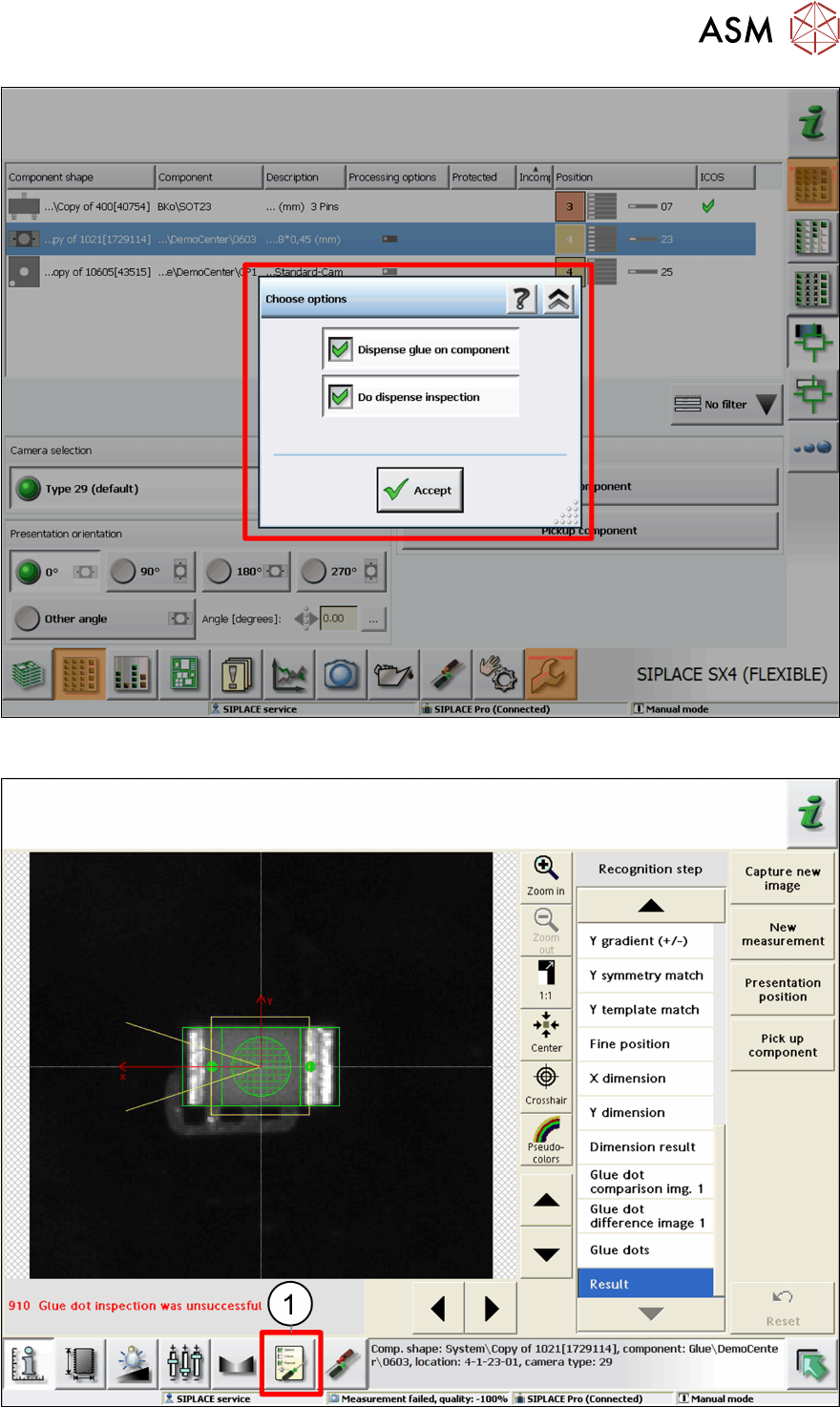
► Enable both of the options shown and click on Accept.
The process will begin. The SIPLACE Vision results view will then be shown.
► Click on the Measurement Options icon. (1)
4 Operation
4.2 Individual Functions in Stations Software 706.1 and Higher
50 User Manual SIPLACE Glue Feeder 05/2020
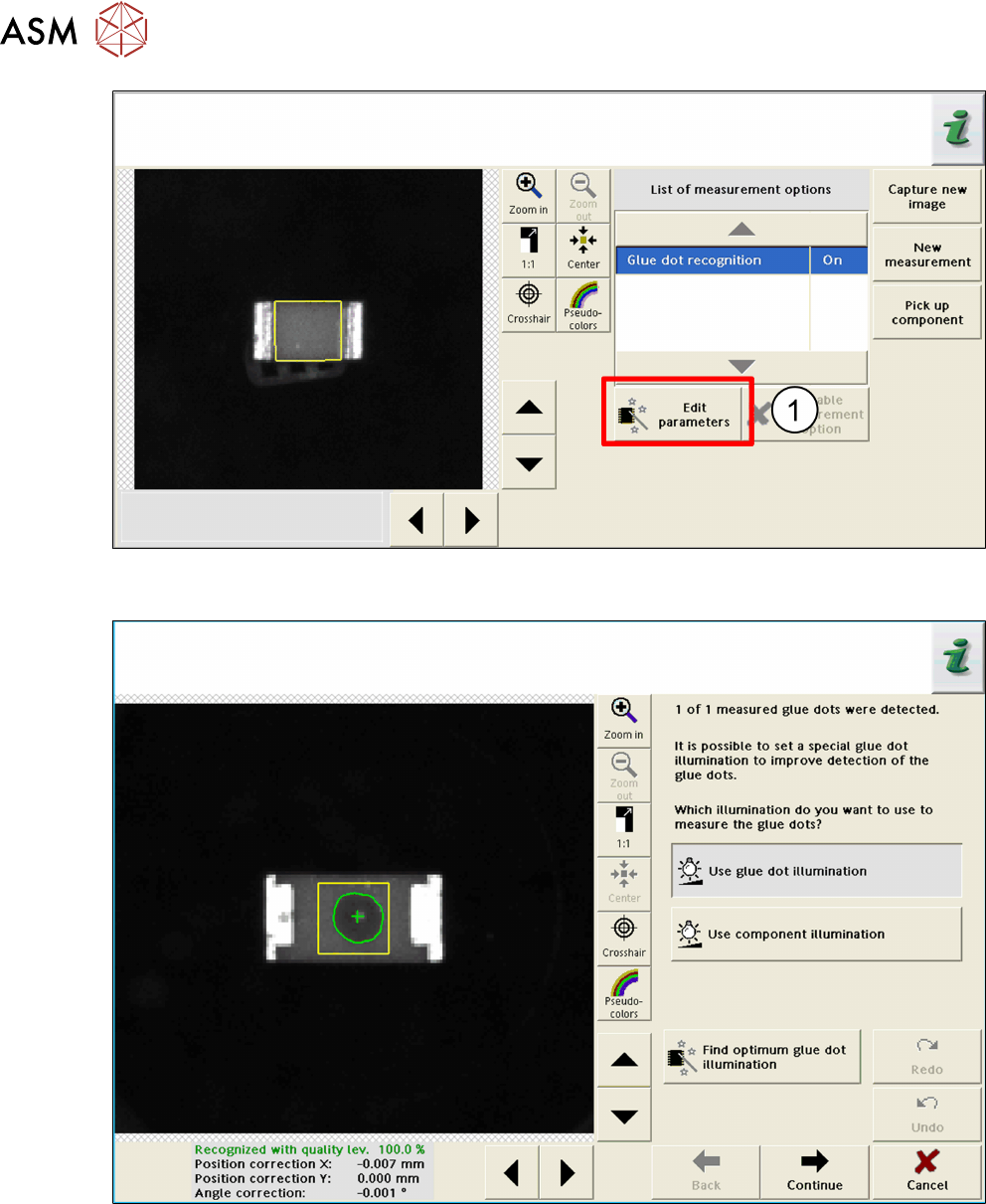
► To edit the parameters shown, click on Edit Parameters. (1)
The Glue Dot Wizard will open.
In this dialog box, you can select the lighting with which you want to perform glue dot measure-
ment. To improve your measurement results, you can search for the optimum glue dot lighting.
For more information about this dialog box, refer to the online documentation for SIPLACE Vision.
4 Operation
4.2 Individual Functions in Stations Software 706.1 and Higher
User Manual SIPLACE Glue Feeder 05/2020 51
4.2.4 Setting the Temperature
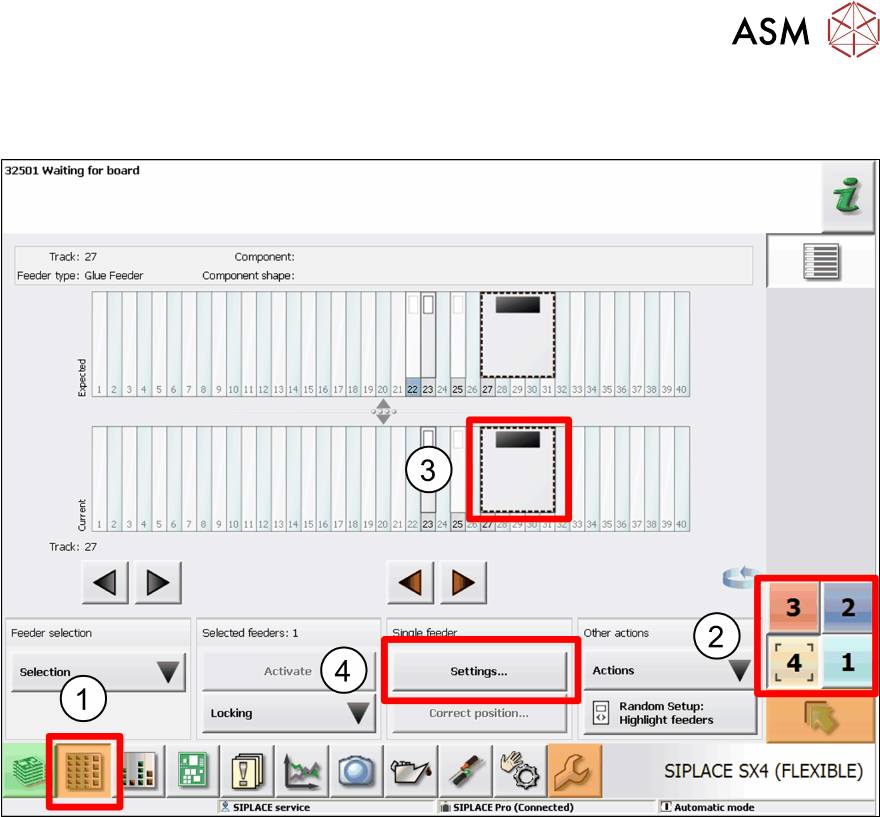
To set the temperature, proceed as follows:
► Click on the Feeders, Components and Nozzles ... icon.(1)
► Select the location at which the Glue Feeder has been set up.(2)
► Mark the Glue Feeder.(3)
► Click on Settings.(4)