User Manual - SIPLACE Glue Feedeer - 第56页
4 Operation 4.2 Individual Functions in Stations Software 706.1 and Higher 56 User Manual SIPLACE Glue Feeder 05/2020 The icon in the Active (1) column marks the parameter set which is currently set for the Glue Feeder…
4 Operation
4.2 Individual Functions in Stations Software 706.1 and Higher
User Manual SIPLACE Glue Feeder 05/2020 55
4.2.5 Managing Parameter Sets
NOTICE
Access privileges
In order to use this function, you need access to the Service level. This access privilege is
checked when you open the function.
The parameter sets are used to manage the settings with which the Glue Feeders on this station
should process the components to be placed.
The parameter sets contain the following information:
●
Diameter of each glue dot
– The distance between the components and the dispenser nozzle
– The number of shots used to make the glue dot.
●
The cycle time between 2 shots.
●
The glue temperature to be used for all glue dots.
●
The interval at which the dispenser nozzle is to be checked for contamination.
To manage parameter sets, proceed as follows:
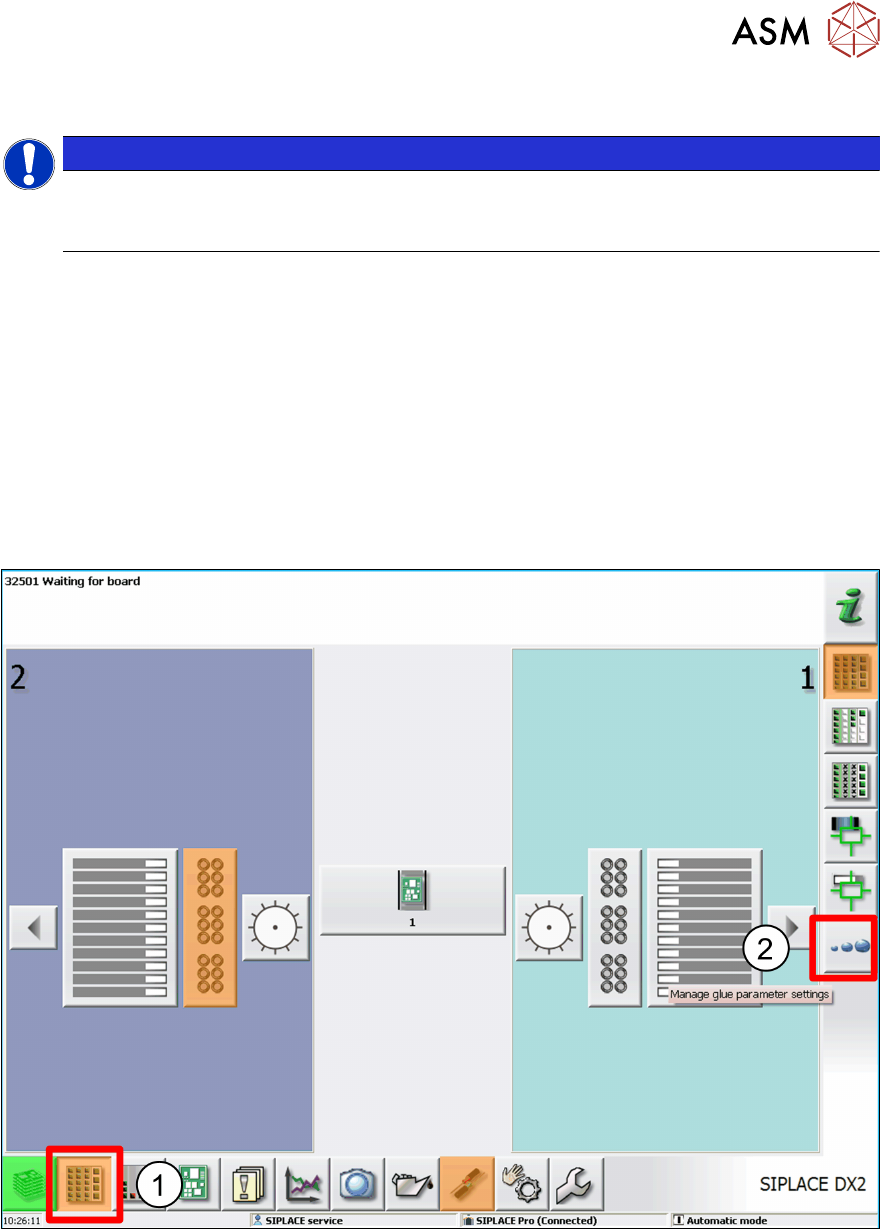
► Click on the Feeders, Components and Nozzles ... icon (1).
► Click on Manage Glue Parameter Settings. (2)
An overview of the existing parameter sets will be shown.
4 Operation
4.2 Individual Functions in Stations Software 706.1 and Higher
56 User Manual SIPLACE Glue Feeder 05/2020
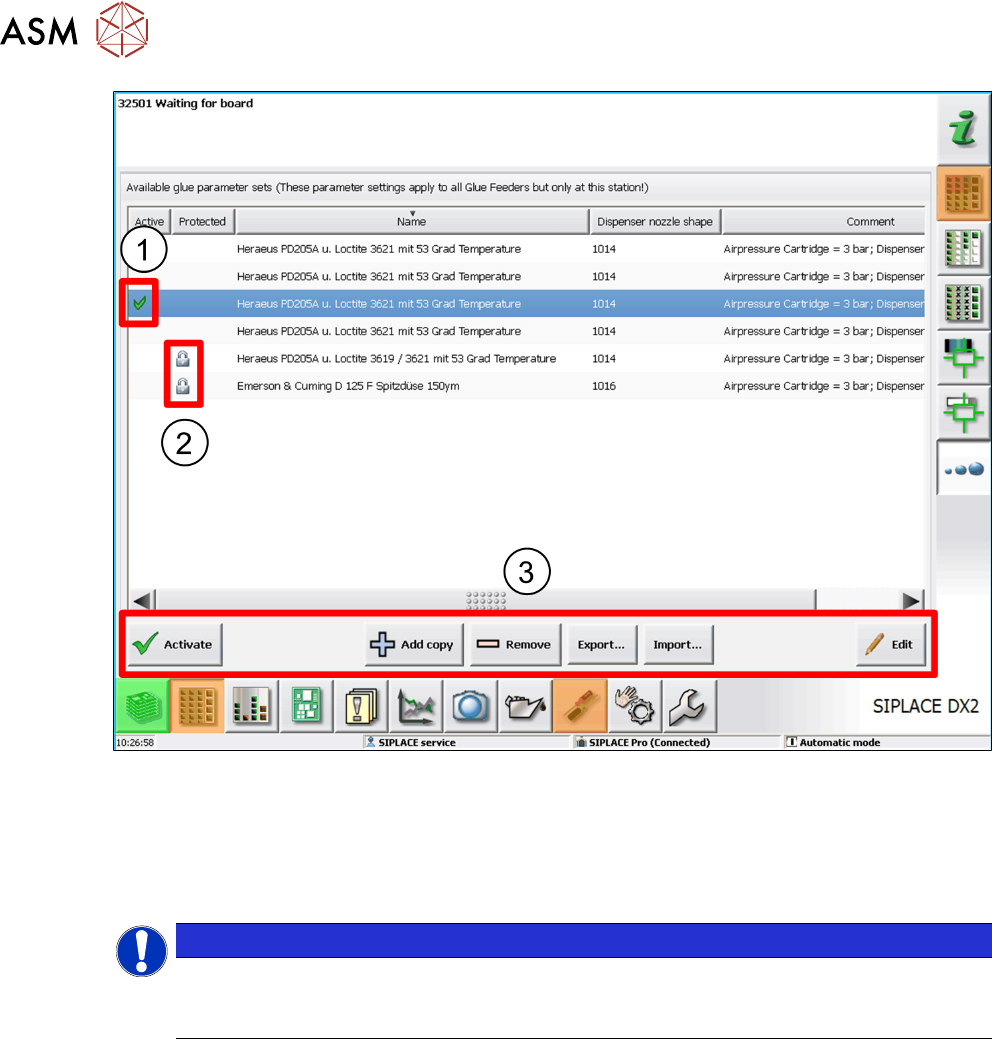
The icon in the Active(1) column marks the parameter set which is currently set for the Glue
Feeder at this station.
The standard parameter sets supplied are marked in the Protected column by a padlock icon(2).
These standard parameter sets contain the default settings suitable for both dispenser nozzle
types 1014 (flat) and 1016 (needle). To define your own parameter sets, copy the standard para-
meter set for the relevant dispenser nozzle and then modify it to suit your requirements.
NOTICE
Enable parameter set to match the dispenser nozzle
Make sure that the enabled parameter set always matches the dispenser nozzle which is
currently on the Glue Feeder.
Use the following buttons to open the various functions of this dialog (3):
Activate
Enables the marked parameter set. This parameter set will then be used immediately as the Glue
Feeder setting.
Add copy
Creates a copy of the marked parameter set. This copy can be used as a basis for a new para-
meter set and then adjusted accordingly.
Remove
Deletes a marked parameter set.
Export...
Starts a dialog in which you can save the marked parameter set in a folder of your choice. This
parameter set can then be used at another machine.
Import ...
Starts a dialog in which you can copy a parameter set from a folder of your choice. This parameter
set can then be used for the Glue Feeder or edited.
Edit
Starts a dialog in which you can adjust the marked parameter set to your requirements.
4 Operation
4.2 Individual Functions in Stations Software 706.1 and Higher
User Manual SIPLACE Glue Feeder 05/2020 57
4.2.5.1 Editing Parameter Sets
NOTICE
Protected parameter sets
The protected standard parameter sets, easily identifiable by their padlock icon in the Pro-
tected) column, can be copied and the copies can be changed. The protected standard
parameter sets themselves can not be changed.
To create a new parameter set, copy the existing parameter set and then change it to suit your re-
quirements.
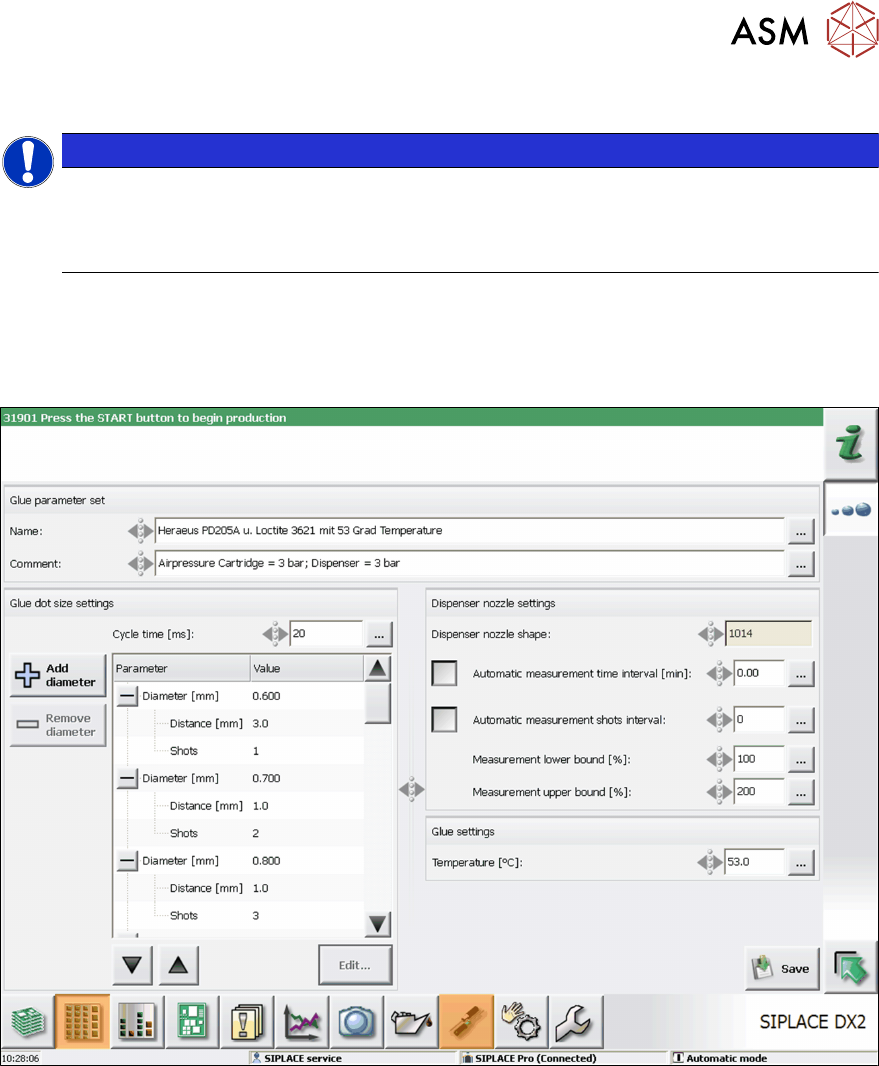
To change a parameter set, mark it and then click on Edit.
The following dialog will be shown:
This dialog is used to define any special settings which you want to use for all Glue Feeders e.g.
for a certain glue type or special application.
The parameter sets are used to control the distance between the components and the dispenser
nozzle plus the amount of shots to be used to realize glue dots of different diameters. You can also
set the cycle time between the shots for all glue dots and the interval for checking the dispenser
nozzle for contamination.
For a detailed description of this dialog, refer to the Online Help.
General procedure:
► Assign a suitable name to the parameter set.
► Adjust the predefined parameter set to suit your requirements.
► To save the parameter set, click on Save.