IT Feeder Manual-45Series(English V2.0)Ver5.pdf - 第28页
Samsung Intelligent Feeder System Figur e 1-18. V iew → Messa ge scree n configuration 1.4.5. Machine Feeder Program dialog box In case the <Local Feeder Programming> is at <Enable> state in the FIS environme…
IT Feeder System
1-15
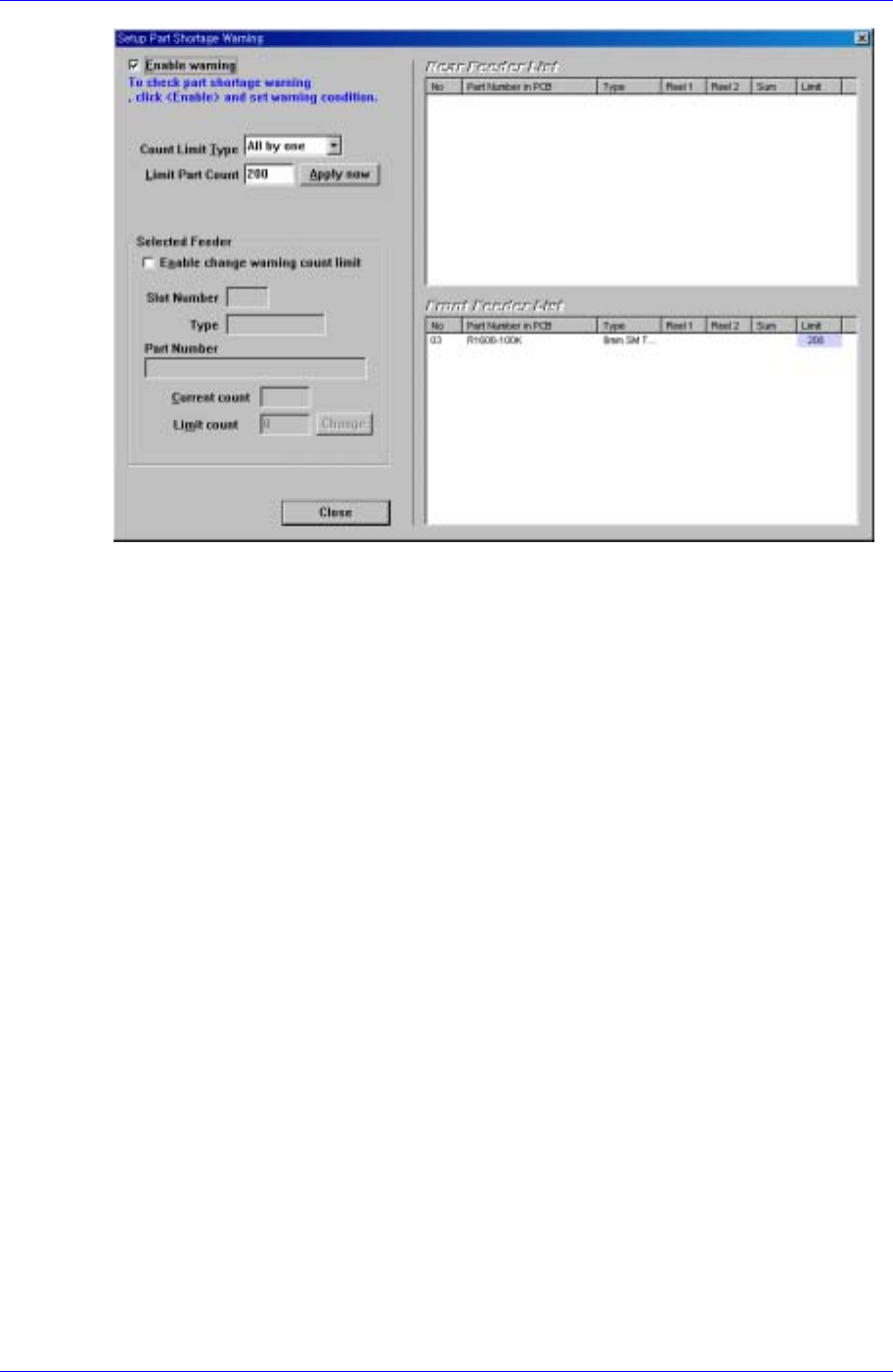
Figure 1-17. Setup Part Shortage Warning dialog box
<Enable warning> check box
Check whether to use the part short warning or not. When it is checked and the part
count drops below the specified number, a part shortage warning is produced and the
Part Shortage Warning dialog box is displayed on the screen automatically.
<Count Limit Type>Combo button
All by one : Check the remaining quantity by applying the input quantity to all
feeders using the <Limit Part Count> edit box, <Limit Part Count>.
.by PCB : Using the <Limit PCB Count> edit box, check the remaining quantity
by multiplying the input PCB quantity and the needed part quantity.
<Apply now> button: Using the edit box, apply the input value.
<Enable change warning count limit> check
Select the feeder slot separately and input the limit count to be modified in the <Limit
count> edit box. Then apply the input value by clicking the <Change> button.
※The feeder limit count in the corresponding slots is excluded in applying the
count change by ‘All by one’ and ‘by PCB’.
<Change> button
The feeder limit count setup condition for individual feeders is applied by the
<Change> button.
1.4.4.3. Message
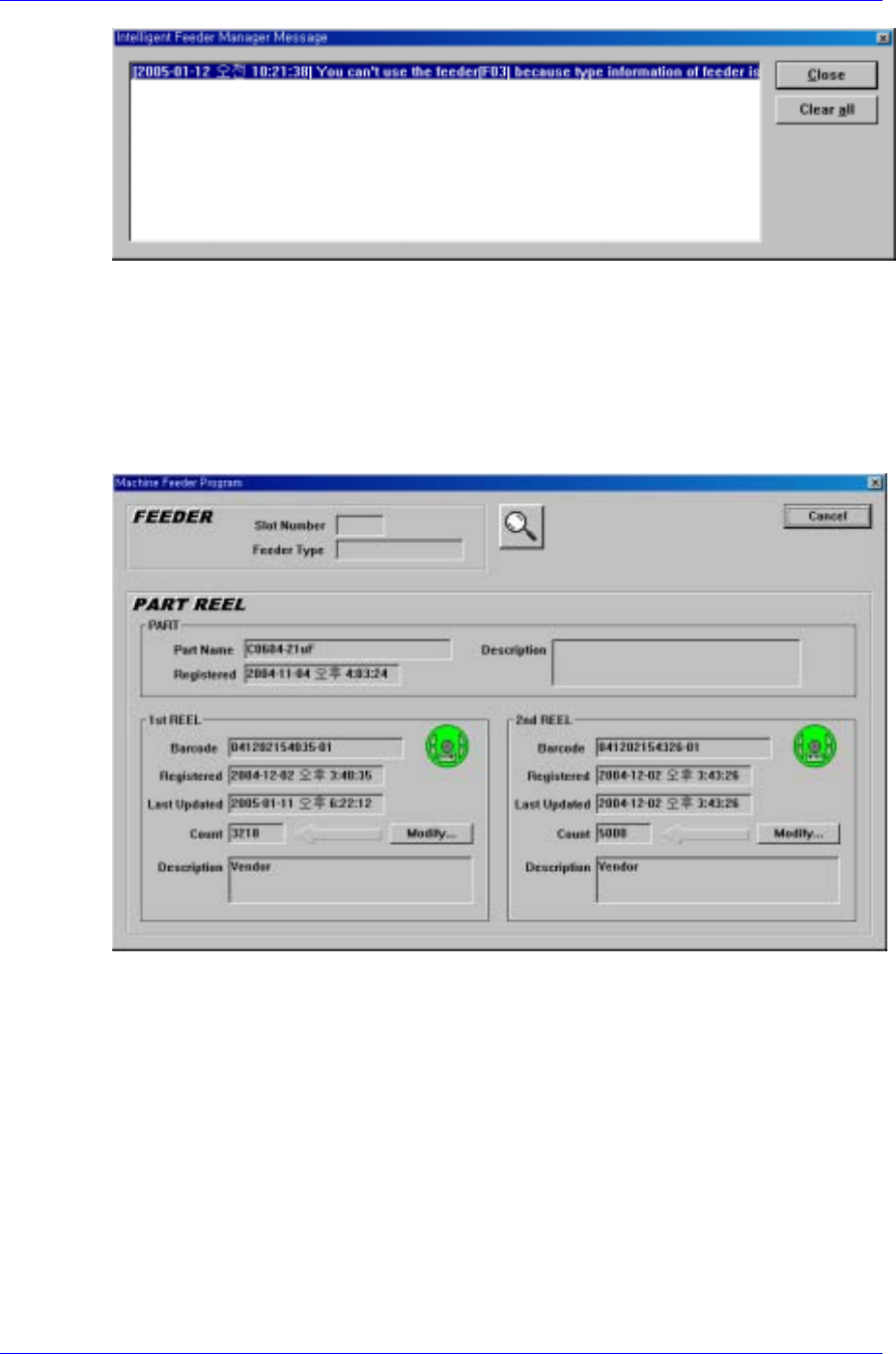
Selecting the submenu <Message> from the menu (<View> → <Message>) will display
the screen as indicated in Figure. 1-18, where the warning message is indicated.
Samsung Intelligent Feeder System
Figure 1-18. View → Message screen configuration
1.4.5. Machine Feeder Program dialog box
In case the <Local Feeder Programming> is at <Enable> state in the FIS environment
setup (refer to Figure. 1-2), when the reel barcode is inputted through barcode reader or
manual input dialog box, the local feeder programming dialog box is displayed in the
screen as shown in Figure. 1-19.
Figure 1-19. Machine Feeder Program dialog box
<Slot Number> character string box
Displays the slot number of the feeder being programmed. When a feeder is installed,
the feeder scanner reads the feeder and displays the respective feeder number.
<Feeder Type> character string box
Searches the database for the feeder with the slot number read above and displays
the feeder type.
<Part Name> character string box
Searches the barcode entered in the database, reads the reel information and displays
the Part Name.
<Registered> character string box
Displays the registration date of the Part Name from the searched reel information.
1-16

IT Feeder System
1-17
<(Part)Description> character string box
Displays the description on the Part from the searched reel information if there is any.
<1st Reel> group box
In case the remaining reel is connected with another reel containing the same parts
during operation, the information concerning the remaining reel is displayed.
<2nd Reel> group box
Displays the information on the reel connected to the 1
st
reel.
<Barcode> character string box
Displays the currently entered barcode.
<Registered> Character string box
Displays the initial registration date and time of the part reel from the searched reel
information.
<Last Updated> character string box
Displays the latest update date and time of the searched reel information.
<Count> character string box
Displays the latest part count of the part reel from the searched reel information.
<(Reel)Description> character string box
If there is any description on the part reel in the searched reel information, it is
displayed.
<Modify…> button
Displays the dialog box to change the part count. The part count can be changed in
consideration of the number of components discarded during reel change.
icon
Displays whether the part reel of the barcode entered is registered in the database. If it
is registered, the icon is displayed in green, if not, a message telling “Reel code is not
registered” is displayed on the screen and the icon is displayed in yellow.
If another barcode is not entered within 10 seconds after the Feeder program ends, the
Local Feeder Programming dialog box ends automatically.
Machine Feeder Program procedure
① Install the part reel on the feeder to program.
② Enter the barcode of the part reel. Input can be done by a barcode reader or
through the manual input dialog box
③ The Programming dialog box is displayed on the screen as in [Figure 1-19].
④ When the Feeder is installed in the desired slot, the Feeder Slot Number and
Feeder Type are displayed and programming ends.
⑤ When the feeder is programmed normally, the reel icon flashes.
⑥ If another barcode is not entered within 10 seconds, the dialog box ends
automatically.