IT Feeder Manual-45Series(English V2.0)Ver5.pdf - 第36页
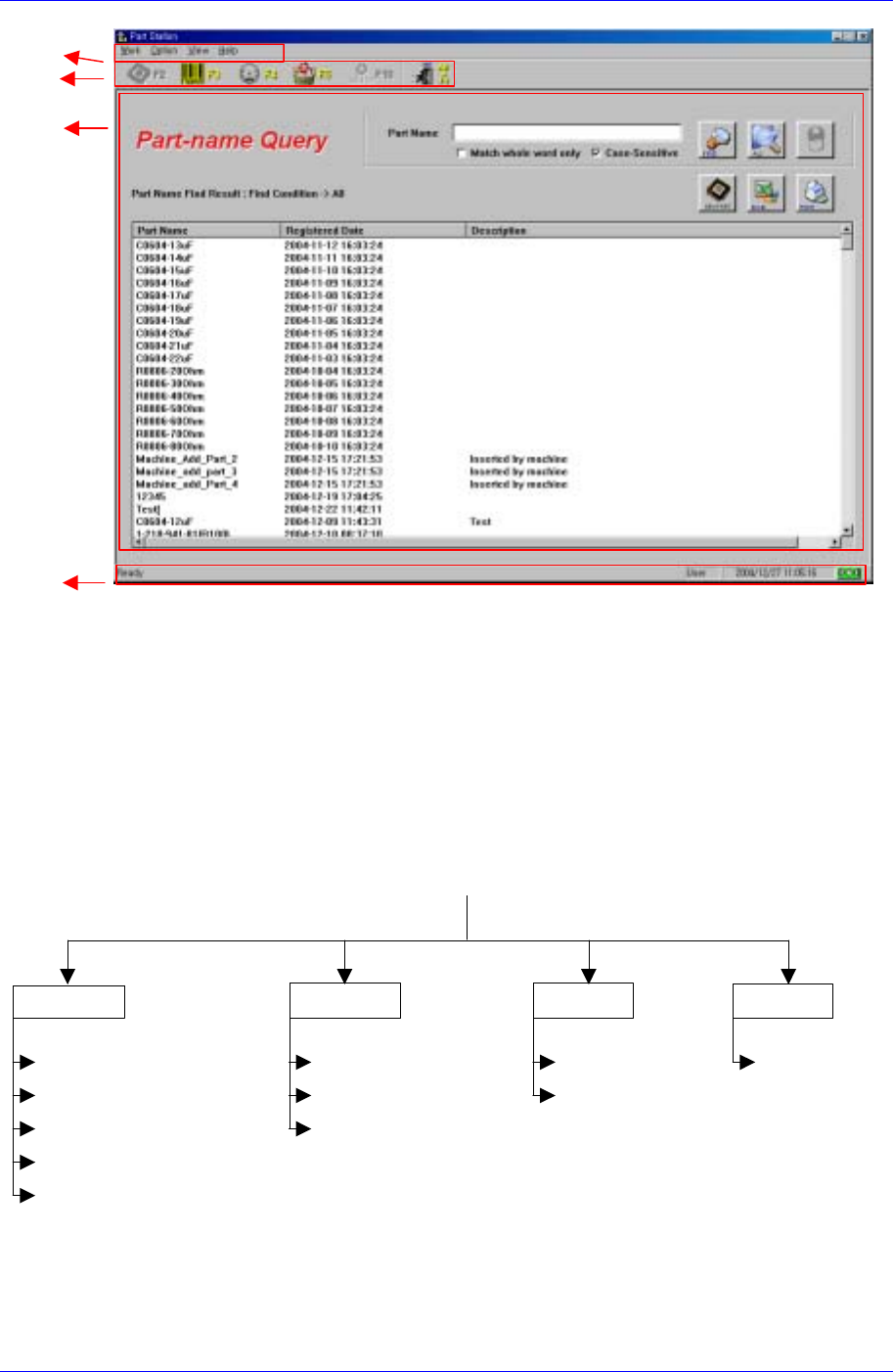
Samsung Intelligent Feeder System 2.2.1. Work Part Information Searches or deletes the PartNames registered in the equipment. Part Reel Registration Registers new Part Reels and creates b ar codes. …
Part Station
2-3
Main menu
Toolbar
Execution
window
Status Bar
Figure 2-1. Structure of the main screen
2.2. Structure of the Main Menu
The structure of the Main Menu for Part Station is as follows.
P
art
S
tat
i
on
Ver 2.0
Figure 2-2.IT Feeder Part Station Main Menu Tree
About IT Feeder
State
Toolbar
Connect Database (F12)
User Change (F11)
Configuration (F10)
Exit
Waste Part Reel (F5)
Part Reel Management (F4)
Part Reel Registration (F3)
Part Information (F2)
Help
View Option
Work

Samsung Intelligent Feeder System
2.2.1. Work
Part Information
Searches or deletes the PartNames registered in the equipment.
Part Reel Registration
Registers new Part Reels and creates bar codes.
Part Reel Management
Searches registered ReelCodes with various conditions, deletes reels, or changes the
number of remaining parts.
Waste Part Reel
Deletes used up PartReels.
Exit
Ends a job.
2.2.2. Option
Configuration
Can input the database login information and also designate the barcode scanner type.
Enables to change the password for the SuperUser (management).
User Change
Can change the user mode. Two types of user modes are available: regular mode and
SuperUser mode. The SuperUser mode requires a password for the control of use.
Connect Database
Reconnects the database when it is disconnected.
2.2.3. View
Toolbar
Displays or restores the Toolbar at the top of the screen.
Status Bar
Remove or restore the status bar at the bottom of the screen.
2.2.4. Help
About IT Feeder: Displays program information.
2-4
Part Station
2-5
2.3. Work
When the Work Menu is selected on the Main menu bar, the following sub menus appear.
The Work menu consists of 5 submenus; Part Information, Part Reel Registration, Part
Reel Management, Waste Part Reel, and Exit.
Figure 2-3. Work submenus
2.3.1. Part Information [F2]
Part Information searches for the Part Name and registration date registered in the
equipment.
To execute it, select Part Information from the Main menu or tool bar, select
,
press Alt+W on the keyboard then select P, or press the F2 key.
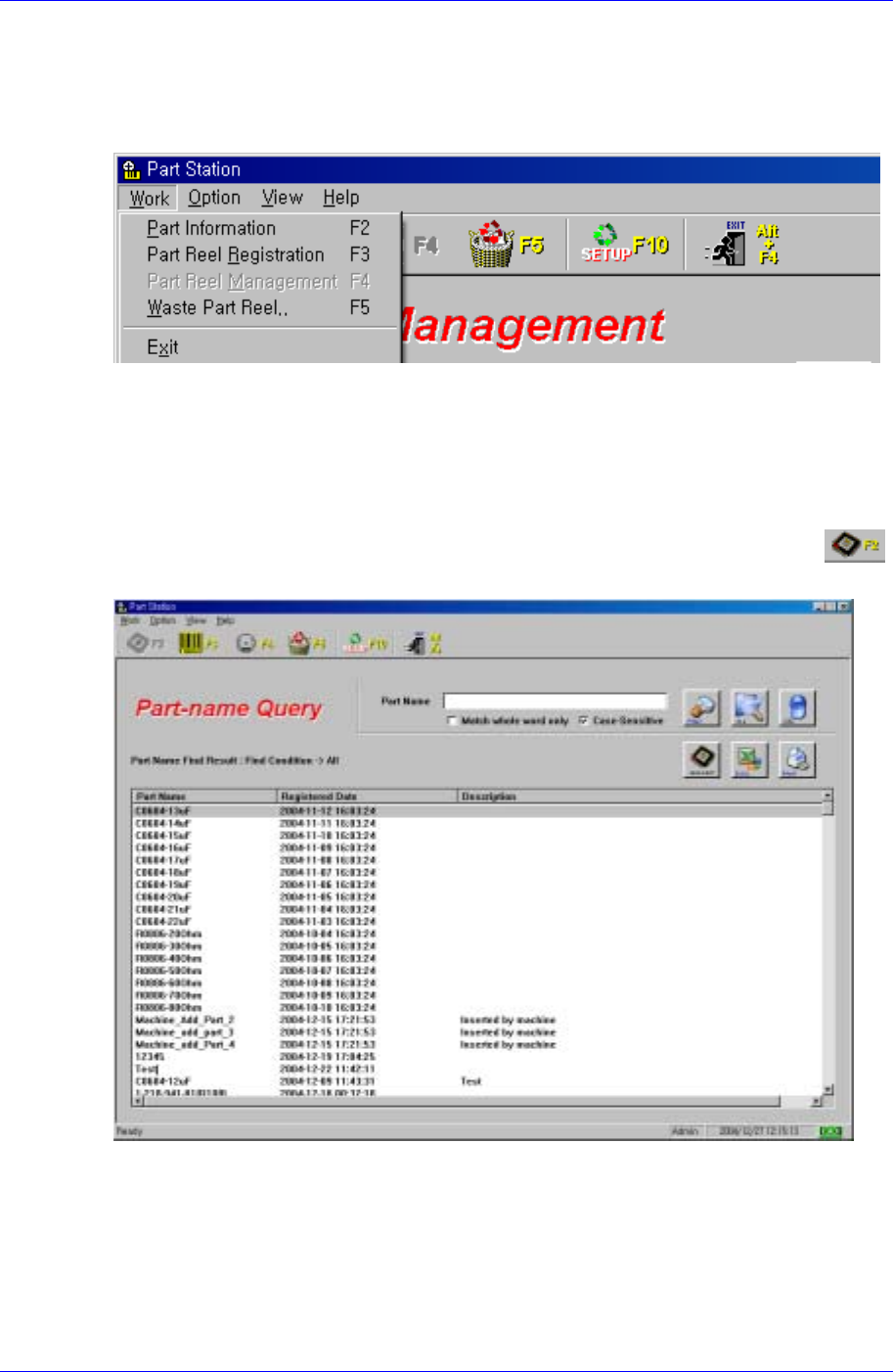
Figure 2-4.Part Information screen
Find Condition
Consists of the Find Condition input window, Find/Delete button, and list box that
displays search result.
The Find, All, Del buttons are next to these. When the All Button or Del. Button is
turned gray, it is disabled.