IT Feeder Manual-45Series(English V2.0)Ver5.pdf - 第58页
Samsung Intelligent Feeder System communication port. Also the interval for Database Sync can be set. Connect Database When connection with the database is di sconnected, attempt connection once again. 3.2.3. Help Ab…
Feeder Station
3.2. Structure of the Main menu
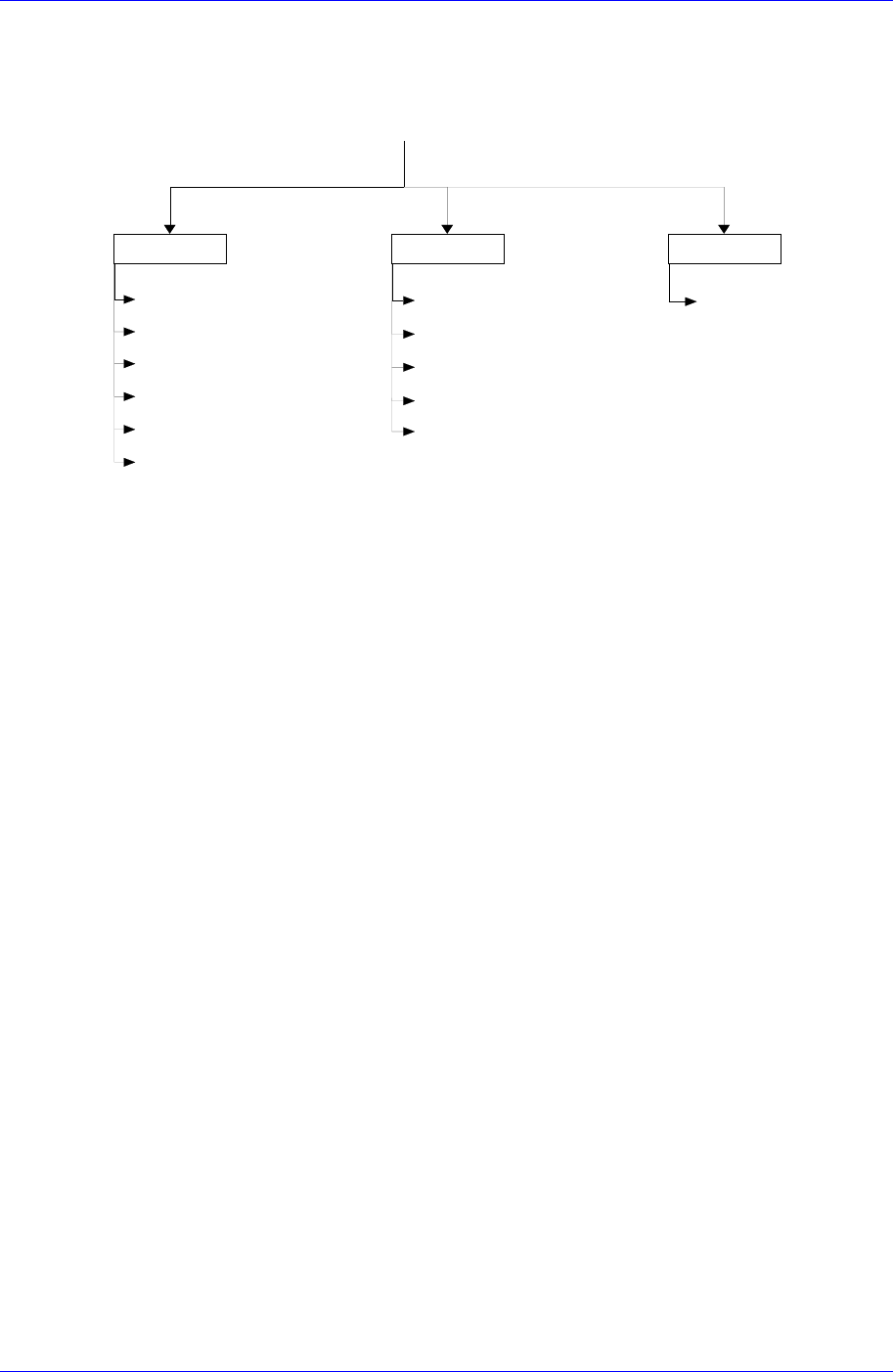
The structure of the Main Menu of Feeder Station is as follows.
System Config Help
Feeder Info. (F2)
PartReel List (F3)
Feeder List (F4)
Part List (F5)
W aste Reel (F6)
Exit (Alt+F4)
Tool Bar
Status Bar
Modify Feeder (Ctrl+M)
System Config (F9)
About Feeder Station
Feeder Station
Ver 2.0
Database Connect (Ctrl+F5)
Figure 3-2. IT Feeder Feeder Station Main Menu Tree
3.2.1. System
Feeder Info.
Searches, installs or uninstalls the reels registered in the Part Station in the Feeder.
Part Reel List
Searches the Part Reels registered in the Part Station.
Feeder List
Searches the registered Feeders with various conditions and searches whether Reels
are installed in the Feeder or not.
Part List
Searches the Parts registered in the Part Station.
Waste Reel
Deletes used up PartReels.
Exit
Ends Feeder Station.
3.2.2. Config
Tool Bar
Removes or restores the tool bar at the top of the screen.
Status Bar
Removes or restores the status bar at the bottom of the screen.
Modify Feeder
Modifies the registered Feeder data.
System Config
Specifies the Local DB, Master DB, barcode scanner type, and RF-ID Reader
3-3
Samsung Intelligent Feeder System
communication port. Also the interval for Database Sync can be set.
Connect Database
When connection with the database is disconnected, attempt connection once again.
3.2.3. Help
About Feeder Station: Shows the information on the program.
3.3. System menu
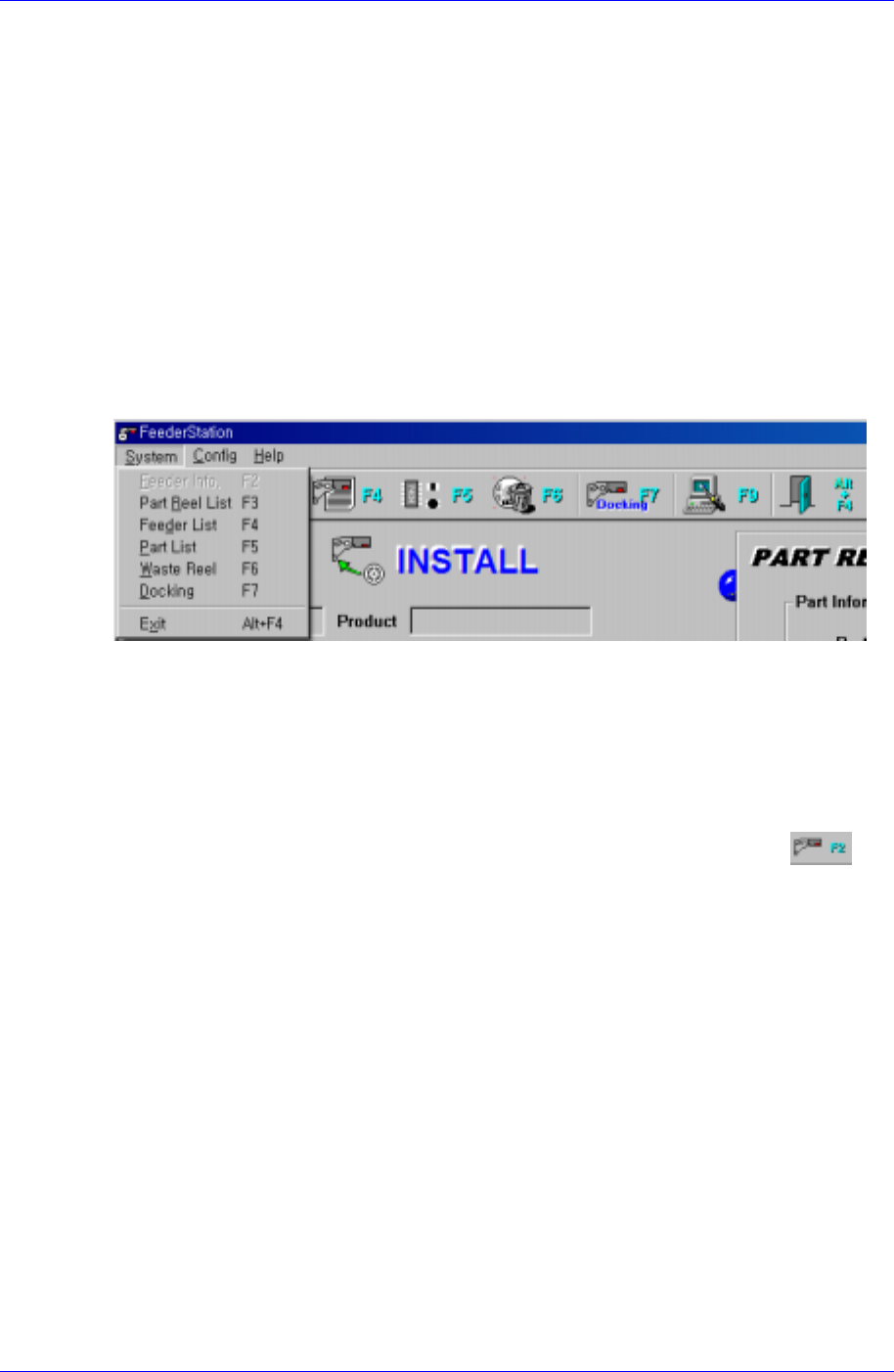
When the System menu is selected on the Main menu bar, the following submenus appear.
The System menu consists 6 submenus; Feeder Info, Part Reel List, Feeder List, Part List,
Waste Reel, and Exit.
Figure 3-3. System submenus
3.3.1. Feeder Info.[F2]
Feeder Info. enters whether the PartReel registered in the Part Station is installed in the
Feeder or not. The PartReel registered in the Feeder or the Feeder in which the PartReel is
installed can be searched.
To execute it, select Feeder Info. from the Main menu or the tool bar, select
, or
press the [F2] key.
3-4
Feeder Station
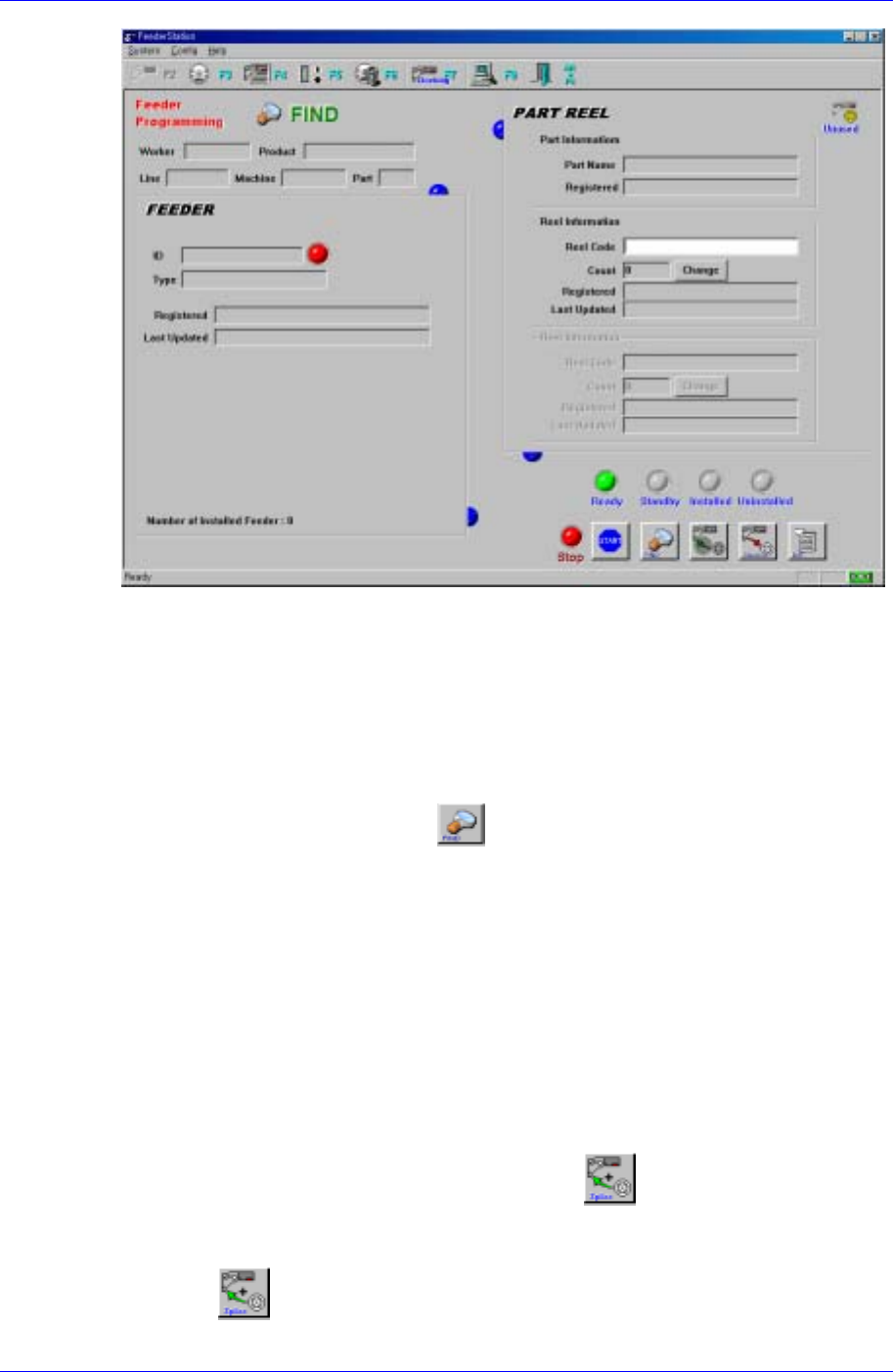
Figure 3-4. Feeder Info. screen
Description of the screen
Configuration of Find mark at the upper left and mode change button at the
bottom right.
Consists of 3 modes; Find, Install, and Uninstall.
Find Mode:
Simple search mode. Searches whether the Feeder or the Part Reel is
installed. When the button is pressed, the mode is changed to the
Find Mode.
If the feeder ID is read using the RF-ID Reader or if the barcode is read,
the status of the feeder and part stored in the database are indicated.
If the installed feeder ID or part reel barcode is read, the information on
the feeder and part reel is indicated on the screen and the ring shaped
connecting mark is indicated between these pieces of information.
If the non-installed feeder ID or part reel barcode is read, only the
corresponding information is indicated and the connecting link is not
indicated.
Splicing function
After inquiring after the part reel that is not installed in the feeder, two
part reels can be connected using the
button.
How to attach:
1) If the part reel information is read, it is indicated on the screen.
2)
button is enabled. Then click the button.
3-5