IT Feeder Manual-45Series(English V2.0)Ver5.pdf - 第70页
Samsung Intelligent Feeder System 3.4.4. System Config[F9] Sets the environment for Feeder S tation System. Figur e 3-21. System Confi guration scr een T o execute it, select the Syste m Config. menu from Config. of the …
Feeder Station
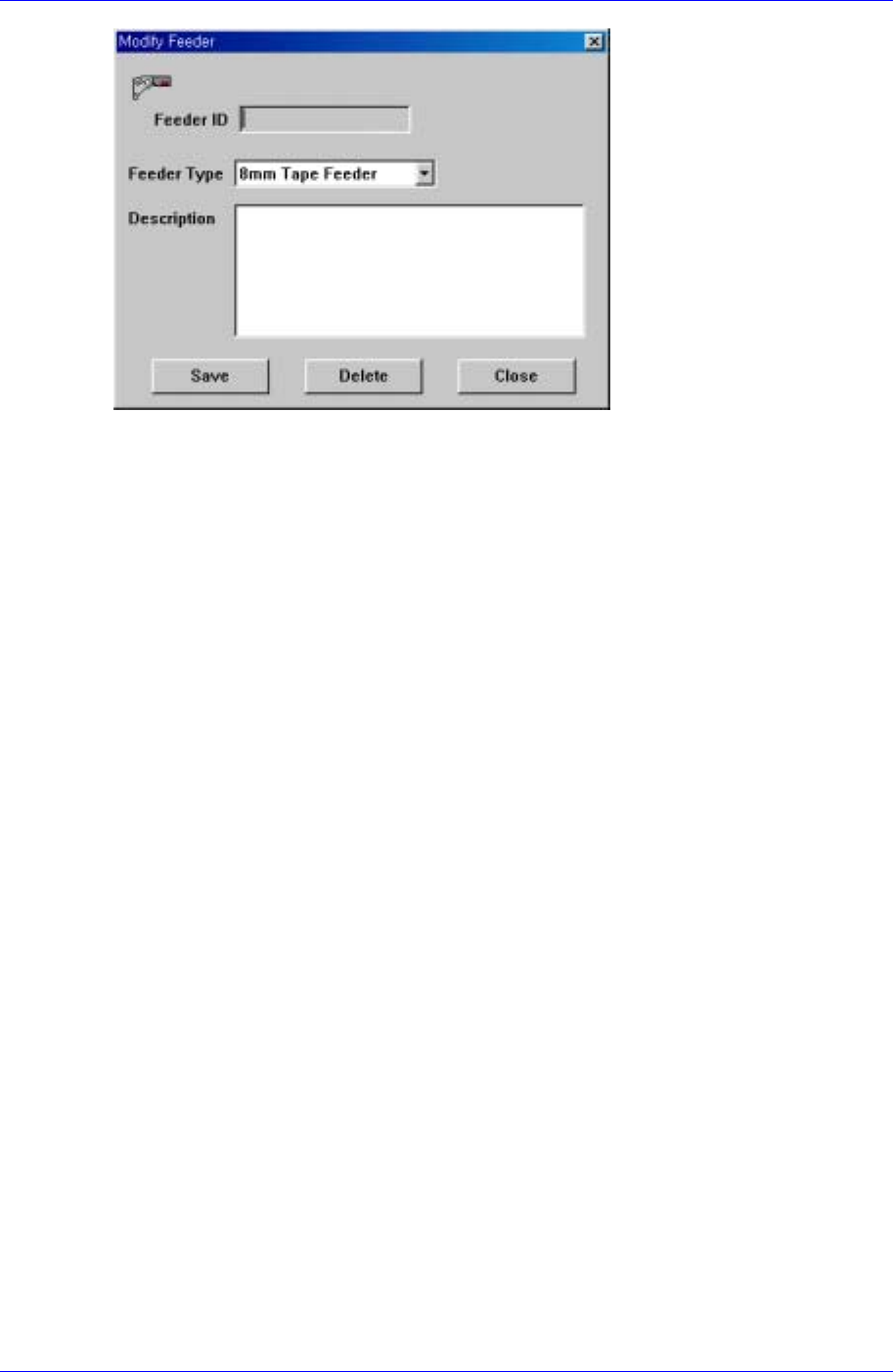
Figure 3-20. Feeder information modification screen
Description of the screen
Feeder ID
Reads in the Feeder ID with the RF-ID Reader.
Feeder Type
Selects the Feeder type of the selected Feeder.
Description
Enters a brief description on the Feeder.
Save
Saves the modified information in the DB.
Delete
Deletes a Feeder from the DB.
Close
Closes the screen and ends modification.
3-15
Samsung Intelligent Feeder System
3.4.4. System Config[F9]
Sets the environment for Feeder Station System.
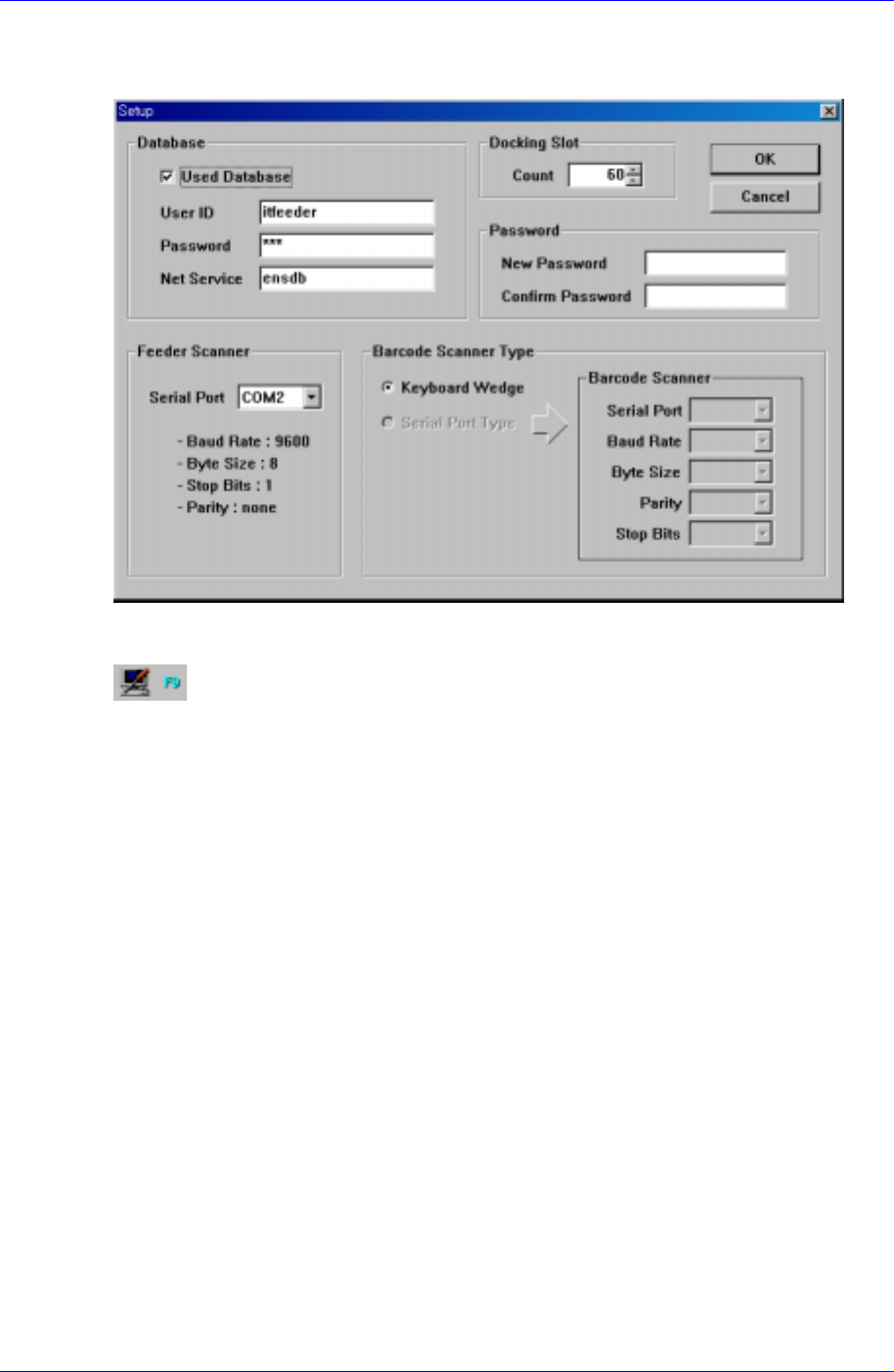
Figure 3-21. System Configuration screen
To execute it, select the System Config. menu from Config. of the Main menu, press the
button on the tool bar, or press the [F9] key on the keyboard.
Description of the screen
Database
Used Database : Determines whether to use the database. In case the
database is not used, the program is executed in the Stand Alone mode.
User ID : Enter the user ID to access the database.
Password : Enter the password to access the database.
Net Service : Enter the Net Service to access the database.
Docking Slot
Count : Enter the number of docking slots to be connected in the feeder
station.
Password
New Password : Enter the new password that is entered when deleting the
part reel or when using the System Configuration menu.
Confirm Password : Confirm the newly entered password.
Feeder Scanner
The set up screen for the Feeder RF-ID scanner. The Serial Port should be set.
Barcode Scanner Type
There are two types of barcode scanners; keyboard type and serial type.
KeyBoard Edge type is supported by Feeder Station.
If help is needed to specify Serial Parameter when setting up the Serial Port type,
3-16
Feeder Station
please consult with Samsung Techwin.
It is programmed to support only the keyboard edge type supplied by us.
3.4.5. Connect Database [Ctrl+F5]
When the connection with the Oracle Database is disconnected, attempt connection once
again.
3.5. Help menu
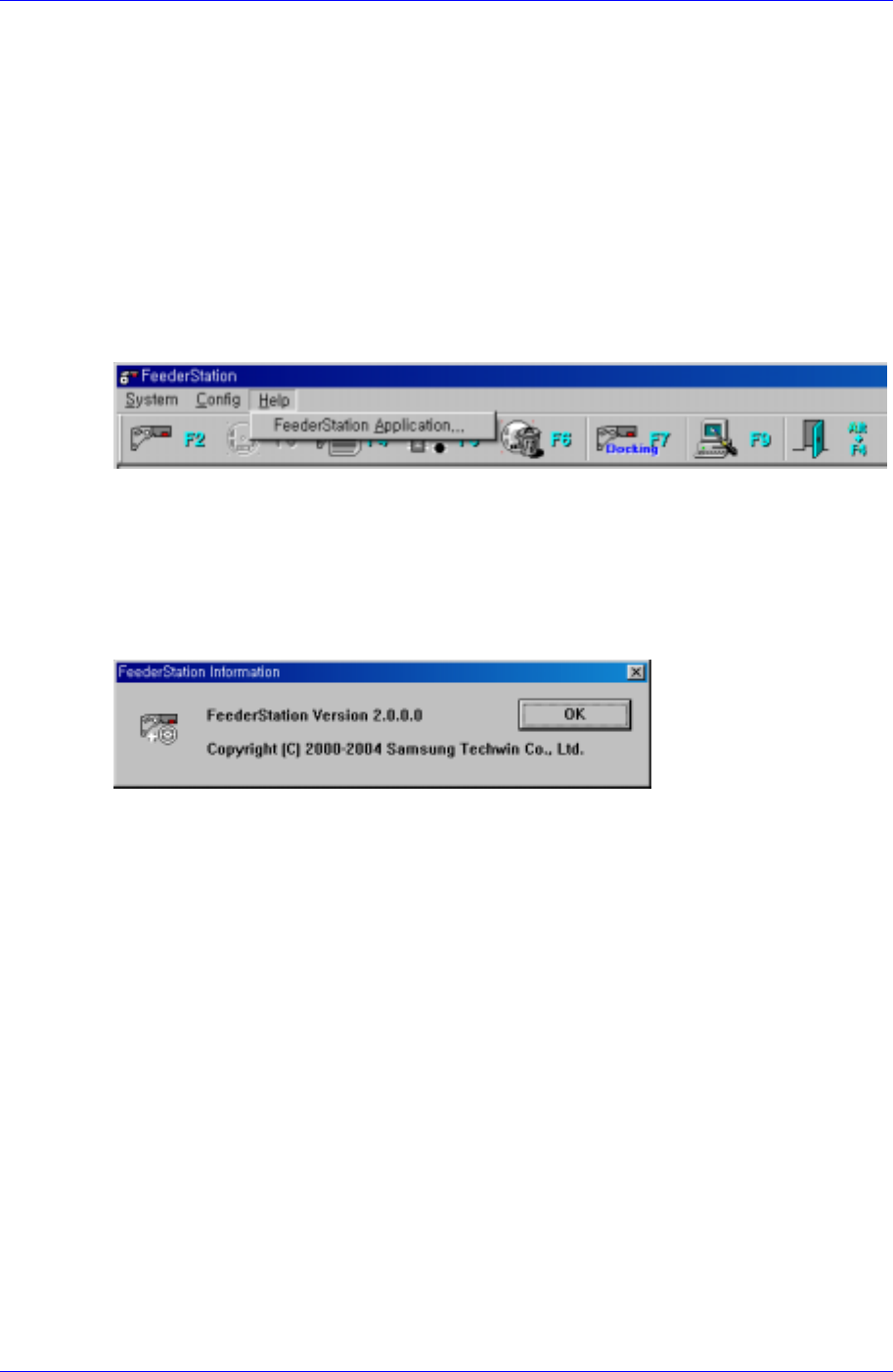
When the Help menu is selected on the Main menu bar, the following submenu appears.
Figure 3-22. Submenu screen
3.5.1. Feeder Station Application…
When the Feeder Station Application… menu is selected, the following screen appears.
The screen displays the Feeder Station Version information and tells that Samsung
Techwin has the copyright.
Figure 3-23. Feeder Station Information screen
3-17