00194703_Setup Selection Assistant Setup Center RF.pdf - 第10页
SIPLACE Setup Center RF 2.1 - Tools Installation Manual - Setup Selection Assistant Figure 4 "Progress" page 10 of 20
Installation Manual - Setup Selection Assistant SIPLACE Setup Center RF 2.1 - Tools
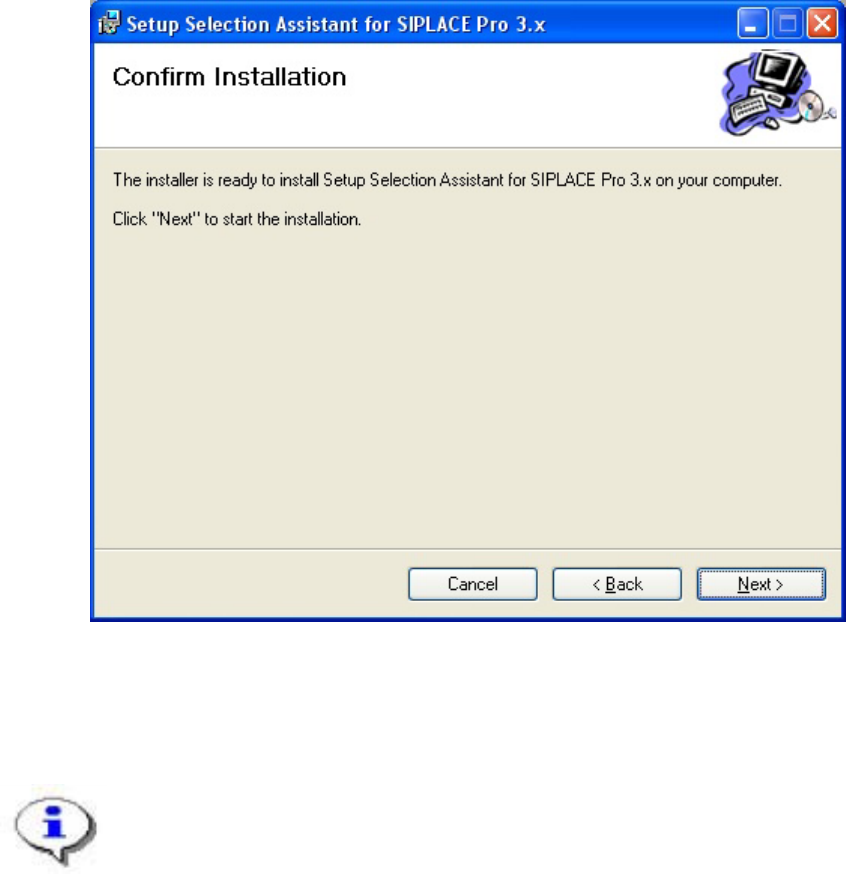
2.3 Step 3: Confirmation
Confirm the third step of the Setup Wizard to begin installing Setup Selection Assistant to the system:
Figure 3 "Confirmation" page
→ Click Next.
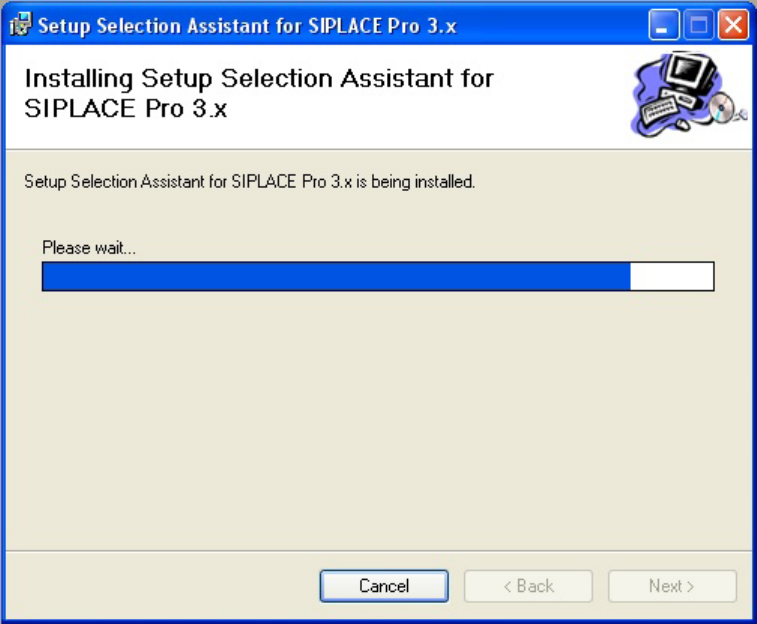
After confirming the third page of the wizard by clicking Next, the installation routine will
copy all necessary files to the installation folder. You are informed of the progress by the
following page:
9 of 20
-
SIPLACE Setup Center RF 2.1 - Tools Installation Manual - Setup Selection Assistant
Figure 4 "Progress" page
10 of 20
Installation Manual - Setup Selection Assistant SIPLACE Setup Center RF 2.1 - Tools
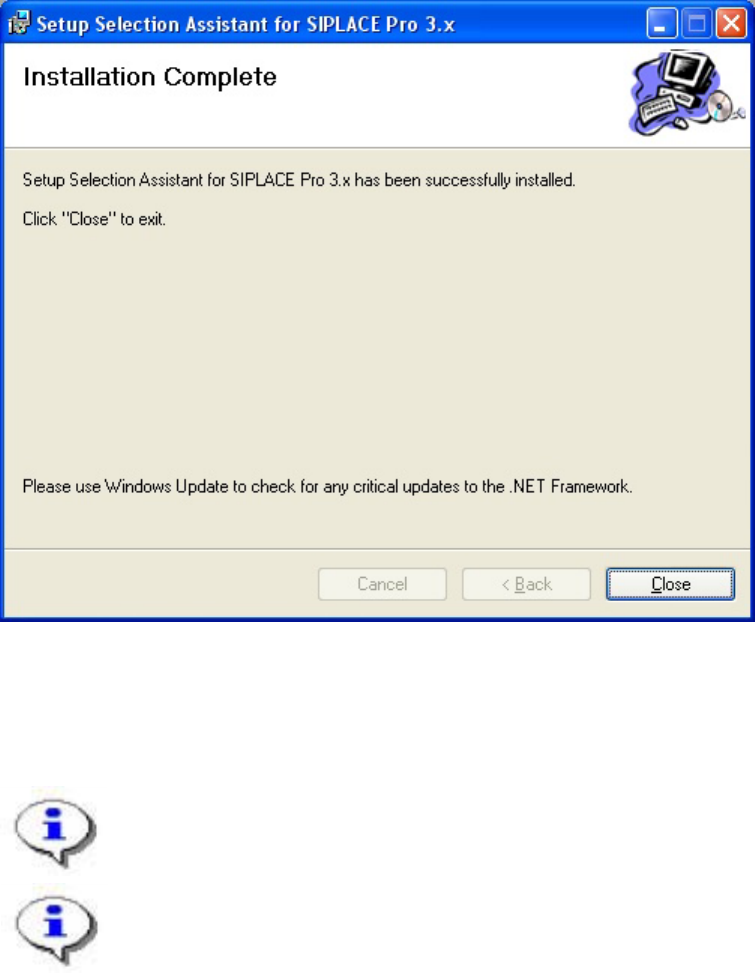
2.4 Step 4: Installation Complete
You are informed of the successful installation of Setup Selection Assistant by the last page of the
wizard:
Figure 5 "Installation Complete" page
→ Click Close to finish the Setup Wizard.
The Setup Selection Assistant is now installed on your system.
You can integrate Setup Selection Assistant into SIPLACE Pro Desk in the “External Tools”
tab in the settings.
11 of 20
-