00194703_Setup Selection Assistant Setup Center RF.pdf - 第17页
Installation Manual - Setup Selection Assistant SIPLACE Setup Center RF 2.1 - Tools Step 5: Printing the Setup This step supports the pri ntout of the setup which is intended to guide the setup operator to build the phys…
SIPLACE Setup Center RF 2.1 - Tools Installation Manual - Setup Selection Assistant
If you choose “Reduce setup” the optimized setup from the first recipe is copied to “Setup Center\<Line
name>\<Setup name>” and its tables are copied as well. Then all not required feeders and components
are removed from the copied setup.
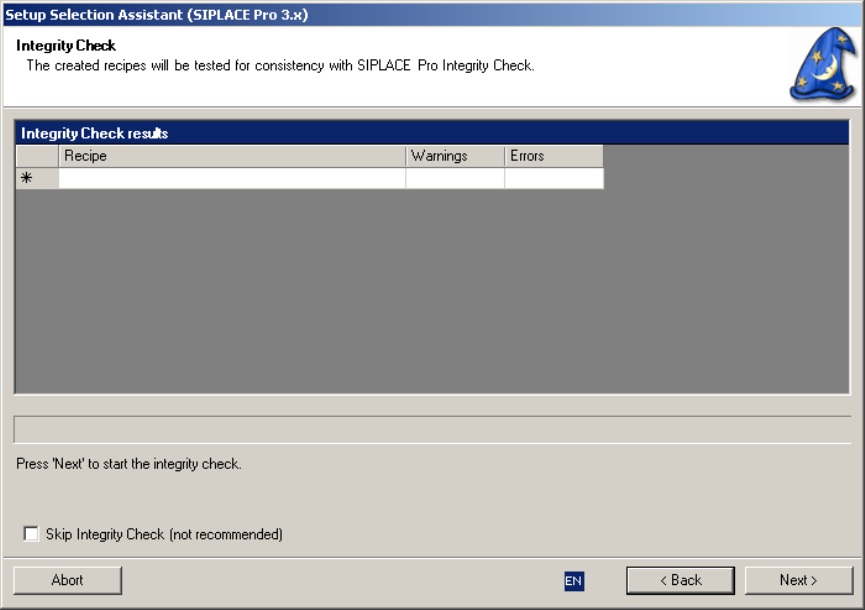
Step 4: Perform the Integrity Check
The following step makes sure the recipes are consistent and ready for download to the SIPLACE
stations:
Figure 7 "Integrity Check" page
Starting next the integrity check will be done for all recipes. If you get error messages you need to
analyze and adjust the data in SIPLACE Pro.
16 of 20
Installation Manual - Setup Selection Assistant SIPLACE Setup Center RF 2.1 - Tools
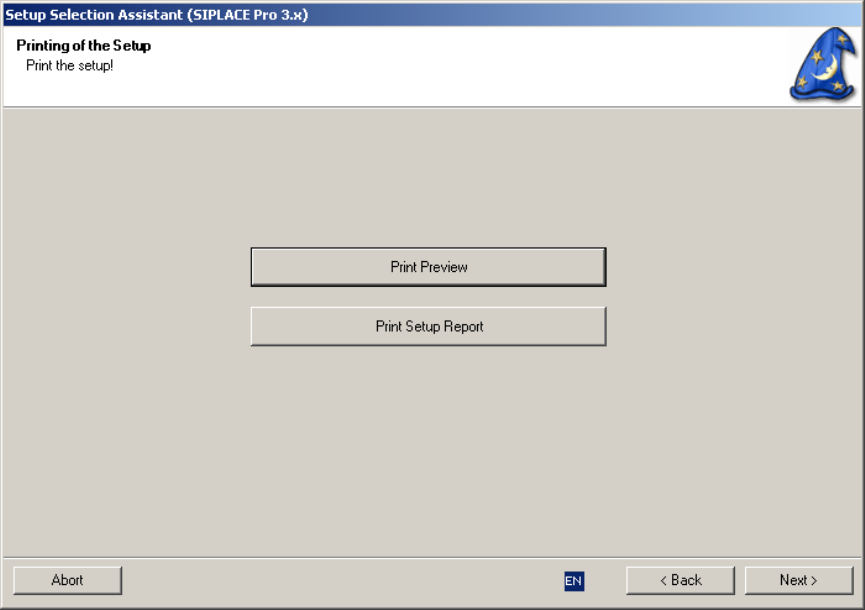
Step 5: Printing the Setup
This step supports the printout of the setup which is intended to guide the setup operator to build the
physical setup:
Figure 8 "Setup Printout" page
17 of 20
-
SIPLACE Setup Center RF 2.1 - Tools Installation Manual - Setup Selection Assistant
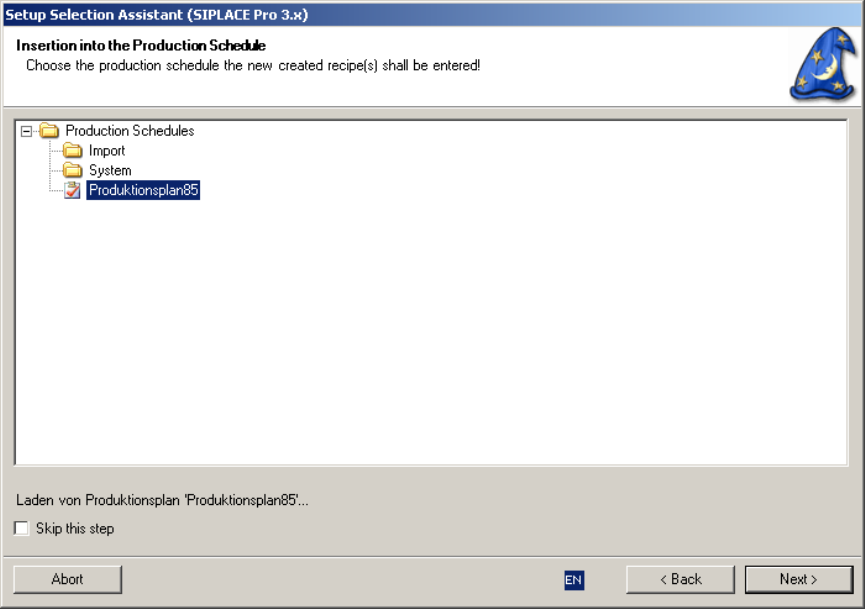
Step 6: Inserting the Recipes into a Production Schedule
This step guides through how to insert the recipes into a production schedule:
Figure 8 "Insert Recipes into Production Schedule" page
Select a production schedule and select “Next” to enter the recipes of the job into the production schedule
making them immediately available for download.
It is recommended to have one production schedule for each line.
If a recipe does already exist in the production schedule it is not entered twice.
Step 7: Finish
You can now choose, if you want to end Setup Selection Assistant or if you want to cycle to the first
assistant step again.
18 of 20