00198622-02_IM_WES7_WIN10_EN_DE.pdf - 第16页
WES7 / Win10 - Installation Manual 04/2019 Edition 16 I f the system partition is big enough, the Choose Restore Option message is displayed and one of the following options may be selected: 1. Restore existing system pa…

WES7 / Win10 - Installation Manual 04/2019 Edition
15
4.3 Installing the Operating System
NOTICE
Before you start working, ensure that the DVD drive is set as the first boot device in the
BIOS to allow the computer to be booted from DVD. When starting the computer from
DVD or USB stick, perhaps only one monitor is active.
► If necessary, back up the machine data manually.
► Follow the instructions in the respective Assembly Instruction for the 3D Coplanarity Module,
item no:s. [00195344-xx] (for X-series), [00196842-xx] (for SX1/SX2) and [00197395-xx] (for
X-series S) or the instructions in the Operating Manual for BulkFeeder X, item no. [00198045-
xx] if you install Windows Embedded Standard 7 on a Coplan or BulkFeeder X computer.
4.3.1 Installing from DVD (WES7)
► Insert the "Win.Emb.Std.7" installation DVD suitable for the computer into the DVD drive.
► Switch on the computer to start it from the DVD or reboot the computer, if it was already
switched on.
► Press any key, when the message Press any key to boot from CD Rom is displayed.
► Follow the instructions of the Restore Installation procedure.
4.3.2 Installing from USB Stick (WES7, Win10)
► Insert the USB stick in a USB interface on the computer.
► Switch on the computer or reboot the computer, if it was already switched on.
► Either adjust the boot sequence in the BIOS settings accordingly (key F2) or start the computer
from USB stick via the Boot menu (key Esc or key F12).
► Follow the instructions of the Restore Installation procedure.
Selection of Restore options:
If the system partition size is too small on the hard disk, it is only possible to delete and re-partition
the complete hard disk (message Complete hard disk recovery).
WES7 / Win10 - Installation Manual 04/2019 Edition
16
If the system partition is big enough, the Choose Restore Option message is displayed and
one of the following options may be selected:
1. Restore existing system partition only
The system partition will be restored only.
2. Restore complete system disk
The complete hard disk will be restored.
► Select an option and confirm your selection with OK (or cancel your selection with Cancel).
The operating system is installed (may take some minutes).
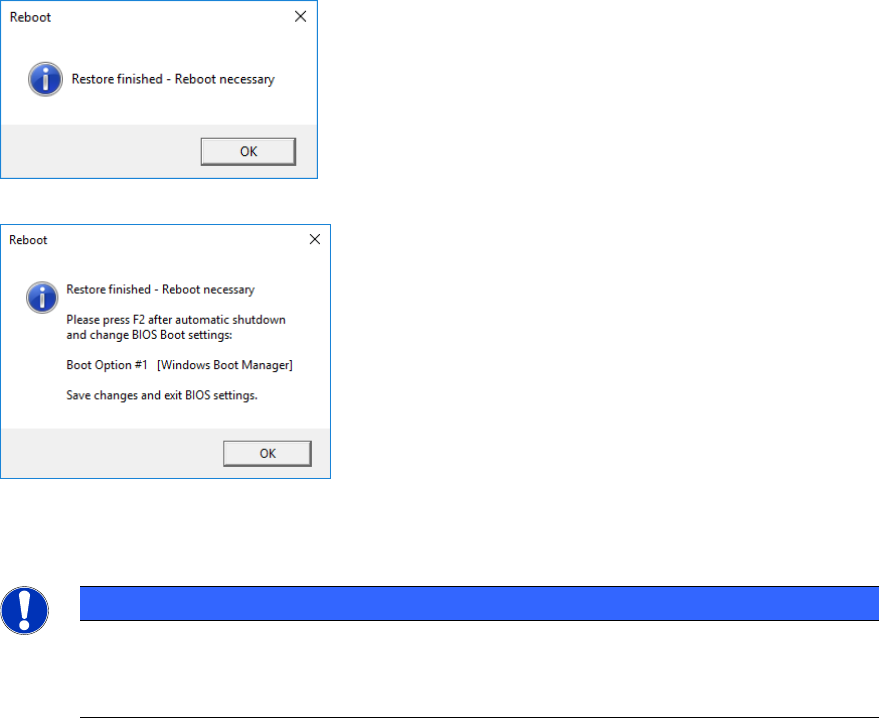
When installing from a USB stick, the completion of the restore image installation is displayed in
the following manner, depending on the PC type and Windows version:
Figure 4-2: Final message in general
Figure 4-3: Final message under Win10 on iBASE computers
If the completing window is confirmed with OK, the reboot starts automatically.
NOTICE
Please observe:
When installing from DVD, no completing window is displayed and after successful
installation, the reboot starts immediately.
WES7 / Win10 - Installation Manual 04/2019 Edition
17
NOTICE
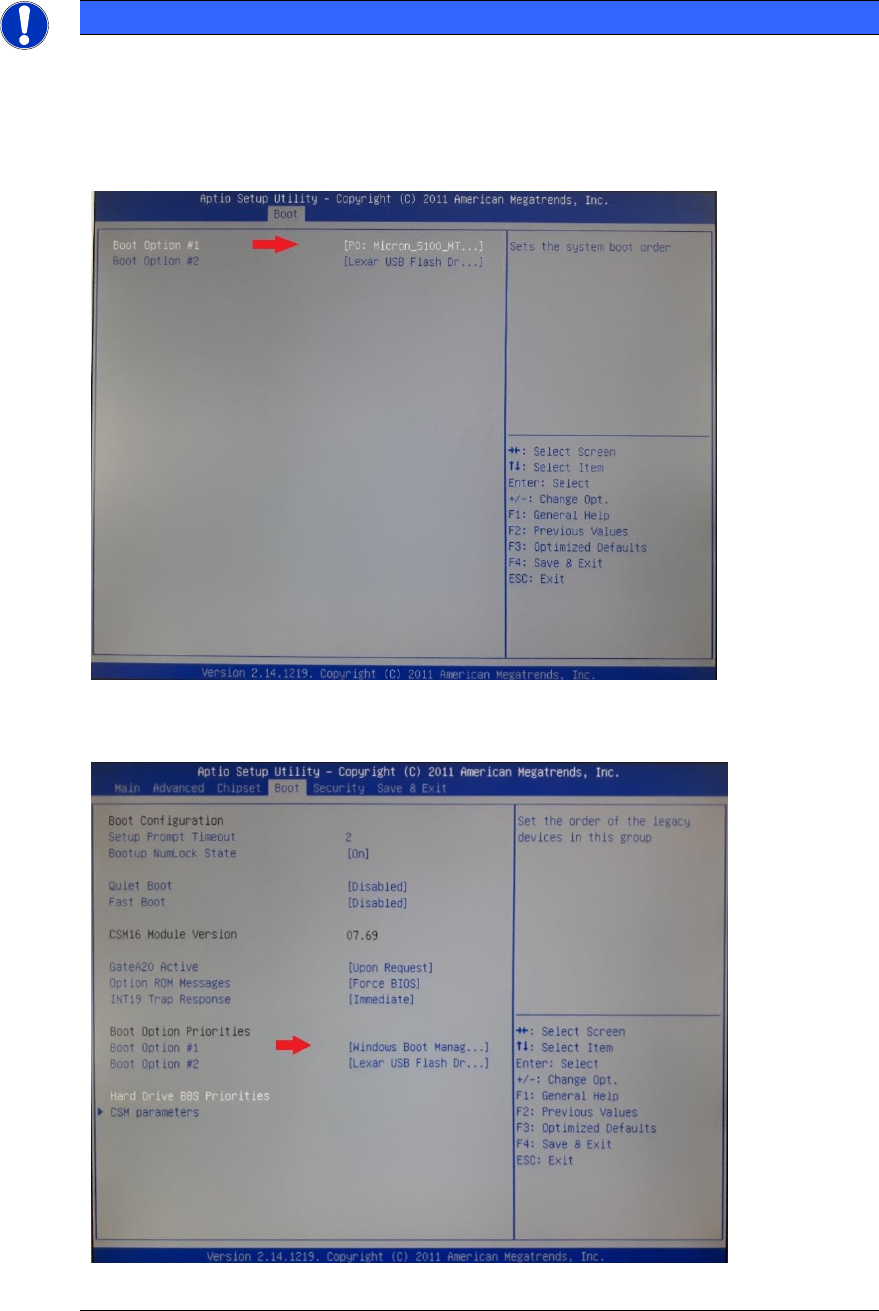
For iBASE computers, you must make the following setting in the BIOS (F2 key) before
the first boot, otherwise the computer starts from the USB stick again, or no operating
system will be found:
► WES7 – Put back the hard disk in the first place of the boot sequence
(under: Boot / Hard Drive BBS Priorities).
Figure 4-4: BIOS – WES7
► Win10 – Put the Windows Boot Manager in the first place of the boot sequence.
Figure 4-5: BIOS – Win10