OCP-02502-G - 第10页
VITRONICS REFLOW SOLDERING SYSTEMS EM 02502- G 15-Nov-00 (c) PAGE Operator’s Manual 9 PULL-DOWN MENU ( and getting “ Help ” ) The password requirements for Menu Items can be turned on/off… Select: “Files”, then “Access C…
VITRONICS REFLOW SOLDERING SYSTEMS
EM 02502-G 15-Nov-00 (c) PAGE Operator’s Manual
8
.
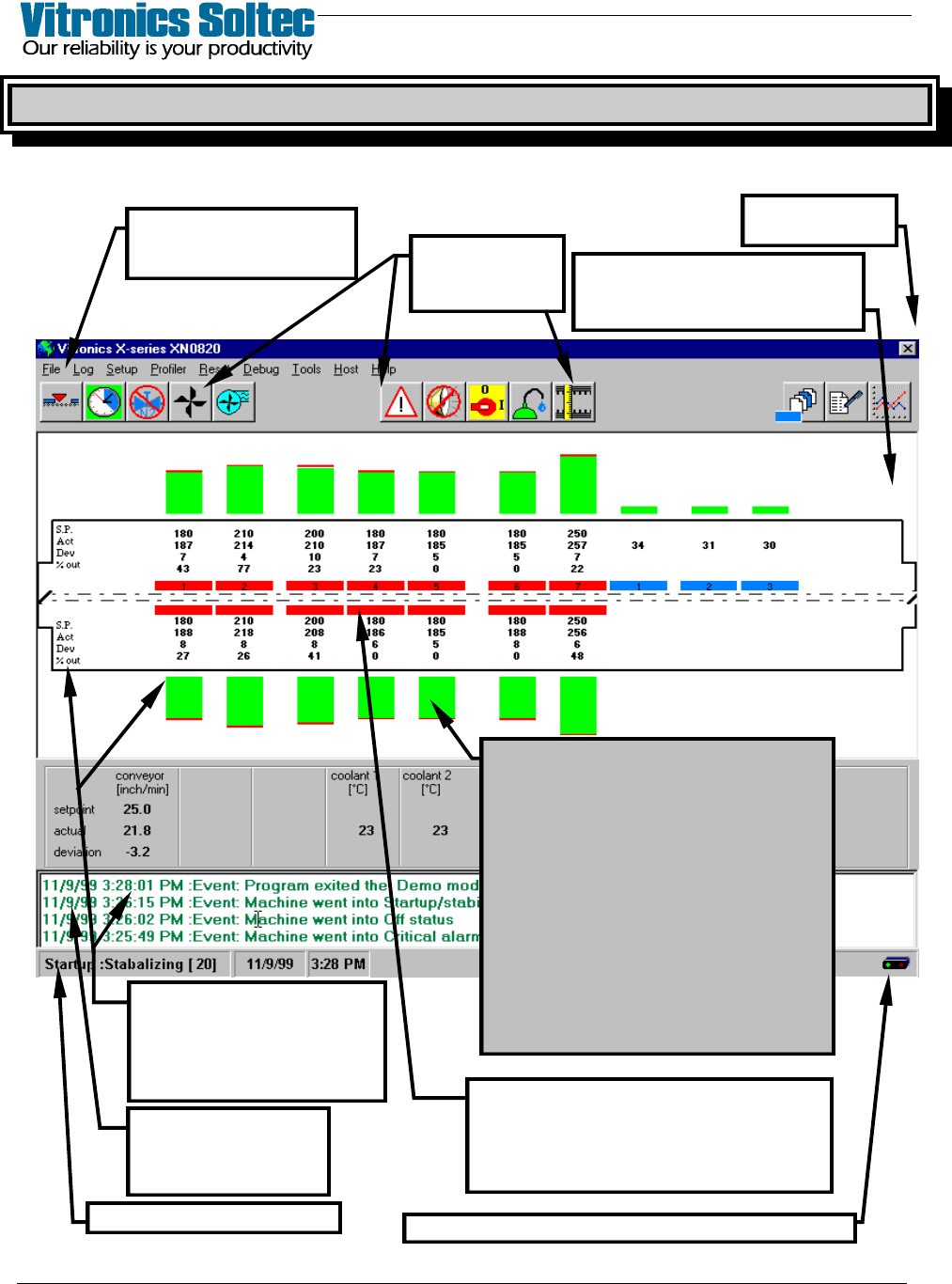
OPERATING SCREEN, MENUS, DIALOGUE BOXES, & SYMBOLS
The operating screen is shown here with an XPM-Series XN0820 Oven in Operation.
(Other Ovens with various configurations will be similar, but NOT identical)
PULL-DOWN MENU
(Refer To Menu Diagram
on Opposite Page
SCREEN ICONS
(Descriptions On
Following Pages)
SELECT “X” TO
EXIT PROGRAM
STATUS BAR (See Next Page)
EVENT & ALARM LOG
- Last 4 Shown -
(Double-click to see
complete list)
SHOWN : Setpoints (S.P.)
Measured Value (M.V.)
Deviation (Dev)
% Out (Output)
(Change Setpoints In Pull-Down
Menu)
THE DISPLAY REPRESENTS THE ACTUAL
ARRANGEMENT OF HEATING AND COOLING
CELLS IN THE OVEN.
The Cell Temperature Graphs Are Shown With
Green, Blue, Red and Yellow To Represent The
Measured Temperature Values (M.V.) In
Relation To Actual Setpoints (S.P.)
The color of the Bar Graphs indicates status:
GREEN = PROCESS READY
BLUE = TEMP BELOW SETPOINT
RED = TEMP ABOVE SETPOINT
YELLOW = STABILIZING OR
NOT PROCESS READY
(On ovens with the “Board Tracking Option”,
The Product Will Be Shown Traveling Along The
Conveyor through the Oven)
Blinks red/green when communicating with oven controls
The cell function is indicated by the colors:
LIGHT BLUE = CONTROLLED COOLING
BLUE = COOLING CELLS
RED = HEATING CELLS
GRAY = OFF
SELECT “SETUP”, and “DISPLAY
LAYOUT” TO SET “RED” SCREEN
BACKGROUND WHEN ALARMS
OCCUR
VITRONICS REFLOW SOLDERING SYSTEMS
EM 02502-G 15-Nov-00 (c) PAGE Operator’s Manual
9
PULL-DOWN MENU ( and getting “Help” )
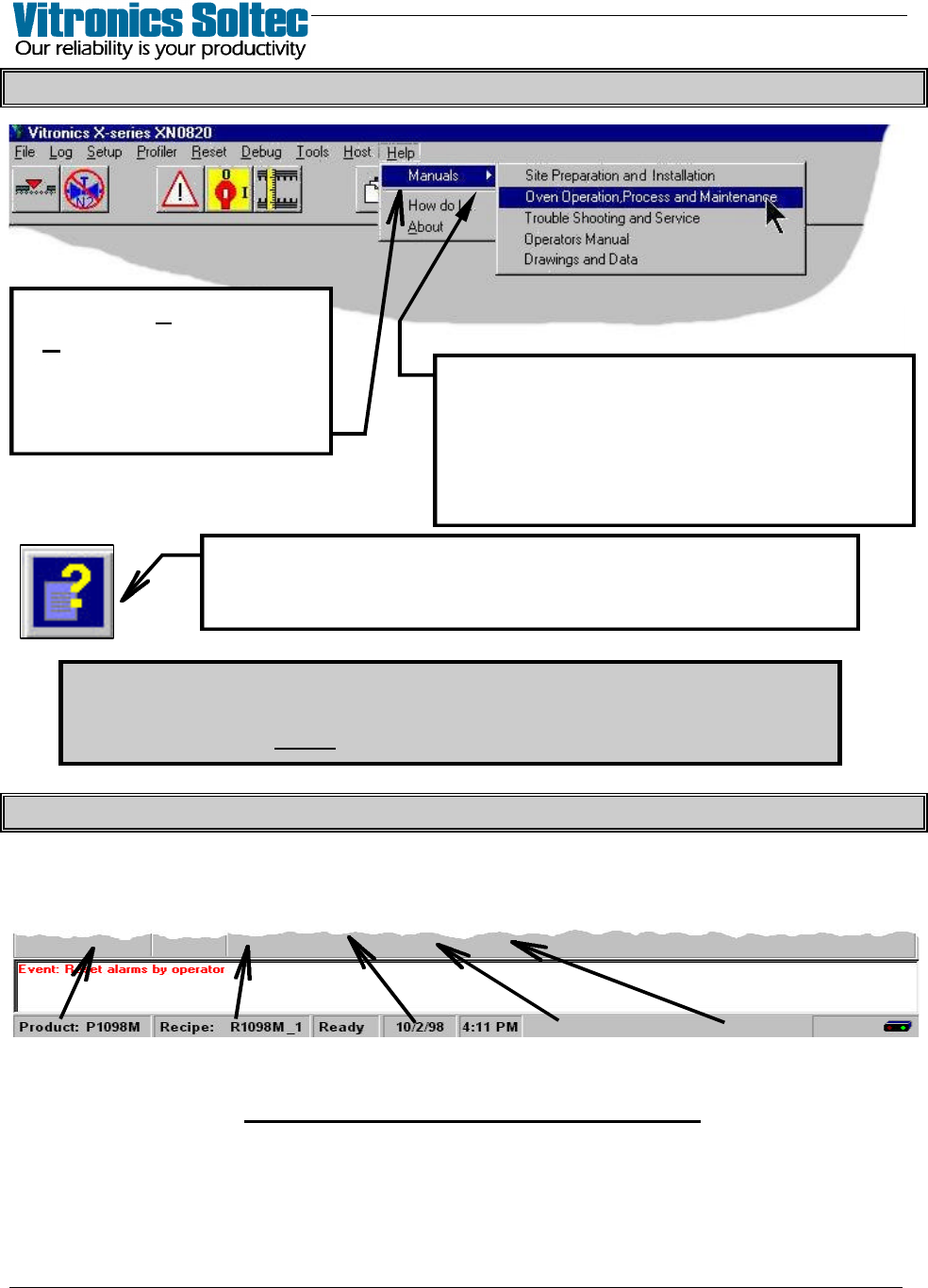
The password requirements for Menu Items can be turned on/off…
Select: “Files”, then “Access Control”
(A password is always required to change any password requirement)
OVEN STATUS BAR (At Bottom Of Screen)
Active Product, Active Recipe, Oven Status, Today’s Date, Present Time
(click on the items displayed in the Status Bar to Edit them)
OVEN STATUS BAR INFORMATION
When an Item in the Pull-Down Menu is
chosen, more selections are presented.
The small arrow-head after a selection
indicates that more choices will be found
in the Menu at the next level down.
Select “Help”, then
“Manuals” to review Oven
Manuals and schematics.
(Pages can be printed if
printer is connected)
Selecting this Symbol will display “Help” about
the topic where the symbol appears.
VITRONICS REFLOW SOLDERING SYSTEMS
EM 02502-G 15-Nov-00 (c) PAGE Operator’s Manual
10
PASSWORD Login / Logout
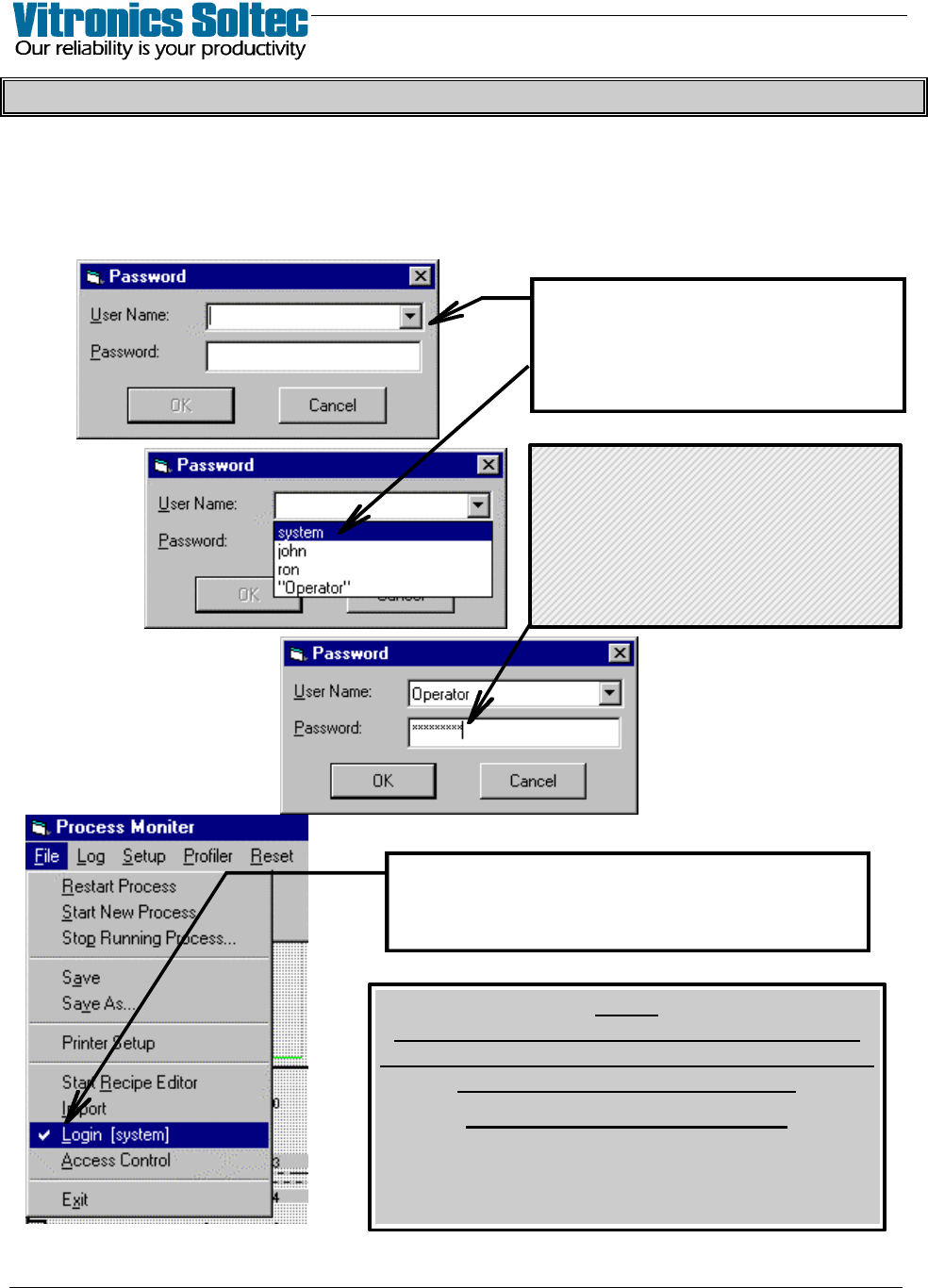
When first starting the Oven Operating Software, the Operator can “Login” with the
assigned name and password to avoid continually entering the password for each operator
initiated action.
“Login” is accomplished by Selecting “File”, then “Login”,
to display the Password Dialogue Box:
Your name can be typed in the
“User Name” box … or selecting
the “t” will display the names of all
of the “operators”.
The check-mark (4) and this operator’s name
indicates that “system” has logged in.
(Select “Login” again to “Logout”)
NOTE
FAILURE TO "LOGOUT" LEAVES RESTRICTED
PARTS OF THE PROGRAM OPEN TO TAMPERING
BY UNAUTHORIZED PERSONNEL.
ALWAYS LOGOUT !!!!
(After 10 minutes without any keyboard/mouse
activity, the Program will automatically
“Logout” for you)
Type in your Password,
select “OK” to complete “Login”
If Password is changed,
be sure to record it.
( Lost Passwords cannot be
recovered )