TR7007M_SII_Hardware_en_v1-0-1.pdf - 第16页
Test Research, Inc. 6 TR7007 M SII User Guide – Hardware C onveyor W idth Press [ CONV. W IDTH ] in Figure 7: Other Settings Page 1 and [ AUTO ] or [ MANUAL ] adjustment can be selected as show n in the following figur…
Test Research, Inc.
TR7007M SII User Guide – Hardware 5
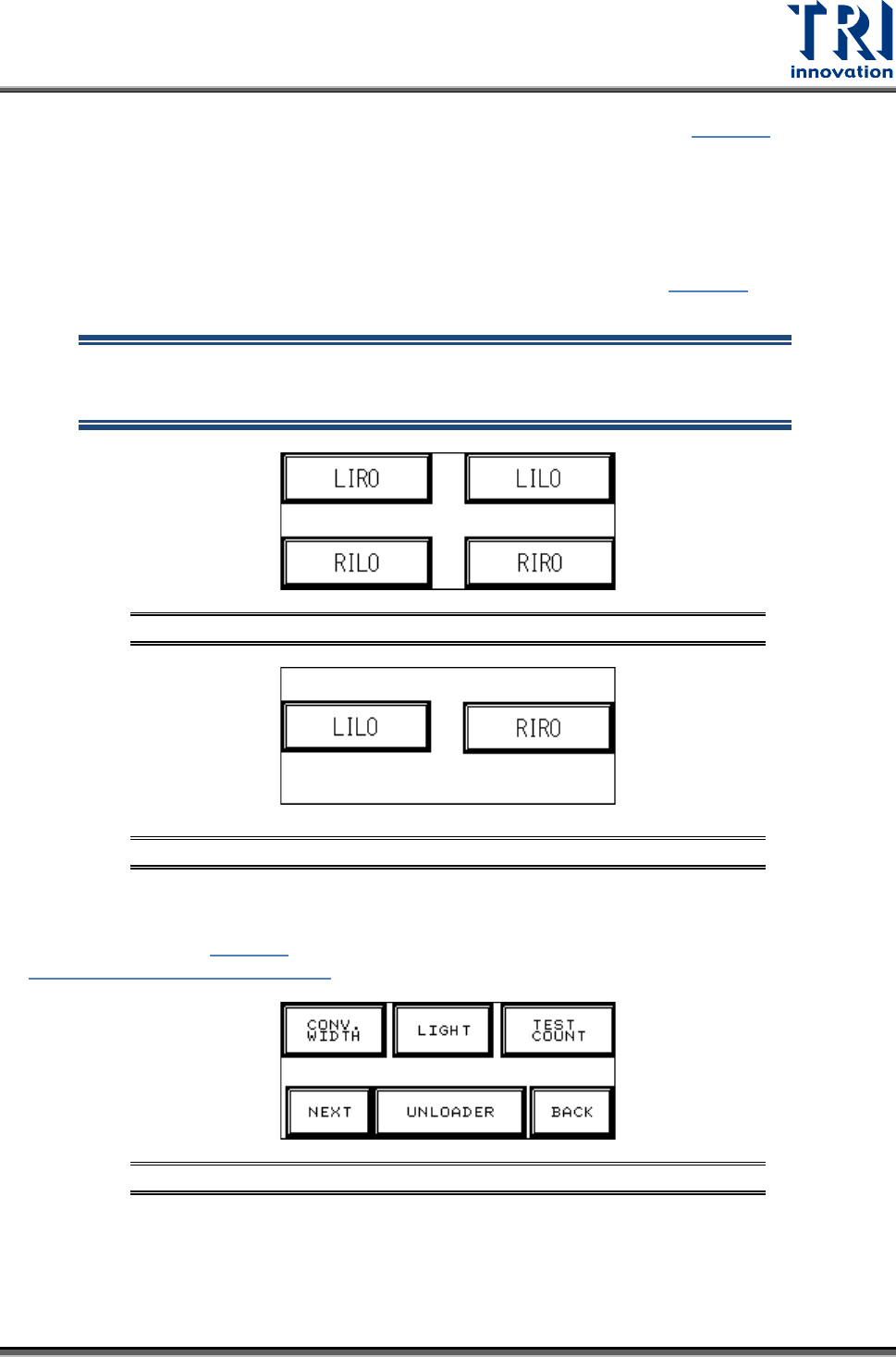
INLINE mode I/O SET: If Inline mode is selected, the display will show Figure 5, with four
options available: Left-In-Right-Out ([LIRO]), Left-In-Left-Out ([LILO]), Right-In-Left-Out
([RILO]) and Right-In-Right-Out ([RIRO]).
STAND-ALONE mode I/O SET: If Stand-Alone mode is selected, the display will show
four available options: [LIRO], [LILO], [RILO] and [RIRO].
TEST mode I/O SET: If Test mode is selected, the display will show Figure 6
, with two
options available: [LILO] and [RIRO].
NOTE: The factory default is Left-In mode, if the direction is changed to
Right-In mode, then Sensor2 (Brake Sensor) and Sensor 3 (Position
Sensor) positions and metal connectors need to be switched.
Figure 5: INLINE and STAND-ALONE Mode Settings
Figure 6: TEST Mode I/O Settings
3.1.3 Other Settings Page 1
At the Start screen (Figure 3
), if [OTHERS] is pressed, six options are available, as shown in
Figure 7: Other Settings Page 1.
Figure 7: Other Settings Page 1
Test Research, Inc.
6 TR7007M SII User Guide – Hardware
Conveyor Width
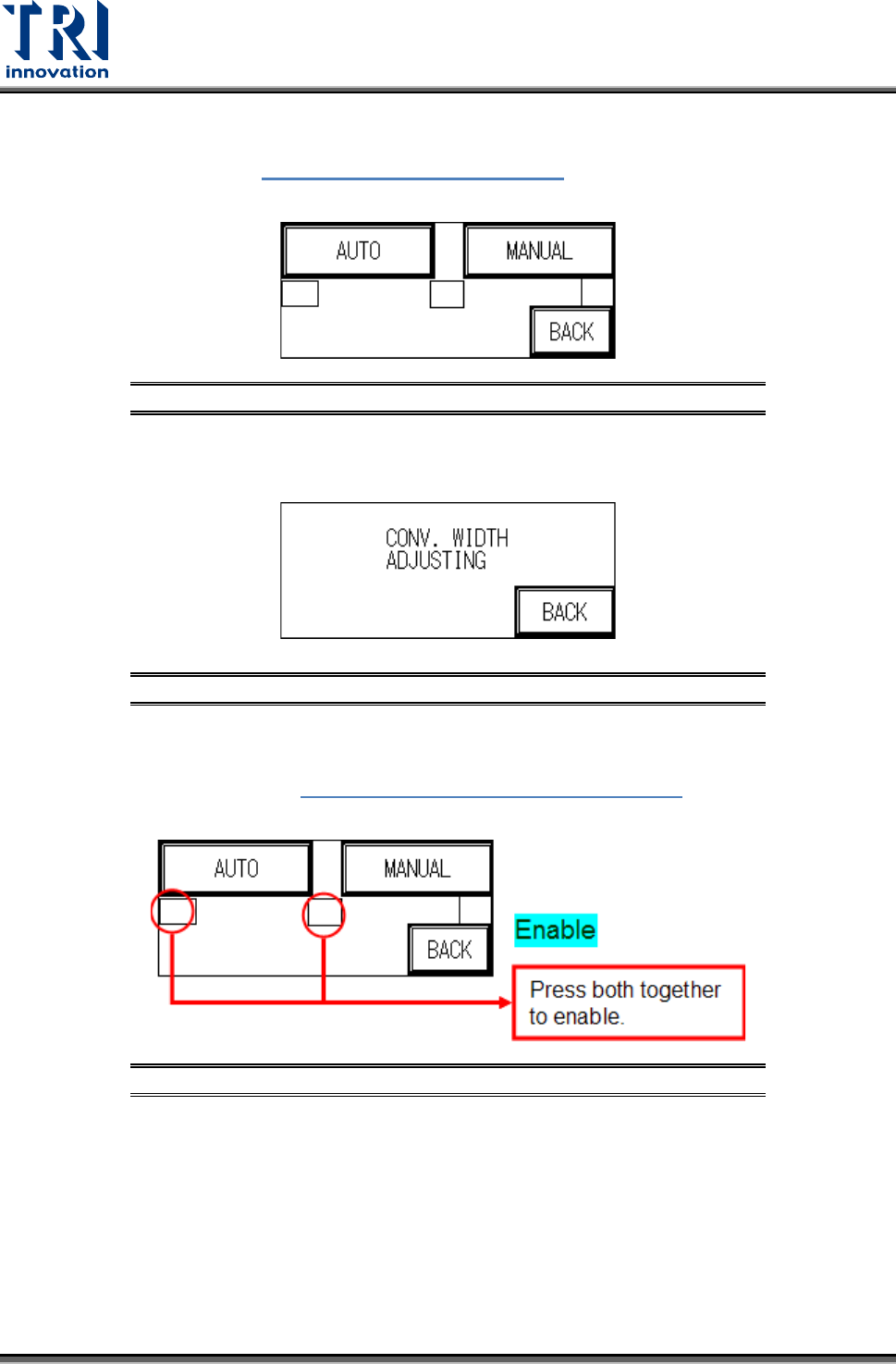
Press [CONV. WIDTH] in Figure 7: Other Settings Page 1
and [AUTO] or [MANUAL]
adjustment can be selected as shown in the following figure.
Figure 8: Auto/Manual Conveyor Adjust
MANUAL Adjustment: Press [MANUAL] to use the Conveyor Width Adjuster wheel at
the front of the conveyor to set the conveyor width.
Figure 9: Conveyor Width Adjustment
AUTO Adjustment (optional): To prevent PLC error due to no automatic conveyor
width device being installed when the PLC is set to AUTO CONV. WIDTH, two hidden
buttons are provided in Figure 8: Auto/Manual Conveyor Adjust
to Enable/Disable
the function. Only when in Enabled mode can AUTO adjustment be selected.
Figure 10: Auto/Manual Conveyor Adjust Hidden Buttons--Enable
Test Research, Inc.
TR7007M SII User Guide – Hardware 7
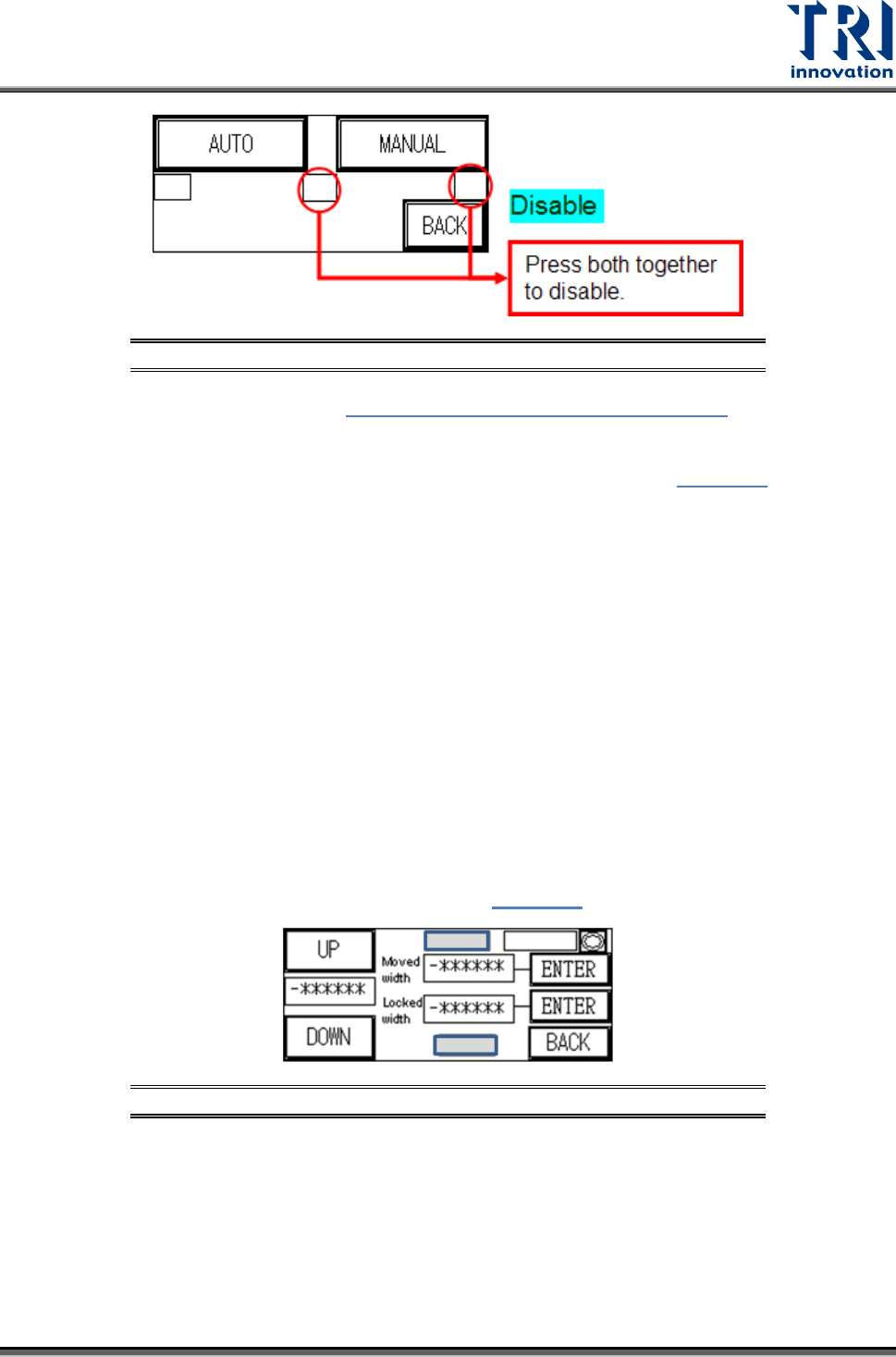
Figure 11: Auto/Manual Conveyor Adjust Hidden Buttons--Disable
Press [AUTO] adjustment in Figure 8: Auto/Manual Conveyor Adjust and the
conveyor width will return to the origin (machine origin) first. If this is the first setting
operation from the factory, once the initialization process has been completed, the
“Electrical Origin” must be set, with the [ORIGIN] point blinking in
Figure 12. The
machine type’s maximum testable board width can be adjusted here. Once the setting
is entered the PLC will automatically memorize that value.
Press [BACK] then perform the [RESET] operation, and the next time this display is
accessed, the [ORIGIN] point text will not blink. The test board width can now be set
according to the method described above. The settings for conveyor width can also be
set or read through the PC.
If the electrical origin needs to be set again, press the hidden buttons located at the
top-center and bottom-center of the HCI as shown in gray in the following figure. In
general, the [Moved width] and [Locked width] are the same. If users want to use two-
stage width function, the [Moved width] and [Locked width] should be set individually.
The steps of two-stage width are: the system uses [Moved width] when board-in; when
the board touches Sensor 3, the system adjusts the conveyor width to [Locked width]
and clamps the board. After inspecting, the system adjusts the conveyor width to
[Moved width] to exit. If the [Moved width] and [Locked width] are not the same, the
system will display the setting rules, such as
Figure 13, to avoid the error.
Figure 12: Auto Conveyor Width